Where: Website > Website Builder Who can use it: Permission: website.manage_themes, settings.update or manage settings. Open this page in SureTill
The home page of your customer website is built from blocks. A block is one section, for example the hero slider, the category row or the featured dishes. This page lets you switch blocks on or off, change their order and set a few options for each one. The hero slider takes its pictures from the Banners / Sliders tab.
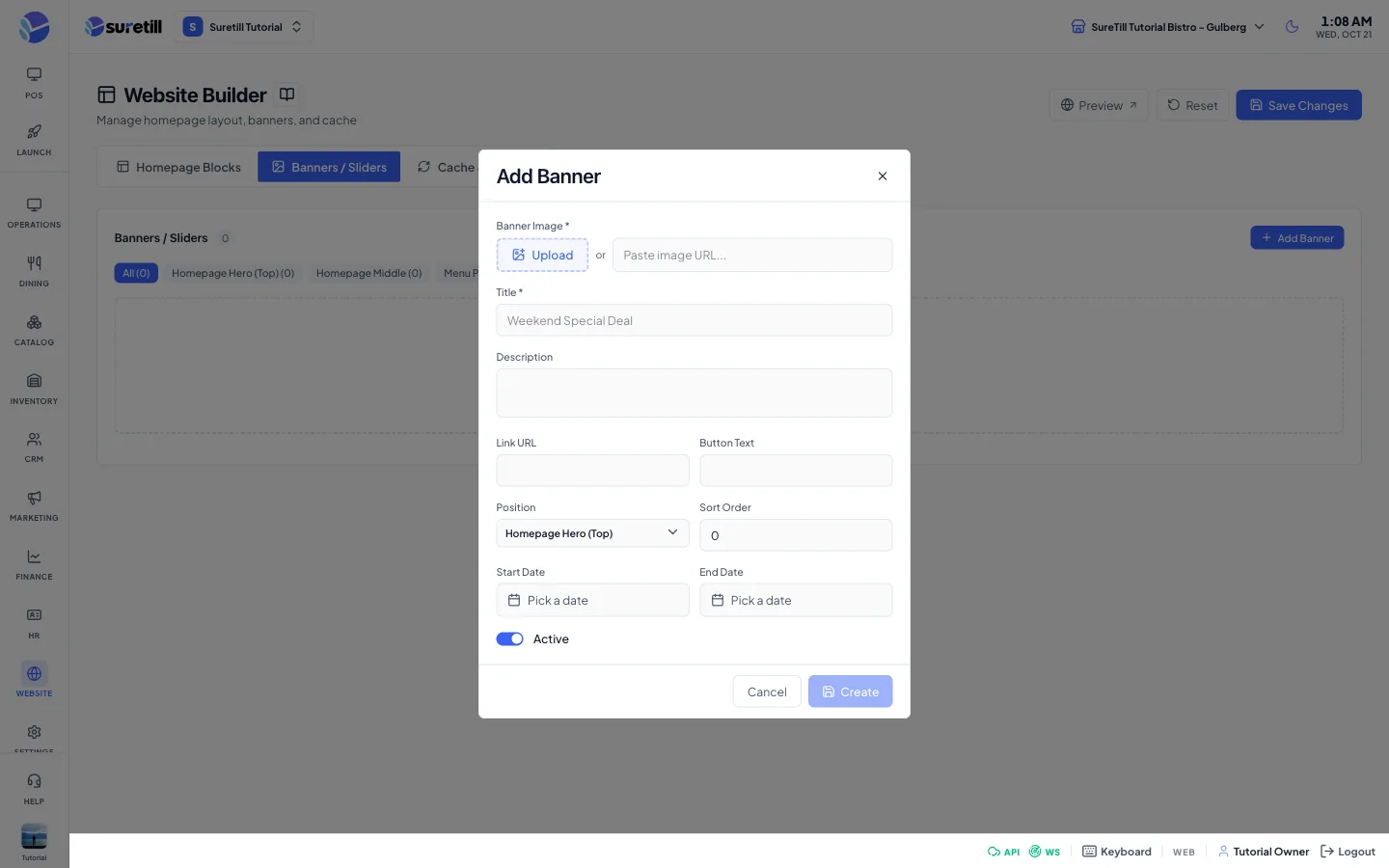
Banners / Sliders: the window that opens.
The page has three tabs: Homepage Blocks, Banners / Sliders and Cache & Preview. The Save Changes button at the top saves the block list. Banners are saved on their own, from the banner form.
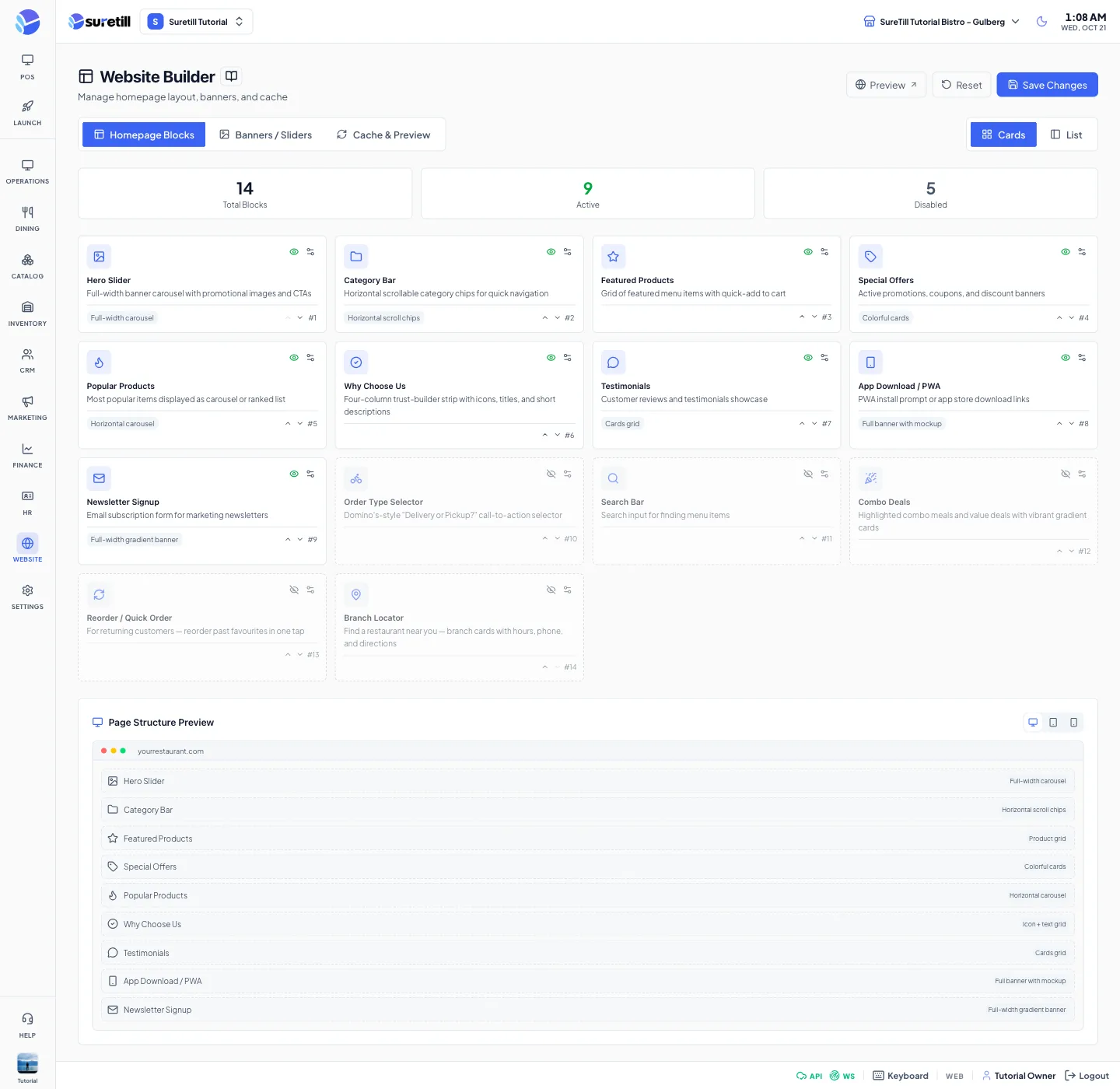
These are the 14 blocks. The first nine are on by default, in the order shown. The last five are off by default and you can turn them on if you want them.
Block
What it shows
Layouts
Hero Slider
Large banner area with your banners, the order type and branch picker and a search box.
Full-width carousel; Split with text overlay
Category Bar
Your menu categories as quick links.
Horizontal scroll chips; Grid with images
Featured Products
Dishes you marked as Featured in the product settings.
Product grid
Special Offers
Your live offers and promotions.
Colorful cards; Compact list with copy
Popular Products
Dishes you marked as Popular.
Horizontal carousel; Ranked list
Why Choose Us
Four short trust points with icons.
Icon + text grid
Testimonials
Recent customer reviews.
Cards grid; Horizontal scroll
App Download / PWA
Links to download your app.
Full banner with mockup; Compact centered CTA
Newsletter Signup
An email box to join your mailing list.
Full-width gradient banner; Card style
Order Type Selector
Delivery or pickup choice (off by default).
Three-card row
Search Bar
A dish search box (off by default).
Standard search bar
Combo Deals
Combo meals and value deals (off by default).
Gradient cards grid
Reorder / Quick Order
Past favourites for returning customers (off by default).
Order history cards
Branch Locator
Branch cards with hours, phone and directions (off by default).
Opens the home page address of the site you are on in a new tab.
Reset
Puts the default block list back in the editor after you confirm. Not saved until you click Save Changes.
Save Changes
Stores the block list (the website setting homepage_blocks).
Homepage Blocks tab
The block list, the three counters (Total Blocks, Active, Disabled) and the Page Structure Preview.
Cards / List
Two views of the same block list.
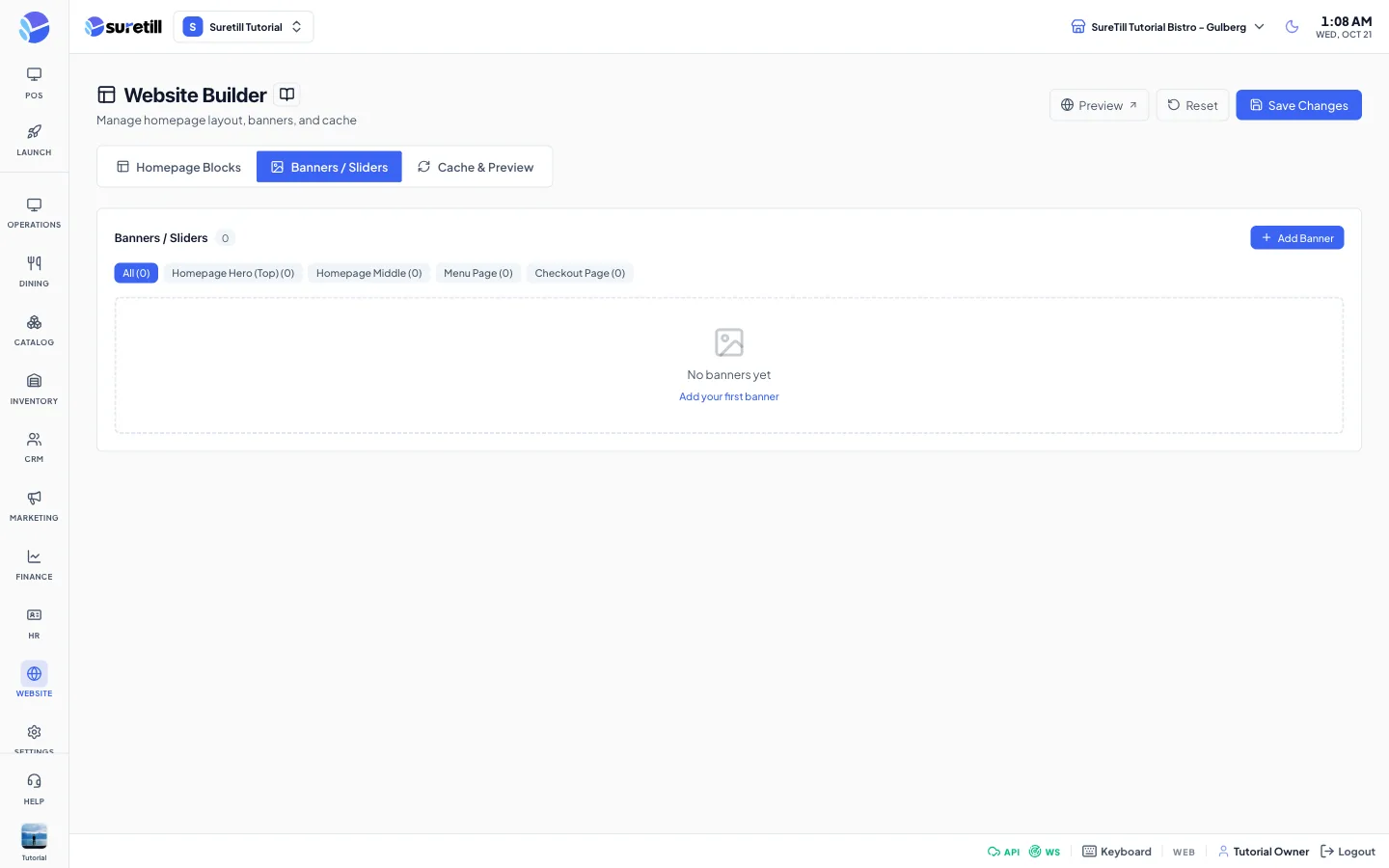
Banners / Sliders tab
Create, edit and delete banners.
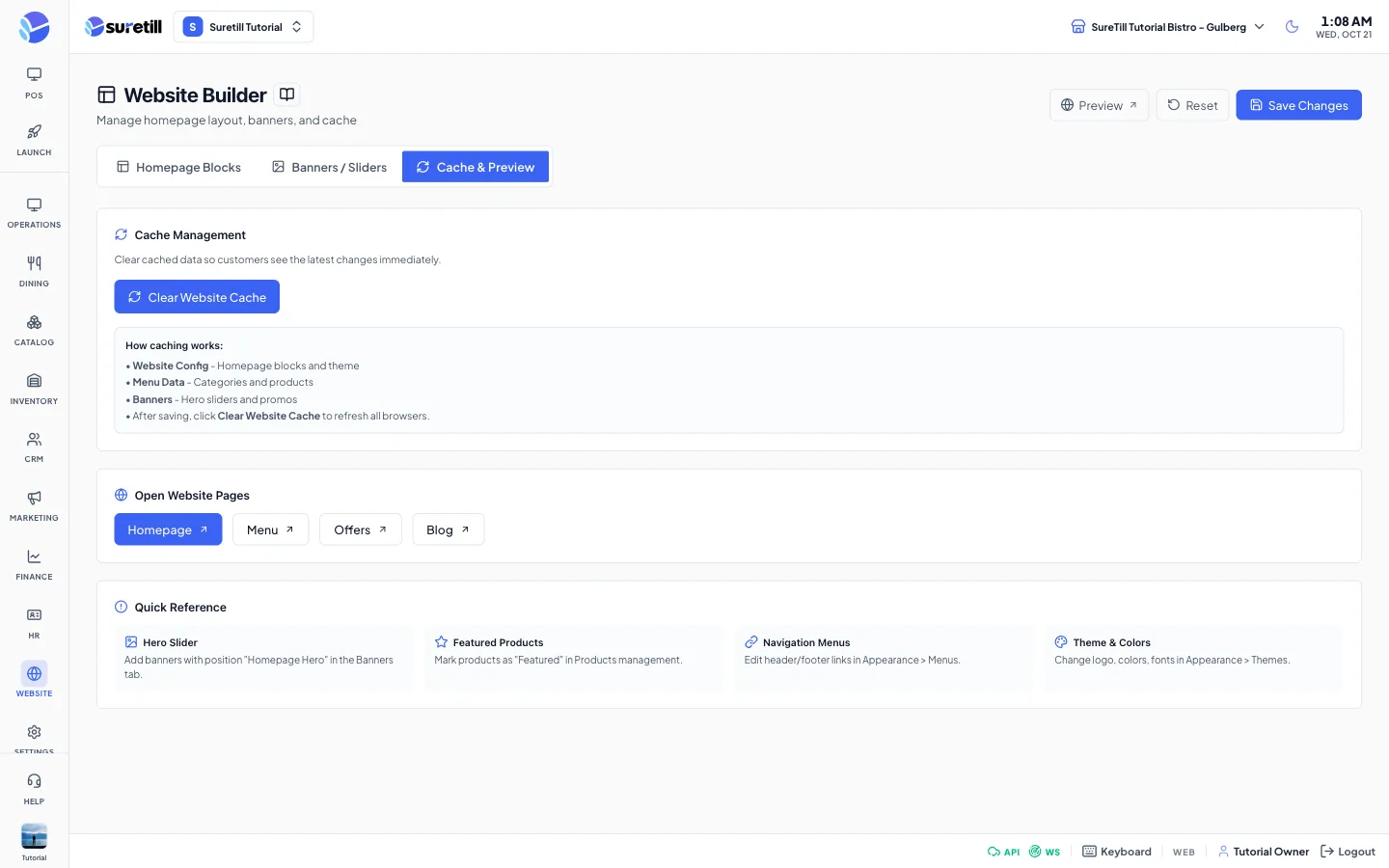
Cache & Preview tab
The Clear Website Cache button, links to open site pages and a short reference.
Page Structure Preview
A simple outline of the enabled blocks in order. The Desktop, Tablet and Mobile icons only change the width of the outline. Click a block name to open its options.
Upload a picture (jpeg, png, jpg, gif or webp, up to 5 MB) or paste a picture address. The Create button stays disabled until there is a picture.
Title
The headline shown on the banner. Maximum 255 characters. Required by the server.
Description
A short text under the headline.
Link URL
Where the banner button goes. On the storefront the default is /menu.
Button Text
The label of the banner button, up to 100 characters. The storefront shows Order now when empty.
Position
Homepage Hero (Top), Homepage Middle, Menu Page or Checkout Page. The storefront hero slider uses Homepage Hero (Top) only. The other positions are stored but the storefront does not show them.
Sort Order
Lower numbers come first. A new banner starts at the number of banners you already have.
Start Date / End Date
The banner is shown only between these dates. Leave empty for no limit.
Active
Turn off to hide the banner without deleting it.
Position filter buttons
All, and one button per position with the number of banners in it.
Removes the website data this browser has stored (entries that start with customer-store or website_config, and the chosen branch). It shows Cache Cleared! when done. It does not clear other people’s browsers and it does not clear the storefront.
Open Website Pages
Buttons for Homepage, Menu, Offers and Blog. They open those addresses on the same site as the admin.
Quick Reference
Reminders: banners for the hero, Featured on products for Featured Products, menus in the Menus page, colours and fonts in the Themes page.