

Products
Where: Catalog > Products
Who can use it: Permission products.view or manage products. Also available on SureScreen-only plans.
Open this page in SureTill
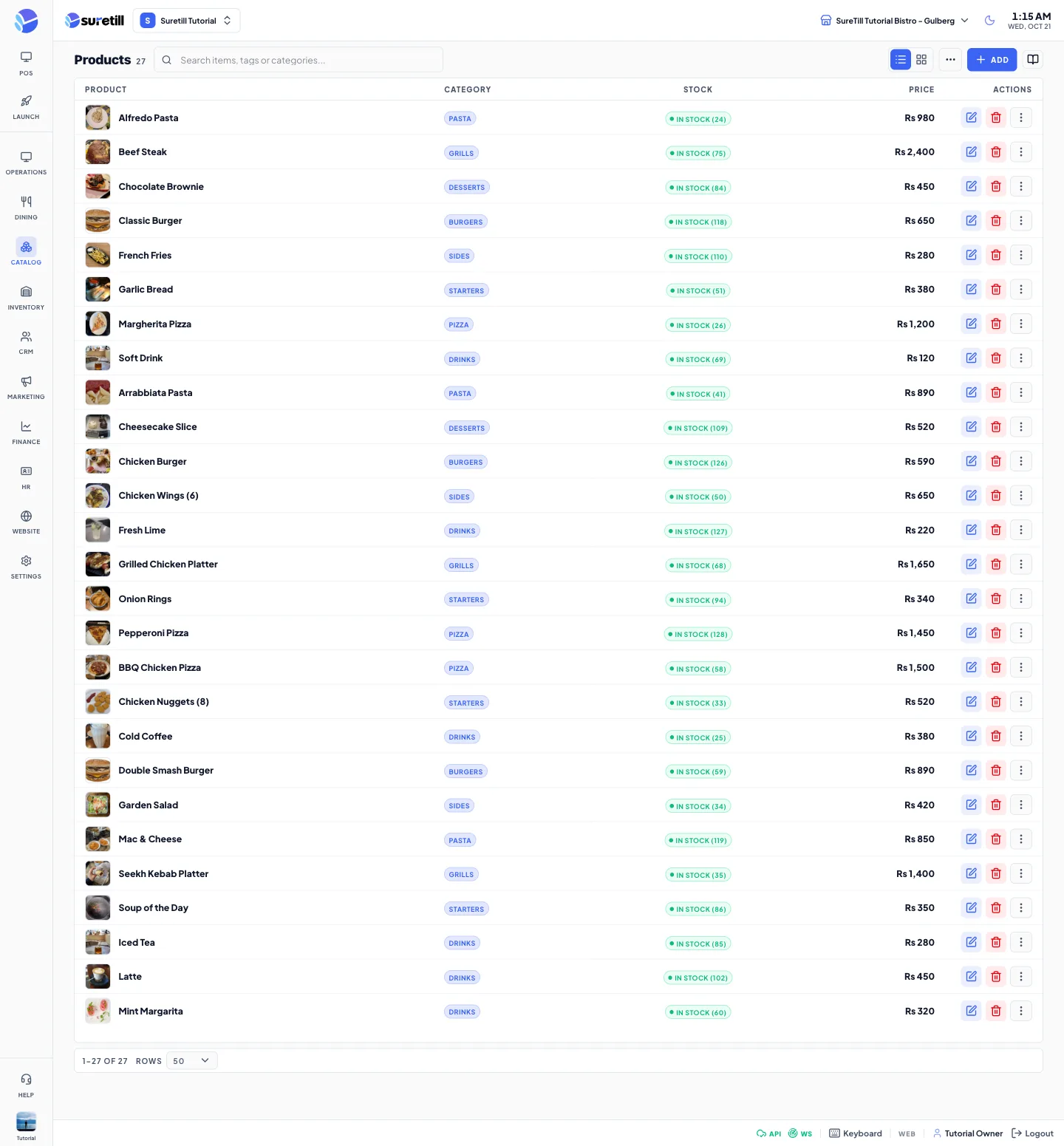
Products is the master list of everything you sell. Each product has a category, a price, an optional photo, optional variations (sizes), and optional modifier groups. The POS, the QR menu, the storefront and the menu boards all read from this list.
The list shows the products of the branch selected in the header. A new product belongs to the branch that is selected when you save it. The product is then switched on for every active branch.
The list
Section titled “The list”- Search box: type a name, a SKU or a barcode. The search is done by the server, so a scanned barcode finds the product.
- List and Grid buttons: switch between a table and photo cards. List is the default.
- Stock badge: In Stock when the number is above 10, Low from 1 to 10, Out when it is 0.
- Click a row (or its edit button) to open the editor. The three-dot button on a row has Duplicate and Activate or Deactivate.
- Rows per page: 25, 50, 100 or 200. The default is 50. Use the page buttons at the bottom to move between pages.
- The three-dot button at the top has Bulk update, Import CSV and Export.
Step by step: add a product
Section titled “Step by step: add a product”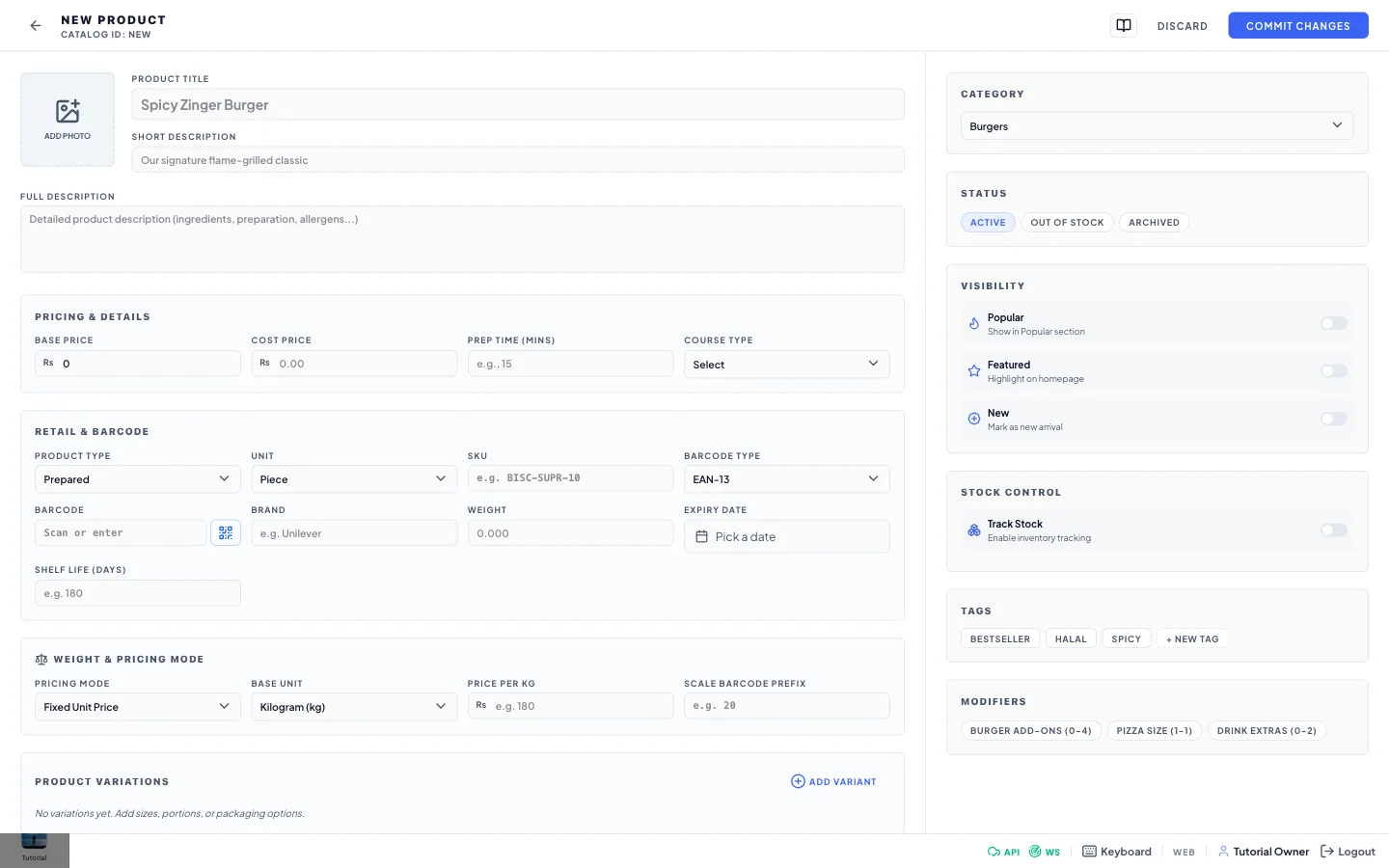
- Select the branch in the header, then open Catalog > Products.
- Click Add. The full-page editor opens.
- Type the Product Title and pick a Category on the right. Both are required. Nothing is saved without them.
- Type the Base Price. Add a Cost Price if you want margin reports to be correct.
- Click the photo box to add a picture (JPEG, PNG or GIF, up to 2 MB).
- Choose the Status, tick any Visibility switches, and tick the modifier groups that apply to this item.
- Click Commit Changes. The editor closes and the list refreshes.
Step by step: edit, duplicate, switch off or delete
Section titled “Step by step: edit, duplicate, switch off or delete”- Click the product row. Change what you need and click Commit Changes. Click Discard to leave without saving.
- To copy a product, open the three-dot menu on the row and choose Duplicate. The copy is named with (Copy) at the end, keeps the variations, and has no barcode.
- To hide a product without deleting it, choose Deactivate in the same menu. Choose Activate to bring it back.
- To delete, click the red bin on the row and confirm. The product is removed from the catalog. Past orders keep their history.
Variations (sizes and portions)
Section titled “Variations (sizes and portions)”Use variations for Small, Medium and Large, or Half and Full. Each variation has its own name and price.
- In the Product Variations box, click Add Variant.
- Type the Variant Name and its Price. New rows start with the product price.
- Optional: type a Portion size in the product unit. This is used by recipes to deduct the right amount of ingredients (a half portion takes half).
- Click the bin on a row to remove a variation. It is deleted when you click Commit Changes.
- Click Commit Changes. Rows without a name are ignored.
Selling by weight
Section titled “Selling by weight”The Weight & Pricing Mode box controls how the POS prices the item.
- Fixed Unit Price: the normal mode. The Base Price is charged per item.
- Weight-Based: the POS multiplies the weight by Price per unit. Set Base Unit and Price per unit. Min Weight and Max Weight limit what the cashier can sell.
- Open Amount: the cashier enters the amount at the till.
The Base Unit list offers Kilogram, Gram, Liter and Milliliter, the units the server accepts for weight pricing.
Barcodes and SKU
Section titled “Barcodes and SKU”- Type or scan the Barcode. The camera button scans with the device camera. A USB scanner also types into the field.
- Pick the Barcode Type (EAN-13 is the default). A preview of the barcode appears under the fields.
- On a saved product, click the small barcode button to let the system generate a barcode for you.
Bulk update
Section titled “Bulk update”- Open the three-dot menu at the top and choose Bulk update.
- Pick the Action: Activate, Deactivate, Delete or Update Price. For Update Price, type the New Price.
- Tick the products in the list. The list shows the products currently loaded on your page, filtered by your search.
- Click Apply Changes.
Import products from CSV
Section titled “Import products from CSV”- Open the three-dot menu and choose Import CSV. Pick a .csv or .txt file (up to 10 MB).
- An Upload CSV button appears at the top. Click it to start the import.
- If some rows fail, a message tells you how many were imported and how many had errors. On a clean import the list simply refreshes.
The first row is the header. Columns are found by their header names, so the file you get from Export can be imported again. These headers are read (capital letters do not matter): SKU, Barcode, Name, Category, Price, Cost, Status, Track Stock and Stock Qty. Other columns are ignored.
If the header row has no Name column, the old fixed order is used instead:
| Column | Content |
|---|---|
| Column A | Ignored (the exported file keeps the product ID here). |
| Column B | SKU. |
| Column C | Barcode. |
| Column D | Product name. |
| Column E | Category name. If no category has this name, a new one is created. |
| Column F | Price. |
| Column G | Cost price. |
| Column H | Status text (for example active). |
| Column I | Track stock: Yes or No. |
| Column J | Stock quantity (whole number). |
A row whose SKU (or, if there is no SKU match, whose barcode) already exists updates that product. Any other row creates a new product and switches it on for every active branch.
Export
Section titled “Export”Choose Export in the three-dot menu. A file named products-export-DATE.csv is saved. Columns: ID, SKU, Barcode, Name, Description, Category, Price, Cost, Compare Price, Tax Rate, Status, Type, Unit, Weight, Track Stock, Stock Qty, Low Stock Threshold, Variations, Addon Groups, Tags, Allergens, Created At.
The product editor has no tax field. Tax rates are managed at Finance > Tax Rates.
Every setting explained
Section titled “Every setting explained”| Setting | What it does |
|---|---|
| Product Title | The name shown on the POS, QR menu and receipts. Required, up to 255 characters. |
| Short Description | One line shown under the name on customer menus. Up to 500 characters. |
| Full Description | Longer text: ingredients, preparation, allergens. |
| Photo | JPEG, PNG or GIF, up to 2 MB. Remove clears it. |
| Base Price | The selling price. Must be 0 or more. |
| Cost Price | What the item costs you. Used for margin. |
| Prep Time (mins) | Expected preparation time in minutes. |
| Course Type | Starter, Appetizer, Main Course, Side, Dessert, Beverage or Other. Marks which course the dish belongs to. |
| Product Type | Prepared, Packaged, Weighted or Service. The default is Prepared. Packaging fields appear when you pick Packaged. |
| Unit | Piece, Kilogram, Gram, Pound, Ounce, Liter, Milliliter, Dozen, Pack, Box, Carton, Bottle, Can, Serving or Slice. Also sets the unit of variation portions. |
| SKU | Your own stock code. Unique, up to 100 characters. |
| Barcode Type | EAN-13, EAN-8, Code 128, Code 39, UPC-A, UPC-E or QR Code. |
| Barcode | The code printed on the pack or the shelf label. Unique. |
| Brand | Brand name, up to 150 characters. |
| Weight | Weight of one unit, up to three decimals. |
| Expiry Date | Date the product expires. |
| Shelf Life (days) | How many days the product lasts. |
| Packaging, Pieces/Pack, Pack Price | For packaged products: Single, Pack, Box, Carton, Case, Bundle or Tray; how many pieces in a pack; and the price of the pack. |
| Pricing Mode | Fixed Unit Price, Weight-Based or Open Amount. See Selling by weight. |
| Base Unit | The unit for weight pricing. Use kg, g, liter or ml. |
| Price per unit | Price of one base unit, for example per kg. |
| Scale Barcode Prefix | Two digits that identify labels printed by a price-embedded scale, so the POS can read the weight from the scanned code. |
| Min Weight, Max Weight | Shown for Weight-Based and Open Amount. The smallest and largest amount a cashier can sell. |
| Allow Manual Price Override | Lets the cashier type a different price for this item. |
| Product Variations | Name, price, portion size and unit for each size. See Variations. |
| Category | Where the product sits in the menu. Required. |
| Status | Active: sold everywhere. Out of Stock: kept in the catalog but not offered on the POS. Archived: switched off. |
| Popular, Featured, New | Switches. Popular shows the item in a Popular section, Featured highlights it on the homepage, New marks it as a new arrival. |
| Track Stock | Switch on to keep a stock number for this product. Shows Current Stock, Low Stock Alert (default 5) and Reorder Qty. |
| Tags | Quick tags Bestseller, Halal and Spicy, plus + New Tag for your own. Tags can be used in the product form and on menus. |
| Modifiers | Tick the modifier groups that open when this item is added to an order. The numbers show the minimum and maximum choices. |