

Apps and downloads
Where: Settings > Devices
Who can use it: Permissions settings.view or manage settings. Cloud: the Get the app strip appears only after SureTill has published at least one download.
Open this page in SureTill
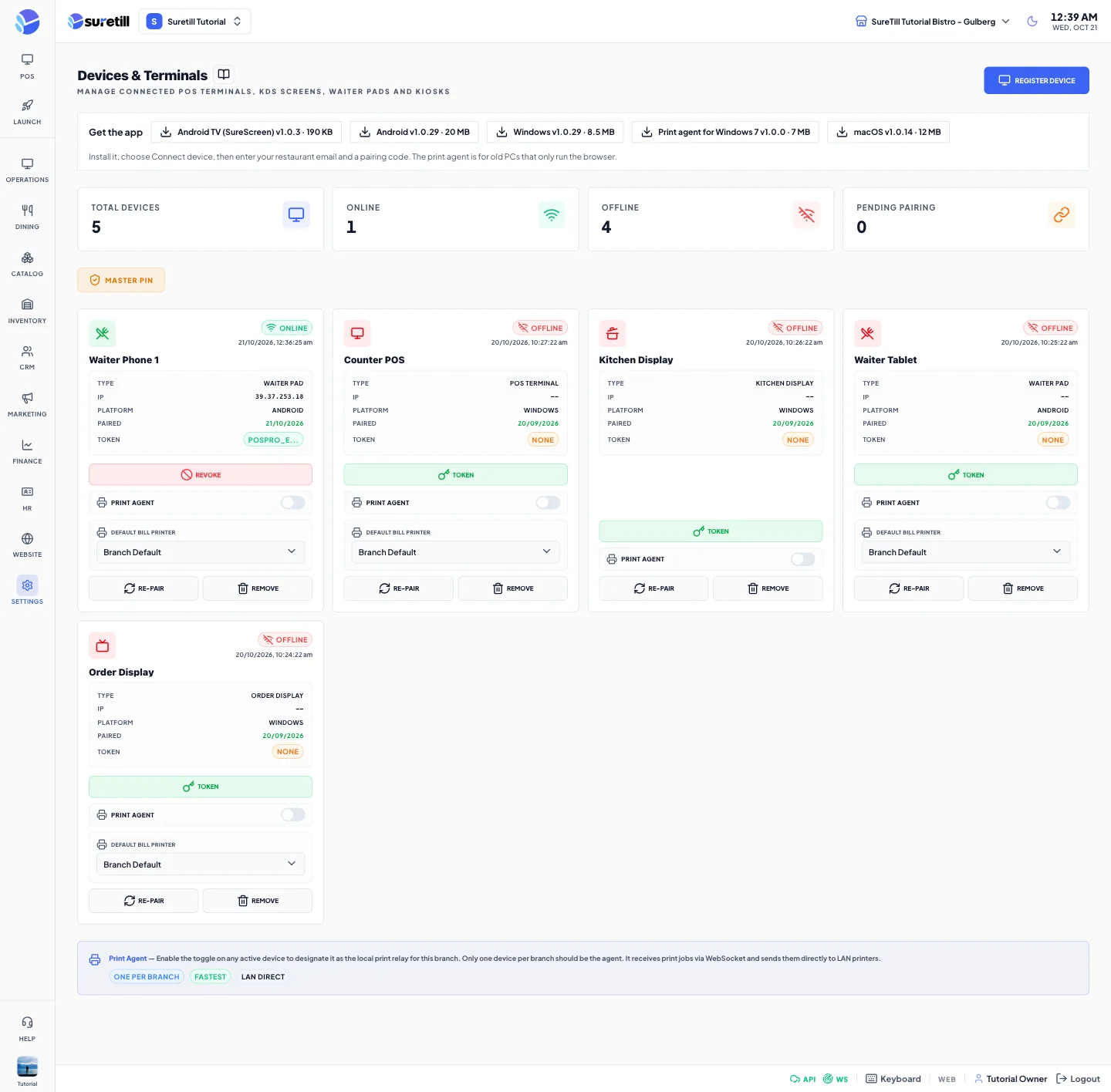
You can use SureTill in any browser, or install an app for a counter terminal, a tablet or a TV. Installed apps keep the POS running through short internet drops and can print to network printers through the print agent. Every installed device is connected to exactly one restaurant with a one-time pairing code.
Which app for which device
Section titled “Which app for which device”| App | Use it for |
|---|---|
| Web app (any browser) | Owner and manager work from a laptop or phone: sign in with email and password. In a normal browser tab PIN sign-in is not offered on the cloud version. |
| Windows app | The counter POS and a kitchen screen on a PC. Staff sign in with a PIN. |
| Android app | Waiter tablets and phones. Adds receipt printing to LAN printers. Staff sign in with a PIN. |
| macOS and iOS apps | Listed in the download catalogue when SureTill publishes them. |
| Android TV app (SureScreen) | Menu boards on Android TVs. Pair it from Menu Boards. |
| Samsung Tizen web app (SureScreen) | The Samsung TV version of SureScreen. It opens the screen player. |
| Print agent for Windows 7 | A helper for older PCs that only run a browser. Network printers need the print agent or a native app on a computer in the restaurant, because a browser cannot talk to a network printer. |
Step by step
Section titled “Step by step”Download the app
Section titled “Download the app”- Open Settings > Devices on a computer.
- Find the Get the app strip under the title. Each button shows the app name, the version and the size, for example Windows v1.0.14.
- Click the button for your device and install the file you receive.
- If the strip is missing, SureTill has not published a download yet. Ask support@suretill.com.
Connect a device to your restaurant
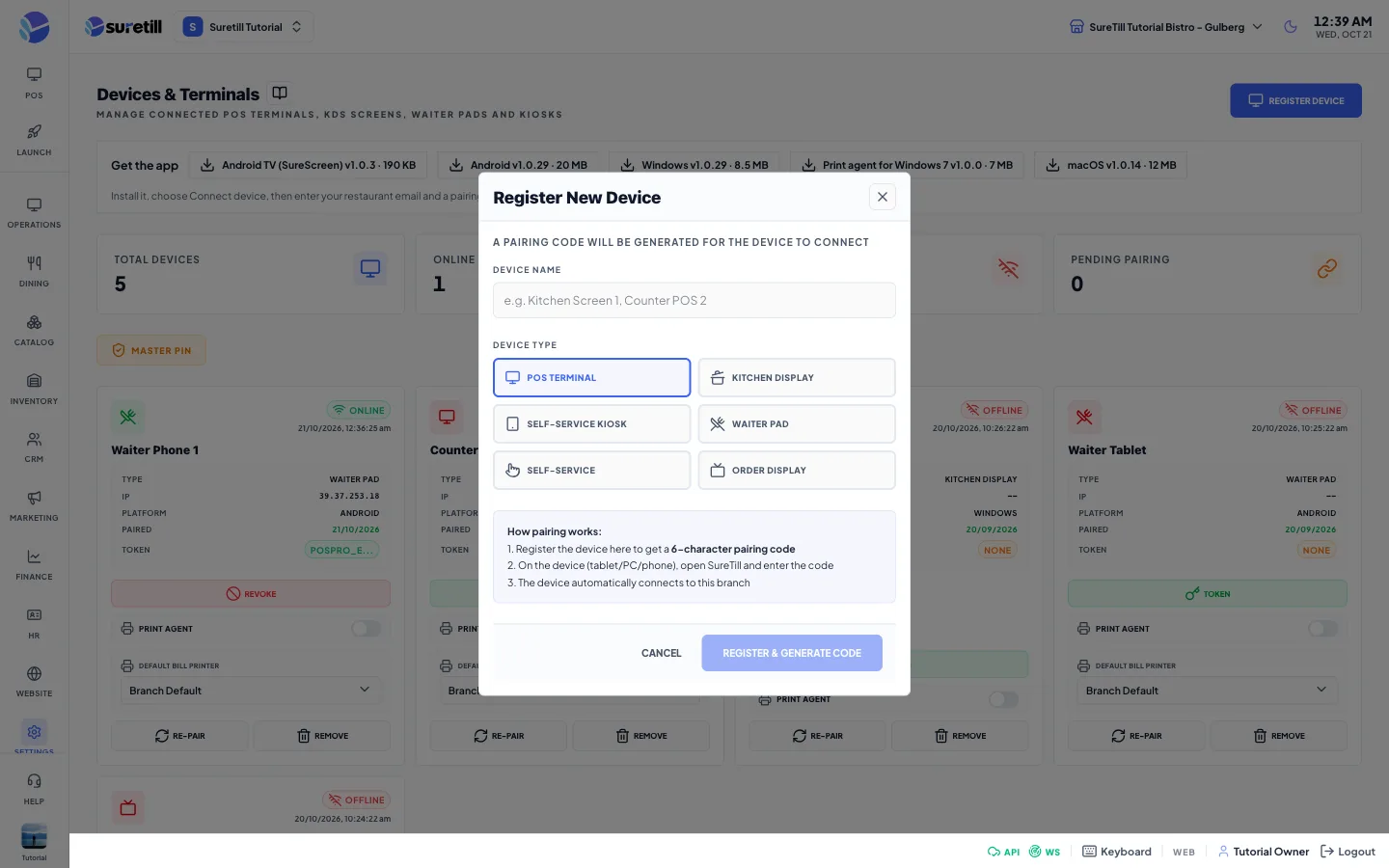
Section titled “Connect a device to your restaurant”- In Devices, click Register Device.
- Type a Device Name, for example Counter POS 1 or Kitchen Screen 1.
- Choose the Device Type: POS Terminal, Kitchen Display, Self-Service Kiosk, Waiter Pad, Self-Service or Order Display.
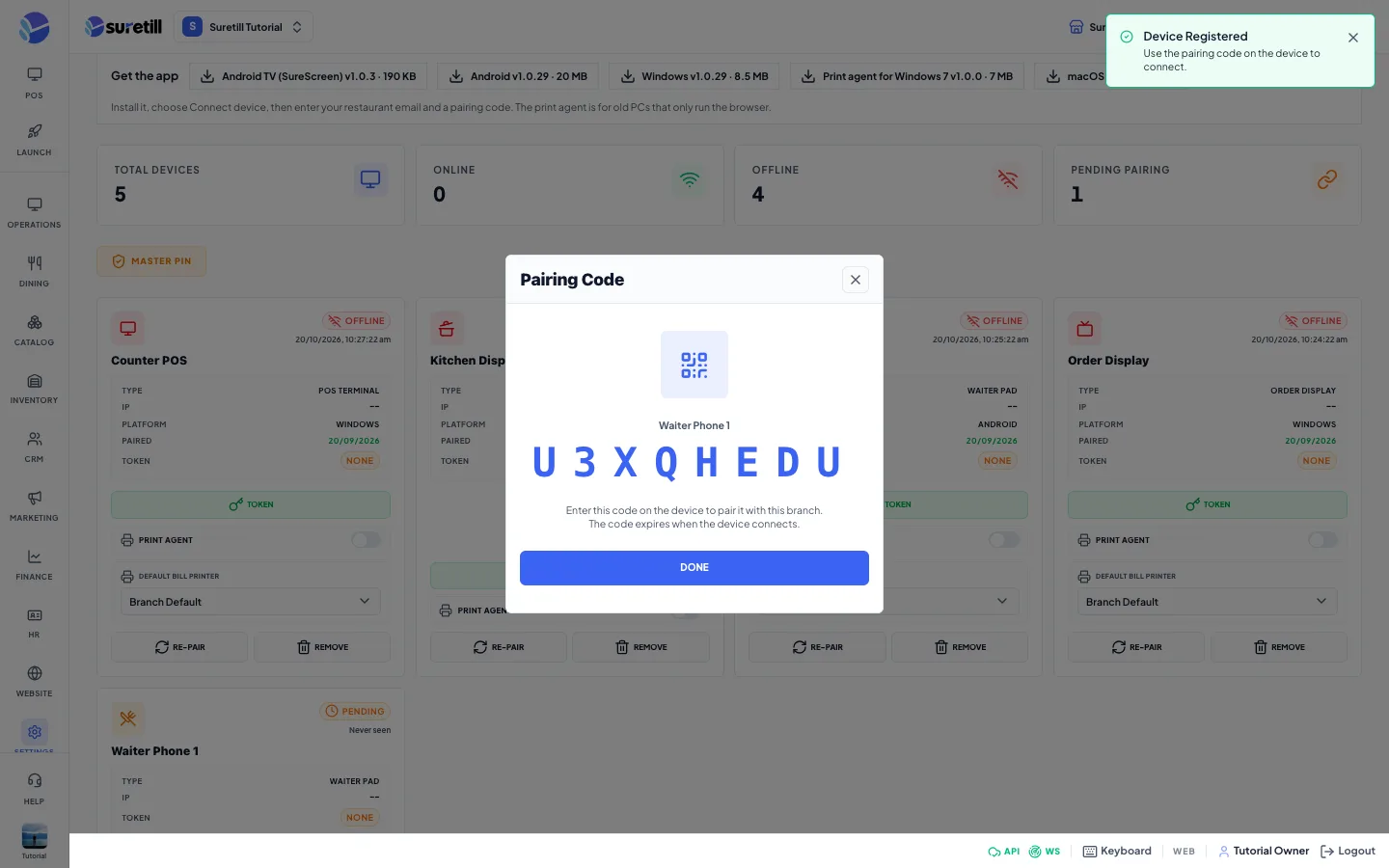
- Click Register & Generate Code. A window called Pairing Code shows a large code. Leave it open or write it down.
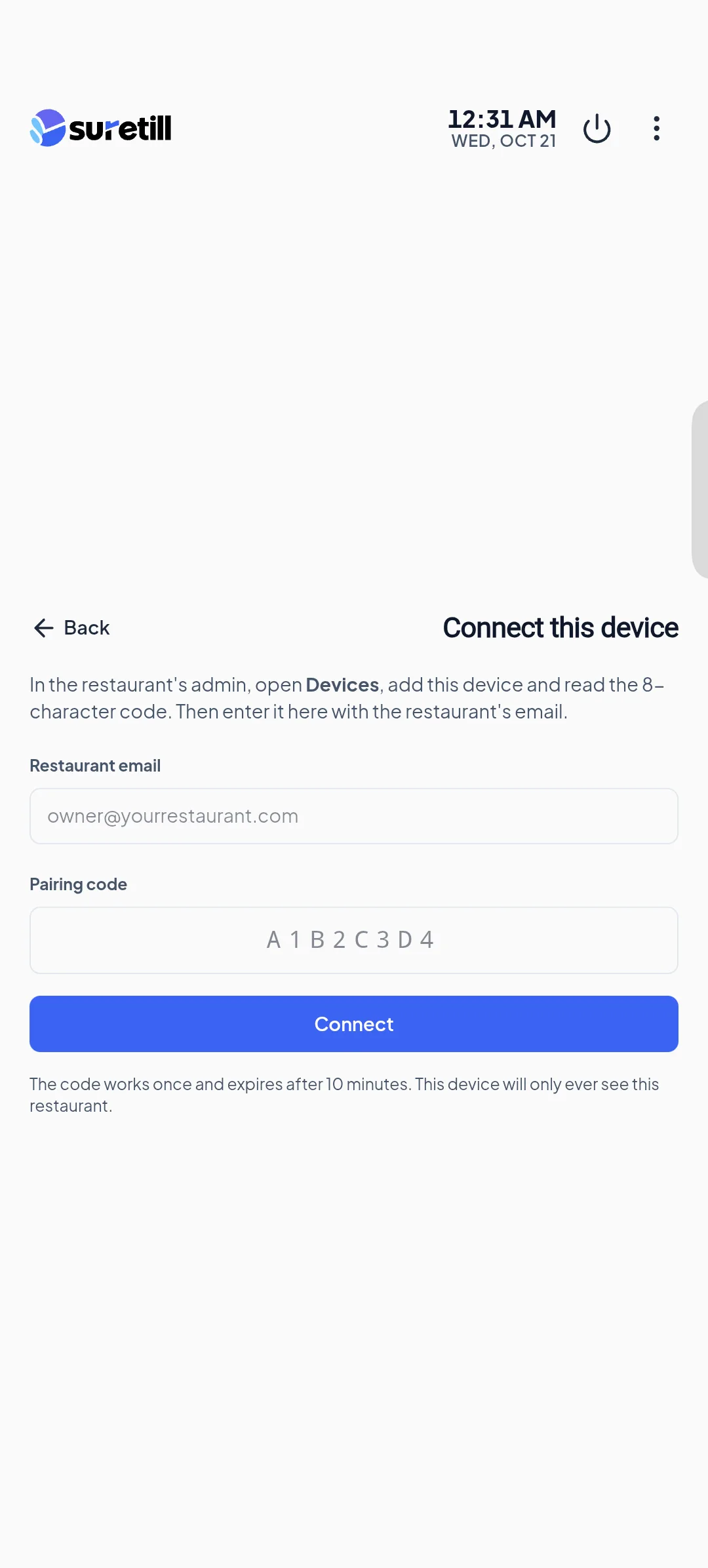
- On the new device open the installed app. On first start it shows Connect this device. If it shows the sign-in screen, open the three-dot menu and choose Connect device.
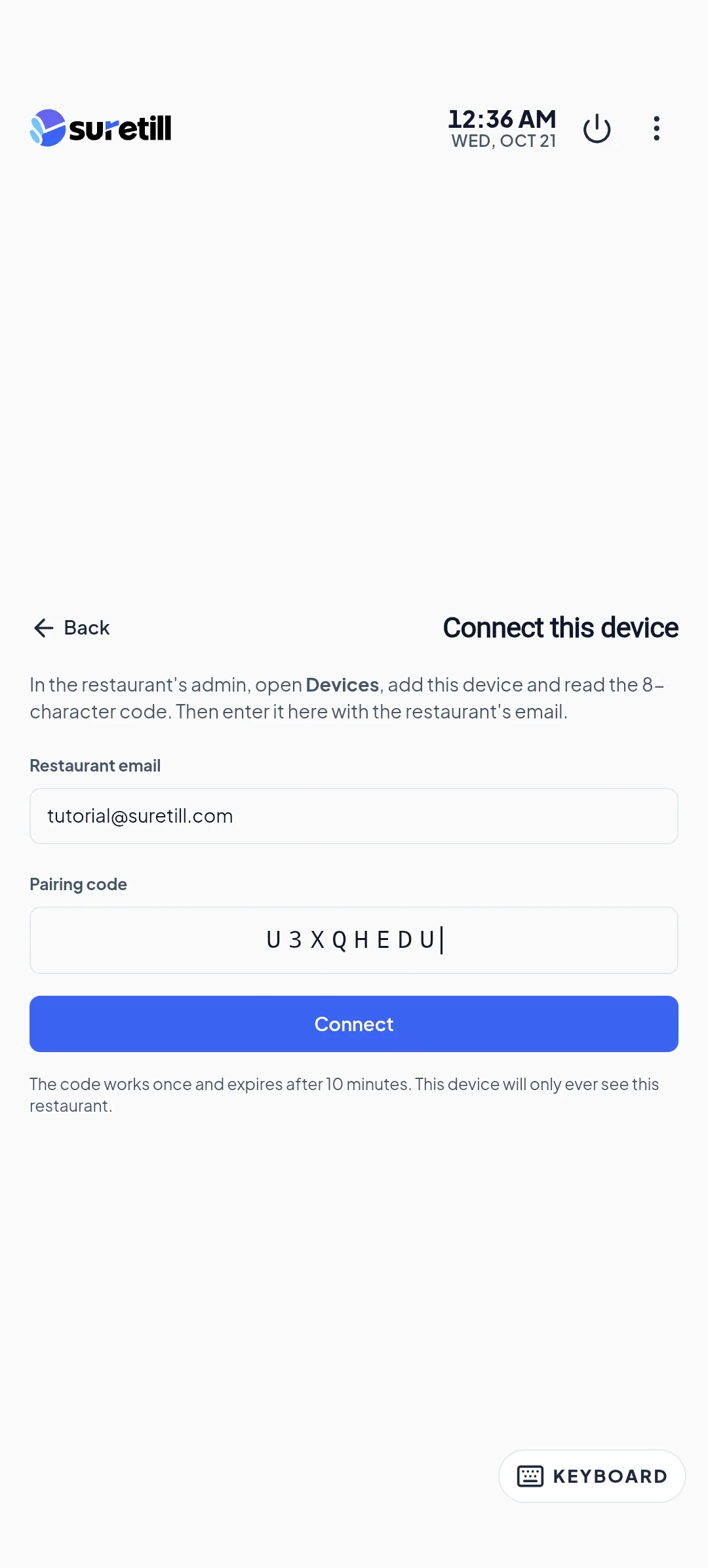
- Type the Restaurant email (the owner email) and the Pairing code, then click Connect.
- A message says Device connected with your restaurant name. The sign-in screen now accepts staff PINs.
- Back in Devices, the status changes from Pending to Online.
The code works once and expires after 10 minutes. A code can be 6 or 8 characters long. Click New on the device card (shown while the device is Pending) to make a fresh code, or Code to show the current one.
First start of the Android app, step by step
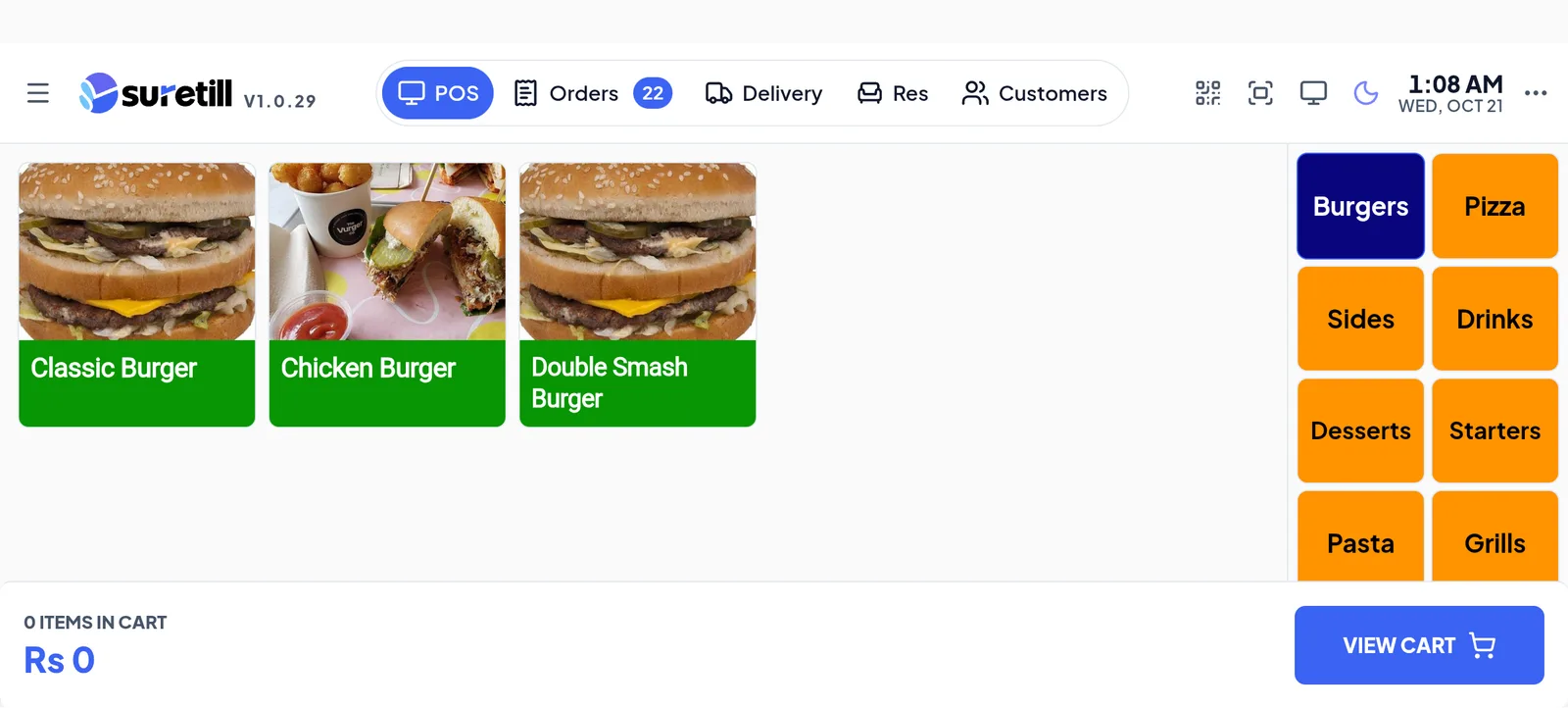
Section titled “First start of the Android app, step by step”This is the whole path on a phone or tablet, from the file to the first sale. The Windows app works the same way.
- Install the app. On the phone open Settings > Devices in the browser, tap the Android button in the Get the app strip, and open the downloaded file. Android may ask you to allow installs from this source: allow it once, then tap Install.
- Open SureTill. A new install shows Connect this device with two boxes: Restaurant email and Pairing code. (If the app shows the PIN screen instead, tap the three-dot menu and choose Connect device.)
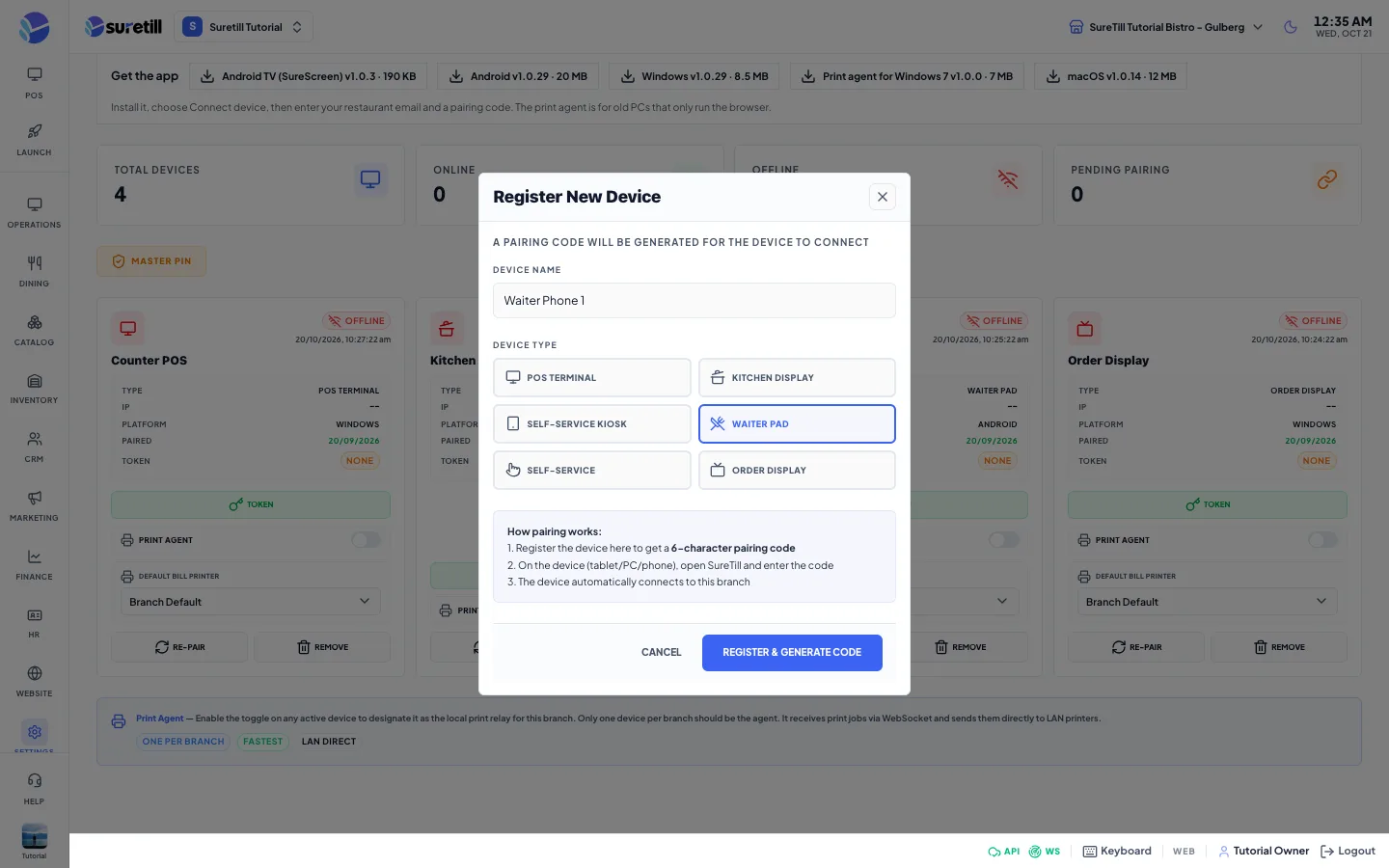
- On a computer, register the device and read its pairing code as shown above: Settings > Devices > Register Device, a name, the type Waiter Pad, then Register & Generate Code.
- On the phone type the Restaurant email, which is the owner email of the restaurant, and the 8-character code, then tap Connect. The code works once and expires after 10 minutes.
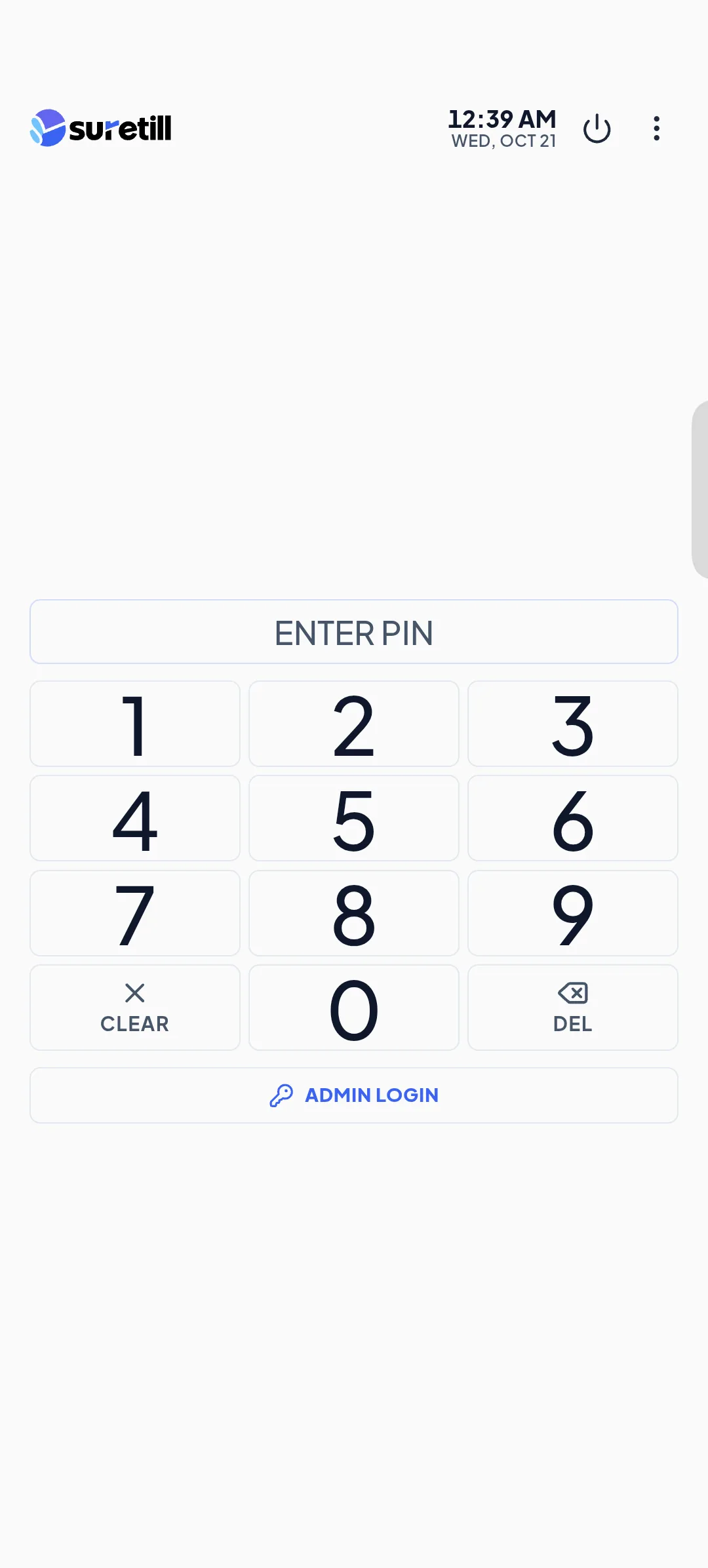
- The phone now belongs to your restaurant and shows the Enter PIN screen. In Devices the device changes from Pending to Online.
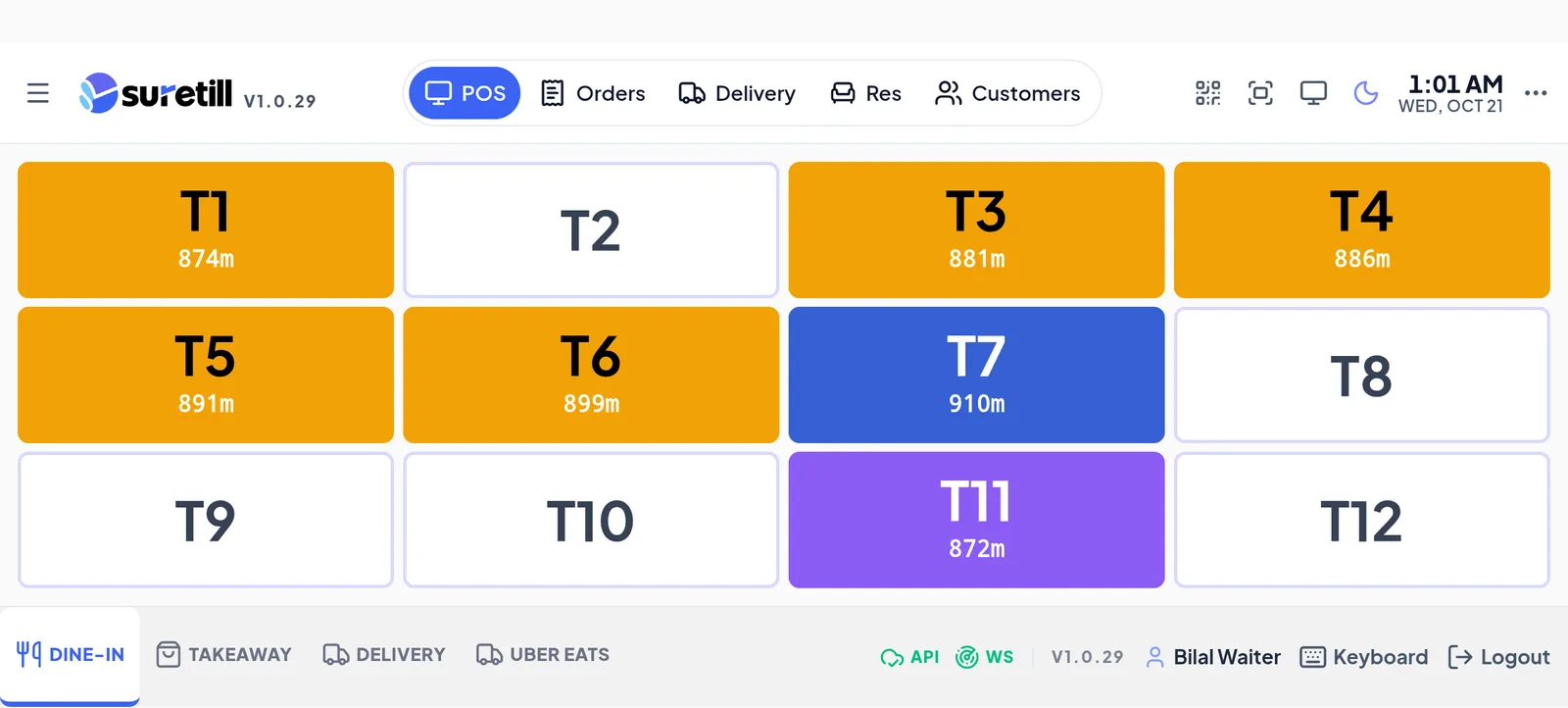
- Staff tap their 6-digit PIN to sign in. Create or change a PIN under Settings > Users: open the person, type a POS PIN of exactly 6 digits and save. Owners and managers can also tap Admin login and use their email and password.
Pair a menu-board TV
Section titled “Pair a menu-board TV”- On the TV open the SureScreen app, or open your SureTill address followed by /screen in the TV browser. It shows a 6-character code.
- On a computer open Marketing > Menu Boards and click Pair a screen.
- Type the code, a name for the screen and the board to show, and confirm. The TV starts showing the board.
- Instead of pairing, you can copy a Display link for a board and open it in the TV browser. That needs no pairing and supports rotating and time-based boards.
Every part of the Devices page explained
Section titled “Every part of the Devices page explained”| Setting | What it does |
|---|---|
| Total Devices, Online, Offline, Pending Pairing | Four counters. Online means connected now or seen in the last 5 minutes. |
| Register Device | Opens Register New Device: Device Name, Device Type, then Register & Generate Code. This creates the device and its pairing code. |
| Master PIN | Opens Set Master PIN to set an admin override PIN (a button in the security row). |
| Code and New (pending device) | Code shows the current pairing code again. New asks to generate a new one. |
| Re-Pair (paired device) | Resets the device to pending and makes a new code, so the same device or a replacement can be connected again. |
| Remove (paired device) | Deletes the device after a confirmation. It must be registered and paired again to be used. |
| Status badge | Pending, Blocked, Inactive, Online or Offline. |
| Token and Revoke | Token generates a device access token. It is shown only once, so copy it at once. Revoke cuts that device off from the server. |
| Print Agent toggle | Makes an active device the print relay for its branch. One per branch. |
| Default Bill Printer and KOT printer | For active devices other than kitchen screens. Choose the printers that device uses. Branch Default uses the branch setting. |
How devices count toward your plan
Section titled “How devices count toward your plan”- POS Terminal, Self-Service Kiosk and Self-Service count as POS terminals.
- Waiter Pad counts as a tablet.
- Kitchen Display and Order Display are free.
- A device that is still waiting for its code already uses a slot.
- Paired menu-board TVs count as screens.
- Over the limit, registering is refused. See Plans, billing and add-ons.