

The Launch Pad
Where: Operations > Launch Pad (also the logo at the top left of every admin page)
Who can use it: Permissions dashboard.view, view reports, pos.access or access pos. Cashiers and waiters usually go straight to the POS instead.
Open this page in SureTill
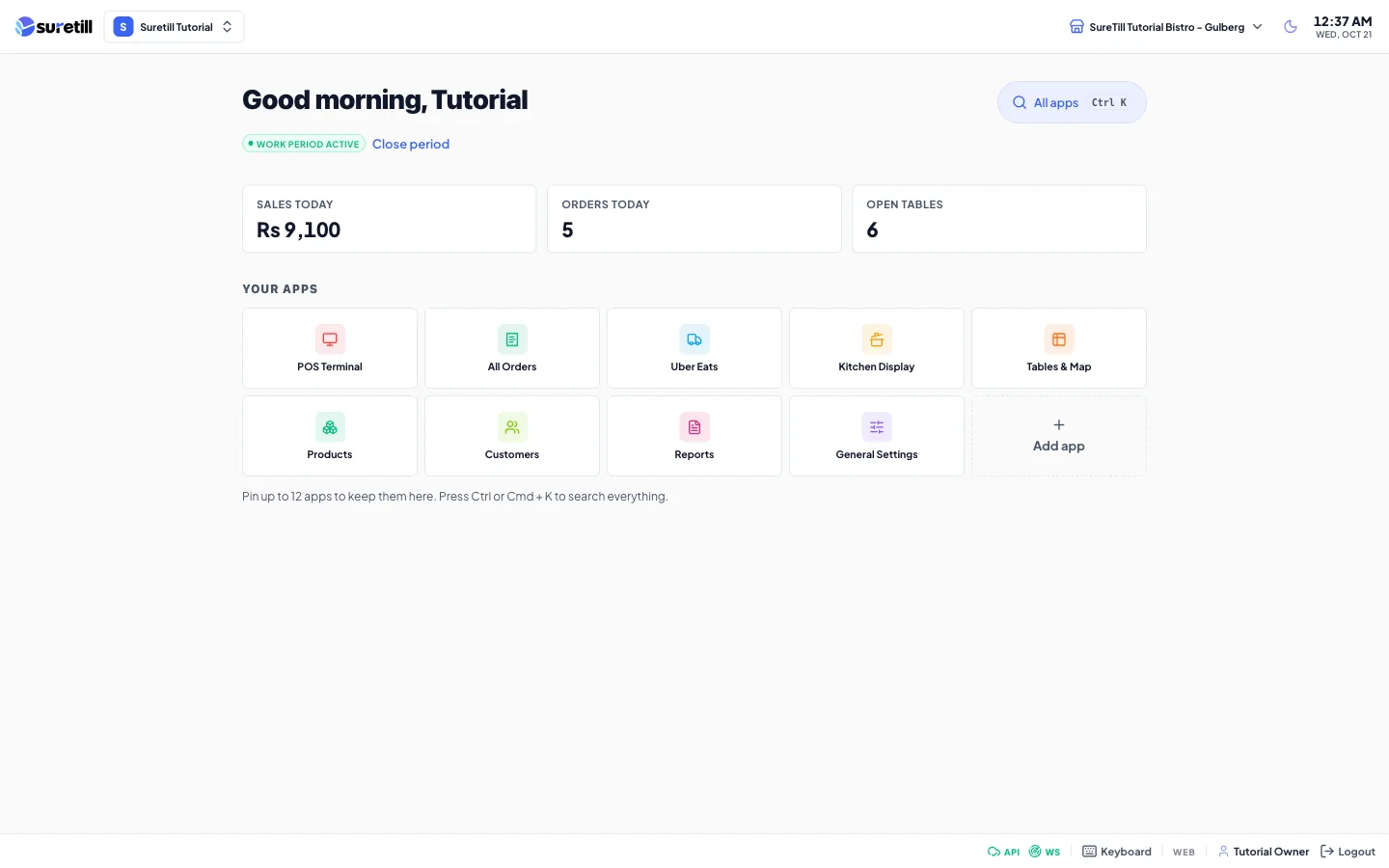
The Launch Pad is the first screen an owner or manager sees. It answers three questions: is the shop open, how is today going, and where do I go next.
Step by step
Section titled “Step by step”Start or close a work period
Section titled “Start or close a work period”- Look under the greeting. A yellow Work period closed badge means the POS cannot take orders yet.
- Click Start now. A work period opens with 0 opening cash.
- To end the day, click Close period beside the green Work period active since badge. This opens Work Periods, where you count the cash and close.
Close period is shown only to roles with the Work Periods permission. Start now does not ask for opening cash. If you need a float, open the work period from the POS instead: its Open Work Period button asks you to Enter opening cash amount.
Pin an app to your home screen
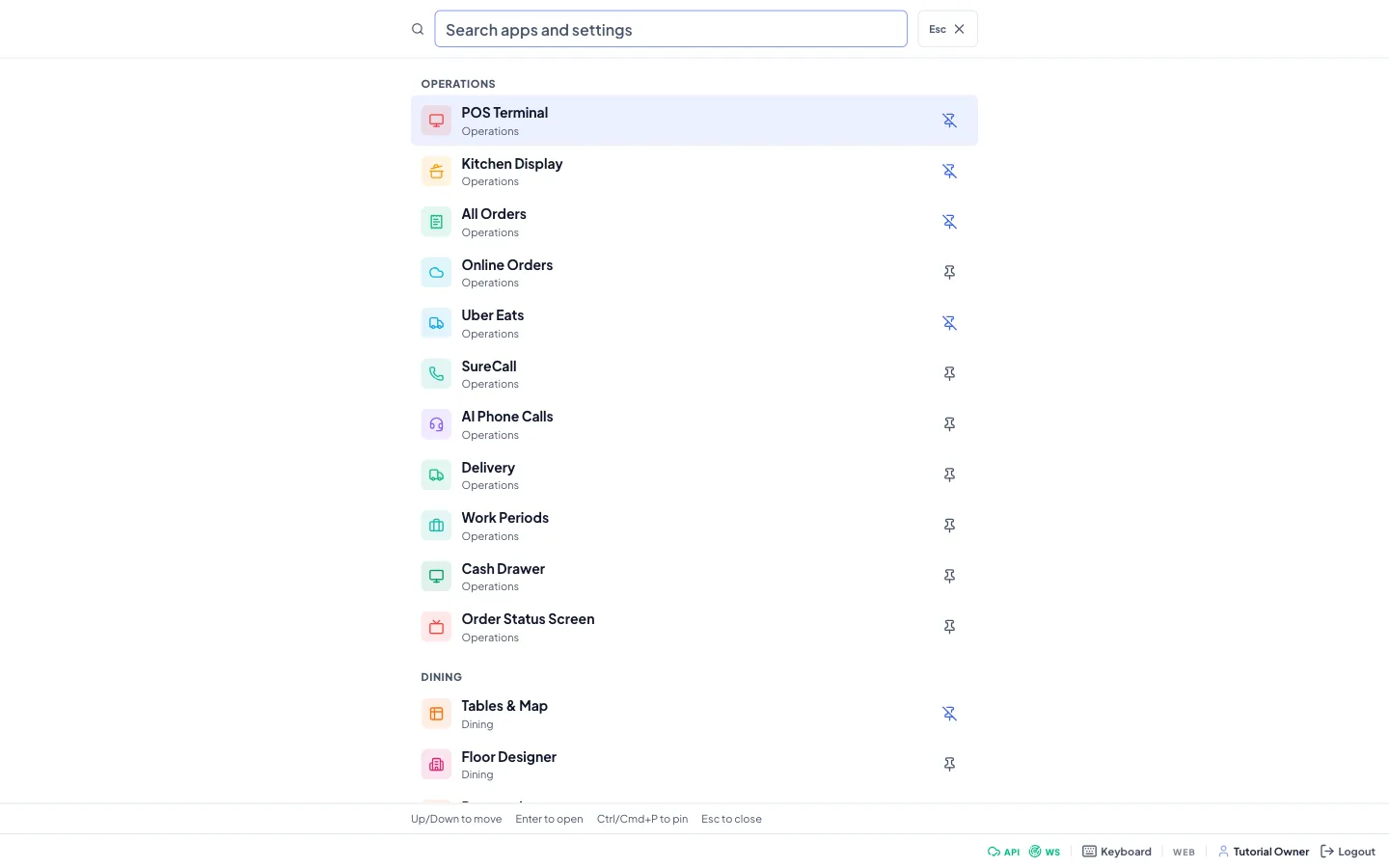
Section titled “Pin an app to your home screen”- Click All apps, or press Ctrl K (Cmd K on a Mac).
- Type part of a name, for example tax, or browse the groups.
- Click the pin icon on the row, or highlight a row with the arrow keys and press Ctrl P (Cmd P). Press Enter to open an app.
- Close the sheet with Esc. The tile now sits on your home screen.
- To remove a tile, hover over it and click the small unpin icon in its corner. On a touch screen the icon is always visible.
Every part of the screen explained
Section titled “Every part of the screen explained”| Part | What it does |
|---|---|
| Top bar | Logo (takes you home), the restaurant switcher (owners only), the branch menu, the dark or light mode button and the clock. |
| Greeting | Good morning, afternoon or evening, with your first name. |
| Work period badge | Work period active since the opening time, or Work period closed. Hidden on SureScreen plans. |
| Setup n/6 chip | Appears until setup is complete. Opens the setup checklist. See Setup wizard. |
| All apps button | Opens the search sheet. Shortcut Ctrl K or Cmd K. |
| Sales today | Revenue of today for the active branch. Refreshes every minute. Hidden if your role cannot see the dashboard. |
| Orders today | Number of orders of today. |
| Open tables | Tables that are occupied, billed, waiting for payment or settling. Hidden if your role cannot see tables. |
| Your apps | Your pinned tiles. Click a tile to open it. Up to 12 can be pinned. |
| Add app / Browse all apps | The dashed tile that opens All apps. Shown while you have fewer than 12 pins. |
| Footer | Connection status, the build version, an Update button when a new app version is ready, the name your restaurant is licensed to, who is signed in, and Logout. A pop-up and sound alert you when new orders arrive while you are on this screen. |
Which apps appear by default
Section titled “Which apps appear by default”Until you pin your own, the home screen shows up to 9 of these, in this order, but only those your role may open and your plan includes: POS Terminal, All Orders, Uber Eats, Kitchen Display, Tables and Map, Products, Customers, Reports and General Settings. On a SureScreen plan the defaults are Menu Boards, Devices, Products, Menus, Branches, Users and General Settings.
The All apps sheet
Section titled “The All apps sheet”- Browse: every screen you may open, grouped as in the sidebar (Operations, Dining, Catalog, and so on).
- Search: matches names first, then group names, and tolerates a missing letter. Your most used screens rank higher on ties.
- Billing and plan, for owners and managers with settings update permission, is listed under Settings.
- If nothing matches, it says No apps match and suggests a shorter word.