

SureTill Print Agent
Where: Settings > Devices
Who can use it: Permission: settings.view or manage settings to create the pairing code. The agent itself needs the restaurant email and the pairing code. Not available on SureScreen plans.
Open this page in SureTill
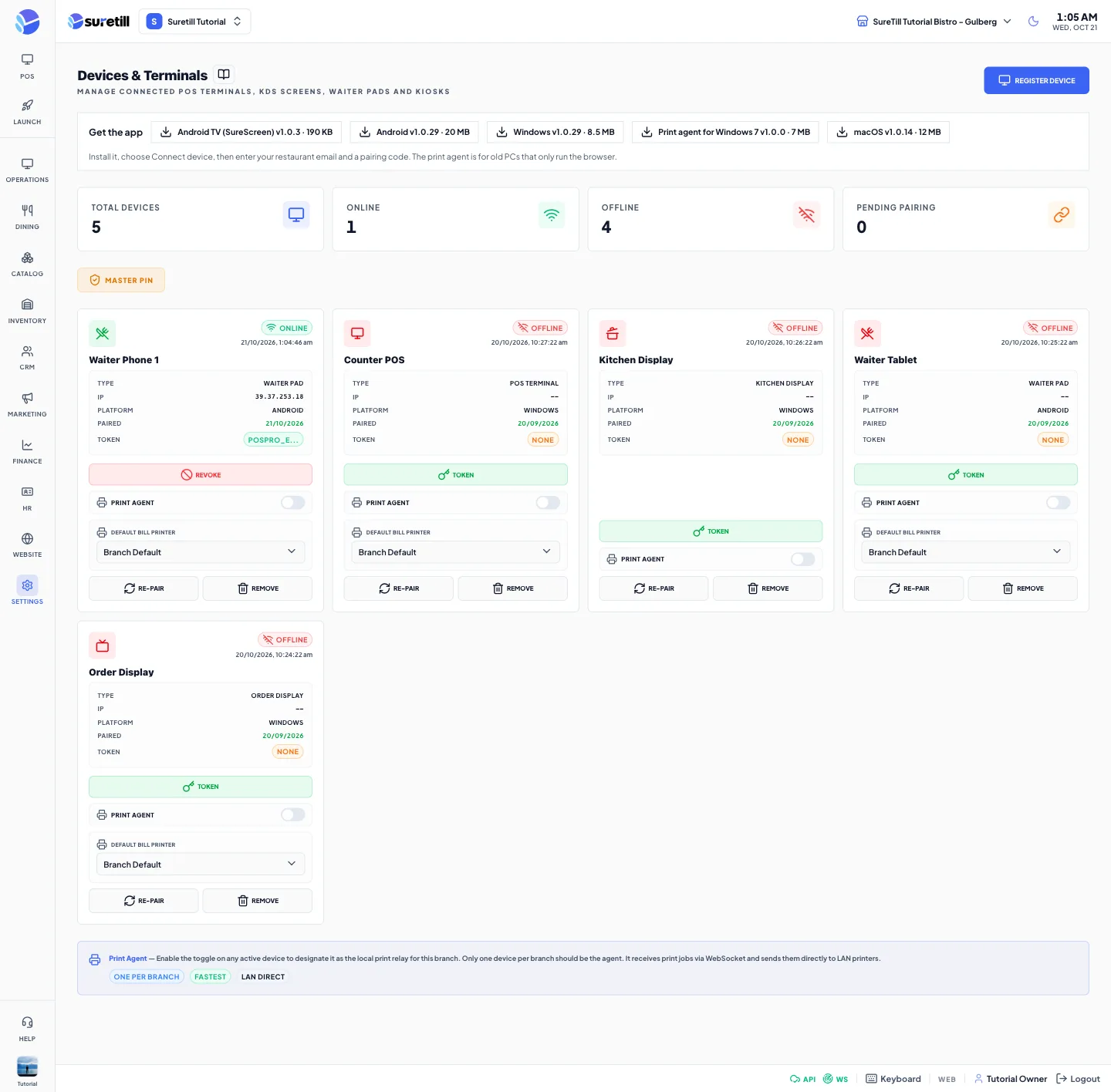
The Windows and Android apps can print by themselves. Some terminals cannot run them, for example a 32-bit Windows 7 PC. That PC runs the POS in a web browser such as Chrome, and the SureTill Print Agent runs next to it and does the printing. The agent has no login. It is paired once with a code, like any other device.
What the agent does
Section titled “What the agent does”- Asks SureTill for new print jobs about every 1.5 seconds.
- Claims a job, so that two agents never print the same ticket.
- Network printers: opens a fresh connection to the printer on port 9100 for every job and waits up to 6 seconds.
- Windows shared and USB printers: sends the ticket to the Windows print spooler as raw data, then watches the queue for about 4 seconds so a switched-off printer is reported as a failure.
- Tells SureTill if the job printed or failed. A failure shows in the Print Queue with the reason.
- Also listens for Uber Eats and DoorDash receipts sent by the PCAPdroid app on the delivery tablet (UDP port 5555) and turns them into POS orders.
Step by step
Section titled “Step by step”Install and pair the agent
Section titled “Install and pair the agent”- On the PC, open Settings > Devices in the browser. In the Get the app bar click Print agent for Windows 7 and run the downloaded file. The bar appears only after SureTill has published the download.
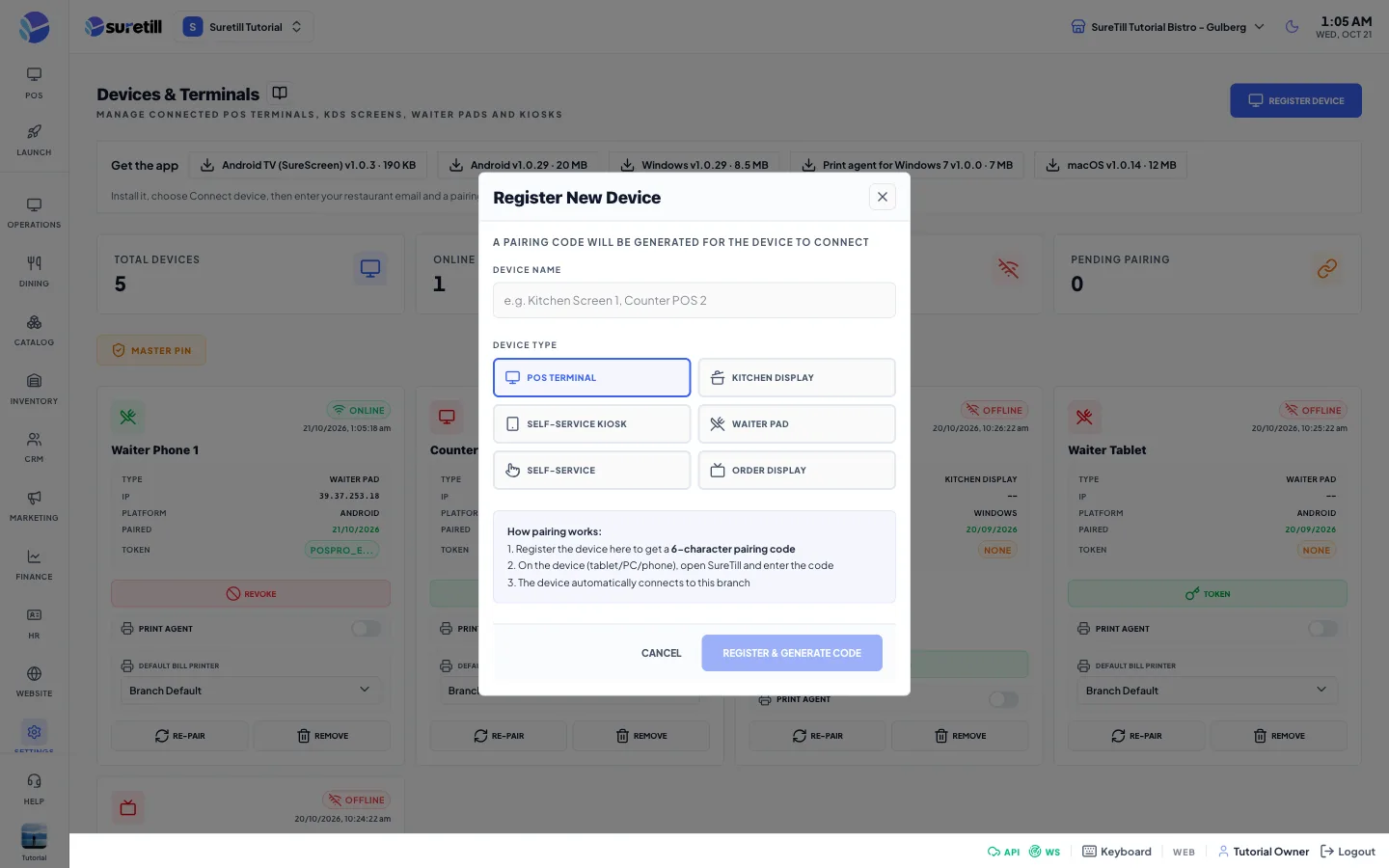
- In Devices click Register Device, type a name such as Counter PC Printing, pick a device type and click Register & Generate Code. Keep the code on screen. On SureTill cloud it has 8 characters, works once and expires after 10 minutes.
- Start the SureTill Print Agent. It opens its own page in your browser at http://127.0.0.1:47653. Starting it again only reopens that page.
- On the Connection tab keep Server URL as https://bk.suretill.com.
- Type the Restaurant (owner email) and the Pairing code, then click Pair. The status line at the top changes to Paired with the branch name.
- Tick Start automatically when Windows starts so the agent returns after a reboot.
Add printers through the agent
Section titled “Add printers through the agent”On the Printers tab of the agent you can register a printer without opening SureTill. Add shared (UNC) printer is the recommended way: type a display name, the path like \\PCNAME\PrinterName and the type, then click Add Shared. Add network printer takes a name, the IP address, the port (9100) and the type. Printers in cloud lists what the branch already has. You can also add printers on the Printers page of the admin; both end up in the same list.
Check that it works
Section titled “Check that it works”- Open the Diagnostics tab and click Run Diagnostics.
- The checks are: configuration present, cloud reachable and token valid, printers configured, print worker running, delivery capture running, and the counts of captured and queued orders.
- Open Settings > Printers and press Test on a printer of this branch. The Logs tab of the agent shows Printed and the job type.
Pair again or stop the agent
Section titled “Pair again or stop the agent”On the Connection tab Unpair this terminal clears the saved token and stops the agent. Restart services stops and starts it again. To pair again, register a new code in Devices.
Every setting explained
Section titled “Every setting explained”| Setting | What it does |
|---|---|
| Status bar | Three lights: paired (with the branch), print worker running, delivery capture running. |
| Server URL | Where SureTill runs. Leave https://bk.suretill.com. Any address that ends in suretill.com is changed to that one. A LAN address such as 192.168.15.70:3090 is for on-premise installs. |
| Restaurant (owner email) | The email of the restaurant owner. It is a second check so that a code alone cannot pair a device. |
| Pairing code | The code from Devices, 6 or 8 characters. It is single use. |
| Pair | Sends the code and the email, stores the device token and starts printing. |
| Device token field, Test Connect, Save & Start | The manual way: paste a device token (starts with pospro_) generated in Devices, test that it reaches the queue and save. |
| Start automatically when Windows starts | Adds a launcher to the Windows Startup folder. |
| Unpair this terminal, Restart services | Described above. |
| Diagnostics tab | Counters Orders captured, Queued (retry) and Packets seen, and the Run Diagnostics button. |
| Printers tab | The delivery capture help text, Add shared (UNC) printer, Add network printer, Printers in cloud with Refresh. |
| Logs tab | The activity of the last 24 hours with a filter box, Pause and Export buttons. |
| Settings file | Saved per terminal in %APPDATA%\SureTillPrintAgent\config.json. The rolling log is agent.log in the same folder. |