

On-screen keyboard
Where: The Keyboard button in the footer and in the POS bottom bar
Who can use it: No permission needed. It is available on every screen of the admin and the POS, in the browser and in the apps.
Open this page in SureTill
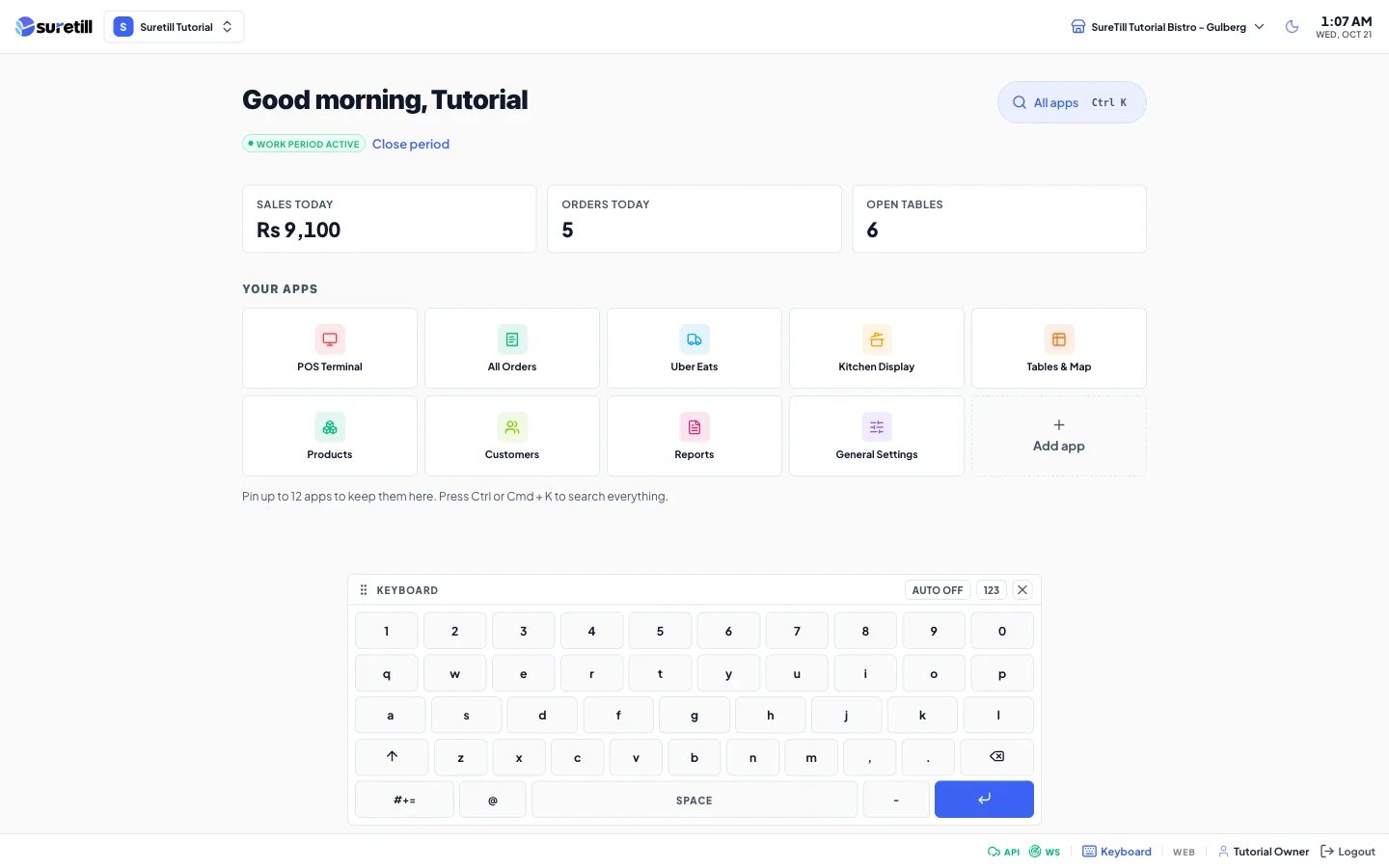
The keyboard is manual by default. It stays closed until you open it with the Keyboard button. You can switch on Auto, and then it opens by itself every time you tap a text field. That choice is remembered on that device only, so you can use Auto on the touch till and leave it off on the office PC.
Step by step
Section titled “Step by step”Open and type
Section titled “Open and type”- Tap the text field you want to fill, for example the note of an order.
- Tap the Keyboard button with the keyboard icon. It is in the footer at the bottom of the screen, and in the bottom bar of the POS. On narrow screens only the icon shows.
- Type. The keys go into the field that was last in use. The field keeps focus, so the cursor does not jump.
- Tap Enter on the keyboard to confirm, or tap the button again to hide the keyboard.
When a field has focus but the footer button is hidden, for example in a full-screen editor, and Auto is off, a round Keyboard button appears at the bottom right of the screen. Tap it to open the keyboard.
Make it open by itself
Section titled “Make it open by itself”- Open the keyboard with the Keyboard button.
- In its title bar press Auto off. It changes to Auto on.
- From now on the keyboard opens whenever you tap a text field, and it scrolls the field out from under the keyboard if the keyboard would cover it.
- To go back to manual mode press Auto on again.
Move it
Section titled “Move it”Drag the title bar to put the keyboard where you want. The place is remembered on that device. If the screen size changes, the keyboard is moved back inside the screen. The default place is the bottom centre.
Numbers
Section titled “Numbers”For amount, quantity and phone fields the keyboard shows a number pad by itself: digits, a minus, a decimal point, 00 and Enter. Press ABC to switch to the full keyboard, or 123 on the full keyboard to get the pad back. If you type a decimal point into a number field, the field becomes a text field with a decimal keyboard so that a value such as 1. is not erased.
Every setting explained
Section titled “Every setting explained”| Setting | What it does |
|---|---|
| Keyboard button (footer, POS bottom bar) | Opens or hides the keyboard. It is shown in the colour of the app when the keyboard is open. |
| Keyboard chip (bottom right) | Appears only while a text field has focus, Auto is off, the keyboard is closed and the footer button is covered. |
| Title bar | Drag it to move the keyboard. |
| Auto on / Auto off | Opens the keyboard when a text field is tapped. Saved on this device. |
| 123 / ABC | Switches between the number pad and the full keyboard. |
| Close (X) | Hides the keyboard. |
| Shift | Capital letter for the next key. |
| #+= / ABC | Switches between letters and symbols. |
| Backspace | Deletes one character. Hold it to keep deleting. |
| @, space, minus | Keys for email and notes. |
| Enter | In a text box, adds a new line. In a single-line field it presses Enter and submits the form, the same as a physical Enter key. |