

Working offline and how sync works
Where: Settings > Branches (Offline Selling) and Settings > Sync Settings
Who can use it: Turning on Offline Selling needs the Branches permission (branches.view or manage branches). Everything else is automatic.
Open this page in SureTill
A restaurant cannot stop when the internet drops. SureTill keeps the till working for a defined set of actions, saves them on the device, and sends them to the server when it is reachable again. This page explains the parts in plain language.
How a terminal knows it is offline
Section titled “How a terminal knows it is offline”The footer of every screen has two small icons. The cloud icon is the server: green when it answers, red when it does not, amber while checking. The antenna icon is the live connection used for kitchen tickets and printing: green connected, amber connecting, red lost. A grey antenna means the server does not offer a live connection.
When Offline Selling is on, the terminal also asks the server if it is alive every 5 seconds. Two missed answers in a row mean offline. One good answer means online again. While the server is down it tries again after 1, 2, 4, 8 and then every 15 seconds. It does not rely on the Wi-Fi light of the device, because Wi-Fi can be fine while the server is down.
Offline Selling: what still works
Section titled “Offline Selling: what still works”Offline Selling is a setting of each branch. It is off by default.
- Open Settings > Branches and edit the branch.
- In the section Offline Selling switch on Keep selling when the server is unreachable.
- Save the branch.
- Open the POS on every terminal of the branch once while it is online. The terminal registers itself, gets its own code and stores the printers, table names, payment methods and the open work period for later.
| Action | While the server is unreachable |
|---|---|
| New order | Works for dine-in, takeaway and drive-thru orders. The order gets a number made on the device, like OFL-A2-260715-0007 (branch prefix, terminal code, date, a counter). Other order types need the server. |
| Send to kitchen | The ticket is printed on the device as a plain copy marked OFFLINE COPY. This needs the Windows or Android app and a kitchen printer in range. In a browser, or when no printer answers, the kitchen ticket is owed: it prints by itself as soon as the server is back, and the bar shows KOT owed. |
| Cash payment | Works. The cash is recorded on the device. |
| Card, account and other payments | Not possible. The terminal says Only cash can be taken while the server is unreachable. |
| Table status | Accepted on the device. The server works out the real status from the orders. |
| Orders it has never seen | The terminal says This order is not available offline. Reconnect to take payment. |
The offline bar
Section titled “The offline bar”A small bar appears at the bottom left of the POS when Offline Selling is on and there is something to tell: Offline - selling continues, Syncing, or Sync needs attention, with counters for pending, need attention and to review. Click it to open the list Offline orders on this device.
| Item | Meaning |
|---|---|
| Not synced (amber) | The server does not have all the actions of this order yet. |
| Synced (green) | The server has everything. The order stays in the list for a day. |
| Needs attention (red) | The server refused an action. Nothing is deleted. A manager reviews it. |
| Take cash | Records the cash for the amount still due on that order. |
| Sync now | Sends the waiting actions now (shown when the server is reachable). |
| For a manager to review | Cases the server flagged. Each has a Resolve button. The kinds are: Cash taken beyond the bill, Table seated twice, Sale after work period closed, Price changed while offline, Item added to a paid bill, Offline action rejected. |
How the sales go back to the server
Section titled “How the sales go back to the server”- Every action is saved on the device in order, like a list of facts, and each has its own id.
- When the server answers, the terminal sends them in that order, up to 50 at a time, one batch at a time. It stops at the first network error and tries again later.
- The server ignores an action it already has, so a repeat never creates a second order or a second payment.
- An action that the server cannot take now is held and tried again with a growing wait, up to one minute. Nothing is ever dropped.
- The server is careful with money. It never books more than is due on a bill and flags the extra cash for review.
- If the server was replaced or restored while the terminal was offline, the terminal sends again the actions of the last 30 minutes so none is lost.
- Product, category, table and customer lists are also kept in the browser or app storage and shown from there when a page is opened offline. They refresh in the background when the server is back.
Several terminals on one local network
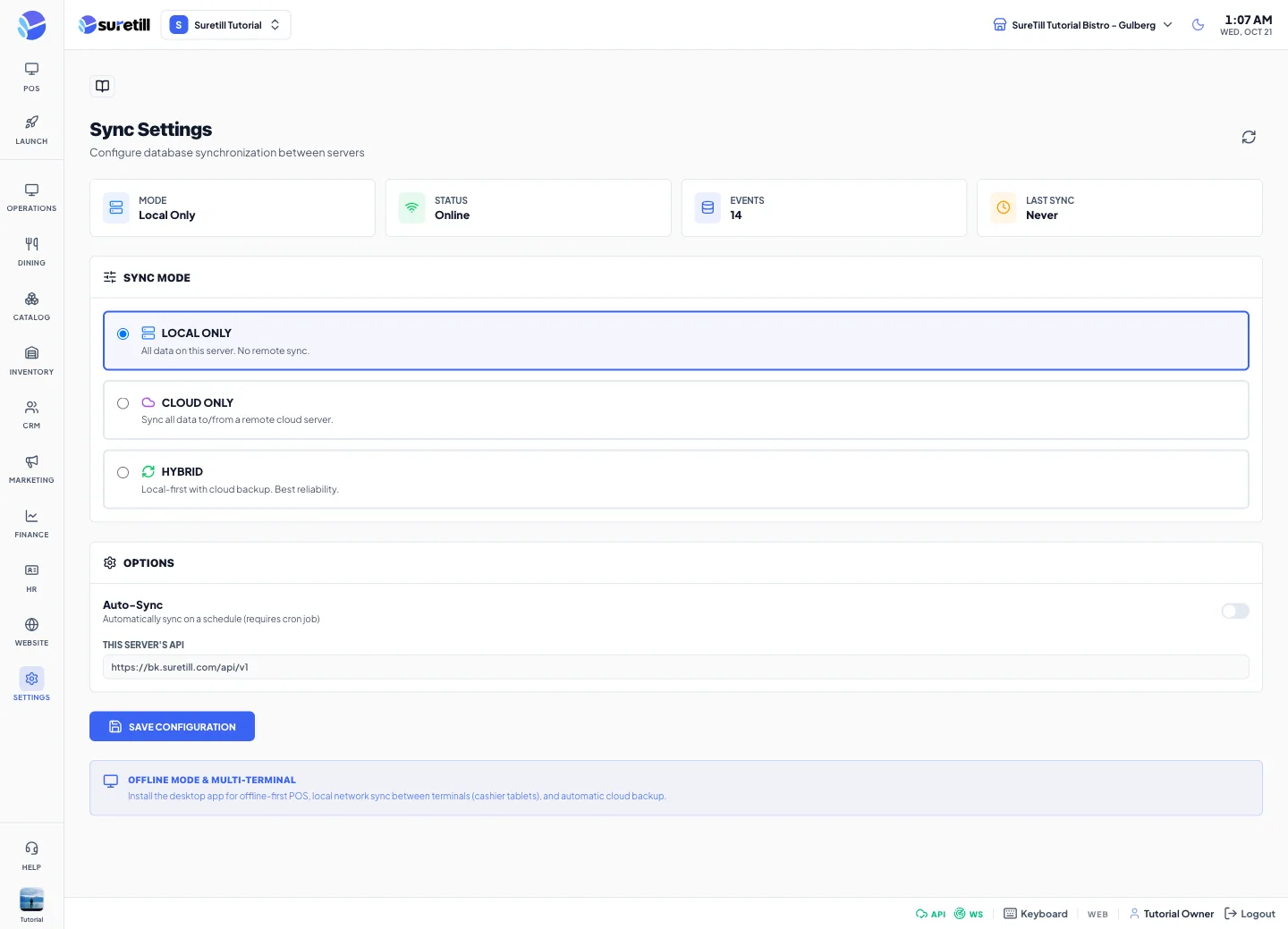
Section titled “Several terminals on one local network”In the Windows desktop app a branch can use one PC as the Main Server and the other terminals in Terminal mode. They exchange orders over the local network even when the internet is down, and the main PC syncs with the cloud when it is online. See Sync Settings.
After an outage
Section titled “After an outage”- Keep every terminal open and online for a few minutes. Watch the bar until Not synced turns to Synced.
- Open Sync Logs to check for failures.
- In the offline bar, review any Needs attention order and any item under For a manager to review, and press Resolve when you have checked it.
- Print the day report and compare cash with the cash that was taken offline.