

Sync Settings
Where: Settings > Sync Settings
Who can use it: Permission: settings.view or manage settings. Not available on SureScreen plans. A restaurant on SureTill cloud does not need it: all terminals talk to the cloud directly.
Open this page in SureTill
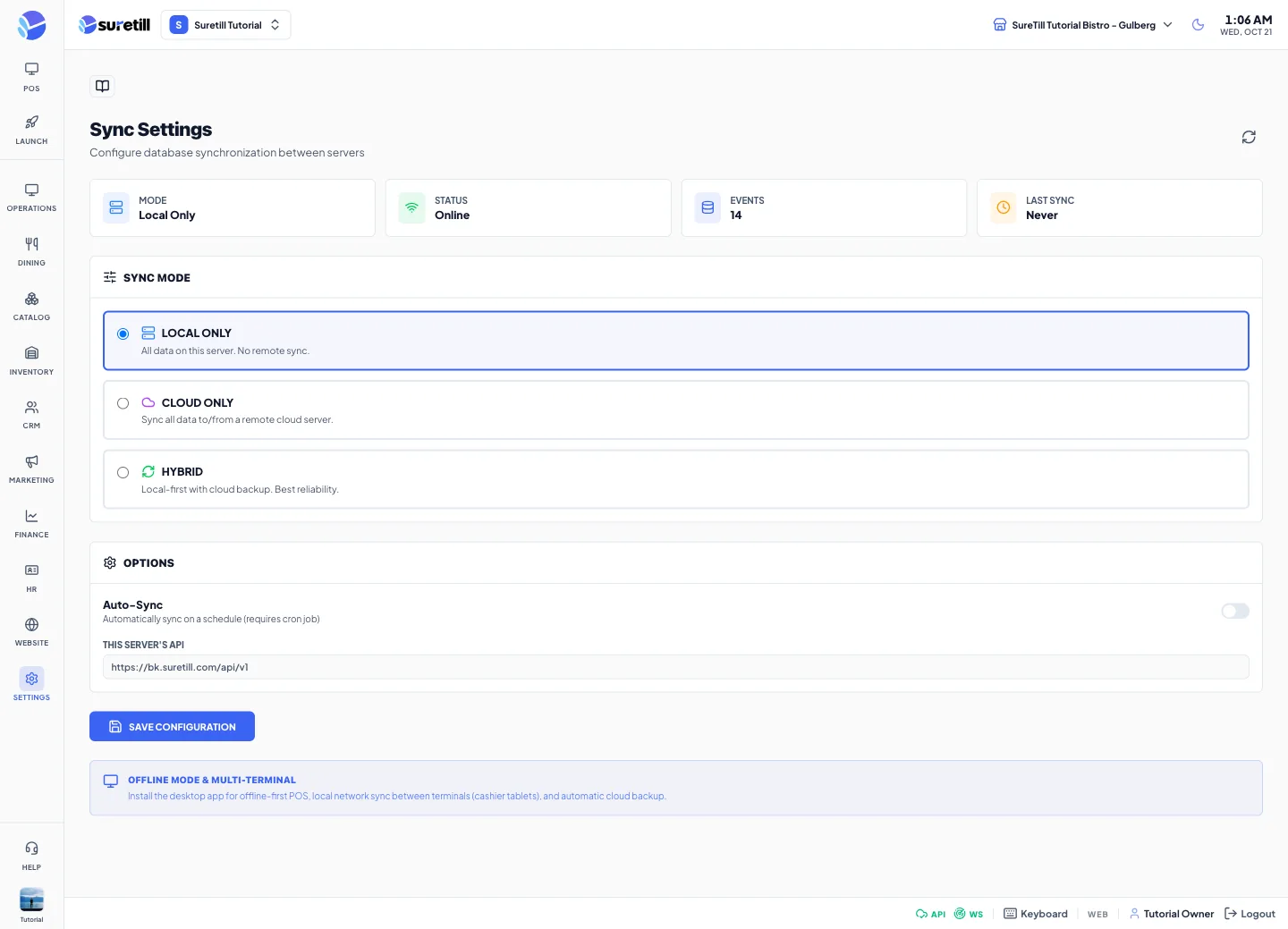
This page has two layouts. In a web browser it manages the sync between servers (for example a server in the restaurant and a server on the internet). In the Windows desktop app it manages how the terminals of one branch connect to the main PC. Both layouts end with a Save button and both write their results to Sync Logs.
In the browser: sync between servers
Section titled “In the browser: sync between servers”Connect to a remote server
Section titled “Connect to a remote server”- Choose a Sync Mode: Local Only (everything stays on this server), Cloud Only (sync all data to and from a remote server) or Hybrid (local first, with a copy on the remote server; the best reliability).
- For Cloud Only or Hybrid enter the Server URL of the remote server, for example https://api.openpos.pro or 192.168.15.74:8000.
- Both servers must trust each other. In the Sync Token box press Generate on this server and copy the token at once; it is shown only one time. Give it to the other server.
- Paste the token that the other server gave you into Access Token.
- Press Test Connection. The result shows Reachable, API health, Sync Ready, the latency in milliseconds and the branch names found on the remote server.
- Click Save Configuration.
Run a sync by hand
Section titled “Run a sync by hand”Once a mode other than Local Only and a Server URL are saved, the Manual Sync card appears. Full Sync (Push & Pull) sends and receives. Push to Remote only sends this server data. Pull from Remote only fetches. The result shows how many events were Pushed and Pulled and the number of Conflicts. Errors are listed below it.
Change or revoke the token
Section titled “Change or revoke the token”Regenerate creates a new token and the old one stops working. Revoke deletes it; remote servers can no longer sync with this one until you generate a new token and send it to them.
Automatic sync
Section titled “Automatic sync”Switch on Auto-Sync to sync on a schedule and set the Sync Interval in seconds (10 to 3600, starts at 60). The page notes that this needs the scheduled task of the server to be set up.
In the Windows desktop app: terminals and main PC
Section titled “In the Windows desktop app: terminals and main PC”- On the PC that stays on in the branch, choose Main Server mode. Press Start in the Local Server card. The card shows the address terminals use, and Connect Tablets & Mobiles lists the addresses of the PC with a Copy button.
- On every other terminal choose Terminal mode and type the address of the main PC into Main Server URL, for example http://192.168.1.100:8091.
- A single device that is not in a branch network uses Standalone mode and syncs straight to the cloud.
- Click Save Settings. The message Settings saved appears.
Every setting explained
Section titled “Every setting explained”| Setting | What it does |
|---|---|
| Mode, Status, Events, Last Sync (browser) | The chosen mode, whether the browser is online, the number of events in the sync log and the time of the last sync. |
| Sync Mode (browser) | Local Only, Cloud Only or Hybrid. |
| Server URL, Access Token | Where the remote server is and the token this server sends to it. |
| Test Connection | Checks the remote server. Needs a Server URL. |
| Sync Token: Generate / Regenerate / Revoke | The token of this server that other servers send to you. The page shows only its first characters later. |
| Remote Server’s Token | Configured or Not Set, depending on whether a token for the remote server is saved. |
| Auto-Sync and Sync Interval | Switch and seconds between syncs (10 to 3600). |
| This Server’s API | Read only. The address the other server must use to reach this one. |
| Save Configuration | Stores the browser settings. |
| Manual Sync | Full Sync (Push & Pull), Push to Remote, Pull from Remote. |
| Recent Sync History | The last syncs with type, direction, records synced, failures, duration and time. View All opens Sync Logs. |
| Status, Pending, Last Sync, Terminals (app) | Online or Offline, the number of items waiting to sync, the time of the last sync and the count of connected terminals. |
| Sync Now (app) | Forces a sync of all pending data. |
| Sync Mode (app) | Main Server, Terminal or Standalone. |
| Server Port (app) | The port of the local server on the main PC. Starts at 8091. |
| Main Server URL (app) | Terminal mode only. The address of the main PC. |
| Cloud API URL, Access Token (app) | The cloud server and the token used for secure server-to-server sync. |
| Auto-Sync Interval (app) | Seconds between syncs, 10 to 3600, starts at 30. |
| Enable Offline Mode (app) | Store data on the device and sync when the connection returns. |
| Terminal ID, Branch ID (app) | The id of this terminal (read only) and the branch it belongs to. |
| Save Settings (app) | Stores the desktop settings. |