

Sync Logs (Sync Status)
Where: Settings > Sync Logs
Who can use it: Permission: settings.view or manage settings. Not available on SureScreen plans.
Open this page in SureTill
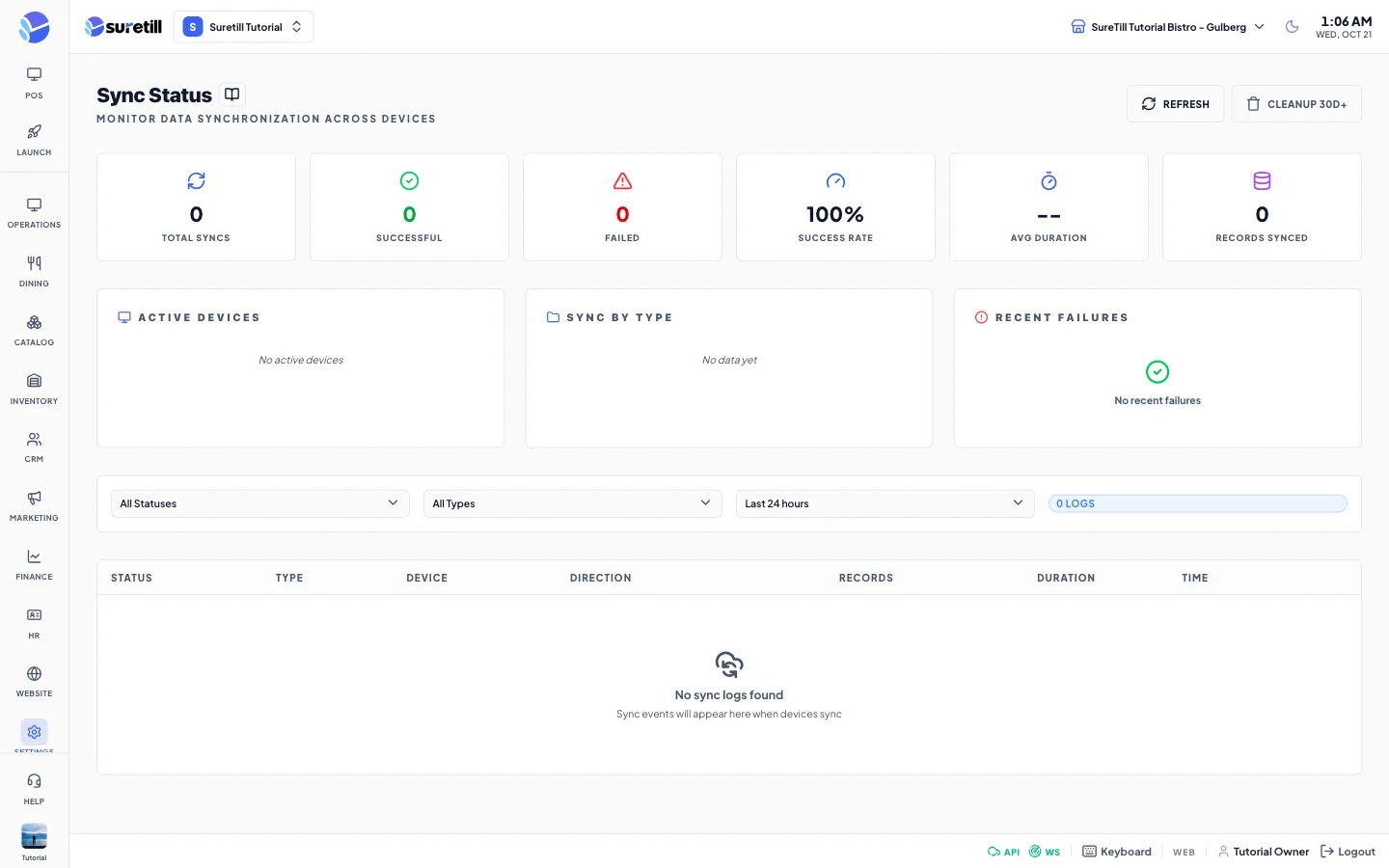
The page title is Sync Status. Each time a device or server sends or fetches data, a log line is written. This page adds the lines up for the active branch so you can see if syncing is healthy, which device is behind, and what the last error said. It refreshes the list every 15 seconds and the counters every 30 seconds.
Step by step
Section titled “Step by step”Check the health of syncing
Section titled “Check the health of syncing”- Open Settings > Sync Logs and choose a time range, for example Last 24 hours.
- Look at Success Rate and Failed. A rate near 100 percent is healthy.
- If Failed is not zero, read Recent Failures. Each entry shows the device, the type and the error message.
- Click a row in the table to open all details of that sync.
Find a device that stopped syncing
Section titled “Find a device that stopped syncing”The Active Devices card lists the devices that synced in the range with their number of syncs and the time of the last one. A terminal that you expect there but that is missing has not synced. Check its connection and the Devices page.
Clean up
Section titled “Clean up”Cleanup 30d+ deletes sync logs older than 30 days, for all branches. It does not touch your orders or other data. The toast Cleanup Complete confirms it.
Every setting explained
Section titled “Every setting explained”| Setting | What it does |
|---|---|
| Refresh | Reloads the list and the counters. |
| Cleanup 30d+ | Deletes sync logs older than 30 days. |
| Total Syncs | The number of syncs in the range. |
| Successful, Failed | How many ended well and how many failed. |
| Success Rate | Successful divided by total, in percent. Shows 100 percent when there is nothing yet. |
| Avg Duration | The average time a sync took. |
| Records Synced | The total number of records moved. |
| Active Devices | Devices that synced in the range, with sync count and last sync time. |
| Sync by Type | For each type (orders, products, customers, inventory, full, queue) the syncs, the records that went well and the errors. |
| Recent Failures | The latest failed syncs with device, type, error and time. |
| Status filter | All Statuses, Success, Failed, Partial, In Progress, Pending. |
| Type filter | All Types, Orders, Products, Customers, Inventory, Full Sync, Queue. |
| Time filter | Last 1 hour, 6 hours, 24 hours, 3 days, 7 days, 30 days. |
| Logs counter | The number of lines that match (up to 100 are listed). |
| Table columns | Status, Type, Device, Direction (upload, download or bidirectional), Records (synced and failed), Duration and Time. |
| Details window | Opens on a row click: type, status, device, IP address, records synced and failed, duration, direction, the times started, completed and created, the error text and the technical details. |