Where: Operations > Kitchen Display Who can use it: Permission kds.access (or access kds, access kitchen) opens the page. Start, Ready, Bump and the item buttons need kds.mark_preparing, kds.mark_ready or kds.recall. Owners and admins can do everything. The branch setting Features > KDS must be on for the POS to send orders here. Open this page in SureTill
Watch it: Start a ticket, mark it Ready, then Bump it when it leaves the pass (15 seconds).
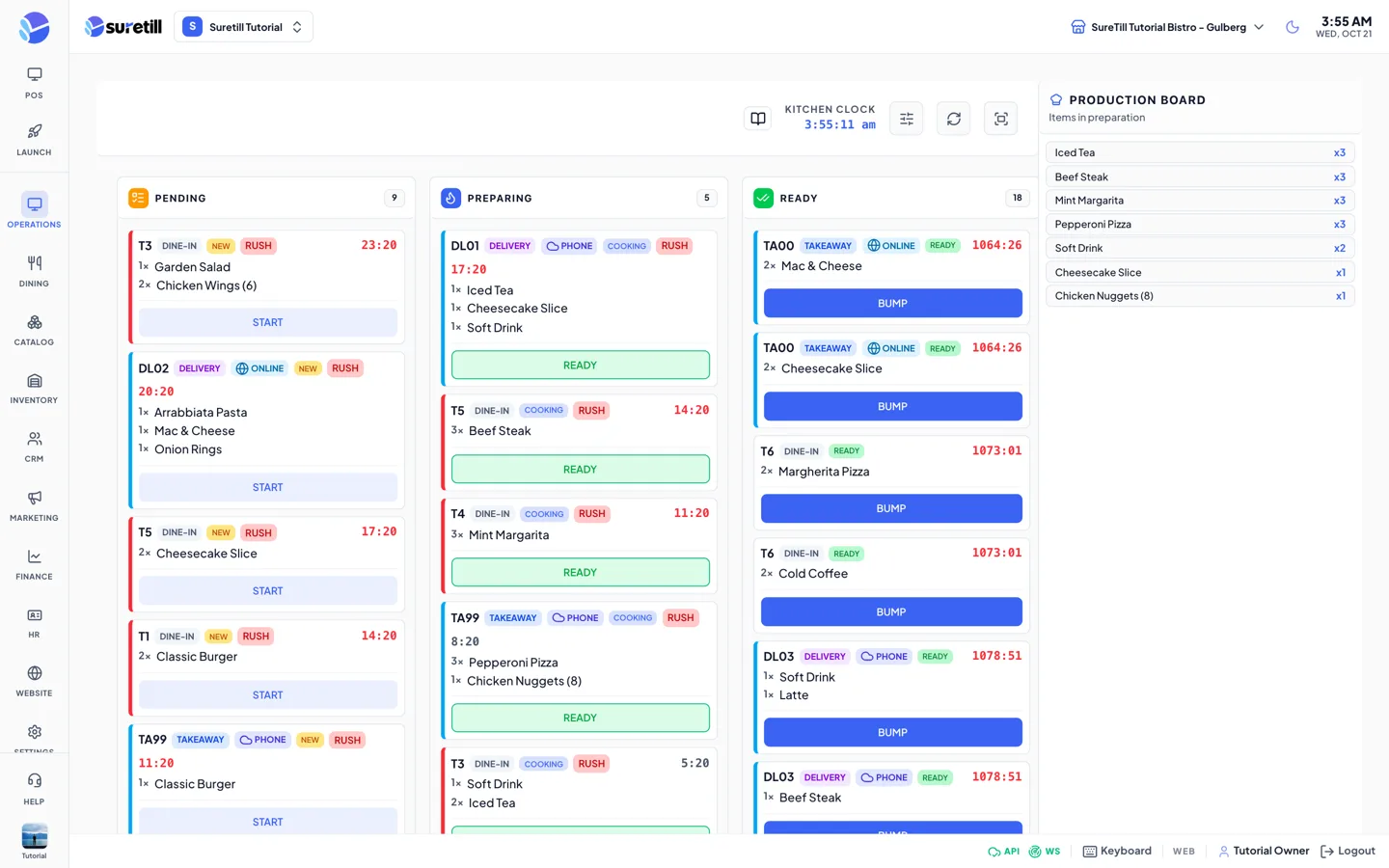
The Kitchen Display replaces printed tickets, or works with them. Each order that is sent from the POS appears here as a card. The kitchen moves the card from Pending to Preparing to Ready. The POS cart shows the same state as “Preparing” or “Ready”.
The screen only shows orders of the branch’s current open work period. When the work period closes, everything on the screen is cleared so nothing carries over to the next day. Orders that are already settled or completed leave the screen.
Tap anywhere on a card. A panel slides in from the right: “Order” and the table or token name.
Each item shows its quantity, name, size, station and add-ons, and a badge: New, Cooking, Ready or Voided.
Tap Start on an item when you begin it and Complete when it is done. When the last item is completed, the whole ticket is complete.
Tap Priority or Rush to flag the ticket. A Priority ticket gets a Priority tag. A Rush ticket gets a red tag and a red border on its card. Tickets are normal until someone flags them.
Tap COMPLETE & BUMP to finish the whole ticket at once.
Name: the table with its ticket letter (for example T4A). For orders without a table it is a short token: TA for takeaway, DL for delivery, DT for drive-thru, TK for other, followed by the last two digits of the order number.
Type badge: Dine-In, Takeaway, Delivery or Drive-Thru.
Source badge: Online (web), Foodpanda, Ubereats, Kiosk or another channel. Cards from outside channels get a blue left border.
Status tag: New, Cooking or Ready, plus Rush or Priority if flagged.
Timer: minutes and seconds since the order was created. It turns red after 10 minutes.
Items: quantity, name, size in brackets, add-ons with a plus sign, and special instructions in amber. Voided items are struck through.
ALLERGY: a red mark and left border on an item whose notes contain a word such as allergy, allergic, nut, gluten, dairy, shellfish, peanut, lactose, soy or egg.
Production Board (pan icon, phones and small screens)
Opens the Production Board as a side sheet. A badge shows the total quantity being prepared. On large screens the board is always visible at the right.
Average preparation time of the tickets completed today, as minutes:seconds. Shows “–” until a ticket has been started and completed.
Completed (7 days)
Number of tickets completed in the last 7 days. Shows “–” when there are none.
Stations list
Each kitchen station with a green or red dot for active or not. Orders opens the tickets of that station. Detail opens the station name, status, pending and preparing counts, description and categories.
Auto Accept Orders
Saved with the KDS settings: start preparing new orders without manual acceptance.
Sound Enabled
Plays a beep when a new order arrives. Default is on.
Show Item Images
Saved with the KDS settings: show product photos next to items. Default is on.
Display Mode (Grid or List)
Saved with the KDS settings. Default is Grid.
Columns
Saved with the KDS settings. The server accepts 2 to 6 and the default is 4.
Alert Time (sec)
Saved with the KDS settings. Minimum 60, default 300. When a ticket has been waiting this long its timer turns red.
Warning Time (sec)
Saved with the KDS settings. Minimum 30, default 180. When a ticket has been waiting this long its timer turns amber.