

Warehouse
Where: Inventory > Warehouse
Who can use it: Permission inventory.view or manage inventory.
Open this page in SureTill
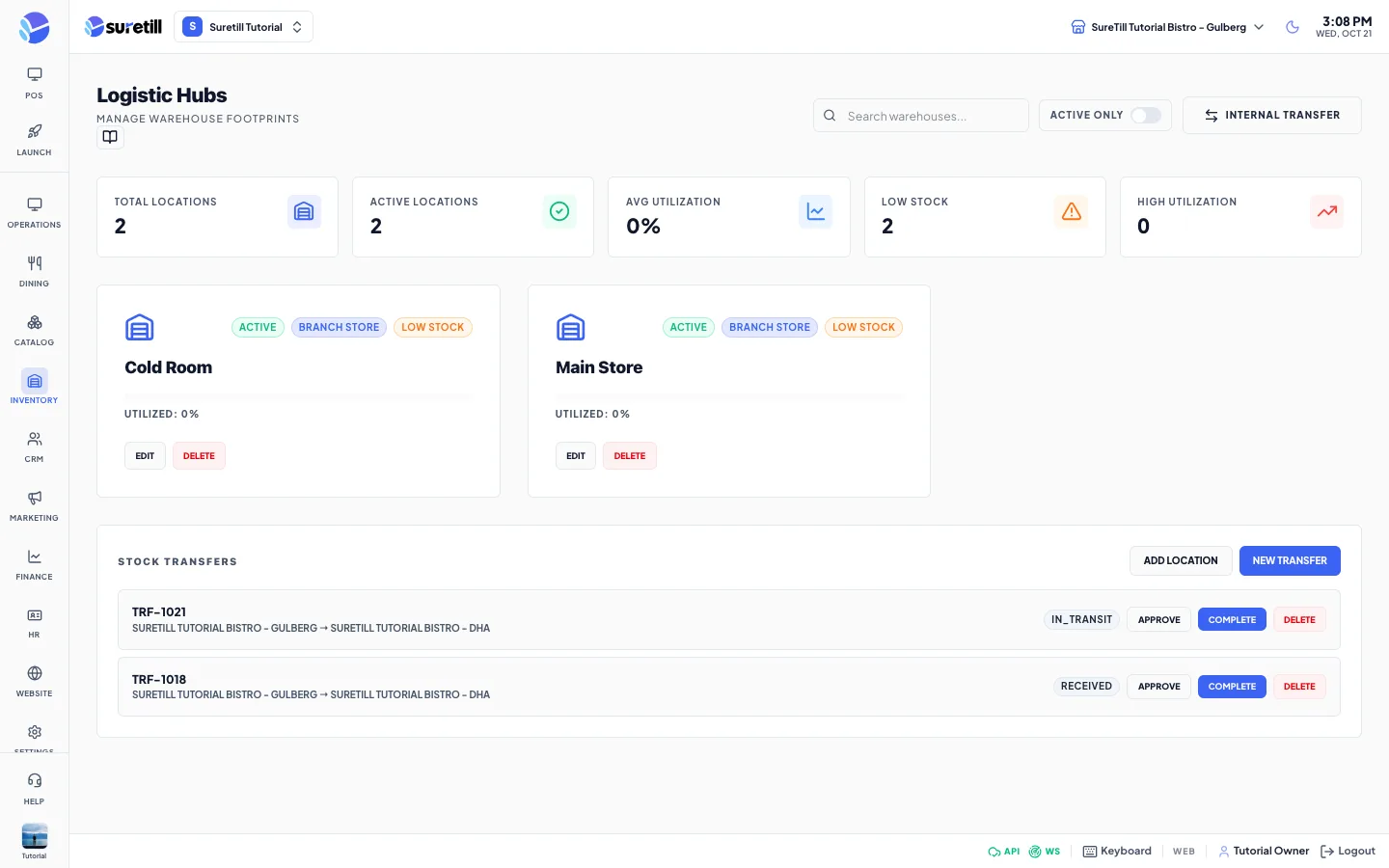
A warehouse location is a place where stock is stored. Each location has its own quantities, separate from the stock levels of the kitchen. Locations belong to a branch, and a code must be unique inside the branch.
Use this page to keep your storage places, to move stock from one location to another, and to approve and complete transfers between branches.
Step by step: add a location
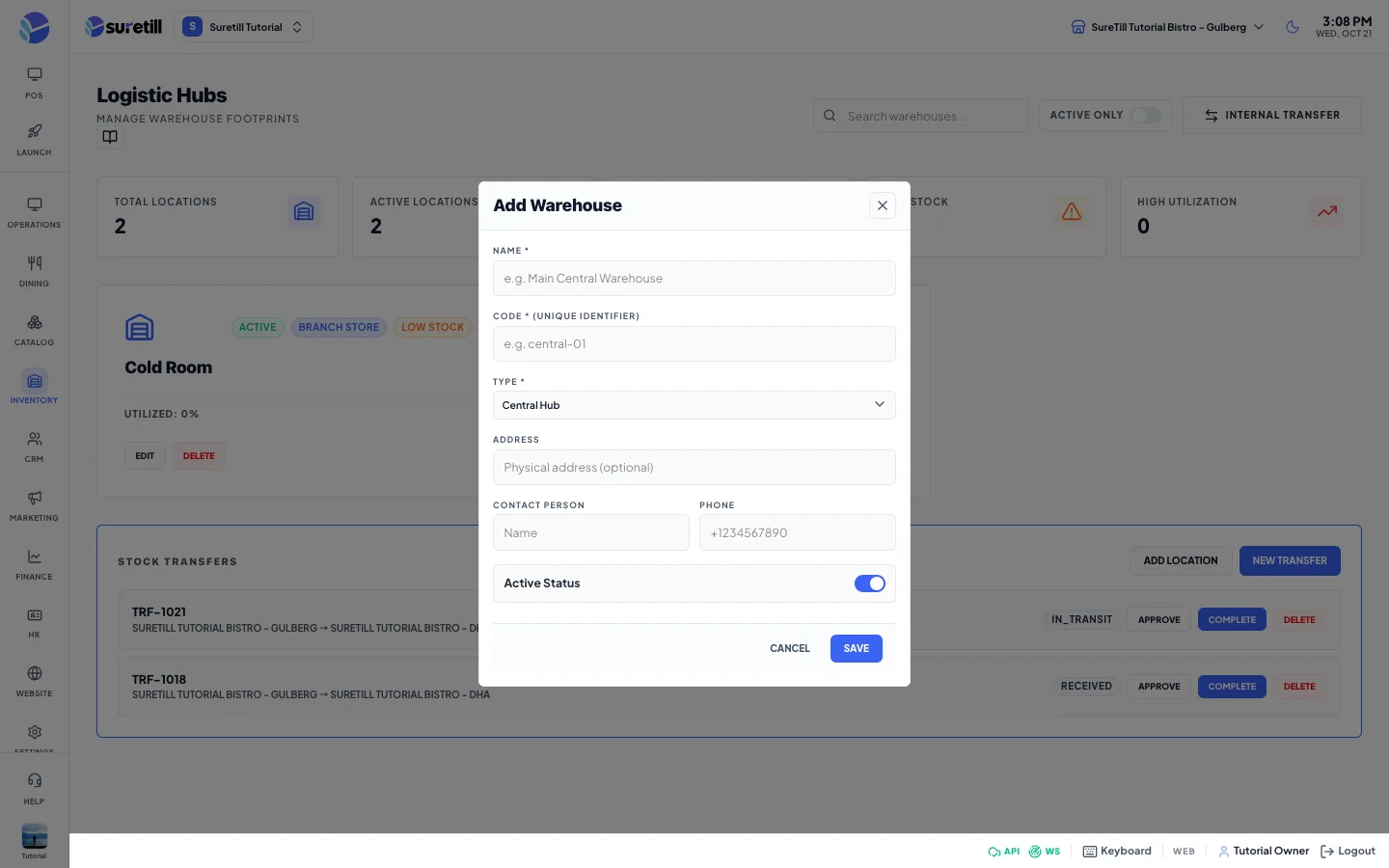
Section titled “Step by step: add a location”- Open Inventory > Warehouse. In the Branch Stock Transfers card click Add Location.
- Type the Name and a unique Code, for example central-01. If you leave the code empty it is made from the name.
- Choose the Type: Central Hub, Branch Store or Supplier.
- Optional: type the Address, Contact Person and Phone.
- Leave Active Status on and click Save.
Step by step: edit or delete a location
Section titled “Step by step: edit or delete a location”- Click Edit on a location card, change the details and click Save.
- Click Delete to remove a location.
Step by step: move stock between locations (Internal Transfer)
Section titled “Step by step: move stock between locations (Internal Transfer)”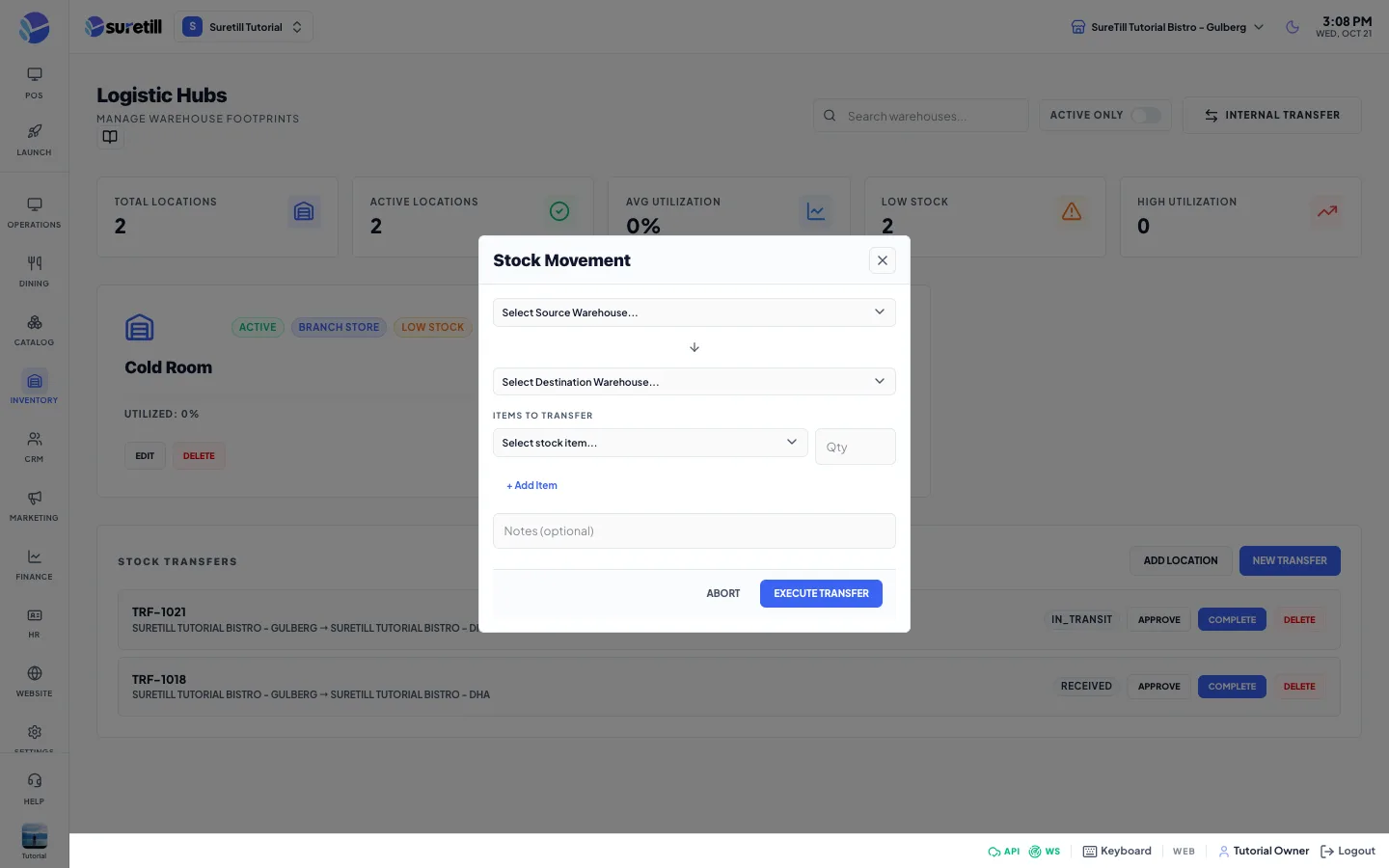
- Click Internal Transfer (or Move Between Locations in the Branch Stock Transfers card). Both open the same form, which moves stock between warehouse locations, not between branches.
- Pick the Source Warehouse and the Destination Warehouse. They must be different.
- Pick a stock item and type a quantity. Click + Add Item for more items.
- Optional: add Notes.
- Click Execute Transfer.
The move happens at once. The quantity leaves the source location and enters the destination, and a movement record is written at each end. If the source does not hold enough of an item, the whole transfer is refused.
Step by step: branch transfers (the Stock Transfers list)
Section titled “Step by step: branch transfers (the Stock Transfers list)”The Branch Stock Transfers list at the bottom shows transfers between branches, with a number, the sending and receiving branch and the status.
- Click Approve to mark a pending transfer as in transit.
- When the goods arrive, click Complete. The stock moves for real: the item of the sending branch goes down, and the matching item of the receiving branch goes up. The match is made by SKU, then by name. If the receiving branch has no such item, it is created.
- A transfer that would take more than the sender has on hand is refused with a message.
- Click Delete to remove a transfer record. This does not undo stock that was already moved.
Every setting explained
Section titled “Every setting explained”| Setting | What it does |
|---|---|
| Search warehouses | Filters locations by name, type or code. |
| Active Only | Shows only active locations. |
| Total Locations, Active Locations | Counts of the locations on the page. |
| Location card badges | Active or Inactive, and the type. Locations have no capacity setting, so no utilization figure is shown. |
| Name | Required. Up to 255 characters. |
| Code | Unique identifier inside the branch. Up to 50 characters. |
| Type | Central Hub, Branch Store or Supplier. |
| Address, Contact Person, Phone | Optional contact details. Phone up to 20 characters. |
| Active Status | Switch a location off without deleting it. |
| Source, Destination, Items, Notes | The fields of Internal Transfer. |
| Approve, Complete, Delete | The three buttons on each branch transfer. |