

Purchase Orders (Procurement)
Where: Inventory > Purchase Orders
Who can use it: Permission inventory.purchase_orders, inventory.view or manage inventory.
Open this page in SureTill
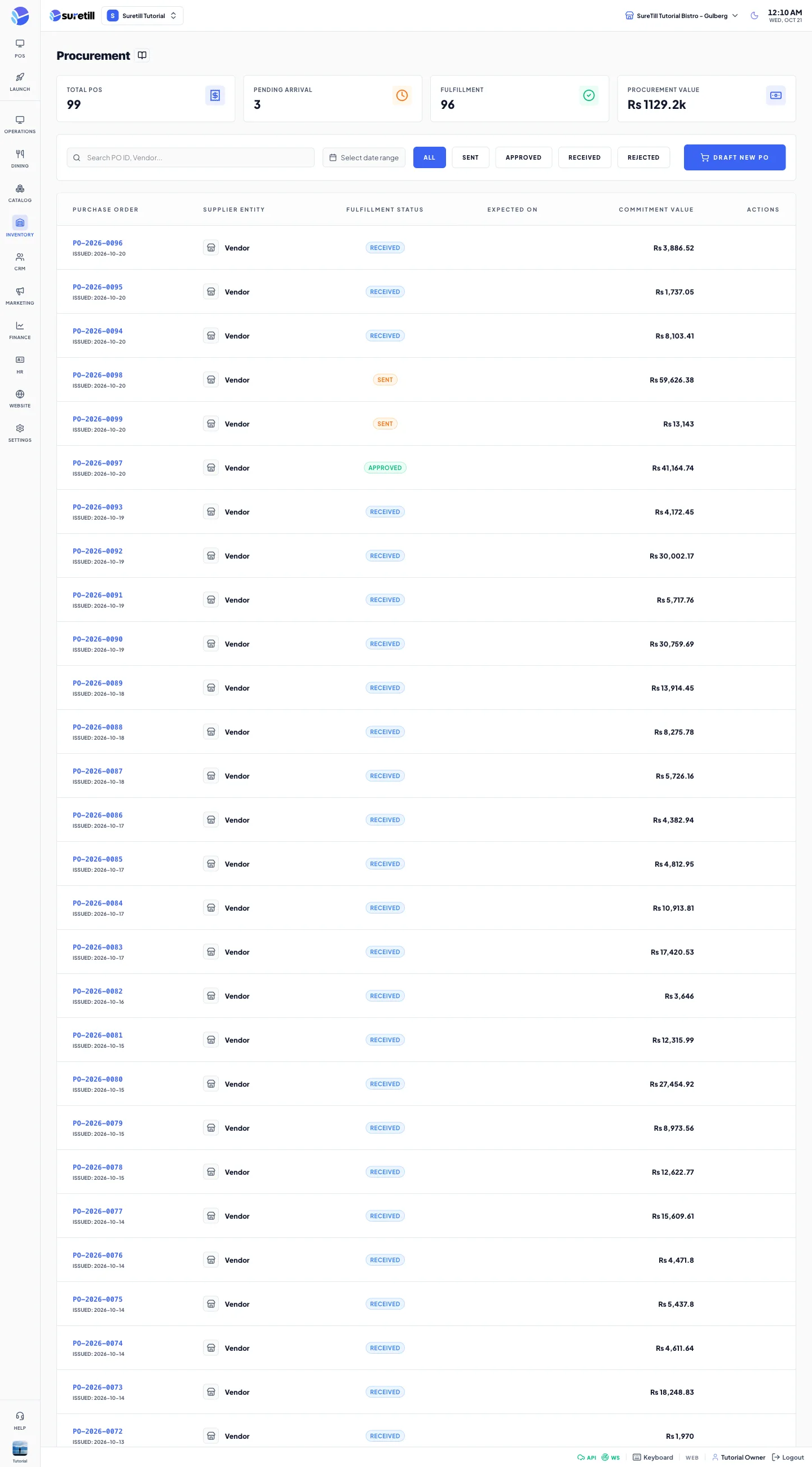
A purchase order (PO) is your request to a supplier to deliver goods at agreed prices. The page tracks each PO from the moment you send it until the goods are in your stock.
The life of a purchase order
Section titled “The life of a purchase order”- You draft the PO. It is saved with the status Sent on this screen.
- You approve it when you are happy to go ahead. The status becomes Approved.
- When the delivery arrives, you open the PO and click Mark as Fully Received. The status becomes Received.
At the last step every line of the order goes into stock. The quantity is added to the stock item and written to its history as Purchase. The cost per unit of the item is recalculated as a weighted average of the stock you had and the stock that came in. If the item had no cost yet, the order price becomes its cost.
Step by step: draft a new PO
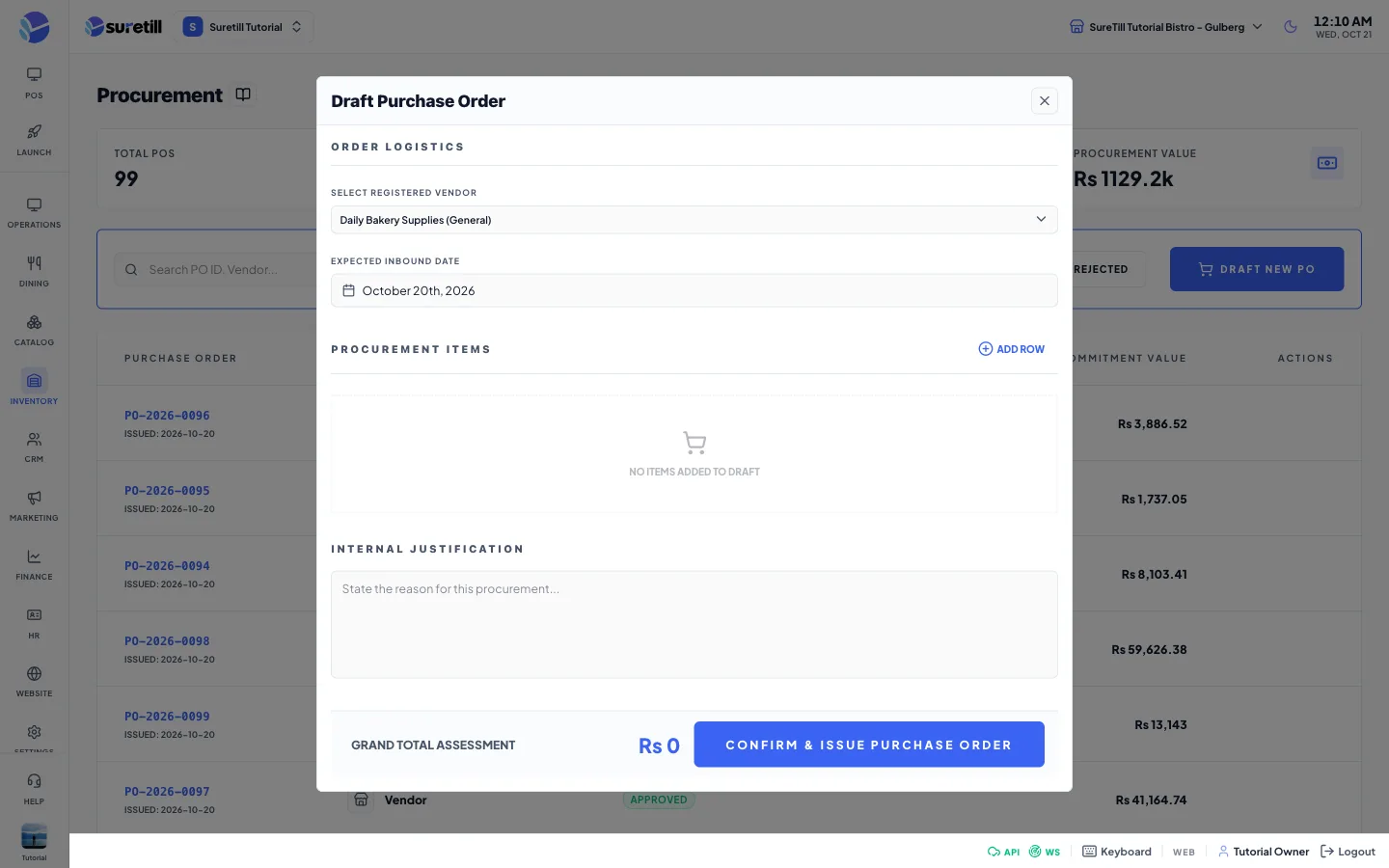
Section titled “Step by step: draft a new PO”- Open Inventory > Purchase Orders and click Draft New PO.
- Under Select Registered Vendor pick the supplier. The first supplier is selected for you.
- Pick the Expected Inbound Date. It starts as today.
- Click Add Row. Pick a stock item, type the quantity and the Cost/Unit. The cost starts from the item cost.
- Repeat for each item. The Grand Total Assessment updates at the bottom.
- Optional: write the reason in Internal Justification.
- Click Confirm & Issue Purchase Order.
Step by step: approve, reject, delete
Section titled “Step by step: approve, reject, delete”- Click a PO row to open Order Management.
- On a Sent PO, click Approve PO. If you decide against the order, click Reject Order. If Reject Order shows an error, delete the PO instead.
- On a Sent or Rejected PO, click Delete PO to remove it. There is no confirmation question.
- On an Approved PO, click Mark as Fully Received when the goods arrive.
- Received orders show Order Finalized and cannot be changed.
Find a PO
Section titled “Find a PO”- Search by PO number or supplier name.
- The status buttons are All, Sent, Approved, Received and Rejected. If the list is empty under Sent or Rejected, click All.
- The date range filters by the day the PO was issued.
Every setting explained
Section titled “Every setting explained”| Setting | What it does |
|---|---|
| Total POs | The number of orders loaded. |
| Pending Arrival | Orders that are Sent or Approved. |
| Fulfillment | Orders that are Received. |
| Procurement Value | The sum of all order totals, shown in thousands. |
| Purchase Order | The PO number (for example PO-261020-AB12) and the day it was issued. |
| Supplier Entity | The vendor of the order. |
| Fulfillment Status | Sent, Approved, Received or Rejected. |
| Expected On | The delivery date you gave. |
| Commitment Value | The total of the order: quantity times cost for each line. |
| Select Registered Vendor | Which supplier receives the order. |
| Expected Inbound Date | When you expect the goods. |
| Procurement Items | Stock item, quantity (whole numbers on this form), unit label and cost per unit. The unit label is for your eyes only: the stock item unit is used. |
| Internal Justification | A note kept with the order. |
| Order Management panel | Status, Total Commit, Supplier, ETA Date, the order lines and the notes. |
| Approve PO, Reject Order, Delete PO, Mark as Fully Received | The action buttons. Which ones show depends on the status. |