

Kitchen Requisitions
Where: Inventory > Kitchen Requisitions
Who can use it: Permission inventory.view or manage inventory. Approving, fulfilling and rejecting need a super-admin, admin or manager, or a manager PIN.
Open this page in SureTill
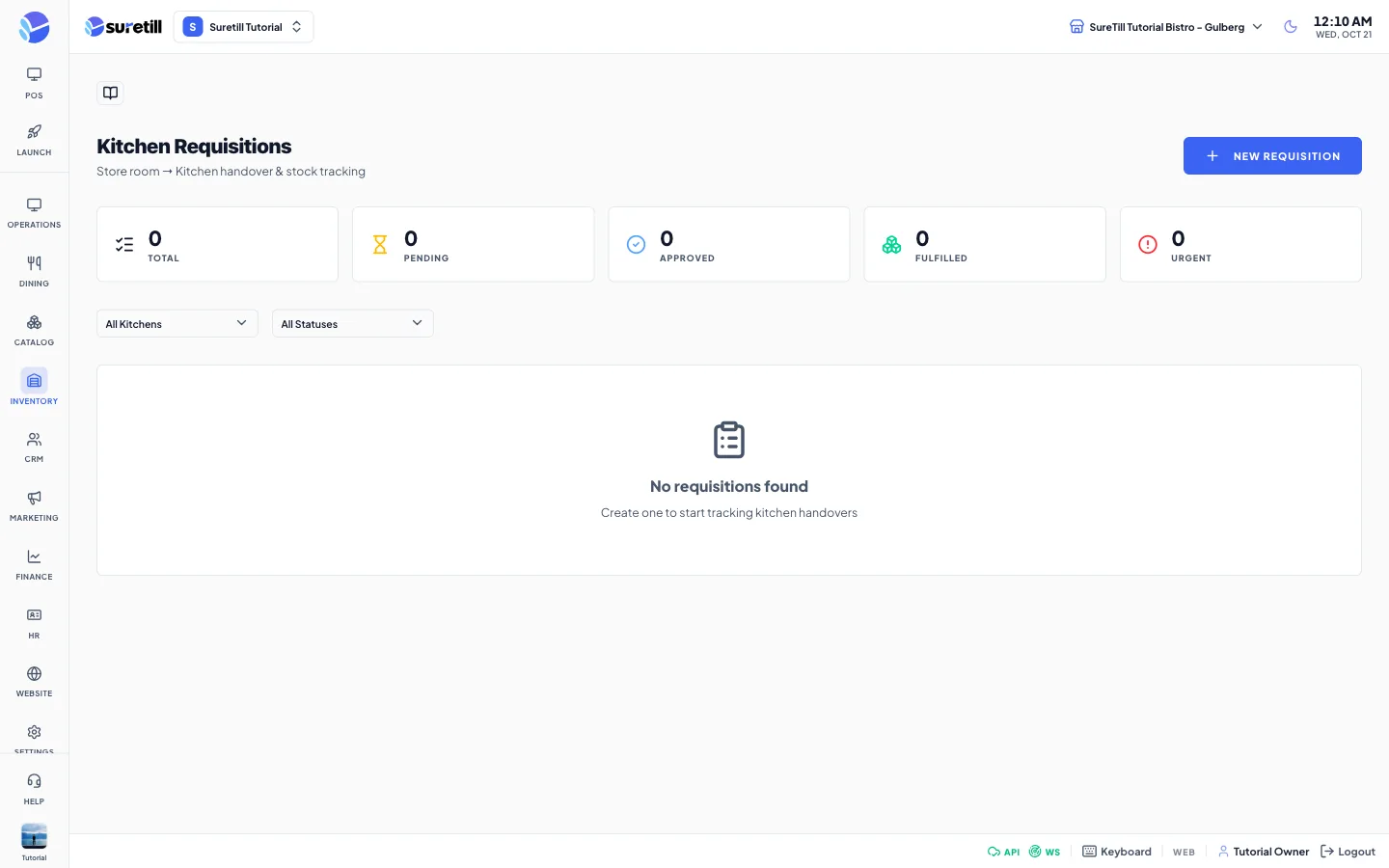
A requisition is a request for goods from the store room to a kitchen, for example the BBQ Kitchen asking for 5 kg of chicken. The page keeps a record of who asked, who approved, who gave the goods and who received them.
The steps of a requisition
Section titled “The steps of a requisition”| Status | Meaning |
|---|---|
| pending | Submitted and waiting for a manager. |
| approved | A manager approved it. Approved quantities are set. |
| fulfilled | The store room gave the goods and stock was reduced. |
| partially_fulfilled | Only part of the approved quantity was given. |
| rejected | A manager rejected it. |
Step by step: ask for goods
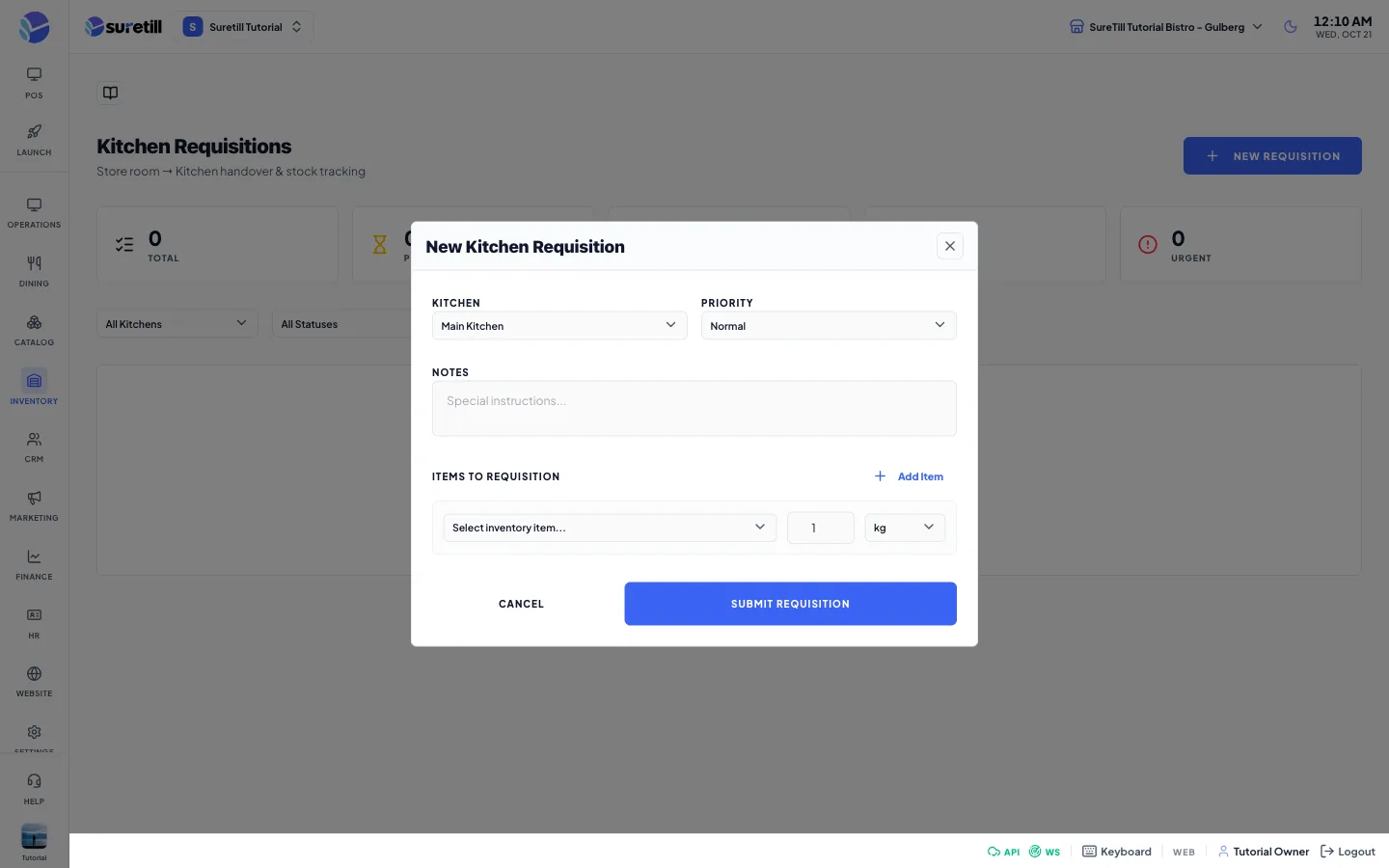
Section titled “Step by step: ask for goods”- Open Inventory > Kitchen Requisitions and click New Requisition.
- Pick the Kitchen. The list uses the kitchen stations of the branch. If there are none it offers Main Kitchen, BBQ Kitchen, Cold Kitchen, Bakery and Prep Station.
- Pick the Priority: Low, Normal, High or Urgent.
- Add Notes if needed.
- Under Items to Requisition pick a stock item (its balance is shown). The unit and name fill in. Type the quantity and check the unit.
- Click Add Item for more rows. Click Submit Requisition.
Step by step: approve or reject
Section titled “Step by step: approve or reject”- Click the green tick on the card, or open the card and click Approve. All items are approved at the requested quantity.
- If you are not a manager, a Manager PIN Required box opens. Type the PIN of a manager of the branch and click Verify & Approve.
- To reject, open the card and click Reject, then confirm. Rejecting the whole requisition marks every item rejected.
Step by step: fulfil
Section titled “Step by step: fulfil”- Open an approved (or partially fulfilled) requisition and click Fulfill & Reduce Stock, or use the box icon on the card.
- The store room gives the goods. Each linked stock item goes down by the approved quantity, and the status becomes fulfilled.
Step by step: record the handover
Section titled “Step by step: record the handover”- On a fulfilled requisition click the handshake icon, or Record Handover.
- The store room person types their PIN in Given By and clicks Verify. Their name and role appear.
- The kitchen person types their PIN in Received By and clicks Verify.
- Add Notes about any difference. Click Confirm Handover.
The two people must be different, and both PINs must belong to active staff of the branch (or an admin). The record shows in Handover Records on the requisition with both names and the time.
Every setting explained
Section titled “Every setting explained”| Setting | What it does |
|---|---|
| Total, Pending, Approved, Fulfilled, Urgent | Counters based on the requisitions loaded (up to 50). |
| All Kitchens filter | Shows requisitions of one kitchen. |
| All Statuses filter | All, Pending, Approved, Fulfilled, Partial or Rejected. |
| Card | Number (REQ- followed by a code), status, priority, date, kitchen, item count, creator and the first five items. The coloured left bar shows the priority. |
| Kitchen | The kitchen that asks. |
| Priority | Low, Normal, High or Urgent. |
| Notes | Instructions for the store room. A rejection reason is added here. |
| Item quantity | Must be at least 0.001. |
| Unit list | pcs, kg, g, ltr, ml, dozen, box, bag, bottle, pack, bunch. |
| Detail view | Requested, Approved and Fulfilled quantities, who created, approved and fulfilled it, notes and handover records. |
| Given By PIN, Received By PIN | 4 to 6 digits each. Each must be verified before you can confirm. |