

Stock Alerts
Where: Inventory > Stock Alerts
Who can use it: Permission inventory.view or manage inventory.
Open this page in SureTill
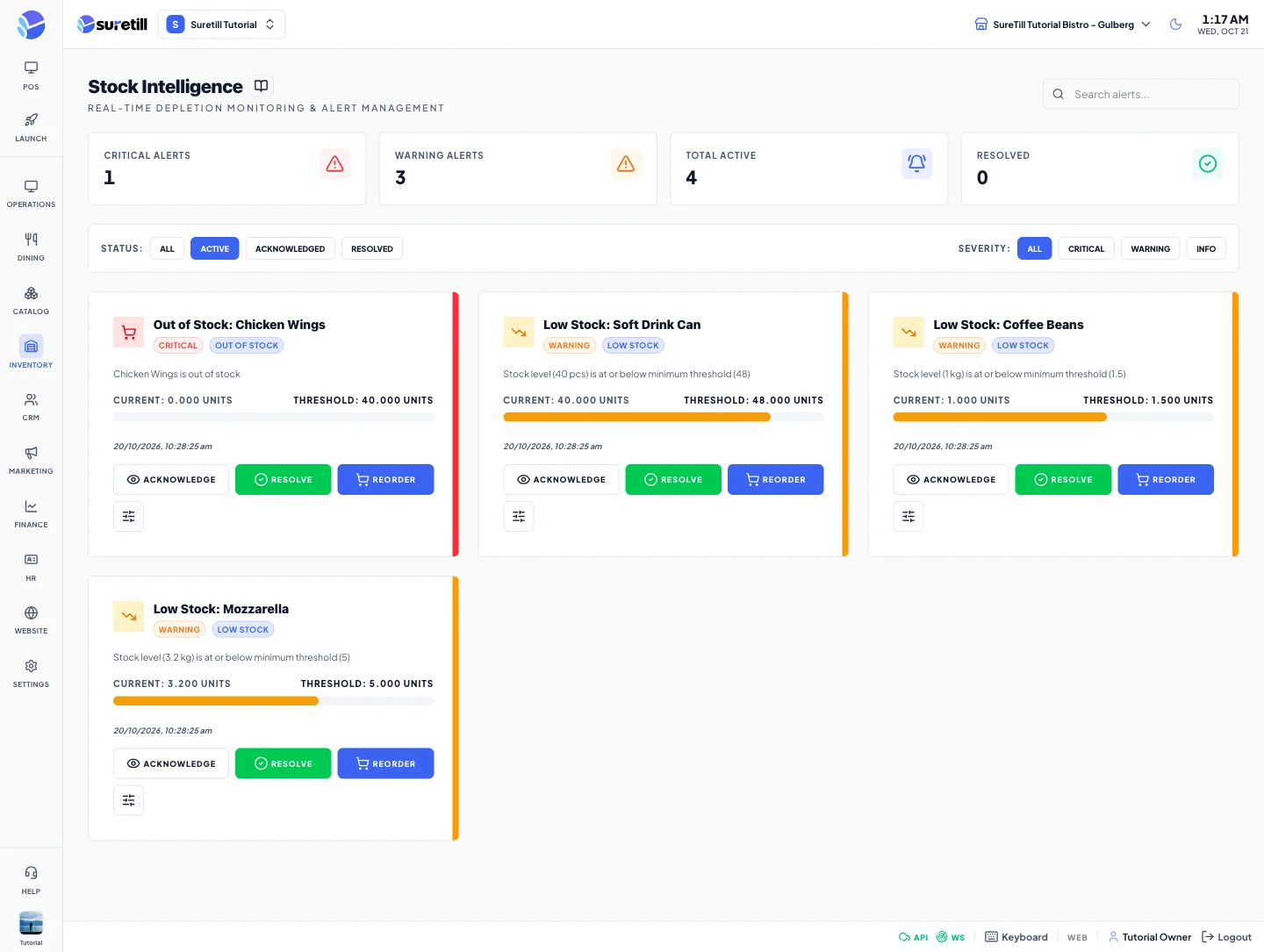
Alerts are created for you as stock moves. You do not add them by hand. Each alert is a card with a severity, a type, a message and the time. The same kind of alert for the same item is not repeated within 24 hours.
Alert types and when they appear
Section titled “Alert types and when they appear”| Type | When it is raised |
|---|---|
| Low Stock | An item is at or below its Min Level. Critical when it is at or below half of the Min Level, otherwise Warning. |
| Out of Stock | An item is at or below zero. Critical. |
| Negative stock | A sale took the balance below zero. Critical. Book the missing delivery or do a stock count. |
| Reorder Triggered | An item reached its Reorder Point and has auto-reorder on. Warning. The message suggests a quantity. |
| Expiring Soon | A batch expires within the warning window. Critical in 3 days or less, otherwise Warning. |
| Expired | A batch passed its expiry date. The batch is marked expired. Critical. |
| Recipe problem | A recipe uses units that cannot be converted, uses a deleted stock item, tried to take an absurd amount, or mixes count and weight units. Critical. The message tells you what to fix. |
Alerts close themselves when the cause goes away: stock above zero closes Out of Stock and Negative; stock above the Min Level closes Low Stock; stock above the Reorder Point closes Reorder Triggered.
Admins, managers and inventory managers of the branch get an in-app notification for each alert. Critical alerts are also pushed, and are sent to the admin and manager notification phone numbers of the branch when those are set.
Step by step: work through the alerts
Section titled “Step by step: work through the alerts”- Open Inventory > Stock Alerts. The page starts on the Active filter.
- Read the card: the message, the Current and Threshold values with a bar, and the time.
- Click Acknowledge to tell your team you have seen it. It moves to the Acknowledged filter.
- Fix the cause (book a delivery, correct the recipe unit, count the stock), then click Resolve. A resolved card is dimmed and loses its buttons.
Step by step: change a threshold
Section titled “Step by step: change a threshold”- On a low stock, out of stock or reorder card, click the small sliders button (Adjust Threshold).
- Use the minus and plus buttons or type a whole number.
- Click Save Threshold. This changes the Min Level of the stock item, so future alerts use the new number.
Reorder
Section titled “Reorder”On low stock, out of stock and reorder cards the Reorder button tries to create a draft purchase order for the item. If the order cannot be created, the page tells you to go to Purchase Orders. For a reliable order, use Suppliers > Issue PO, which asks for the supplier and the cost.
Every setting explained
Section titled “Every setting explained”| Setting | What it does |
|---|---|
| Search alerts | Filters the loaded alerts by title, message, item name or SKU. |
| Status filter | All, active, acknowledged or resolved. The default is active. |
| Severity filter | All, critical, warning or info. |
| Critical Alerts, Warning Alerts, Total Active, Resolved | Counters based on the alerts loaded (up to 100). |
| Card colour bar and badges | Red for critical, amber for warning, blue for info. A badge shows the type and, when not active, the status. |
| Current and Threshold | Stock now against the level that raised the alert. |
| Time line | When the alert was created, acknowledged and resolved. |
| Acknowledge | Active alerts only. Marks the alert as seen and records who and when. |
| Resolve | Closes the alert and records who and when. |
| Reorder | Creates a draft purchase order for stock-related alerts. |
| Adjust Threshold | Sets the Min Level of the stock item. |