

Plans, billing and add-ons
Where: Sidebar > Settings > Billing & plan, Launch Pad > All apps > Settings > Billing and plan, or the restaurant menu in the top bar > Account and billing > Billing
Who can use it: Opening the page needs settings.update or manage settings. The server shows billing only to the restaurant owner and super-admin; anyone else sees Billing is available to the restaurant owner. Cloud only.
Open this page in SureTill
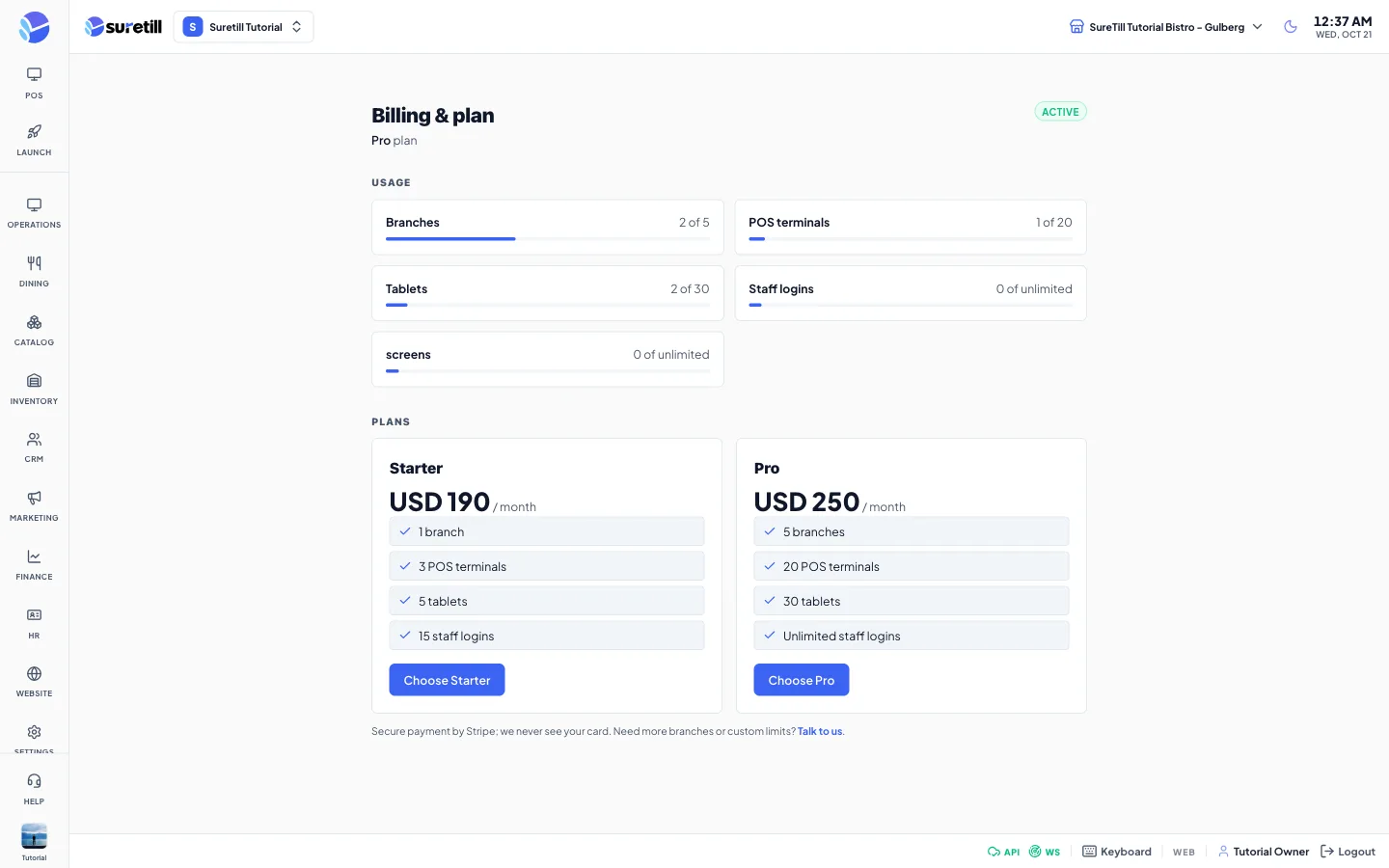
Each restaurant has its own plan, trial and subscription. Payment runs on Stripe: you enter your card on a Stripe page and SureTill never sees it.
Step by step
Section titled “Step by step”Choose a plan
Section titled “Choose a plan”- Open Billing and plan.
- Check Usage to see what you have already used.
- In Plans, click Choose Starter (or the other plan you want). The button is disabled if online payment is not switched on for your server.
- You move to the Stripe page. Pay there.
- Stripe sends you back to Billing and plan. A message says Thank you. Your subscription is being activated. The page refreshes by itself a few times while the payment is confirmed.
Change plan, update the card, cancel
Section titled “Change plan, update the card, cancel”- Open Billing and plan and click Manage billing (top right). It appears once you have a Stripe customer record.
- The Stripe portal opens. Change plan, update the card or cancel there.
- Back on the page, the line under the title says renews on or ends on, with the date.
Download an invoice
Section titled “Download an invoice”- Scroll to Invoices. Each row shows date, number, amount and a status badge (paid, open or other).
- Click View to open the invoice online, or PDF to download it.
Every part of the page explained
Section titled “Every part of the page explained”| Setting | What it does |
|---|---|
| Title line | Your plan name, then trial ends in N days while on trial, or renews on / ends on the period end date when subscribed. |
| Status badge | Free trial, Active, Payment needed, Suspended or Cancelled. |
| Manage billing | Opens the Stripe billing portal for card, plan changes, cancellation and receipts. |
| Payment warning | A yellow card shown when payment failed: We could not take your last payment. Update your card in Manage billing to keep your restaurant running. |
| Usage | One bar per limit: Branches, POS terminals, Tablets, Staff logins, and screens. It shows used of limit, or unlimited. The bar turns red at 90 percent or more. |
| Plan cards | Name, price per month, what is included, and a Current badge on your plan. Prices are shown in whole units of the plan currency. |
| Choose plan | Starts Stripe Checkout for that plan. Only available while you have no subscription. |
| Change in billing portal | Replaces Choose plan when you already subscribe. Opens the portal. |
| Talk to us | Mail link to support@suretill.com for more branches or custom limits. |
| Invoices | Shown once you have a Stripe customer. Date, number, amount, status, View and PDF. |
What counts toward each limit
Section titled “What counts toward each limit”| Limit | What is counted |
|---|---|
| Branches | Branches that are not deleted. |
| POS terminals | Devices of type POS Terminal, Self-Service Kiosk and Self-Service, while pending or active. |
| Tablets | Devices of type Waiter Pad, while pending or active. |
| Staff logins | Users, except rider accounts. Riders do not use a seat. |
| screens | Menu-board TVs that are paired. A code that is waiting does not use a slot. |
| Not counted | Kitchen Display and Order Display devices are free. So are devices marked unlimited and hidden system devices. |
A device waiting for its pairing code already uses a slot. If you reach a limit, adding one more is refused with Plan limit reached for terminals (2 of 2). Upgrade your plan to add more. Nothing is deleted when you downgrade: you just cannot add more until you are under the limit.
Default plan limits
Section titled “Default plan limits”These are the defaults shipped with the system. SureTill can edit plans and give your account its own limits, so always trust the Usage bars on your page.
| Plan | Branches | POS terminals | Tablets | Staff logins |
|---|---|---|---|---|
| Trial (7 days) | 1 | 2 | 2 | 5 |
| Starter, 29 USD per month | 1 | 3 | 5 | 15 |
| Pro, 79 USD per month | 5 | 20 | 30 | Unlimited |
The billing banner
Section titled “The billing banner”- A blue banner shows in the last 3 days of a trial: Your free trial ends in N days. Choose a plan to keep going. On the last day it says Your free trial ends today.
- An amber banner shows when payment is overdue: Your subscription is overdue. N days left before this restaurant is suspended. By default there are 7 days of grace, and the restaurant keeps working during them.
- The banner shows above the admin pages but not on the Launch Pad. A Manage billing link appears in it only when your server has an upgrade address set.
Add-ons
Section titled “Add-ons”- QR Menu and Uber Eats are add-ons. Their sidebar entries stay hidden until the add-on is on.
- SureCall appears once SureTill attaches a phone number to your restaurant.
- Extra branches, terminals, tablets, staff logins or screens can be granted on top of the plan for a period. They add to the limit shown in Usage.
- SureScreen plans are menu-board-only. They keep Products, Categories, Menus, Menu Boards, QR Menu, Devices, Users, Branches, Billing and Settings and hide everything that takes orders.
- You cannot buy an add-on from this page. Write to support@suretill.com.