

Blog
Where: Website > Blog
Who can use it: Permission: website.manage_blog, settings.update or manage settings.
Open this page in SureTill
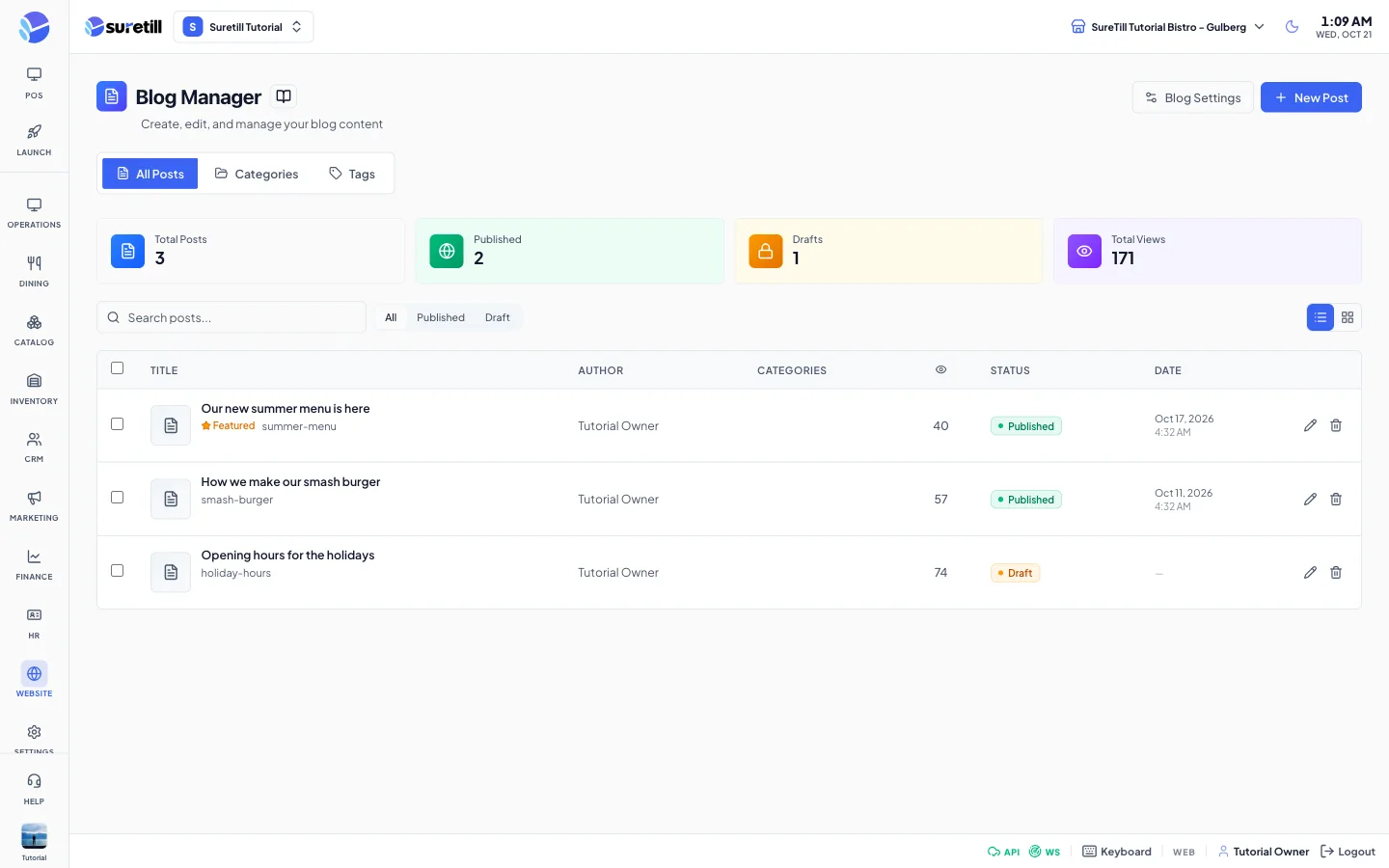
The blog is for news, recipes and stories. The page has three tabs: All Posts, Categories and Tags. A post is visible to customers when its status is Published and its publish date is not in the future.
On the storefront the blog is at /blog and each post at /blog/your-slug. The blog page shows a search box, category and tag filters, the featured post at the top, nine posts per page, the author, the date and the reading time. Each post shows tags, a share button, related posts and links to the previous and next post. Opening a post adds one to its view count.
Step by step
Section titled “Step by step”Write and publish a post
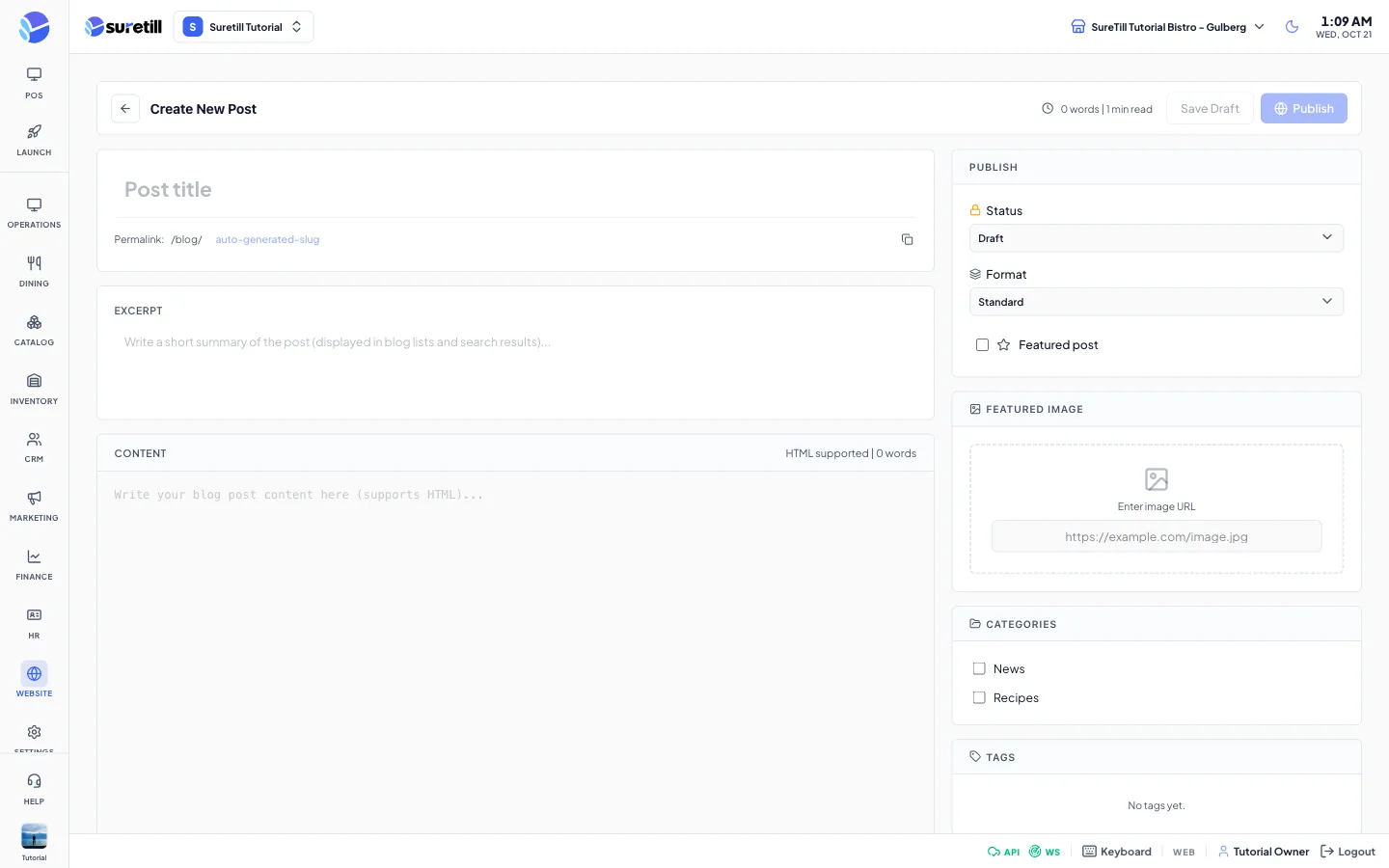
Section titled “Write and publish a post”- Open Website > Blog and click New Post.
- Type the post title. The Permalink under it is filled from the title and you can change it.
- Write an Excerpt. It is shown in lists and search results.
- Write the Content. HTML is supported. Plain text without tags is turned into paragraphs on the storefront.
- In the Publish box set Status to Published. Choose a Format and tick Featured post if it should be the top post.
- Add a Featured Image by pasting its address. Tick Categories and click Tags to select them.
- Optionally open Search Engine Optimization and fill the SEO Title and the SEO Description.
- Click Publish (for a new post) or Update (for an existing post) at the top.
Save a draft
Section titled “Save a draft”- Leave Status on Draft and click Save Draft at the top. This button is shown only while the status is Draft.
Find, edit or trash a post
Section titled “Find, edit or trash a post”- Use the search box and the All, Published and Draft buttons to find the post.
- Click the title or the pencil icon to edit it.
- Click Trash (or the trash icon) and confirm to move it to the trash.
Manage categories
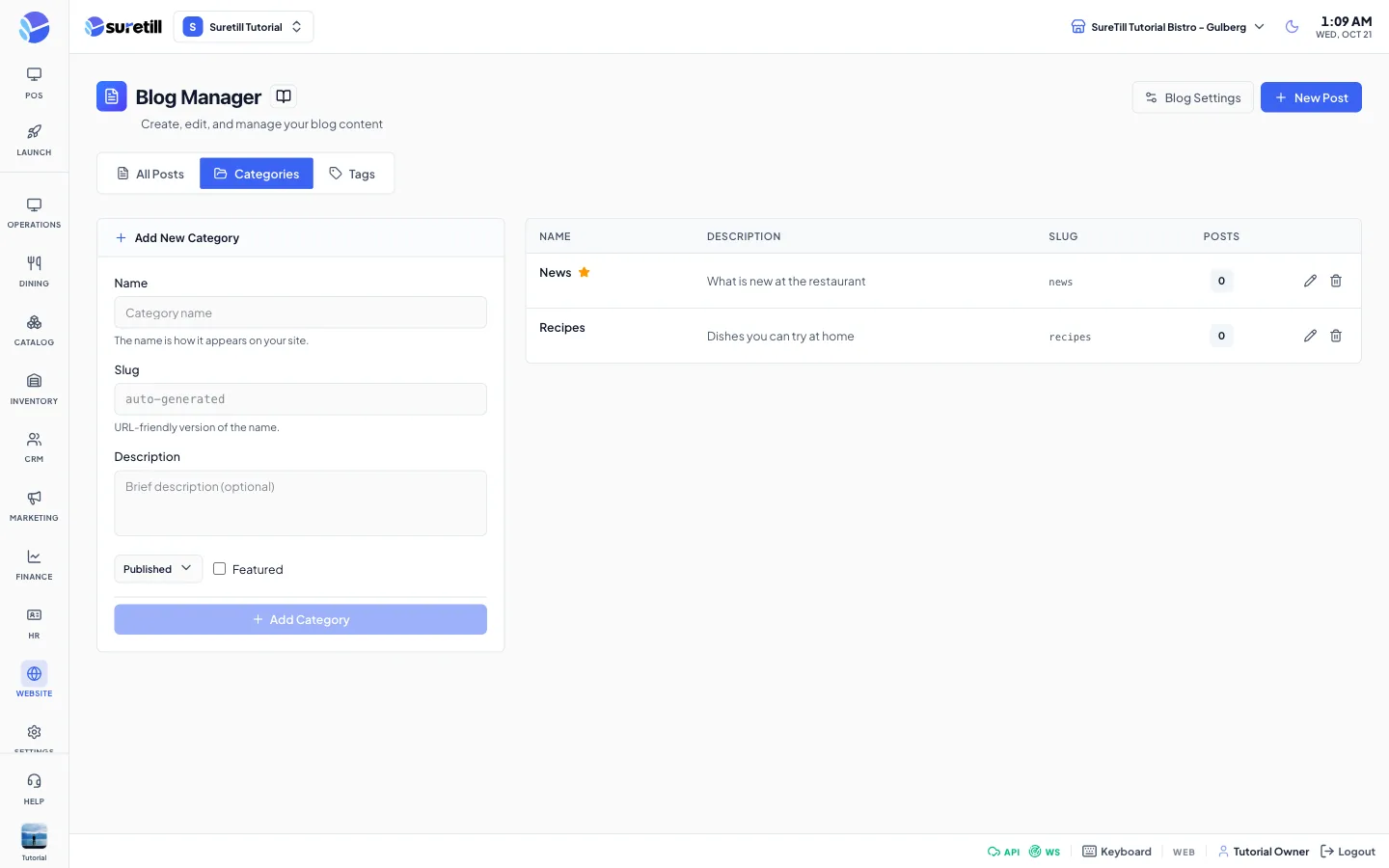
Section titled “Manage categories”- Open the Categories tab. The form on the left adds or edits a category.
- Type the Name. Leave Slug empty to create it automatically.
- Add an optional Description, choose Published or Draft and tick Featured if needed.
- Click Add Category. To change one, click Edit in its row, then Update Category.
- To delete, click Delete in the row and confirm. Posts in that category stay but lose the category.
Manage tags
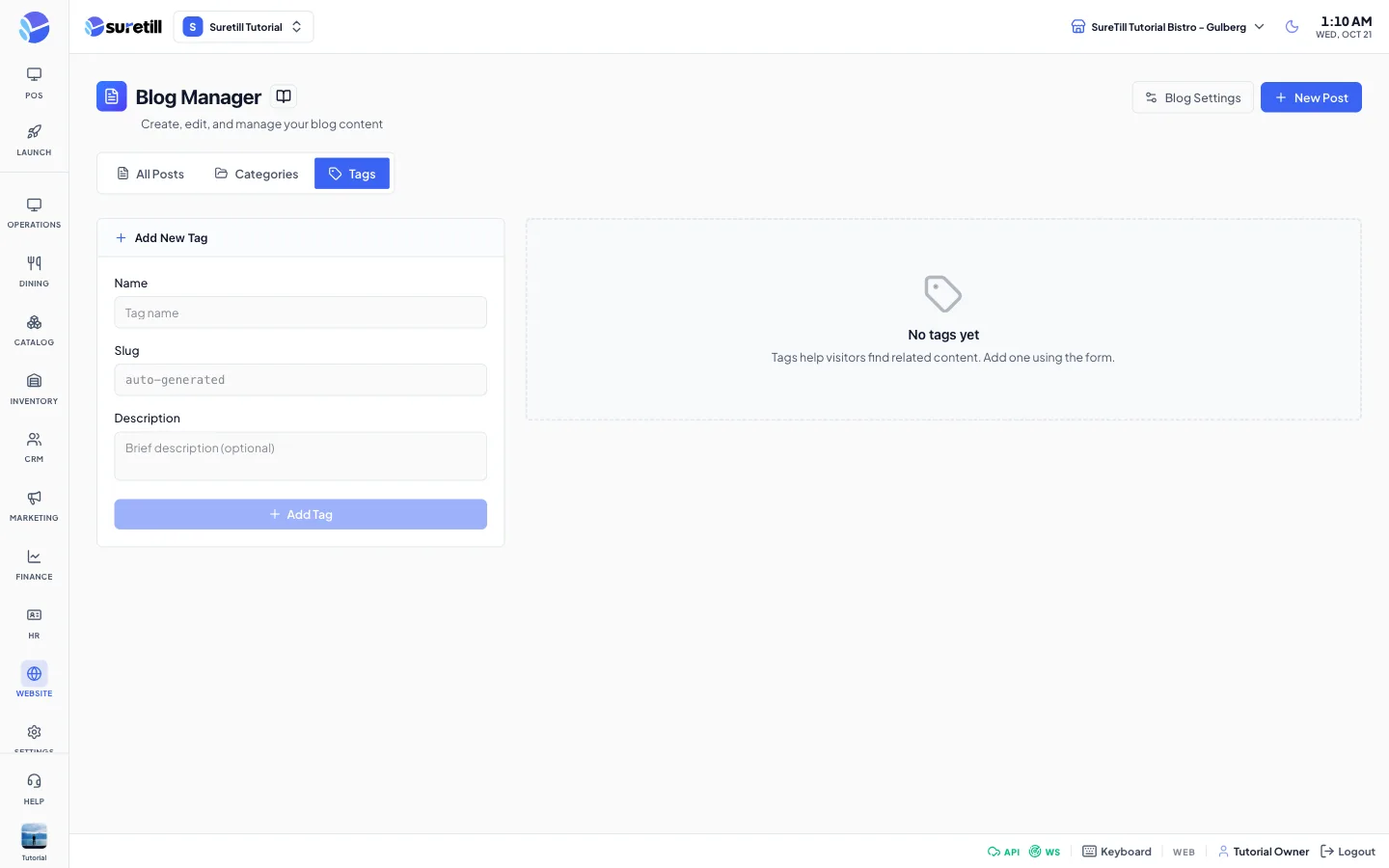
Section titled “Manage tags”- Open the Tags tab. Fill Name, optionally Slug and Description, and click Add Tag.
- Click the pencil icon of a tag to edit its name and description in the row, then the tick to save or the cross to cancel. The slug cannot be changed in the row.
- Click the trash icon and confirm to delete a tag.
Every setting explained
Section titled “Every setting explained”Posts list
Section titled “Posts list”| Setting | What it does |
|---|---|
| Total Posts, Published, Drafts, Total Views | Counters. Published, Drafts and Total Views count only the posts on the page you are looking at (15 per page). |
| Search posts | Looks in the title and the excerpt. |
| All / Published / Draft | Filters by status. |
| Table / Grid icons | Switch between a table and a card view. |
| Title column | Picture, title, a Featured badge, the slug, and Edit and Trash links on hover. |
| Author, Categories, Views, Status, Date | The author name, the first two categories (+n for more), the view count, the status and the publish date. |
| Pagination | Fifteen posts per page. |
| Blog Settings button | Opens Website > Themes, where you can use the Blog tab in Customize. |
Post editor
Section titled “Post editor”| Setting | What it does |
|---|---|
| Title (required) | The post title. Publish and Save Draft stay disabled while it is empty. |
| Permalink | The slug after /blog/. Must be unique. |
| Excerpt | Short summary shown in lists and search results. |
| Content | The post body. HTML is supported. A counter shows words; reading time is words divided by 200. |
| SEO Title | Title for search engines. A counter shows characters against 60. The post title is used when empty. |
| SEO Description | Description for search engines. A counter shows characters against 160. The excerpt is used when empty. |
| Status | Draft, Published or Archived. Published sets the publish date the first time. |
| Format | Standard, Video, Gallery or Quote. |
| Featured post | Marks the post as featured. The storefront blog page shows one featured post at the top. |
| Featured Image | A picture address. A preview and a remove button are shown once it is set. |
| Categories | Tick any number of categories. |
| Tags | Click tags to turn them on or off. |
Category and tag forms
Section titled “Category and tag forms”| Setting | What it does |
|---|---|
| Category Name / Slug / Description | Name shown on the site, URL-friendly slug (automatic when empty) and an optional description. |
| Category Status | Published or Draft. Only Published categories show on the storefront. |
| Category Featured | Marks a category as featured (shown with a star). |
| Category Posts column | How many posts use the category. |
| Tag Name / Slug / Description | Same idea for tags. |
| Tag Cloud | All tags with a bigger text size for tags used in more posts. |