

Website Widgets
Where: Website > Widgets
Who can use it: Permission: website.manage_widgets, settings.update or manage settings.
Open this page in SureTill
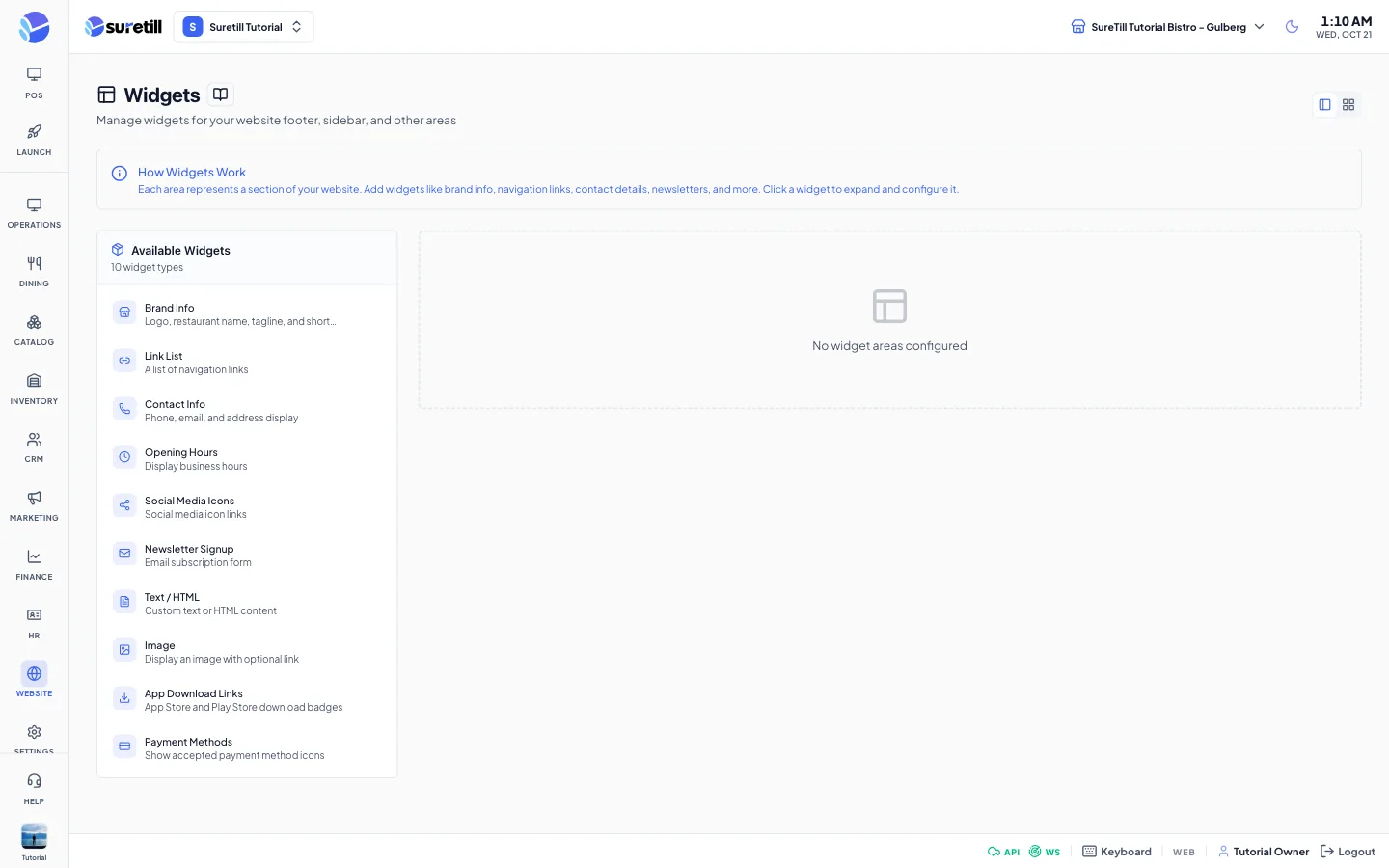
A widget is a small content block that you place in a widget area. The default areas are Footer Column 1 to 4 and the Footer Bottom Bar. A Sidebar section appears if your install has sidebar areas.
Widgets are shown in the footer of the built-in website of on-premise installs. The separate storefront does not use widgets. Its footer is built from your theme (logo, tagline, contact details, social links), your footer menu and your branch details.
Step by step
Section titled “Step by step”Add a widget
Section titled “Add a widget”- Open Website > Widgets.
- In the area you want, click Add.
- In the Add Widget window click a widget type. The widget is created at once with the type name as its title.
- Click the new widget card to open it.
Configure and save a widget
Section titled “Configure and save a widget”- Open the widget card.
- Change the Widget Title and the fields of the type.
- Use the Active switch to show or hide it.
- Click Save in the card. The button shows Saved.
Move or remove a widget
Section titled “Move or remove a widget”- Use the up and down arrows of a card to change the order inside its area. The new order is saved immediately.
- Click the trash icon and confirm Remove to delete the widget.
Widget types
Section titled “Widget types”| Type | What it shows | Fields |
|---|---|---|
| Brand Info | Logo, restaurant name, tagline and short description. | Description; Show Logo; Show Name (both on by default). |
| Link List | A list of links. | Links: a repeating list of Label and URL. |
| Contact Info | Phone, email and address. | Show Phone; Show Email; Show Address (all on by default). |
| Opening Hours | Business hours. | Hours: a repeating list of Day(s) and Time. |
| Social Media Icons | Links to your social profiles. | Style: icons, buttons or text. |
| Newsletter Signup | Email subscription form. | Placeholder; Button Text. |
| Text / HTML | Your own text or HTML. | Content. |
| Image | A picture with an optional link. | Image URL; Alt Text; Link URL. |
| App Download Links | App Store and Play Store badges. | App Store URL; Play Store URL. |
| Payment Methods | Icons of the payment methods you accept. | Methods: a repeating list of Name and Icon URL. |
Every setting explained
Section titled “Every setting explained”| Setting | What it does |
|---|---|
| Sidebar / Grid view icons | Two layouts for the page. The sidebar view lists the available widgets on the left. The grid view shows only the areas. |
| Available Widgets list | The ten widget types with a short description. For reading only. Add widgets with the Add button of an area. |
| Area header | The area name and how many widgets it holds. |
| Add | Opens the Add Widget window for that area. |
| Widget card | The title, an off label when inactive, move arrows, a trash icon and an arrow to open or close the card. |
| Widget Title | The heading of the widget. |
| Type fields | Fields from the table above. Lists have an Add button for a new row and a cross to remove a row. |
| Active | Inactive widgets are not shown on the website. |
| Save | Stores the title, the fields and the Active switch. |