

Employees (Human Resources)
Where: HR > Employees
Who can use it: Menu: users.view or manage users. Adding and editing an employee needs users.create and users.update on the server, and the HR tabs need staff.view. Owners, admins and super-admins can do everything. Not available on SureScreen (menu board only) plans. Cloud plans limit the number of staff logins, see ‘Staff limits by plan’.
Open this page in SureTill
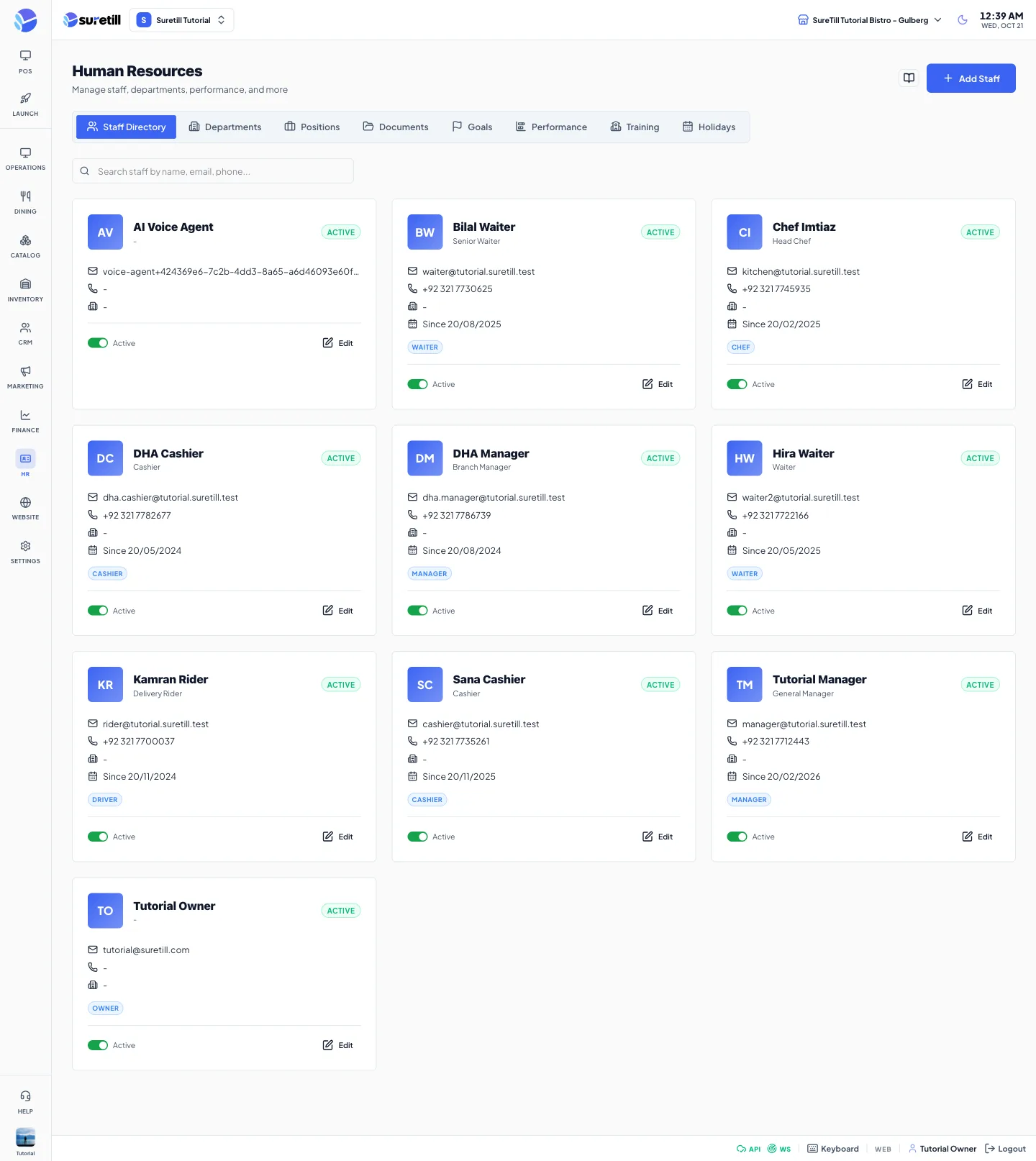
The page is called Human Resources. It keeps everything about your people in one place: the staff directory, the departments and job positions they belong to, goals, performance reviews, training records, documents and the public holidays of your country. Every employee here is also a user account that can sign in, so adding an employee creates a login.
The Staff Directory loads up to 200 accounts. Each card shows the person’s initials, name, job title (or the title of their position), a status badge, email, phone, department, the hire date when there is one, and up to three role badges (a +n badge shows how many more). The search box above the cards looks in name, email, phone and job title.
Step by step
Section titled “Step by step”Add an employee
Section titled “Add an employee”- Open HR > Employees and stay on the Staff Directory tab.
- Click Add Staff.
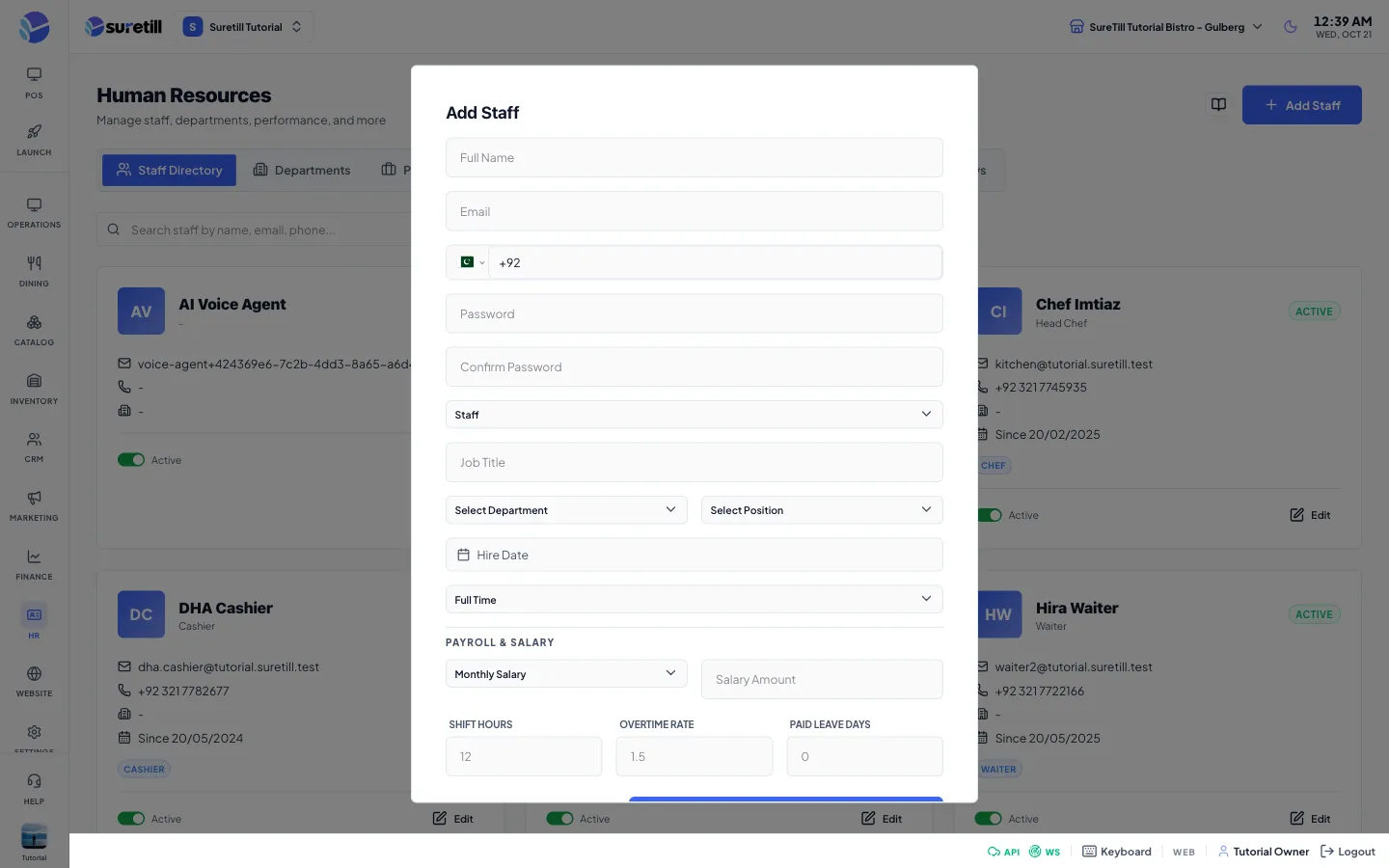
- Type the Full Name, Email and Phone. The email and the phone number must not belong to another account.
- Type a Password and type it again in Confirm Password. The password needs at least 8 characters with upper and lower case letters, a number and a symbol, and it must not appear in known data leaks.
- Choose the Role: Cashier, Waiter (the default), Chef, Manager or Admin.
- Fill in the Payroll & Salary block if you want pay to be calculated for this person (see the table below).
- Click Save. The new card appears in the directory.
Edit an employee
Section titled “Edit an employee”- Find the card and click Edit.
- Change the name, email, phone or the payroll terms. The password and role boxes are only shown when you add someone. Use the Users page to change a role or a password.
- Click Save.
Turn an account back on
Section titled “Turn an account back on”The small switch on each card shows Active when the account is active and Disabled for any other status (inactive or suspended). Use the switch to turn a disabled account on again, or to turn an active one off. Switching an account off sets it to inactive: the person cannot sign in and any session that is already open stops working at once.
Add a department or a position
Section titled “Add a department or a position”- Open the Departments tab (or Positions) and click Add Department (or Add Position).
- Fill in the fields described in the table below.
- Click Save. To change one later click Edit on its card. The bin icon deletes it after a confirmation.
Add a goal, a review or a holiday
Section titled “Add a goal, a review or a holiday”- Open the Goals, Performance or Holidays tab.
- Click Add Goal, New Review or Add Holiday.
- Fill in the form and click Save.
Every setting explained
Section titled “Every setting explained”| Setting | What it does |
|---|---|
| Staff Directory | One card per account with search, the Active switch and Edit. The Add Staff button is shown here. |
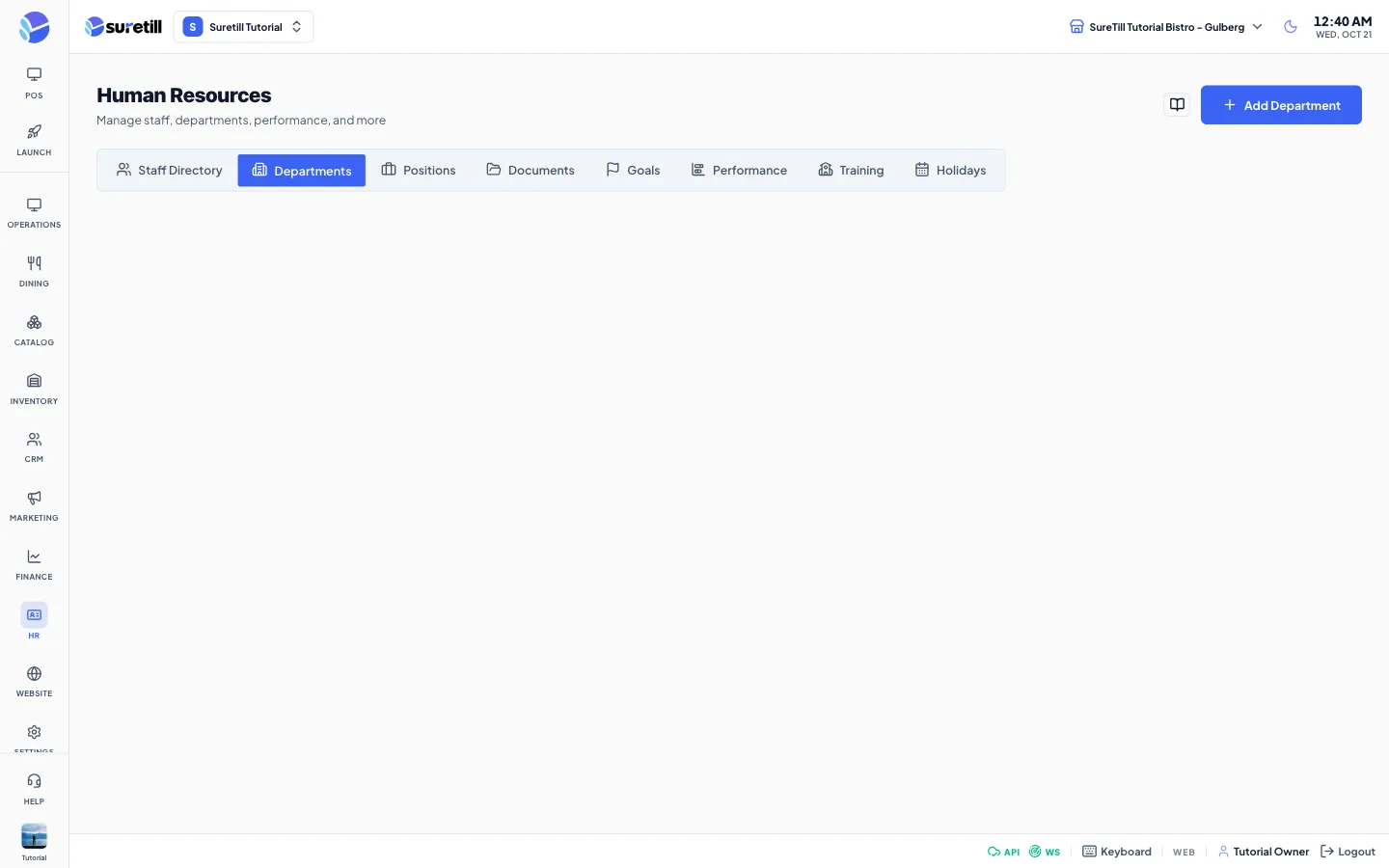
| Departments | Cards for each department with its code, description, manager and the number of employees. Add Department button. |
| Positions | Cards for each job position with its department and number of employees. Add Position button. |
| Documents | A read-only table of employee documents: Employee, Document Type (id card, passport, contract, certificate and so on), Title, Expiry, and a Verified or Pending badge. This page has no button to upload a document and the eye icon does not open anything yet. |
| Goals | Cards with priority, status, assignee, description, a progress bar and the due date. Add Goal button. |
| Performance | A table of reviews: Employee, Period, Type, Date, a star Rating, Status (draft, submitted or completed) and edit and delete icons. New Review button. |
| Training | A read-only table: Employee, Training, Start Date, Completion, Score and Status (for example in progress, completed or failed). This page has no button to add a training record. |
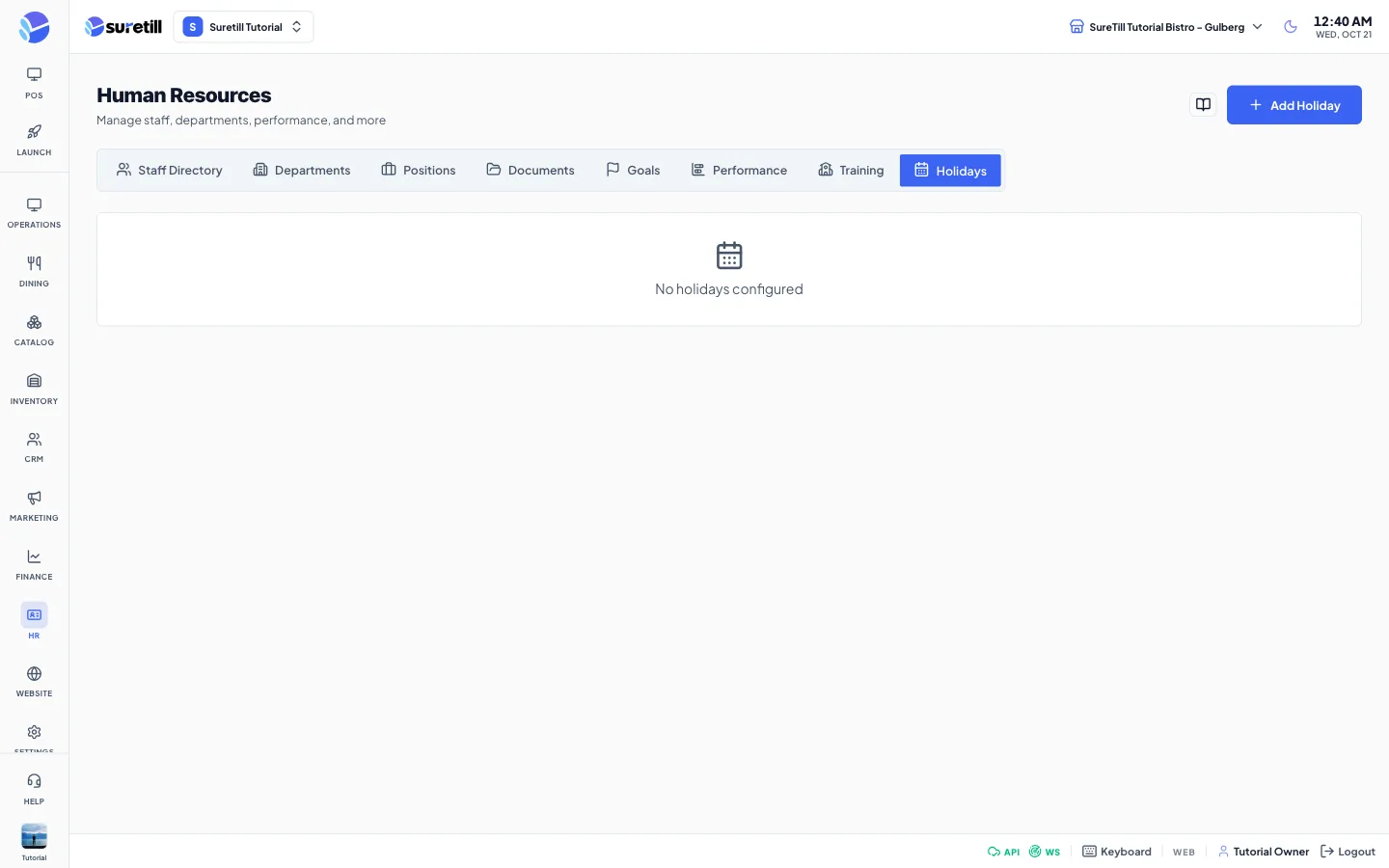
| Holidays | Cards for each holiday with the date and Paid and Recurring badges. Add Holiday button. |
Add or edit staff form
Section titled “Add or edit staff form”| Setting | What it does |
|---|---|
| Full Name, Email, Phone | The identity of the account. The email is the login name. Email and phone must be unique. |
| Password and Confirm Password | Only when adding. Both must match and follow the password rules above. |
| Role | Only when adding. Cashier, Waiter (default), Chef, Manager or Admin. It decides which permissions the person gets. |
| Job Title | Free text, for example Head Waiter. |
| Department and Position | Pick from the departments and positions you created on the other tabs. |
| Hire Date | The day the person started. Cards show it as Since <date>. |
| Contract type | Full Time (default), Part Time, Contract or Intern. |
| Salary Structure | The salary structure from Payroll that applies to this person. A payroll run only includes employees who have one. |
| Salary Type | Monthly Salary (default) or Per Day. |
| Salary Amount | The monthly salary, or the pay for one day, depending on the salary type. Zero or more. |
| Shift Hours | Length of a normal working day in hours, from 1 to 24 in steps of 0.5. If empty the server stores 12. Overtime starts after these hours. |
| Overtime Rate | Multiplier for overtime hours, 1 or higher. If empty the server stores 1.5. |
| Paid Leave Days | How many leave days a month are paid, from 0 to 31. If empty the server stores 0. |
Department, position, goal, review and holiday forms
Section titled “Department, position, goal, review and holiday forms”| Setting | What it does |
|---|---|
| Department Name, Code, Description | Name is required. Code and description are optional. |
| Manager (department) | Optional. Pick any staff member as the manager. The card shows Not assigned when empty. |
| Active (department and position) | Switch, on by default. Inactive items stay in the list with a muted badge. |
| Position Title, Department, Description | Title is required. The department link is optional. |
| Goal Title and Assign to Employee | What the goal is and who owns it. Both are required by the server. |
| Goal Category | Performance (default), Development, Project or Sales. |
| Goal Priority | Low, Medium (default), High or Critical. High and Critical show a red badge. |
| Start Date, Due Date | Optional dates for the goal. |
| Progress and Status | A 0 to 100 slider and Not Started, In Progress, Completed or Cancelled. They only change when you edit an existing goal. |
| Employee, Review Period, Review Type, Review Date | Who is reviewed, a label such as Q1 2026, Quarterly (default), Semi-Annual, Annual or Probation, and the date of the review. Employee, period and date are required. |
| Overall Rating | Click one to five stars. |
| Strengths, Areas for Improvement, Manager Comments | Free text notes for the review. |
| Holiday Name and Date | Both are required. |
| Paid Holiday | Switch, on by default. Marks the day as paid. |
| Recurring Yearly | Switch, off by default. When on, the holiday repeats every year on the same month and day. |