

Branch Staff
Where: Settings > Branch Staff
Who can use it: Menu: branches.view or manage branches. Looking needs users.view; adding, removing or switching people on and off needs branches.manage_staff. Owners, admins and super-admins can do everything. Not available on SureScreen plans.
Open this page in SureTill
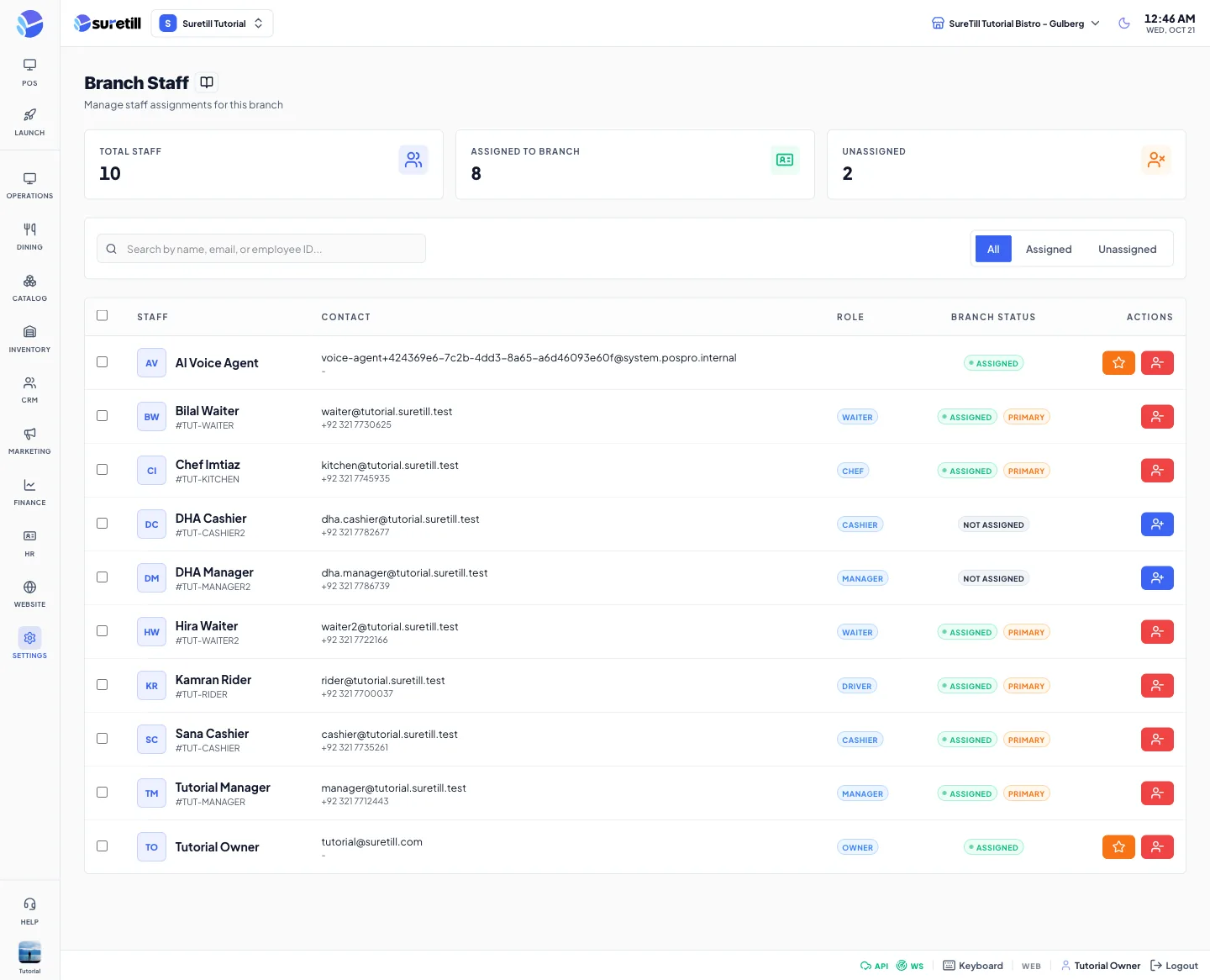
If you have more than one branch, a person can work at several of them. This page works on the branch selected at the top of the admin and shows every account with its status at that branch. Without a selected branch the page only asks you to select one first.
A person belongs to a branch in two ways. The main branch is stored on the account (the Primary badge). Any other branch is an assignment. Both let the person sign in with a PIN at that branch’s terminals, and the assigned branches appear in the branch list they can switch between.
Step by step
Section titled “Step by step”Assign one person
Section titled “Assign one person”- Select the branch at the top of the admin and open Settings > Branch Staff.
- Find the person. Use the Unassigned tab to list people who do not work here yet.
- Click the person-add icon on the row. The badge changes to Assigned.
Make this branch the main branch of a person
Section titled “Make this branch the main branch of a person”- Find an Assigned person who is not Primary here.
- Click the star icon. The person becomes Primary here and the main branch of the account moves to this branch. The Primary mark of their other branches is cleared.
Remove a person from the branch
Section titled “Remove a person from the branch”- Click the person-remove icon on the row of an Assigned person.
Assign or remove many people
Section titled “Assign or remove many people”- Tick the check boxes of the people, or the box in the table header for everyone listed.
- Click Assign (n) to add them all to this branch, or Remove (n) to take them out.
Every setting explained
Section titled “Every setting explained”| Setting | What it does |
|---|---|
| Total Staff | Number of accounts in the restaurant. |
| Assigned to Branch | Accounts whose main branch is this branch, plus accounts with an active assignment here. |
| Unassigned | Total Staff minus Assigned to Branch. |
| Search | Looks in name, email and employee ID. |
| All, Assigned, Unassigned tabs | All shows everyone. Assigned shows people with an assignment or this main branch. Unassigned shows the rest. |
| Staff column | Initials, name and the employee ID when there is one. |
| Contact column | Email and phone. |
| Role column | Role badges of the account. Roles are changed on the Users page. |
| Branch Status | Assigned (with a pulsing dot) and Primary, or Not Assigned. |
| Star icon | Make Primary. Shown for assigned people who are not primary here. |
| Person-remove icon | Remove from Branch. |
| Person-add icon | Assign to Branch. |
| Assign (n) and Remove (n) | Bulk buttons that appear when rows are ticked. |