

QR Ordering
Where: Dining > QR Ordering
Who can use it: Permission: settings.view or manage settings. The accept or reject popup is shown to staff with pos.access, and to owners and admins. Not available on SureScreen plans.
Open this page in SureTill
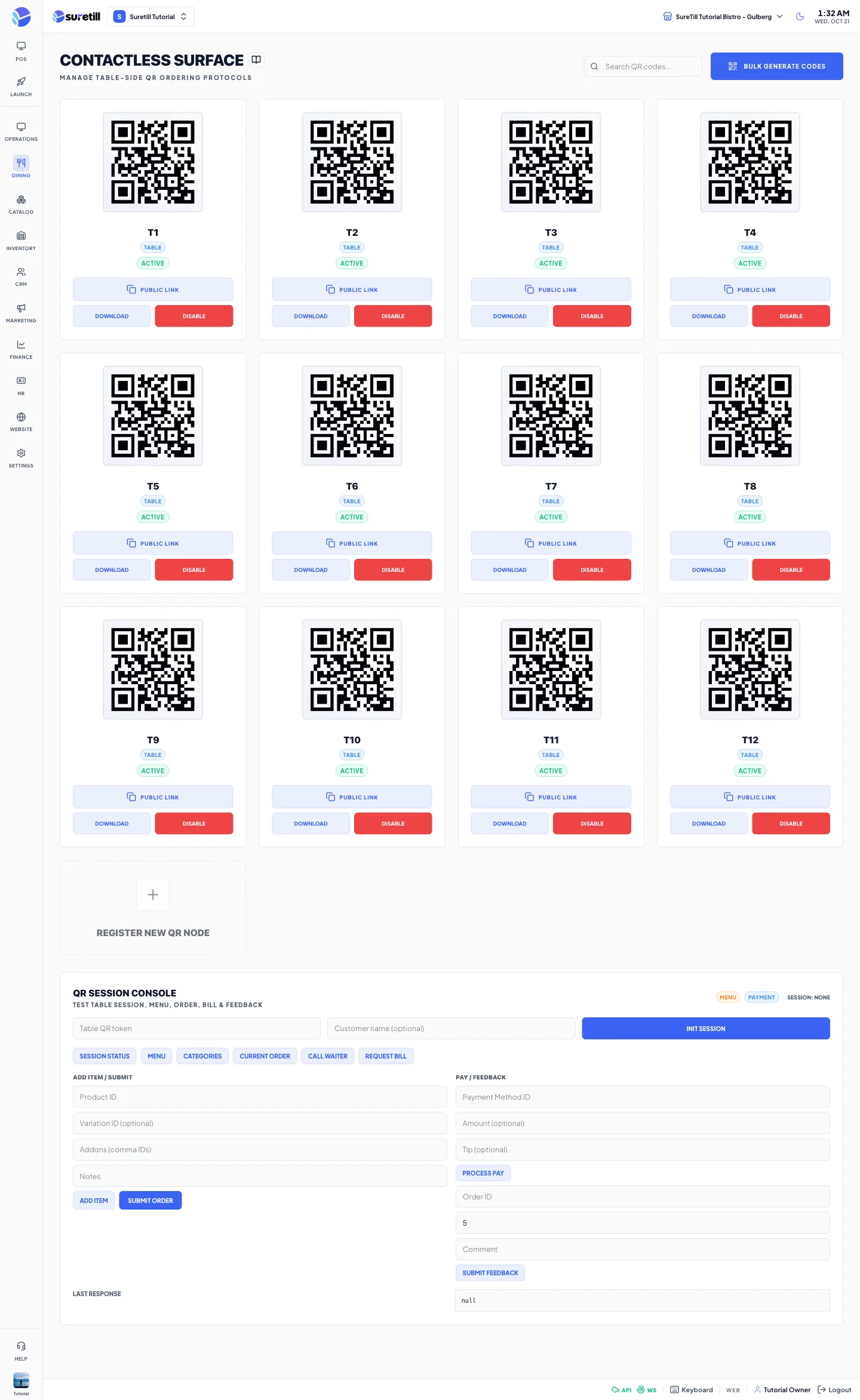
QR Ordering lets a guest order from the table without waiting for a waiter. The page shows one QR code for each table of the branch. You print the codes and stick them on the tables.
This is different from the QR Menu add-on. QR Ordering takes orders. The QR Menu is a read-only menu.
What the guest sees
Section titled “What the guest sees”- The guest scans the code. The phone opens the table ordering page for that table.
- The page asks for the guest name. Several phones at the same table join the same open ticket.
- The guest adds items from the menu, optionally applies a coupon code, and presses Submit Order.
- The page shows the order status and an estimated time. Later rounds are sent with Send New Items.
- Call Waiter alerts the staff. View Bill shows the bill, and Ask for the Bill tells the staff the table wants to pay.
Payment is always taken by staff. The guest cannot pay on the phone. The session lasts 4 hours. If you print a new QR code for a table, the old sessions of that table end.
Choose what happens to a QR order
Section titled “Choose what happens to a QR order”Go to Branches, open the branch settings and find QR Table Orders. There are three modes.
| Mode | What happens |
|---|---|
| Kitchen screen only (default) | The order goes straight to the kitchen screen. No ticket is printed. |
| Kitchen screen + print ticket | The order goes to the kitchen screen and a kitchen ticket prints. |
| Staff accepts first | The order waits for a staff member to accept or reject it. Nothing reaches the kitchen and no stock is deducted until it is accepted. |
In the Staff accepts first mode you also set a time limit: Auto-reject if nobody answers within a number of minutes. The default is 10 and you can use 1 to 240.
Accept or reject an order (waiter)
Section titled “Accept or reject an order (waiter)”- When a guest submits, a popup titled New table order appears on every admin or POS screen of that branch, with a repeating sound.
- Read the table, the guest name, the items, the add-ons and the guest notes.
- Click Accept and send to kitchen. The order goes to the kitchen screen, tickets print and stock is deducted.
- Or click Reject. Pick a reason chip or type your own reason of at least 2 characters, then click Reject order.
| Reason chip | Use it when |
|---|---|
| Item sold out | An item cannot be made. |
| Kitchen is closed | You are not cooking right now. |
| Too busy right now | You cannot take more orders. |
| Wrong table / duplicate order | The guest ordered twice or from the wrong table. |
The countdown in the corner shows the time left. At zero the system rejects the order for you and the guest sees: The restaurant did not respond in time. If two terminals answer at once, the first answer wins and the popup closes on the other one.
The guest sees Waiting for the restaurant to accept, then either Your order was accepted and is being prepared, or Sorry, the restaurant could not accept this order with your reason. The reason is visible to the guest, so keep it polite.
Waiter calls and bill requests
Section titled “Waiter calls and bill requests”When a guest presses Call Waiter, staff screens show a warning toast: Waiter called, with the table number. When a guest asks for the bill, staff see Bill requested with the table number. Both need the real-time connection to be on. Guests can use each button only a limited number of times per minute.
Step by step: print the codes
Section titled “Step by step: print the codes”- Make sure every table exists in Tables & Map.
- Open Dining > QR Ordering.
- Click Bulk Generate Codes. This creates a code for every table that has none.
- For each table, click Download to open the QR image, then print it.
- Use Public Link to copy the ordering address of a table.
- Use Disable on a table to stop guests ordering from it. Enable turns it back on.
A disabled table answers the scan with: This table is currently unavailable.
Every setting explained
Section titled “Every setting explained”| Setting | What it does |
|---|---|
| Search QR codes | Filters the cards by table name or token. |
| Bulk Generate Codes | Creates a QR image for every table that has none. |
| QR card | The QR image, the table name and an Active or Disabled badge. Disabled cards are greyed out. |
| Public Link | Copies the address that the QR code opens. |
| Download | Opens the QR image in a new tab so you can save or print it. |
| Disable / Enable | Stops or allows ordering from that table. |
| QR Session Console | A test area for staff. See below. |
QR Session Console
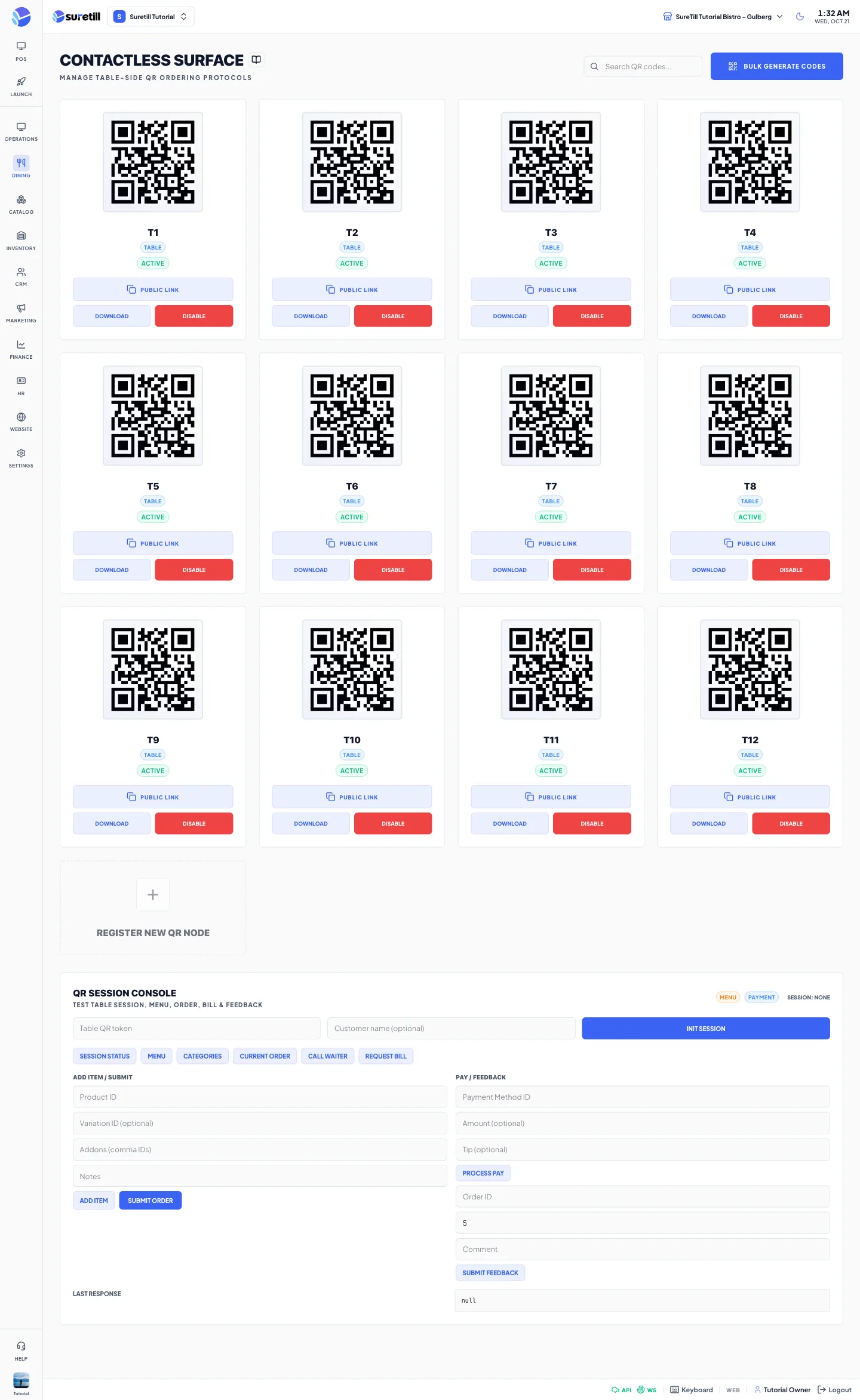
Section titled “QR Session Console”The console at the bottom lets you test the guest flow without a phone. It sends real requests, so Submit Order and Process Pay create real orders and payments. Call Waiter, Request Bill, Submit Order, Process Pay and Submit Feedback each ask you to confirm first, and Disable on a table card asks too. Use the console with care.
| Setting | What it does |
|---|---|
| Table QR token | The token of the table to test. |
| Customer name | Optional name for the test session. |
| Init Session | Starts a test session. The label shows Session: Active. |
| Session Status, Menu, Categories, Current Order | Read the session, the menu and the open order. |
| Call Waiter, Request Bill | Send a waiter call or a bill request for the test table. |
| Product ID, Variation ID, Addons, Notes | Fields for Add Item. |
| Add Item, Submit Order | Add a product to the test order and submit it. |
| Payment Method ID, Amount, Tip, Process Pay | Fields and button to pay the test order. |
| Order ID, Rating, Comment, Submit Feedback | Send test feedback. |
| Last Response | Shows the raw answer of the last request. |