

Floor Designer
Where: Dining > Floor Designer
Who can use it: Permission: tables.manage_layout, tables.update or manage tables.
Open this page in SureTill
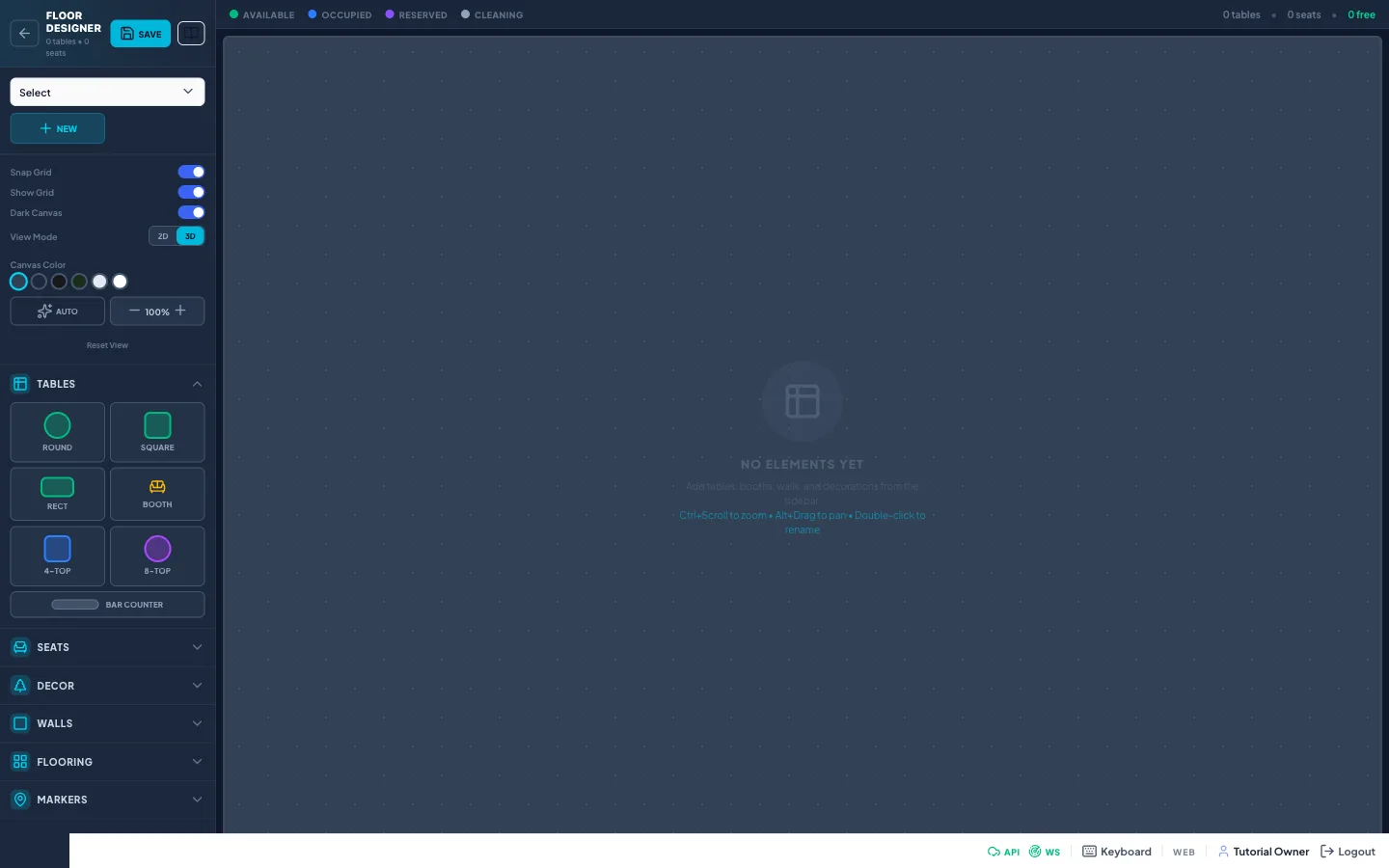
The Floor Designer is a full-screen drawing tool. You build one floor plan per area, for example Main Dining or Terrace. Each plan belongs to the active branch and is saved with the branch.
Step by step
Section titled “Step by step”Create a floor plan
Section titled “Create a floor plan”- Open Dining > Floor Designer.
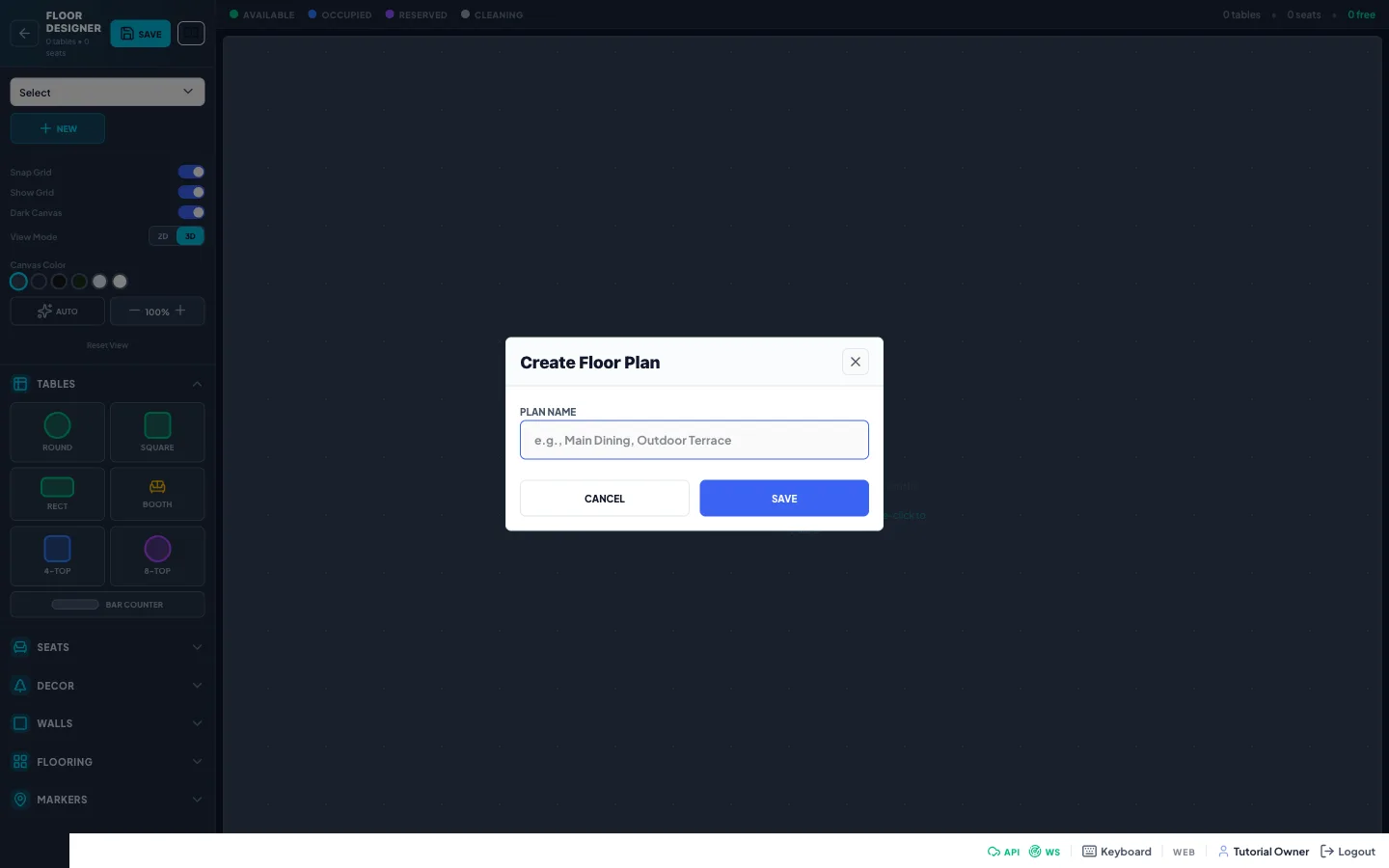
- Click New in the left sidebar.
- Type a Plan Name, for example Main Dining or Outdoor Terrace.
- Click Save. The new plan opens with an empty canvas.
Draw the room
Section titled “Draw the room”- Open a section of the sidebar: Tables, Seats, Decor, Walls, Flooring or Markers.
- Click an item to drop it on the canvas.
- Drag it to the right place. Drag the round handle at the bottom right corner to resize it.
- Double-click a table to rename it, or type the name in the top bar while it is selected.
- Use the top bar to rotate, recolour, move forward or backward, duplicate or delete the selected item.
- Click Save in the sidebar header.
Nothing is stored until you click Save. If you leave the page first, your changes are lost.
Rename or delete a plan
Section titled “Rename or delete a plan”- Pick the plan in the list at the top of the sidebar.
- Click Rename, change the name and click Save.
- To remove the plan, click Delete Plan and confirm.
Set the number and type of seats
Section titled “Set the number and type of seats”- Select a table, booth or bar on the canvas.
- Open the Seats section.
- Use the minus and plus buttons to change the seat count.
- Click Seat Types to choose Chair, Armchair, Sofa or Corner sofa and type an exact number of seats, then click Apply.
Move around the canvas
Section titled “Move around the canvas”- Hold Ctrl (or Cmd) and scroll to zoom between 30 and 300 percent.
- Hold Alt and drag, or use the middle mouse button, to pan.
- Use the minus and plus buttons in the sidebar to zoom, and Reset View to go back to 100 percent.
Every setting explained
Section titled “Every setting explained”Sidebar header and plan
Section titled “Sidebar header and plan”| Setting | What it does |
|---|---|
| Back arrow | Goes back to the previous page. |
| Tables and seats counter | Shows how many tables and seats the open plan has. |
| Save | Saves the name and every shape of the open plan. |
| Plan list | Switches between the floor plans of the branch. |
| New | Creates a new empty plan. |
| Rename | Changes the name of the open plan. |
| Delete Plan | Deletes the open plan after you confirm. |
View controls
Section titled “View controls”| Setting | What it does |
|---|---|
| Snap Grid | On: items jump to a 30 pixel grid while you drag. Default on. |
| Show Grid | Shows or hides the dotted grid. Default on. |
| Dark Canvas | Switches the canvas between dark and light styling. Default on. |
| View Mode 2D / 3D | Draws shapes flat (2D) or with depth (3D). Default 3D. |
| Canvas Color | Six colours: Dark Slate, Navy, Charcoal, Forest, Light, White. The two light ones turn Dark Canvas off. |
| Auto | Arranges all tables, booths and bars in a neat grid. Walls, floors and decor stay where they are. |
| Zoom - and + | Changes the zoom in steps of 10 percent. |
| Reset View | Zoom back to 100 percent and pan back to the start. |
Items you can add
Section titled “Items you can add”| Section | What it adds |
|---|---|
| Tables | Round, Square and Rect tables (4 seats), Booth (6 seats), 4-Top (square, 4 seats), 8-Top (round, 8 seats) and Bar Counter (8 seats). |
| Seats | Seat count and Seat Types for the selected table. Needs a selected table, booth or bar. |
| Decor | Plant, Palm and Fern. |
| Walls | Solid, Glass, Brick or Wood wall segment. |
| Flooring | Tile, Wood, Concrete or Carpet floor area. |
| Markers | Entry, WC, Exit and Kitchen signs. |
Top bar for the selected item
Section titled “Top bar for the selected item”| Setting | What it does |
|---|---|
| Type badge and Name | Shows what the item is. The Name field renames it. Use the real table name for tables. |
| Rotate | Turns the item by 45 or 90 degrees per click. |
| Colour dots | Eight colours for the table body: Blue, Green, Orange, Purple, Pink, Cyan, Amber, Red. |
| Bring Forward / Send Backward | Changes which item is drawn on top. |
| Duplicate | Makes a copy slightly to the lower right. The copy is named with Copy at the end. |
| Delete | Removes the item from the plan after you confirm. Saved only when you click Save. |
When nothing is selected the top bar shows a legend (Available, Occupied, Reserved, Cleaning) and counters for tables, seats and free tables. Items change colour in the designer when a reservation points at them.