

Table Orders
Where: Dining > Table Orders
Who can use it: Permission: orders.view or manage orders. Not available on SureScreen plans.
Open this page in SureTill
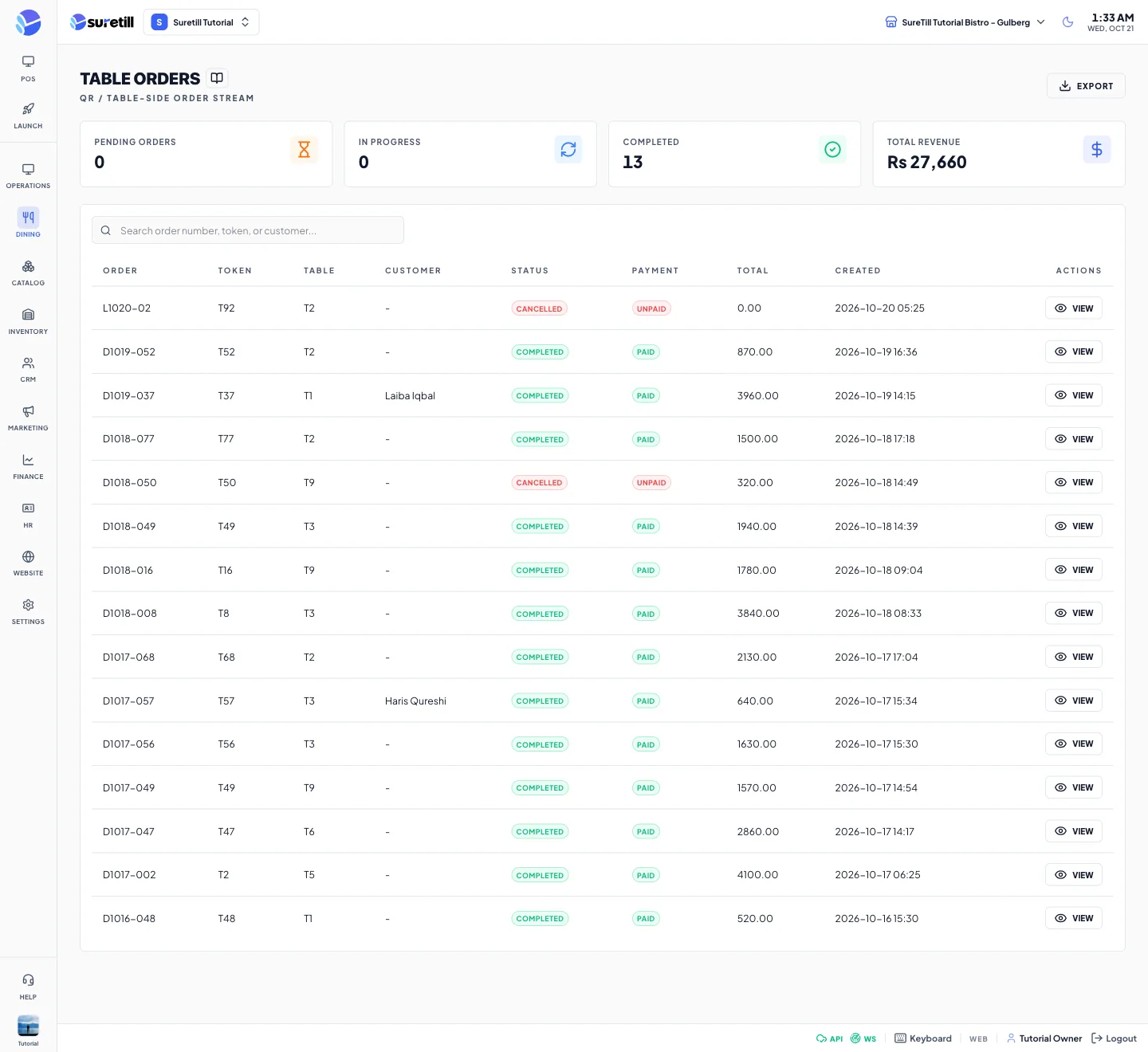
Table Orders is the history of orders that came in through QR Ordering. Orders typed in by staff in the POS are not listed here.
Use it to see what guests ordered, to find an order by number or token, and to correct a status when something went wrong.
Step by step
Section titled “Step by step”Find an order
Section titled “Find an order”- Open Dining > Table Orders.
- Type in the search box. It matches the order number, token, customer name or customer phone.
Open an order and change its status
Section titled “Open an order and change its status”- Click View on the row.
- Read the items in the left panel and the total in the right panel.
- Pick a new Status and click Update Status.
- Pick a new Payment value and click Update Payment.
Export
Section titled “Export”- Click Export to request the current list as data for download.
Every setting explained
Section titled “Every setting explained”| Setting | What it does |
|---|---|
| Export | Requests the list of QR orders for export. |
| Pending Orders card | Number of listed orders with the status pending. |
| In Progress card | Orders that are confirmed, preparing or ready. |
| Completed card | Orders with the status completed. |
| Total Revenue card | Adds up the totals of the listed orders, in the currency of the app. |
| Search | Filters by order number, token, customer name or phone. Has a clear button. |
| Order column | The order number. |
| Token column | The short pickup token, or a dash when none. |
| Table column | The table name. |
| Customer column | The name the guest typed on the phone. |
| Status column | Completed (green), Cancelled (red), Preparing or Ready (amber), Confirmed (blue), other (grey). |
| Payment column | Paid (green), Partial (amber), Refunded (blue), Unpaid (red). |
| Total column | Order total. |
| Created column | Date and time the order was created. |
| View | Opens the order window. |
| Status (window) | Pending, Confirmed, Preparing, Ready, Completed or Cancelled. |
| Payment (window) | Unpaid, Partial, Paid or Refunded. |
| Update Status / Update Payment | Save the chosen value for this order. |