

Website orders
Where: Operations > Online Orders (and the New order popup)
Who can use it: To answer the popup: owner, admin, or anyone with POS access (pos.access). To see the list: online_orders.view. Card payment needs Stripe or PayPal connected on the SureCall page.
Open this page in SureTill
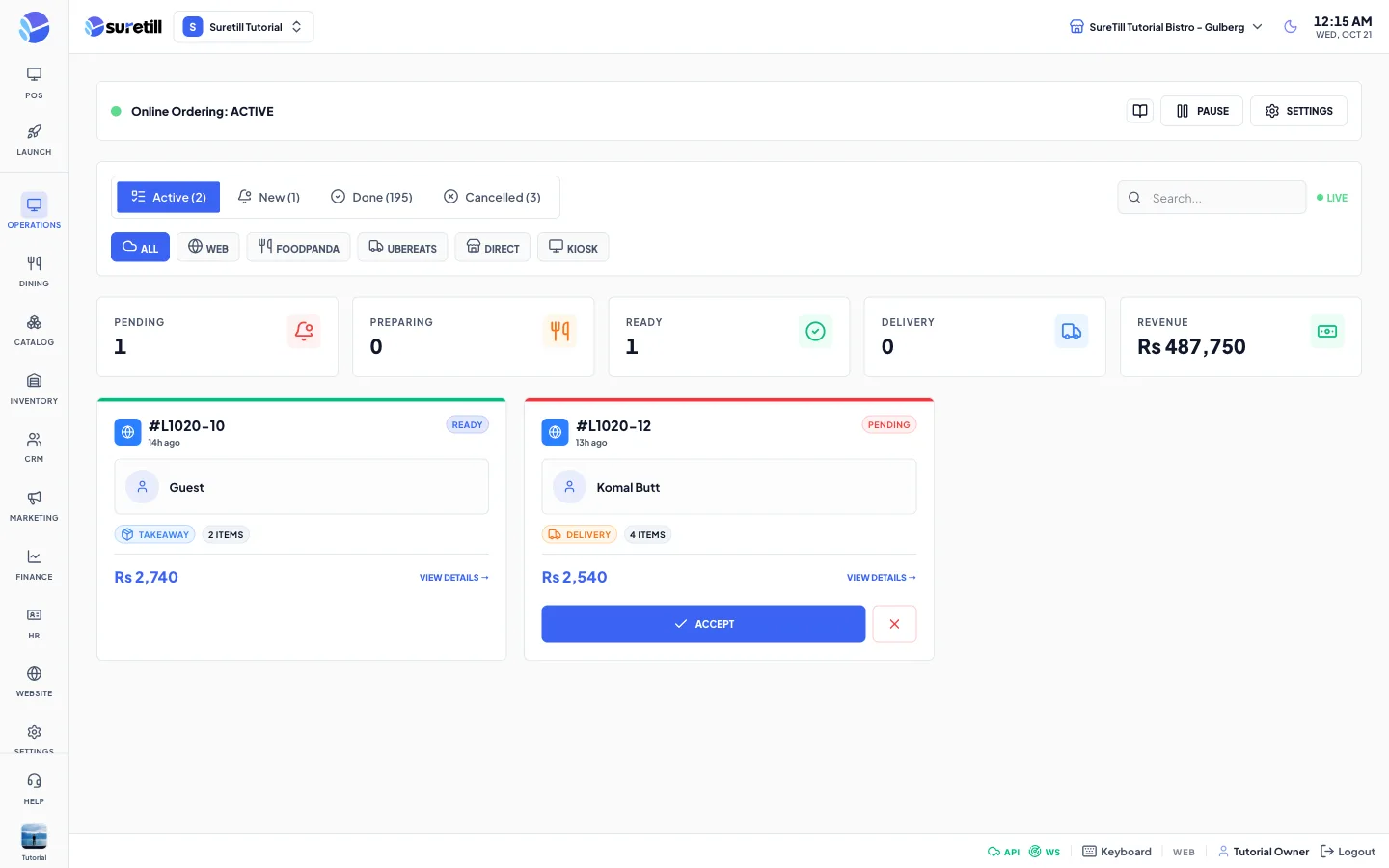
This article follows one order from the customer’s phone to your kitchen. How to build and publish the website itself is covered in the Website articles, for example Website builder. Here we only describe what the restaurant sees and does.
The journey of a website order
Section titled “The journey of a website order”- The customer fills a cart on your website and checks out. They choose Delivery, Pickup or Dine in, may pick a later time, add a tip and a contact phone, and write notes.
- Before the customer pays, the website runs a cart check. For delivery it needs an address. If you drew zones, an address outside every zone is reported as not deliverable. The zone’s minimum order is checked. Items that became unavailable are reported.
- The customer chooses to pay by Cash or by Card. Cash is the default. Card is offered only when you have connected Stripe or PayPal.
- The order is created as source app with status pending. A delivery record is created for delivery orders.
- Cash: the order goes straight to your team for acceptance.
- Card: the customer is sent to the payment page of your own Stripe or PayPal account. When the payment is confirmed, SureTill records it under the method ‘Online payment link’ and the order then goes to your team for acceptance.
- Your team sees the New website order popup, and the order also appears on the Online Orders page.
- Staff accept (the order goes to the kitchen and a ticket prints) or reject (with a reason).
- The customer’s page shows the result: waiting, accepted with the ready time, or rejected with the reason.
Step by step: handle a new website order
Section titled “Step by step: handle a new website order”- A popup titled New website order appears with a sound on any admin or POS screen. If several wait, it shows how many are queued.
- Read the badge: Paid online, Pay on delivery or Pay on pickup. Check items, add-ons, notes and the address.
- Choose Ready in (10, 15, 20, 30, 45 or 60 minutes) and press Accept & send to kitchen.
- Or press Reject, choose a reason or type one, and press Reject order.
The popup arrives instantly through live updates. As a safety net, terminals also check for waiting orders every 20 seconds, or every 8 seconds when live updates are switched off. The check starts once the branch has seen a phone or website order.
Scheduled orders
Section titled “Scheduled orders”- A customer can choose a later time. The time must be in the future.
- When you accept, the order is not sent to the kitchen yet if its time is more than the lead time away. The lead time is 45 minutes unless your setup changed it.
- A job runs every minute and sends accepted scheduled orders to the kitchen, with the ticket, when the time is near.
- The popup shows the scheduled time so staff do not start cooking early.
Automatic acceptance
Section titled “Automatic acceptance”If you switch on Auto-Accept in the Settings of the Online Orders page, website orders skip the popup. Cash orders are accepted the moment they arrive. Card orders are accepted when the payment is confirmed. The kitchen gets the order and the ticket prints without anyone pressing a button.
Messages to the customer
Section titled “Messages to the customer”If ‘Message the customer when staff accept or reject’ is on in SureCall and the order has a customer phone number, the customer receives a WhatsApp or SMS after your decision. WaSender or an SMS gateway must be connected. Edit the texts on the SureCall page.
Every setting explained
Section titled “Every setting explained”| Setting | What it does |
|---|---|
| Online Orders > Settings: Online Ordering, Pause Reason, Acceptance Hours, Min Order Amount, Default Prep Time | Tell the website whether you are open for orders and what to say when you are not. |
| Online Orders > Settings: Auto-Accept | Skips the staff popup. See above. |
| SureCall > Your payment accounts: Stripe, PayPal | Needed for the Card choice at checkout. The money goes straight to your own account. |
| SureCall > Messages: customer decision messages | Texts sent after accept or reject. |
| Delivery > Delivery Zones: fee, minimum order, time, boundary | Control where you deliver and the minimum basket. |
| Branches | Orders go to the branch the customer picked on the website. |