Skip to content

Delivery

Where: Operations > Delivery
Who can use it: Permission delivery.view or delivery.assign_rider. The Delivery feature must be on for the branch (it is on by default for restaurants and off for retail shops).
Open this page in SureTill

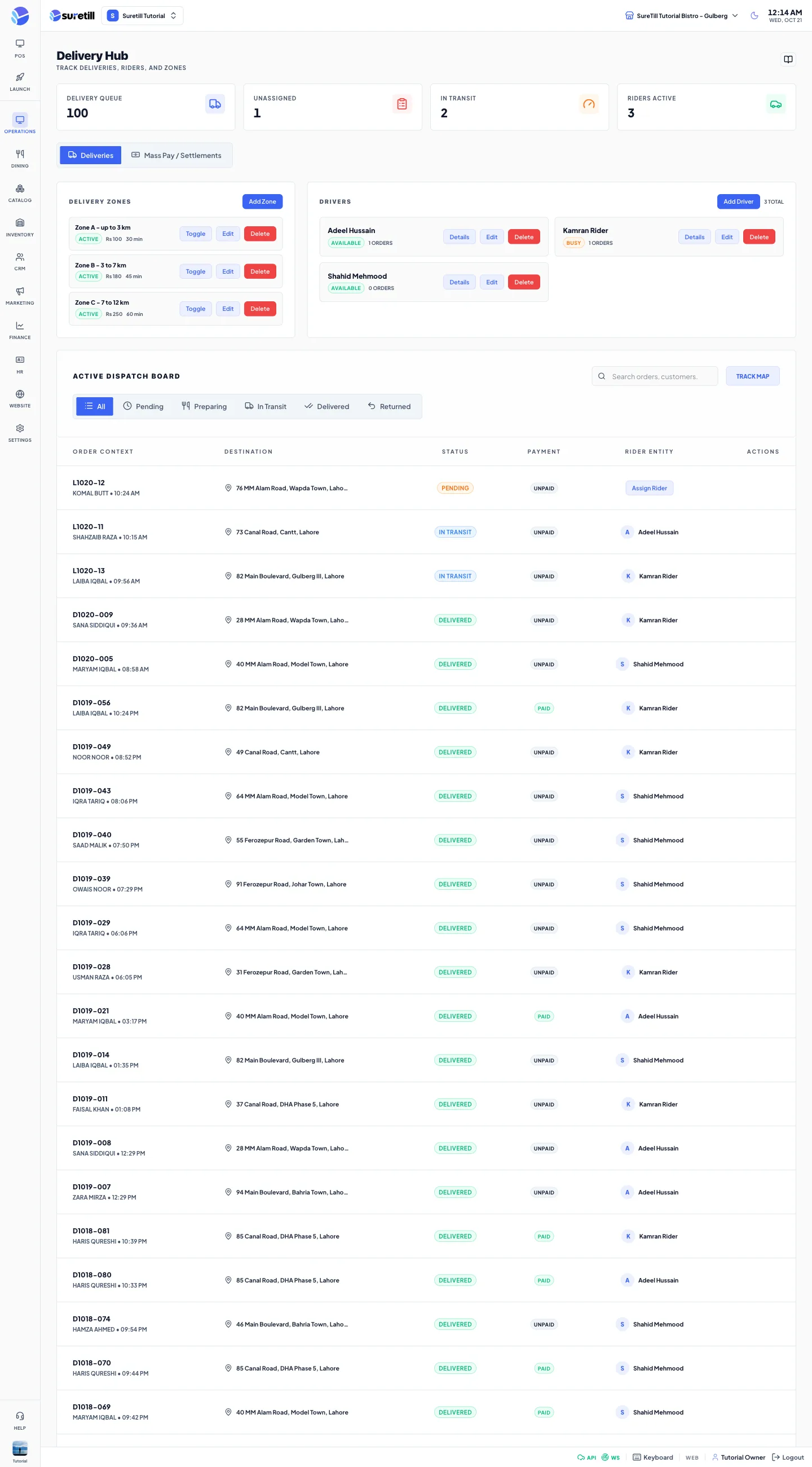
The Delivery Hub with statistic cards, delivery zones, drivers and the dispatch board

Every order of type delivery gets a delivery record. This page lists those records, lets you give each one to a rider, and moves it from Pending to Delivered. Zones set the fee, minimum order and time for your website. Drivers are your riders. The second tab, Mass Pay / Settlements, is the Rider Settlement screen.

  1. In the Drivers card press Add Driver.
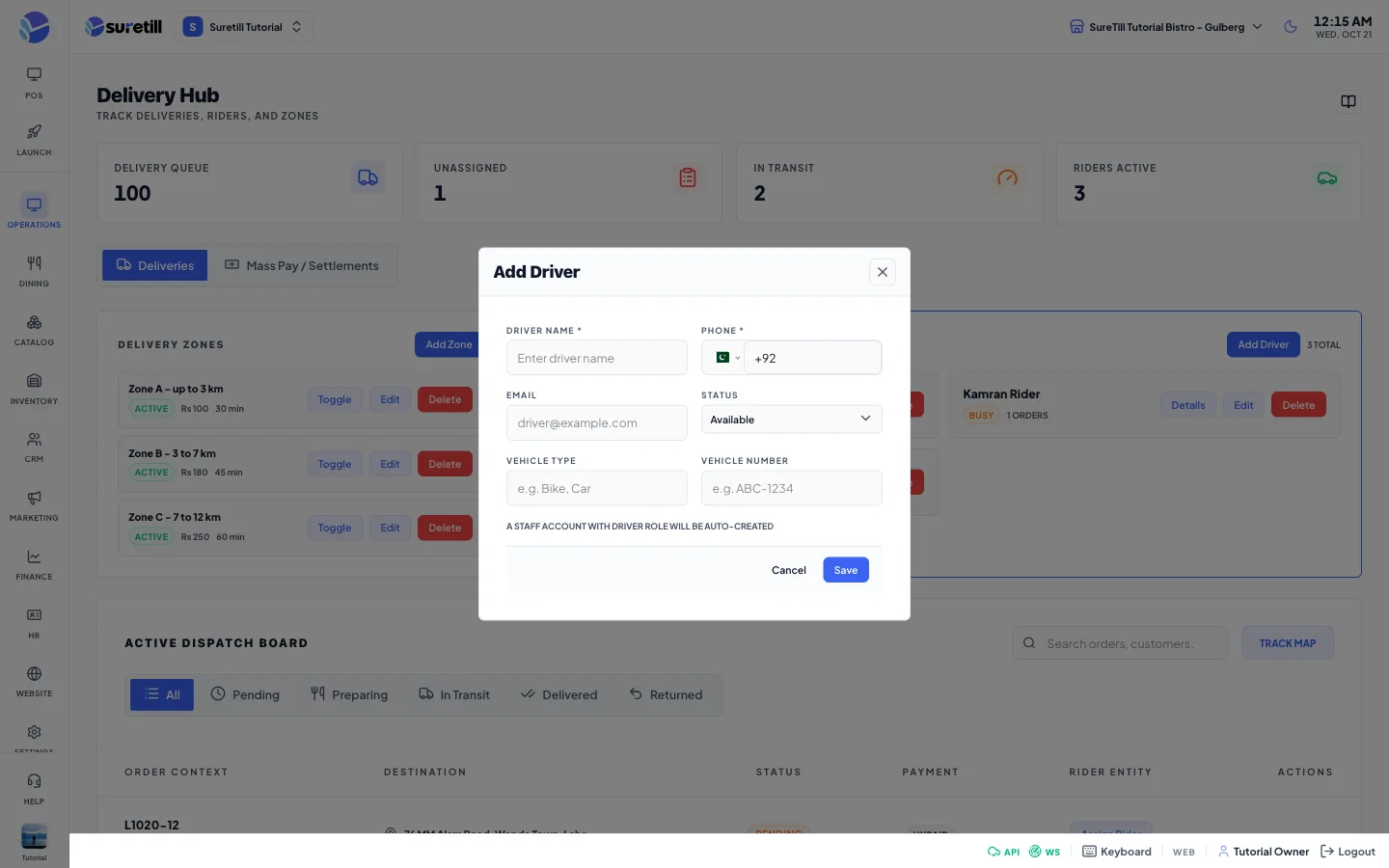
  2. Enter Driver Name and Phone. Both are needed. Email, Vehicle Type and Vehicle Number are optional.
  3. Set Status: Available, Busy or Offline.
  4. Press Save.
The add driver window on the Delivery page
Add Driver: the window that opens.
  1. In the Delivery Zones card press Add Zone.
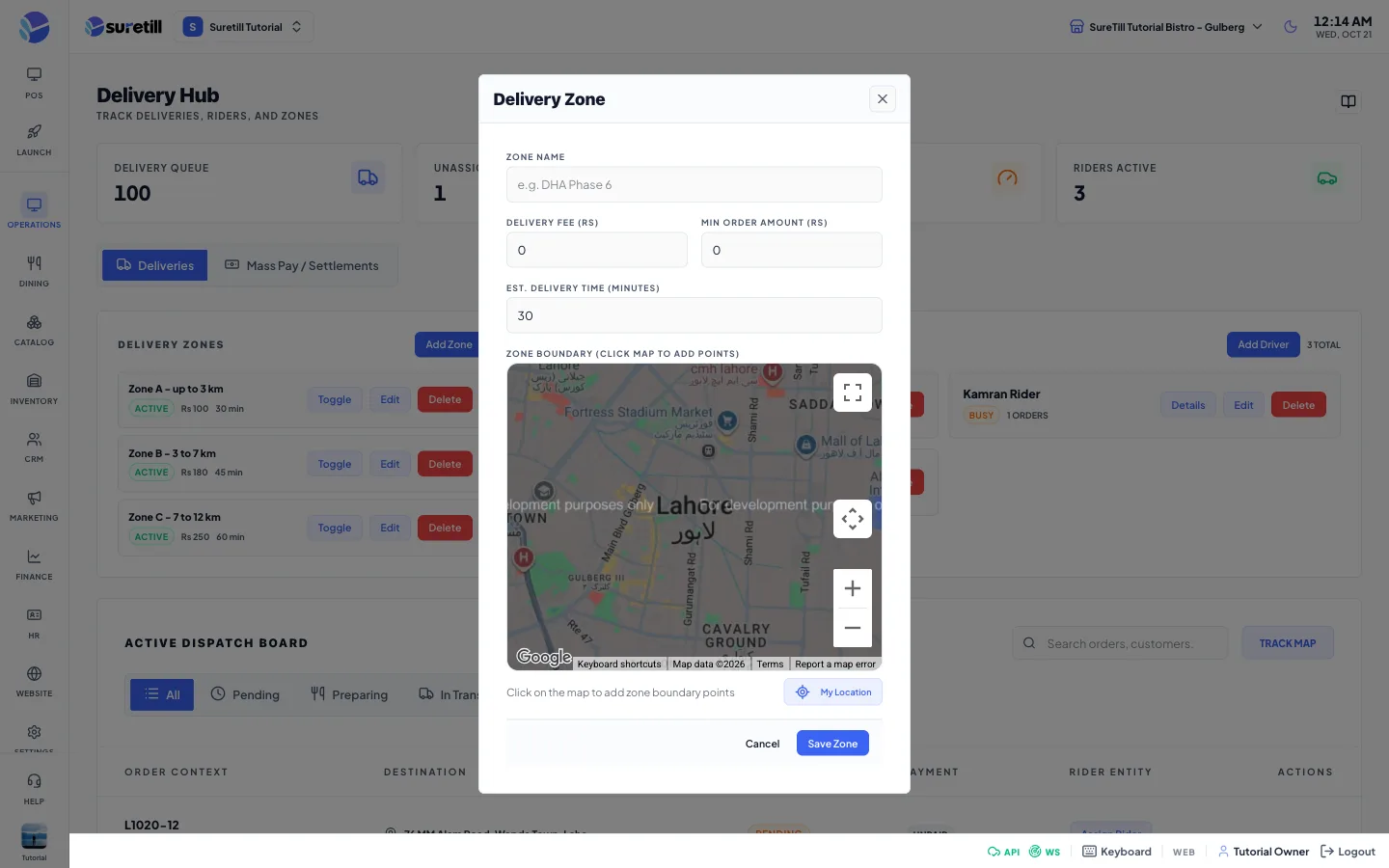
  2. Enter a Zone Name, for example DHA Phase 6.
  3. Set Delivery Fee, Min Order Amount and Est. Delivery Time (minutes).
  4. On the map click to place the corners of the area. At least 3 points make a polygon. Drag a numbered marker to adjust. Use Undo to remove the last point, Clear to remove all, and My Location to centre the map on you.
  5. Press Save Zone.
The add zone window on the Delivery page
Add Zone: the window that opens.
  1. In the Active Dispatch Board find the order. Use the tabs or the search box if the list is long.
  2. Press Assign Rider in the Rider Entity column, or open the order and press Assign to Fleet Rider.
  3. Pick a rider in the Dispatch Rider window. The rider is assigned at once. The delivery becomes Assigned and the rider and the customer are notified.
  4. When the rider takes the food, open the order and press Confirm Rider Picked Up. The order becomes Out for delivery.
  5. When it reaches the customer press Mark as Fully Delivered. The delivery and the order are marked delivered and the rider becomes Available again.
  6. If it fails press Cancel / Return. The delivery is marked as failed (shown as Returned) and the rider is freed.
Item What it does
Delivery Queue Number of delivery records loaded (up to 100 of the newest).
Unassigned Deliveries still Pending.
In Transit Deliveries that are Assigned or Picked up.
Riders Active Riders who are not Offline.
Tab Deliveries Zones, drivers and the dispatch board.
Tab Mass Pay / Settlements The Rider Settlement screen, embedded.
Item What it does
Zone row Name, Active or Disabled badge, fee and estimated minutes.
Toggle Switches the zone between Active and Disabled.
Edit Opens the zone form.
Delete Removes the zone.
Zone Name Required.
Delivery Fee Fee for the zone, zero or more. The label shows your currency symbol.
Min Order Amount Smallest basket for the zone. The label shows your currency symbol.
Est. Delivery Time (minutes) Between 5 and 180 in the form.
Zone Boundary Map polygon, at least 3 points. Needs the Google Maps key of the app.
Item What it does
Driver row Name, status badge (Available, Busy, Offline) and the number of active orders.
Details Opens Driver Detail: Total Deliveries, Active, Completed, Rating, and the last 30 deliveries. Click a delivery to open its dispatch window.
Edit Opens the driver form. Name and phone changes are copied to the linked staff login.
Delete Removes the driver.
Driver Name / Phone Required. Phone up to 30 characters; spaces are removed.
Email Optional.
Status Available, Busy, Offline.
Vehicle Type / Vehicle Number Optional, for example Bike or ABC-1234.
Item What it does
Status tabs All, Pending, Preparing, In Transit, Delivered, Returned.
Search Finds by order number, customer, address or rider.
Order Context Order number, customer and time.
Destination Delivery address.
Status Pending, Preparing, In Transit (assigned or picked up), Delivered or Returned.
Payment Paid or Unpaid.
Rider Entity The rider, or the Assign Rider button.
Print icon Appears when you point at a row. Prints the bill.
Order Dispatch window Status, payment, value, address, recipient, a route map from your branch to the customer when coordinates exist (otherwise a map of the address), distance, estimated time, rider, Lifecycle Events and Basket Items. Maps need an internet connection.