

Online Orders
Where: Operations > Online Orders
Who can use it: Permission online_orders.view. The page is hidden on SureScreen (menu board only) plans.
Open this page in SureTill
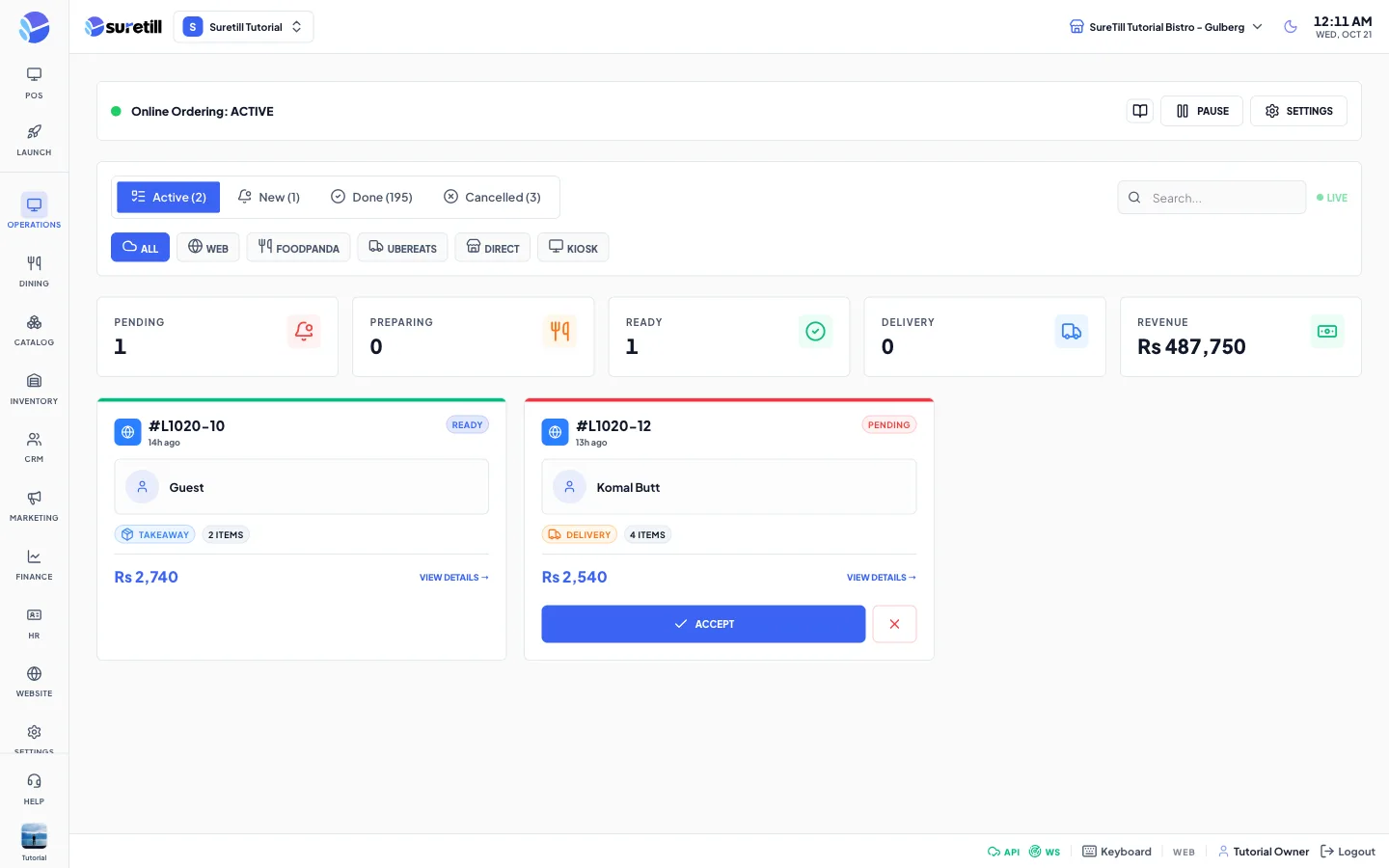
Online Orders is the live inbox for orders that were not taken at the till. It loads the most recent 200 orders whose source is the app (your website), web or kiosk. New orders appear by themselves with a sound, so you can leave the page open on a screen near the kitchen.
The page works with the branch you have selected at the top of the app. Switch branch to see the orders of another branch.
How an order moves
Section titled “How an order moves”- Pending (shown as NEW): the order has arrived and nobody has answered it yet. The card has a red outline.
- Accepted: you pressed Accept. The order is confirmed and has been sent to the kitchen.
- Preparing: the kitchen is cooking it.
- Ready: the food is ready. Delivery orders go on to Out for Delivery, takeaway orders go to Completed.
- Out for Delivery: a rider has the order.
- Completed: delivered or collected. The page also treats the server status delivered as Completed.
- Cancelled: you rejected it, or it was cancelled elsewhere.
Step by step: accept a new order
Section titled “Step by step: accept a new order”- Open Online Orders. New orders are on the Active tab and on the New tab.
- Click a card to open the order on the right. Check the customer, address, items, notes and the payment badge.
- Under Estimated Prep Time choose 15, 20, 30, 45 or 60 min. The page starts with the Default Prep Time from Settings (30 if you never changed it).
- Press ACCEPT. The order is confirmed, sent to the kitchen screen, and a kitchen ticket is printed.
- You can also press ACCEPT directly on the card. It uses the prep time that is currently selected.
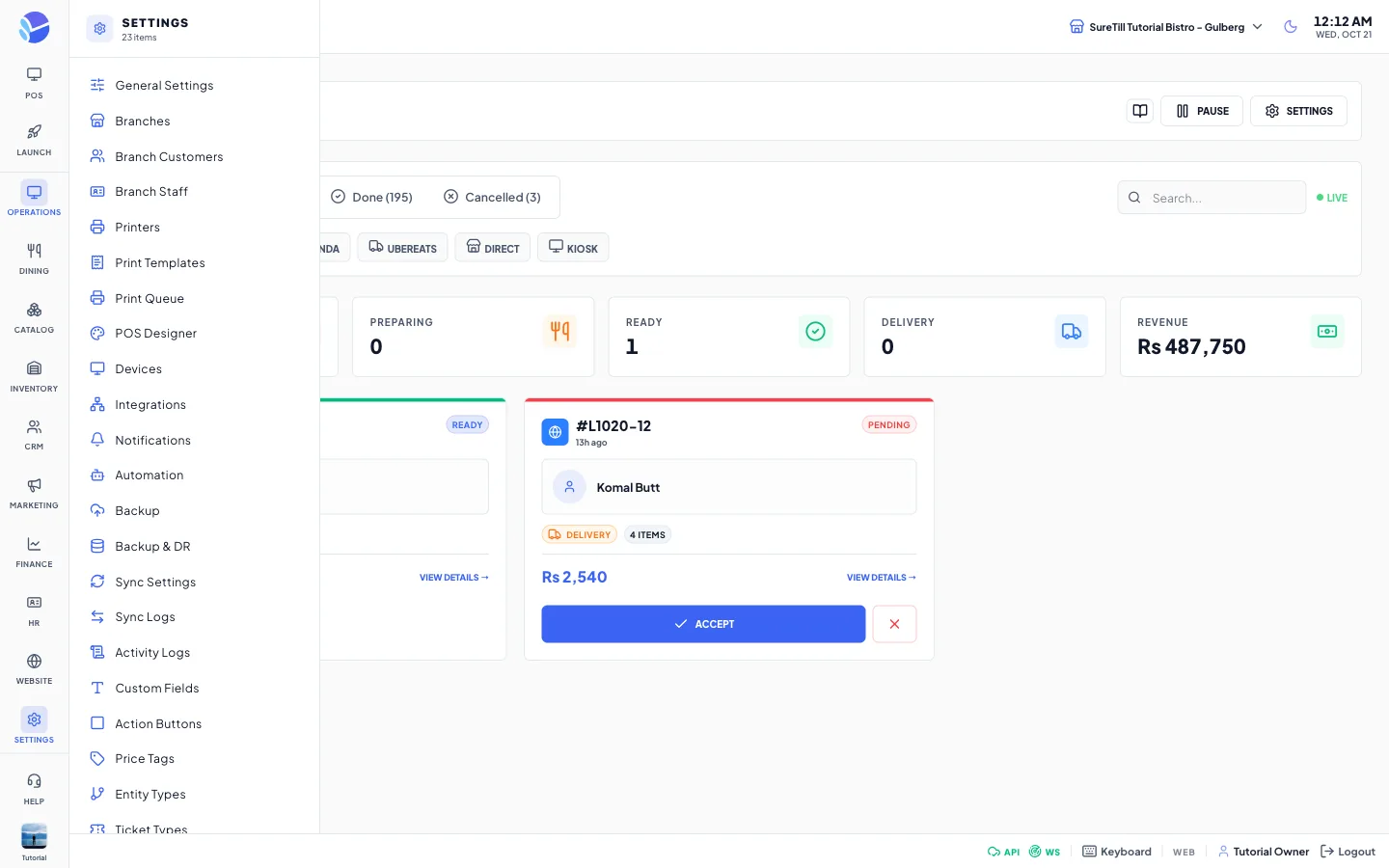
Step by step: reject an order
Section titled “Step by step: reject an order”- Open the order and press the red X button next to ACCEPT (or the X on the card).
- Confirm in the Reject Order box. The box says the customer will be notified, and for a paid website order that the card payment will be refunded.
- The order moves to the Cancelled tab with the reason ‘Rejected by restaurant’.
Step by step: move an accepted order along
Section titled “Step by step: move an accepted order along”- Open the order. The big button at the bottom shows the next step.
- Accepted: press START PREPARING.
- Preparing: press MARK READY. A receipt is also sent to the printer at this moment.
- Ready and delivery: press OUT FOR DELIVERY. Ready and takeaway: press COMPLETE ORDER.
- Out for Delivery: press DELIVERED. The order becomes Completed.
Use the RECEIPT and KITCHEN buttons at the very bottom of the order to print the receipt or the kitchen ticket again at any time.
Step by step: pause or close online ordering
Section titled “Step by step: pause or close online ordering”- Look at the status bar at the top. It reads Online Ordering: ACTIVE, PAUSED or DISABLED.
- Press Pause to stop taking new orders at once. Press Resume to start again. This saves immediately and needs no extra Save.
- For lasting changes press Settings, change the fields, and press Save.
Every setting explained
Section titled “Every setting explained”Settings panel (Settings button)
Section titled “Settings panel (Settings button)”| Setting | What it does | Default |
|---|---|---|
| Online Ordering | Master switch for the branch. Disabled means the website reports that online ordering is off. | Enabled |
| Auto-Accept | When on, website orders are accepted without anyone pressing Accept: they go to the kitchen and a kitchen ticket prints. Card orders are accepted after the payment is confirmed. When off, staff accept each order. | Manual |
| Default Prep Time (min) | Preparation time handed to the website. Allowed 5 to 120. It is also the prep time the Online Orders page starts with when you accept an order. | 30 |
| Min Order Amount | Smallest order subtotal the website allows. Checkout refuses a smaller order with a message. Zero means no minimum. | 0 |
| Pause Reason | Text shown to customers while ordering is paused, for example Kitchen full. | Empty |
| Acceptance Hours | One row per day, Monday to Sunday. Click Open or Closed to switch the day. For open days set the opening and closing time. Outside these hours the website reports that you are outside online ordering hours and checkout refuses new orders. A customer can still book an order for a later time. | 09:00 to 22:00, every day open |
| Save / Cancel | Save stores all fields for the active branch. Cancel closes the panel. |
Page controls
Section titled “Page controls”| Control | What it does |
|---|---|
| Status bar | Shows ACTIVE (green dot), PAUSED or DISABLED (red dot). |
| Pause / Resume | Switches the paused flag at once. |
| Settings | Opens the Settings panel above. |
| Tabs Active, New, Done, Cancelled | Filter by state. Active counts pending, preparing, ready and out-for-delivery orders. The number in each tab label is the count. |
| Search | Finds orders by order number, customer name or address. |
| LIVE | Reminds you that the list updates by itself. |
| Channel buttons | All, Web, Foodpanda, UberEats, Direct, Kiosk. The channel is taken from the order. Orders from your own website are shown as Web. |
| Statistic cards | Pending, Preparing (accepted plus preparing), Ready, Delivery (out for delivery) and Revenue. Revenue is the sum of completed orders in the loaded list. |
| Order card | Source icon, order number, age, status, customer, address, order type (Delivery, Takeaway or Dine in), item count, PAID badge, total. |
| Order panel | Customer details, items with variation, add-ons and special instructions, price breakdown (subtotal, tax, delivery fee, discount, total), notes, assigned rider, prep time buttons, action buttons. |
Notifications
Section titled “Notifications”- A new order raises a short three-tone sound and a message ‘New Online Order’ with the order number while the page is open.
- The sound also plays when the number of pending orders goes up after a refresh.