

Theme settings: colors, fonts, POS and table cards
Where: Settings > General Settings > Theme
Who can use it: Sidebar permission: settings.view or manage settings. No plan or add-on is needed.
Open this page in SureTill
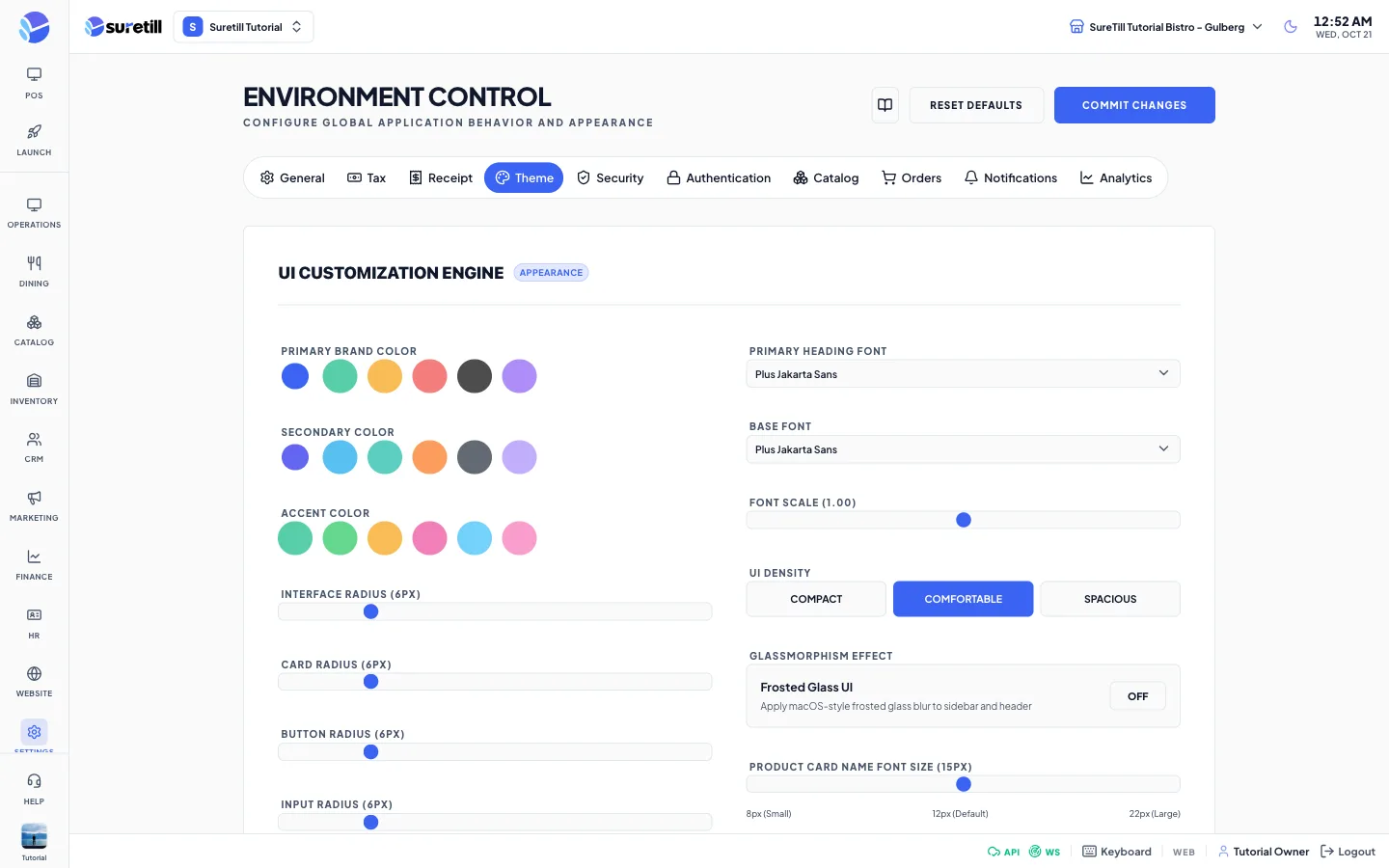
The Theme tab is titled UI Customization Engine. Every change is shown on screen at once so you can see the result. The theme is stored when you press Commit Changes.
Step by step: apply an industry preset
Section titled “Step by step: apply an industry preset”- Open Settings > General Settings and click the Theme tab.
- Scroll to Industry Presets.
- Use the category list to filter the presets: All Presets, General, Restaurant, Retail, Services or Entertainment.
- Click the preset card you like. Its name and description are on the card. The theme changes at once.
- Fine-tune the colors and sizes if you want.
- Click Commit Changes to store the theme.
Step by step: change the brand colors
Section titled “Step by step: change the brand colors”- In Primary Brand Color, Secondary Color and Accent Color click one of the six swatches.
- For the body background, the sidebar background and the sidebar text, click the color box to open the color picker, or type a hex code such as #FAFAFA.
- Click Commit Changes.
Every setting explained
Section titled “Every setting explained”Brand and shape
Section titled “Brand and shape”| Setting | What it does |
|---|---|
| Primary Brand Color | Six swatches. Used for buttons, active items and highlights. |
| Secondary Color | Six swatches. |
| Accent Color | Six swatches. |
| Interface Radius | Slider from 0 to 32 pixels. Default: 6. |
| Card Radius | Slider from 0 to 32 pixels. Default: 6. |
| Button Radius | Slider from 0 to 32 pixels. Default: 6. |
| Input Radius | Slider from 0 to 32 pixels. Default: 6. |
| Body Background Color | Color box and hex field. Default: #FAFAFA. |
| Sidebar Background Color | Color box and hex field. Default: #FFFFFF. |
| Sidebar Text Color | Color box and hex field. Default: #0f172a. Use a light color when the sidebar background is dark. |
Fonts and density
Section titled “Fonts and density”| Setting | What it does |
|---|---|
| Primary Heading Font | Plus Jakarta Sans, Inter, Outfit or Space Grotesk. Default in SureTill: Plus Jakarta Sans. |
| Base Font | The same four fonts. Default: Plus Jakarta Sans. |
| Font Scale | Slider from 0.85 to 1.15 in steps of 0.01. Default: 1.00. |
| UI Density | Compact, Comfortable or Spacious. Default: Comfortable. |
| Frosted Glass UI | Switch. Applies a frosted glass blur to the sidebar and header. Default: off. |
POS product cards
Section titled “POS product cards”| Setting | What it does |
|---|---|
| Product Card Name Font Size | Slider from 8 to 22 pixels. Default: 15. |
| Category Name Font Size | Slider from 8 to 22 pixels. Default: 14. |
| Hide Category Name | Switch. Hides the category label on the product cards of the POS screen. Default: on. |
| Hide Product Price | Switch. Hides the price on the product cards of the POS screen. Default: on. |
| Product Card Background | Color box. A RESET link appears once you pick a color and returns to the default. Default: #089503. |
| Product Card Text Color | Color box with RESET and a Sample Text preview. Default: #ffffff. |
Category buttons
Section titled “Category buttons”| Setting | What it does |
|---|---|
| Pill Background | Color of the category buttons. Default: #ff9300. |
| Active Pill Color | Color of the selected category button. Default: #09057E. |
| Pill Text Color | Text color of the category buttons. Default: #000000. |
| Hide Category Icons | Switch. Hides the icons inside the category buttons. Default: on. |
| Hide “All Items” Category | Switch. When on, the POS does not offer one list of every product, and opens on the first category instead. Default: on. |
| Category Position | Switch between top (a horizontal scroll) and left (vertical columns). Default: left. |
Table cards
Section titled “Table cards”| Setting | What it does |
|---|---|
| Full Card Color | Switch. On fills the whole table card with the status color. Off uses a border only. Default: on. |
| Hide Status Label | Switch. Hides words such as Occupied, Billed or Account and shows only the timer and the amount. Default: on. |
| Status Font Size | Slider from 0 to 20 pixels. 0 means automatic, based on the number of tables. Default: 20. |
| Table Name Font: Font Size | Slider from 0 to 48 pixels. 0 means automatic. Default: 30. |
| Table Name Font: Font Weight | Slider from 400 to 900 in steps of 100. 400 is normal, 700 bold, 900 black. Default: 700. |
| Show Price in Table Card | Switch. Shows the order total on table cards. Default: on. |
| Table Status Colors (Background) | One color for each status: Occupied, Bill Printed, Billed, Reserved, Account and Ready. A RESET link returns a color to its default. Colors used when you set nothing: Occupied #F2A206, Bill Printed #1D4ED8, Billed #720000, Reserved #8B5CF6, Account #09057E, Ready #089503. A new account starts with Bill Printed set to #3660d3. |
| Table Name Font Color (Per Status) | The color of the table label only (for example T1, D2, P5), one color per status. The status text and the countdown timer stay white. Default: white, and black for Occupied in a new account. |
Industry presets
Section titled “Industry presets”| Setting | What it does |
|---|---|
| Category list | Filters the preset cards: All Presets, General, Restaurant, Retail, Services, Entertainment. |
| Preset card | Click to apply the whole preset to the theme. |