

General settings: identity, main server and data export
Where: Settings > General Settings > General
Who can use it: Sidebar permission: settings.view or manage settings. No plan or add-on is needed.
Open this page in SureTill
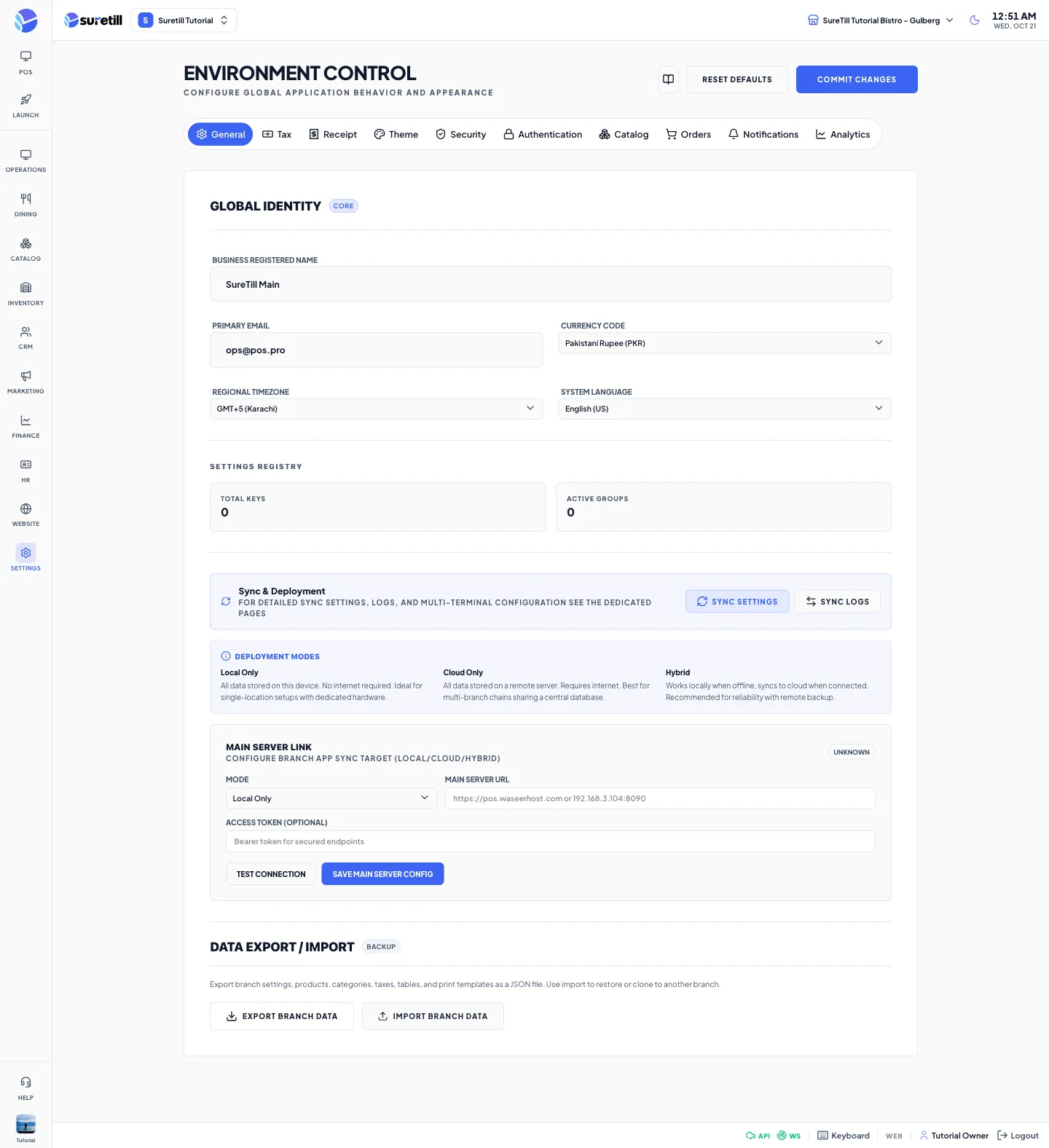
This is the first tab you see. It sets the identity of the business and the currency used on screens, and it has the tools to connect a terminal to a main server and to copy a branch.
Step by step: set the business identity
Section titled “Step by step: set the business identity”- Open Settings > General Settings. The General tab is shown.
- Type the Business Registered Name and the Primary Email.
- Pick the Currency Code from the list.
- Pick the Regional Timezone and the System Language.
- Click Commit Changes.
Step by step: export a branch
Section titled “Step by step: export a branch”- Select the branch in the top bar. The export always uses the branch that is selected.
- Scroll to Data Export / Import and click Export Branch Data.
- Save the file branch-export-YYYY-MM-DD.json in the dialog that opens. The date is today’s date.
The file contains the branch settings, products, categories, taxes, tables and print templates.
Step by step: import a branch file
Section titled “Step by step: import a branch file”- Select the branch that should receive the data in the top bar.
- Click Import Branch Data and choose a .json file you exported before.
- Read the confirmation: the import merges settings, products, categories, taxes and tables into the current branch, and existing data is not deleted.
- Click Import. A message Import Complete appears when it is done.
Step by step: link a terminal to a main server
Section titled “Step by step: link a terminal to a main server”- In the Main Server Link box, choose the Mode.
- Type the Main Server URL, for example https://pos.example.com or an address with a port such as 192.168.3.104:8090.
- If the server needs it, paste the Access Token.
- Click Test Connection. The status badge turns to connected or disconnected and the details appear.
- Click Save Main Server Config.
Every setting explained
Section titled “Every setting explained”| Setting | What it does |
|---|---|
| Business Registered Name | The name of the business. Default before you save: your product name followed by Main. |
| Primary Email | The main business email. Default before you save: ops@pos.pro. |
| Currency Code | The business currency. The list shows every currency known to the system as name and code. Default before you save: PKR. If the list cannot load, four fallback choices appear: PKR, USD, GBP and EUR. The choice is applied on screen at once and stored when you press Commit Changes. |
| Regional Timezone | Three choices: GMT+5 (Karachi), GMT+0 (London) and GMT-5 (New York). Default: GMT+5 (Karachi). For the time zone that a branch really uses, set it on the Branches page. |
| System Language | English (US) or Urdu (Pakistan). Default: English (US). |
| Settings Registry: Total Keys | A read-only counter of stored setting keys. |
| Settings Registry: Active Groups | A read-only counter of setting groups. |
| Sync Settings button | Opens the Sync Settings page for the detailed sync options. |
| Sync Logs button | Opens the Sync Logs page. |
| Deployment Modes help | A reminder box. Local Only keeps all data on this device and needs no internet. Cloud Only keeps all data on a remote server and needs internet. Hybrid works locally when offline and syncs to the cloud when connected. |
| Main Server Link: status badge | Shows unknown, connected or disconnected. Unknown until you run a test. |
| Mode | Local Only, Cloud Only or Hybrid (Local + Cloud). Default: Local Only. |
| Main Server URL | The address of the server that this installation syncs with. |
| Access Token (Optional) | A bearer token for servers that need one. |
| Test Connection | Calls the server and reports whether it is reachable. On success you see the pieces that worked, for example API OK, Sync Ready, the number of branches and the delay in milliseconds. A box then shows Latency, API (Healthy or Down), Sync API (Ready or Not configured) and Branches. You must type a URL first. |
| Save Main Server Config | Saves Mode, URL and token to the server. If saving to the server fails, a copy is kept in the browser and the message Saved Locally appears. |
| Last checked | The date and time of the last test. |
| Export Branch Data | Downloads a JSON file for the selected branch. Shows an error if no branch is selected. |
| Import Branch Data | Reads a JSON file and merges it into the selected branch after you confirm. |