

Expenses
Where: Finance > Expenses
Who can use it: Permission: expenses.view or view reports.
Open this page in SureTill
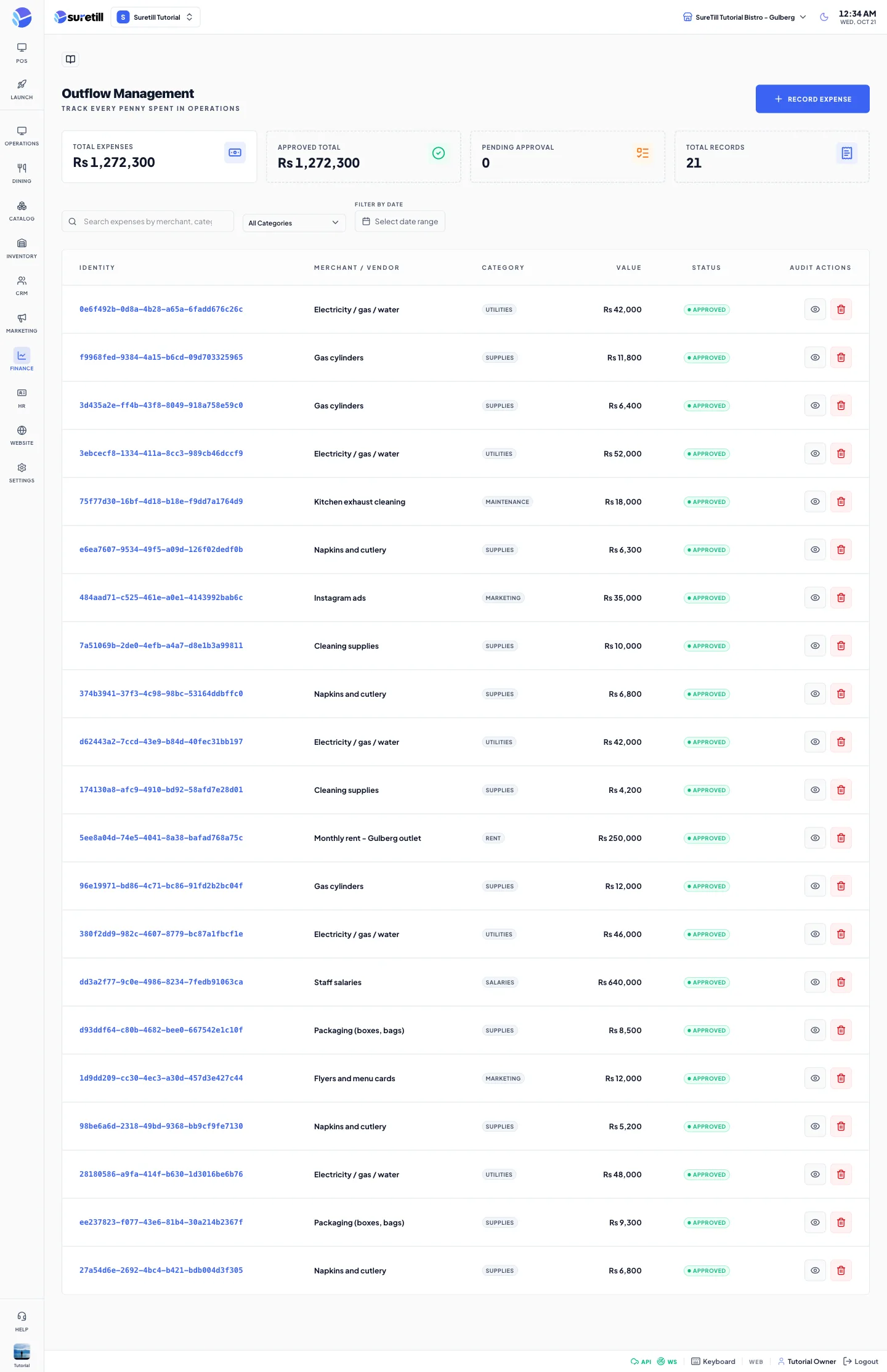
Every expense is saved for the branch you have selected and starts as Pending. A person with the right to approve then approves or rejects it. Approved expenses feed the Accounting page (Cash on Hand) and the cash lines of the End-of-Day Report. The page loads up to 200 expenses.
Step by step
Section titled “Step by step”Record an expense
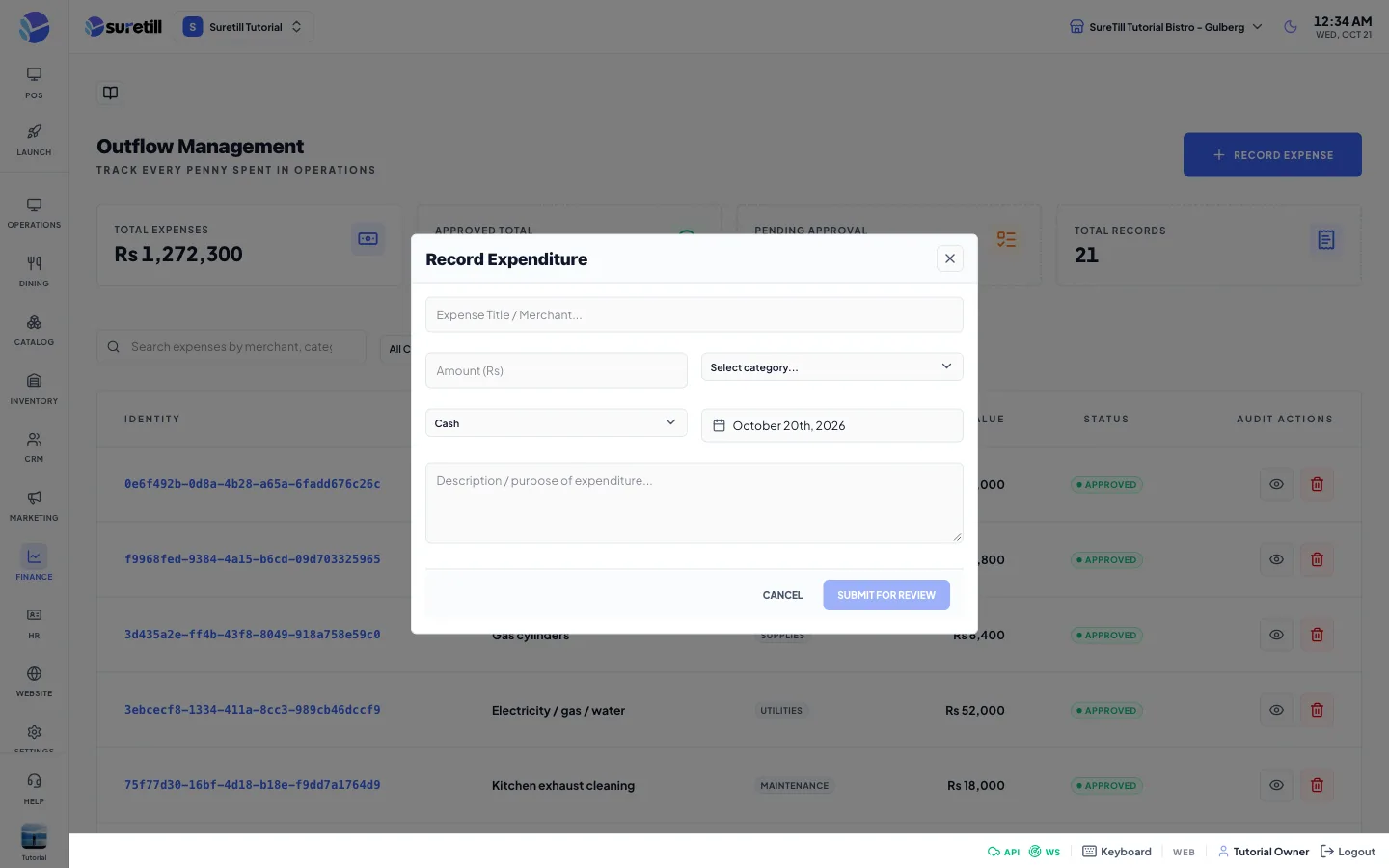
Section titled “Record an expense”- Open Finance > Expenses and click Record Expense.
- Type the Expense Title / Merchant, for example Gas cylinder, Ali Traders.
- Type the Amount. It must be more than zero.
- Pick the Category.
- Pick how it was paid and the date (today by default).
- Add a description if you want and click Submit for Review. The button stays off until a title, an amount and a category are filled.
- The expense appears with the status Pending and a number like EXP-20261020-0001.
Approve or reject
Section titled “Approve or reject”- On a Pending row click the green check to approve, or the red cross to reject. You can also open the row with the eye icon and use Approve or Reject there.
- Only Pending expenses can be approved or rejected. Approving saves who approved and when.
Delete an expense
Section titled “Delete an expense”- Click the red trash icon on the row.
- Read the message This will permanently remove the expense record and click Delete.
Every setting explained
Section titled “Every setting explained”| Setting | What it does |
|---|---|
| Total Expenses | Sum of the amounts of the rows that match your filters, in any status. |
| Approved Total | Sum of the Approved rows that match your filters. |
| Pending Approval | Number of Pending rows that match your filters. |
| Total Records | Number of rows that match your filters. |
| Search | Matches the title (merchant) or the category name. |
| Category filter | All Categories, or one of your saved expense categories. It finds the rows of that category. |
| Filter by Date | From and To dates on the expense date. |
| Identity | The expense number, for example EXP-20261020-0001. |
| Merchant / Vendor | The title you typed. |
| Category | The category name. |
| Value | The amount. |
| Status | Pending (pulsing), Approved or Rejected. |
| Audit Actions | Approve and Reject (pending only), View detail, Delete. |
| Expense Title / Merchant | Required. Up to 255 characters. |
| Amount | Required. At least 0.01. |
| Category (form) | Required. Choose one of the saved expense categories, or add one with New category name and Add category. The Submit for Review button stays off until a category is chosen. |
| Payment method (form) | Cash (default), Bank Transfer, Credit/Debit Card, Cheque or Online Payment. This is a note on the expense. It does not take money from a cash drawer or a bank account. |
| Date | The expense date. Today by default. |
| Description | Free text. Shown as Notes in the detail window. |
| Expense Detail window | Shows merchant, amount, category, status, date, payment method and notes. |