

Dashboard
Where: Finance > Dashboard
Who can use it: Permission: dashboard.view or view reports. Not shown on SureScreen-only plans.
Open this page in SureTill
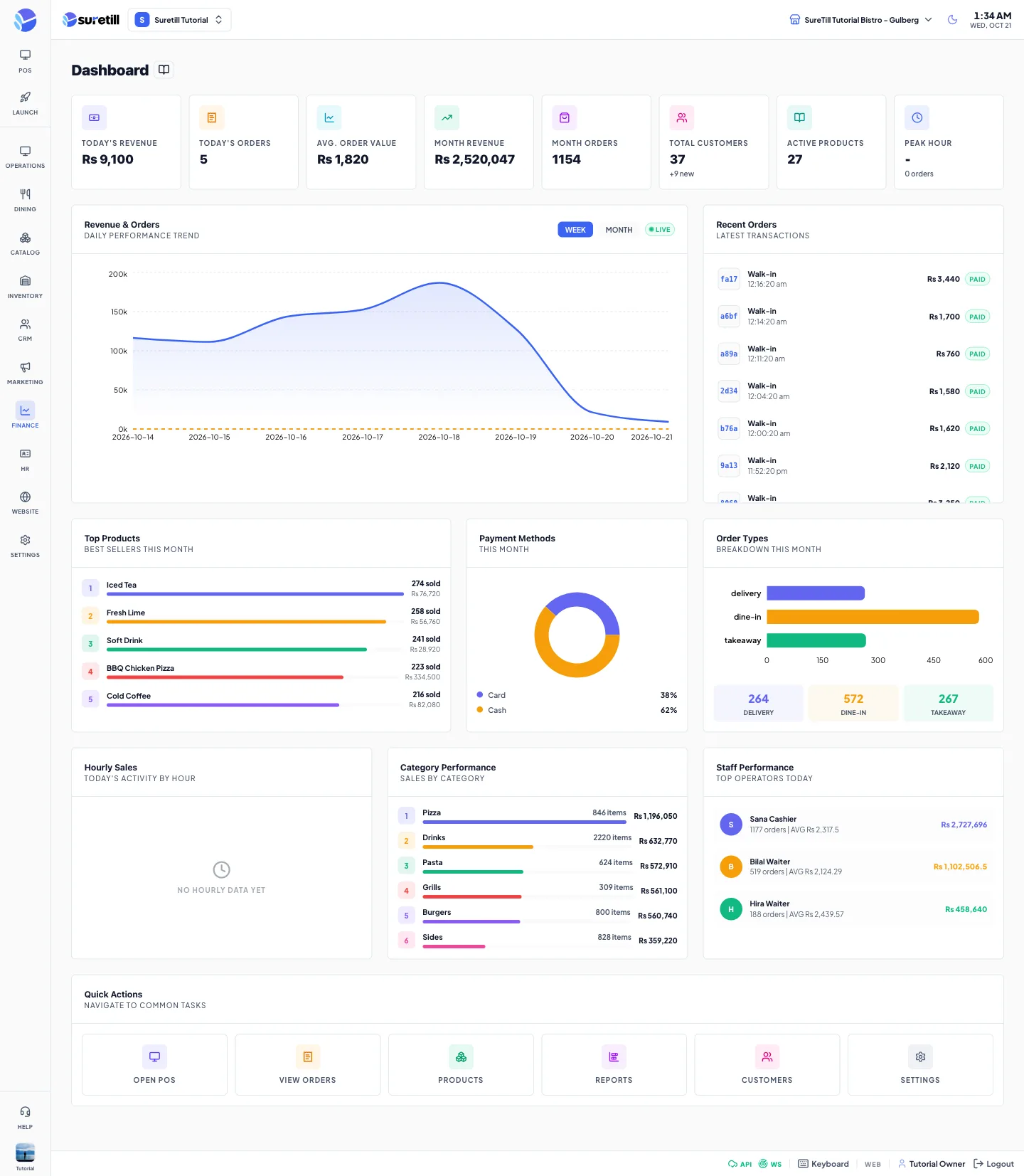
The Dashboard is the first place to look at the start and end of a day. It shows the branch you have selected in the branch switcher. When you switch branch, the page reloads and every card follows the new branch. You cannot change any data here. It only reads.
The summary, the revenue chart, the payment chart and the order type chart refresh by themselves every 60 seconds. The hourly, category and staff cards refresh every 2 minutes.
How the numbers are computed
Section titled “How the numbers are computed”- Revenue on the number cards and the revenue chart is the total of orders whose payment status is Paid or Settled (Settled means a rider handed over the cash). Cancelled and unpaid orders are not revenue.
- The Payment Methods card is different. It adds up completed payments recorded against orders, grouped by payment method.
- Order counts on the cards count every order created in the period for the branch, including unpaid and cancelled ones. Because of this, Avg. Order Value can look lower than your real ticket size.
- Top Products, Order Types, Category Performance and Staff Performance only use sold tickets: orders with status Completed or Delivered. Voided lines are left out.
Step by step
Section titled “Step by step”Check how the day is going
Section titled “Check how the day is going”- Open Finance > Dashboard.
- Read the first two cards, Today’s Revenue and Today’s Orders.
- Look at Peak Hour to see which hour has the most orders today.
- Scroll to Recent Orders to see the last 10 orders and whether they are paid.
Look at another branch
Section titled “Look at another branch”- Use the branch switcher in the admin header and pick the branch.
- Wait for the page to reload. All cards now show that branch.
Go deeper
Section titled “Go deeper”- In the Quick Actions card at the bottom, click Reports to open the full report centre.
- Use Open POS, View Orders, Products, Customers or Settings to jump to those pages.
Every setting explained
Section titled “Every setting explained”The Dashboard has no settings. This table lists every card, chart and button and what it shows.
| Item | What it shows |
|---|---|
| Today’s Revenue | Sum of the totals of orders created today that are Paid or Settled. |
| Today’s Orders | Number of orders created today, any status. |
| Avg. Order Value | Today’s Revenue divided by Today’s Orders. Worked out in your browser. |
| Month Revenue | Same as Today’s Revenue, from the 1st of this month until now. |
| Month Orders | Number of orders created since the 1st of this month. |
| Total Customers | Customers saved for the branch. The small line shows how many were added this month. |
| Active Products | Number of products saved for the branch (the count includes inactive products). The small line shows how many tracked products are at or under their low stock level. |
| Peak Hour | The hour with the most orders today, shown as the hour number (for example 14), with the order count below. It uses today’s Completed orders. |
| Revenue & Orders chart | One point per day for the last 7 days. The solid line is revenue. The dashed amber line is the number of orders. Hover a point for the values. Only Paid and Settled orders are counted. |
| Week / Month buttons | Two buttons above the chart. Week shows the last 7 days and Month the last 30 days. The chart reloads when you switch. |
| Live badge | Shows the page is refreshing itself. |
| Recent Orders | The last 10 orders of the branch, newest first, from any day. Each row shows the last 4 characters of the order number, the customer (Walk-in if none), the time, the total and a badge: Paid (also used for orders settled by a rider), Account, Void (cancelled) or Pending. |
| Top Products | The 5 best selling products this month by quantity, with a bar compared to the best one, the quantity sold and the revenue of those lines. |
| Payment Methods | A ring chart of this month’s completed payments by method, with the percent share of each method. |
| Order Types | This month’s sold tickets grouped by order type (for example dine-in, takeaway, delivery). The bars and the tiles show the number of orders. The tooltip also shows revenue. |
| Hourly Sales | Bars of today’s number of Completed orders for each hour. |
| Category Performance | Up to 6 categories ranked by revenue, with items sold and revenue. The card covers the sold orders of this month. |
| Staff Performance | Up to 5 staff members ranked by sales, with their order count, average order and sales. It counts the sold orders of today. |
| Quick Actions | Six shortcuts: Open POS, View Orders, Products, Reports, Customers, Settings. |
| Retry All | Appears in a red bar when some data could not load. It loads every card again. |