

Suppliers
Where: Inventory > Suppliers
Who can use it: Permission suppliers.view or manage inventory.
Open this page in SureTill
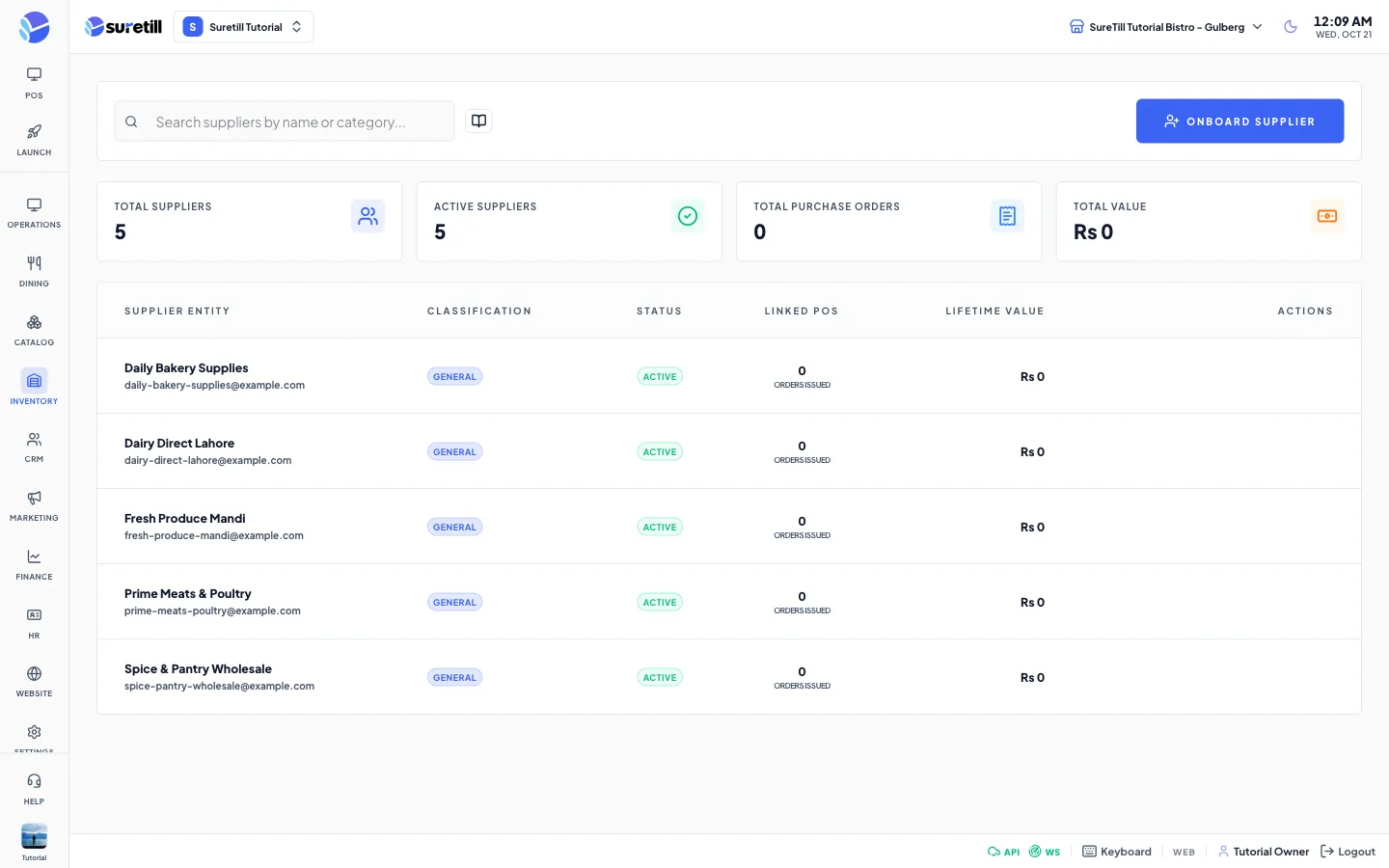
A supplier is a company you buy ingredients or goods from. Purchase orders are always made for one supplier. Create the supplier first, then issue orders to it.
Step by step: add a supplier
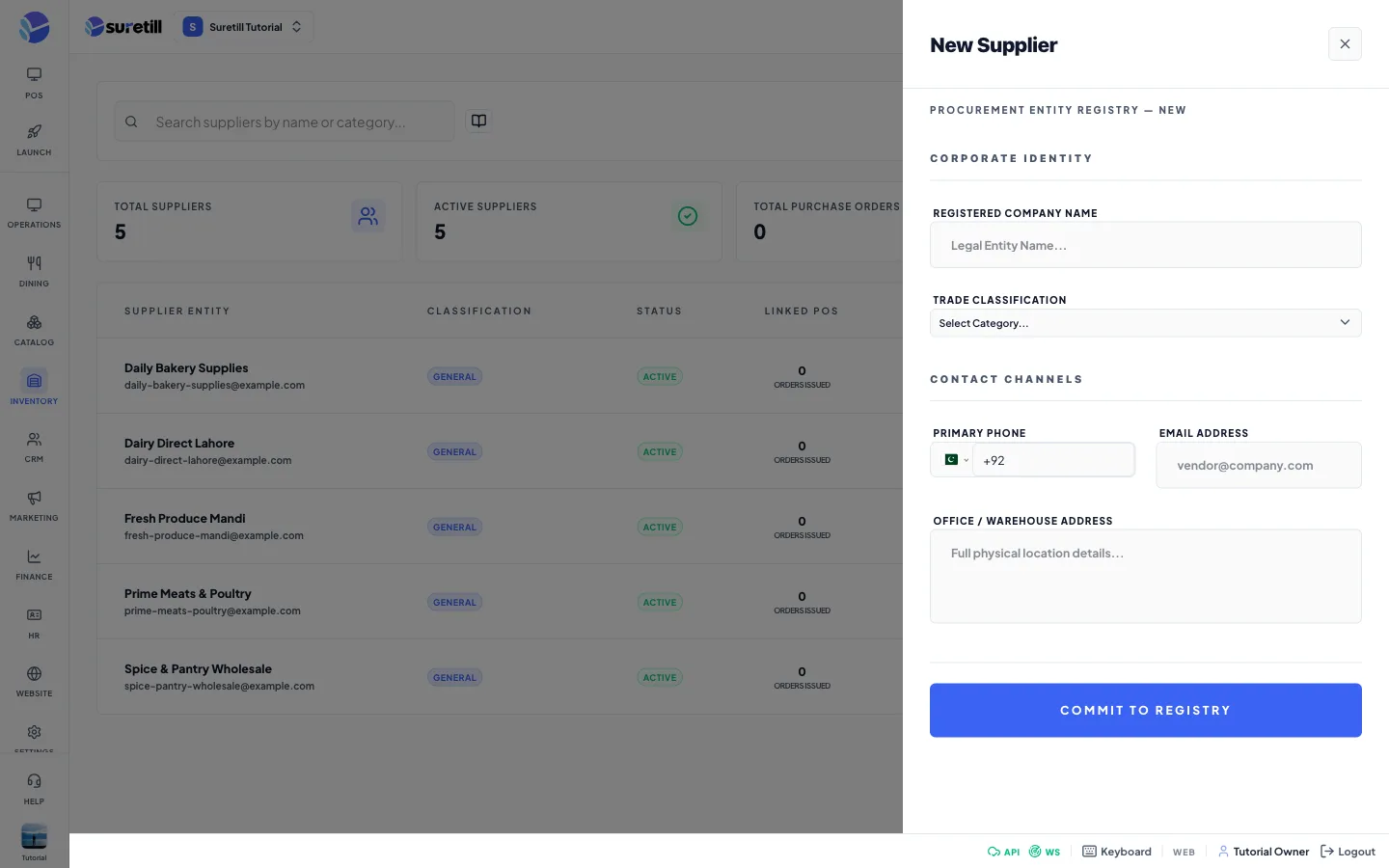
Section titled “Step by step: add a supplier”- Open Inventory > Suppliers and click Onboard Supplier.
- Type the Registered Company Name. This is the only required field.
- Pick the Trade Classification: General Food, Dairy & Milk, Meat & Poultry, Produce, Beverages or Packaging.
- Pick the Vendor Status: Active, Under Review or Blacklisted.
- Type the Primary Phone, the Email Address and the Office / Warehouse Address.
- Click Commit to Registry.
Step by step: edit or delete
Section titled “Step by step: edit or delete”- Click the supplier row, or the pencil, to open the Vendor Profile.
- Change the details and click Commit to Registry.
- To delete, hover over the row and click the red bin. The supplier is deleted at once with no confirmation question.
Step by step: issue a purchase order to a supplier
Section titled “Step by step: issue a purchase order to a supplier”- Hover over the supplier row and click Issue PO.
- Click Add Item. Pick the stock item. The unit fills in. Type the Qty (1 or more) and the Cost per unit.
- Repeat for each item. The Estimated Total updates as you type.
- Optional: pick the Expected Delivery date and type Notes.
- Click Confirm & Create PO.
The order is created for the branch selected in the header. It then appears in Inventory > Purchase Orders, where you approve it and receive the goods.
Every setting explained
Section titled “Every setting explained”| Setting | What it does |
|---|---|
| Search | Finds suppliers by name or classification. |
| Total Suppliers, Active Suppliers | Counts of the suppliers shown. |
| Total Purchase Orders, Total Value | Sum of the order count and value shown on each supplier row. |
| Supplier Entity | Company name with the email under it. |
| Classification | The trade type of the supplier. It is saved with the supplier and shown again in the list and in the Vendor Profile. |
| Status, Vendor Status | Active, Under Review or Blacklisted. Set it in the Vendor Status box of the form. |
| Linked POs and Lifetime Value | Orders issued to the supplier (cancelled orders are not counted) and their total value. |
| Registered Company Name | The supplier name. Required, up to 255 characters. |
| Primary Phone | Phone with country code. Up to 20 characters. |
| Email Address | Must be a valid email if filled. |
| Office / Warehouse Address | Free text. |
| Issue PO items | Stock item, Qty, Unit (read only), Cost. |
| Expected Delivery, Notes | Optional details of the order. |