

POS Status: system health
Where: Operations > POS Status
Who can use it: Permission pos.status_display or dashboard.view.
Open this page in SureTill
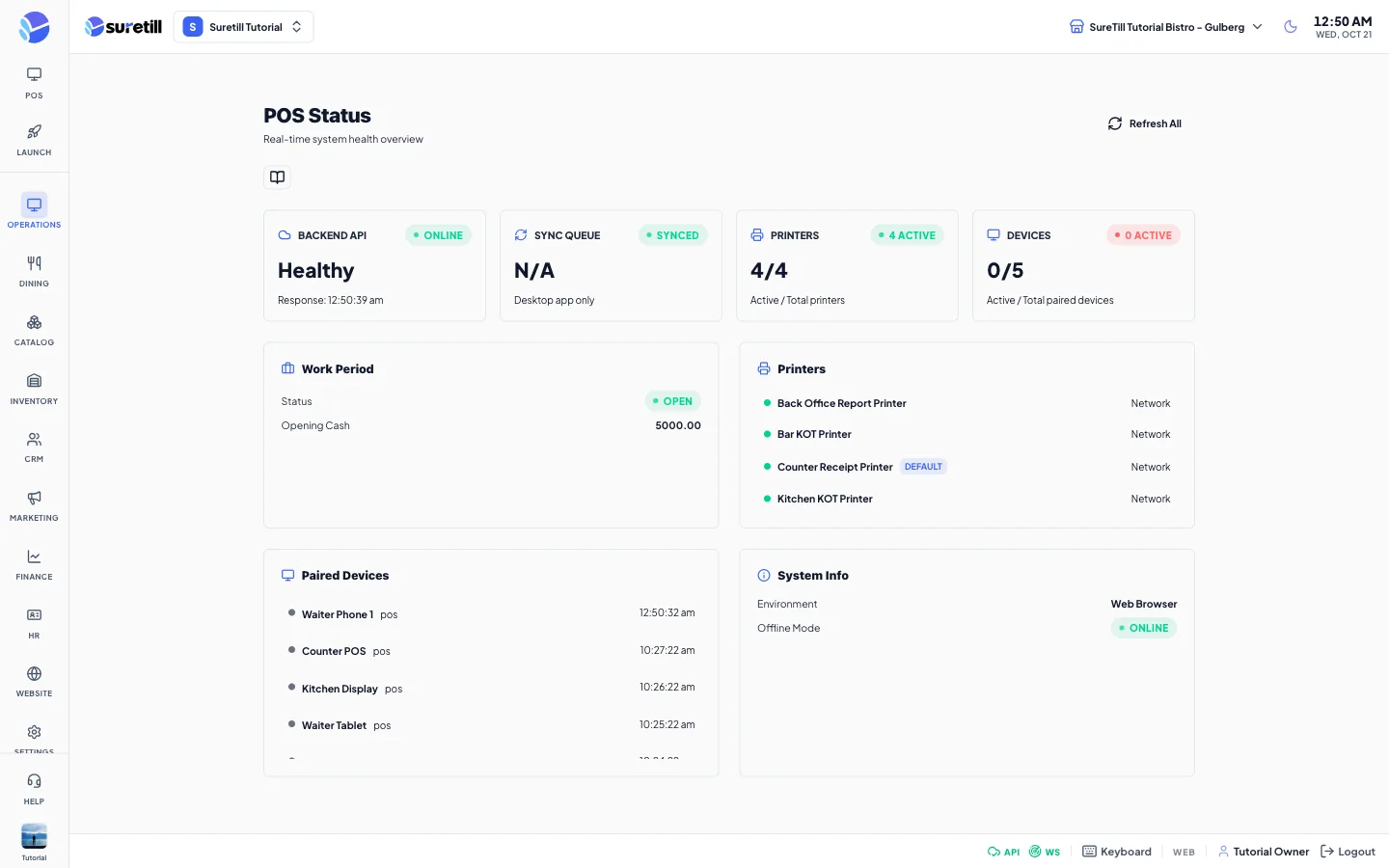
Open POS Status when something seems wrong: a printer is silent, a tablet does not show orders, or the system feels slow. The page checks the server, printers, devices and the work period, and refreshes itself.
Step by step
Section titled “Step by step”Check that everything is healthy
Section titled “Check that everything is healthy”- Open Operations > POS Status.
- Look at the four cards at the top. Green badges are good, red badges need attention.
- Scroll down to the Work Period, Printers, Paired Devices and System Info panels for details.
Refresh now
Section titled “Refresh now”- Tap Refresh All at the top right. The page re-checks the connection, the server, printers, devices and the work period. “Last check” shows when it ran.
Find out why a print did not come out
Section titled “Find out why a print did not come out”- Look at the Printers card. “0/N” means no printer is active.
- In the Printers panel check that your printer has a green dot and a connection type.
- In Paired Devices look for the device marked PRINT AGENT. Check its last-seen time. A print agent that was seen minutes ago is running.
How often it refreshes
Section titled “How often it refreshes”- Backend API: every 15 seconds.
- Devices: every 15 seconds.
- Printers, work period and system info: every 30 seconds.
- The pending count of the desktop app queue: every 10 seconds.
- All of this stops while the page is offline.
Every setting explained
Section titled “Every setting explained”Status cards
Section titled “Status cards”| Setting | What it does |
|---|---|
| Backend API | Online or Offline badge plus “Healthy” or “Down”. Shows the time of the last response. |
| Sync Queue | The number of offline orders waiting to be sent from the desktop app. “Synced” when zero. In a browser it shows N/A and “Desktop app only”. |
| Printers | Active printers out of all printers, for example 2/3. |
| Devices | Active devices out of all paired devices. |
Detail panels
Section titled “Detail panels”| Setting | What it does |
|---|---|
| Work Period | Open or Closed, the time it was opened and the opening cash. If none: “No active work period. Open one from the POS terminal.” |
| Printers | Each printer with a dot (green active, grey not), the name, a DEFAULT tag and the connection type (network, USB and so on). |
| Paired Devices | Each paired device with a dot, name, type, a PRINT AGENT tag if it is the print agent, and the last-seen time. |
| System Info | Environment (Desktop App or Web Browser), Offline Mode (online or offline), and when the server returns them, the PHP version, Laravel version and database. |
| Refresh All | Re-checks everything now. |