Where: HR > Attendance Who can use it: Menu: users.view or manage users. On the server, reading needs staff.view and clock in, clock out, shifts and approvals need staff.manage_attendance. The manager role has both by default. Owners, admins and super-admins can do everything. Not available on SureScreen plans. Open this page in SureTill
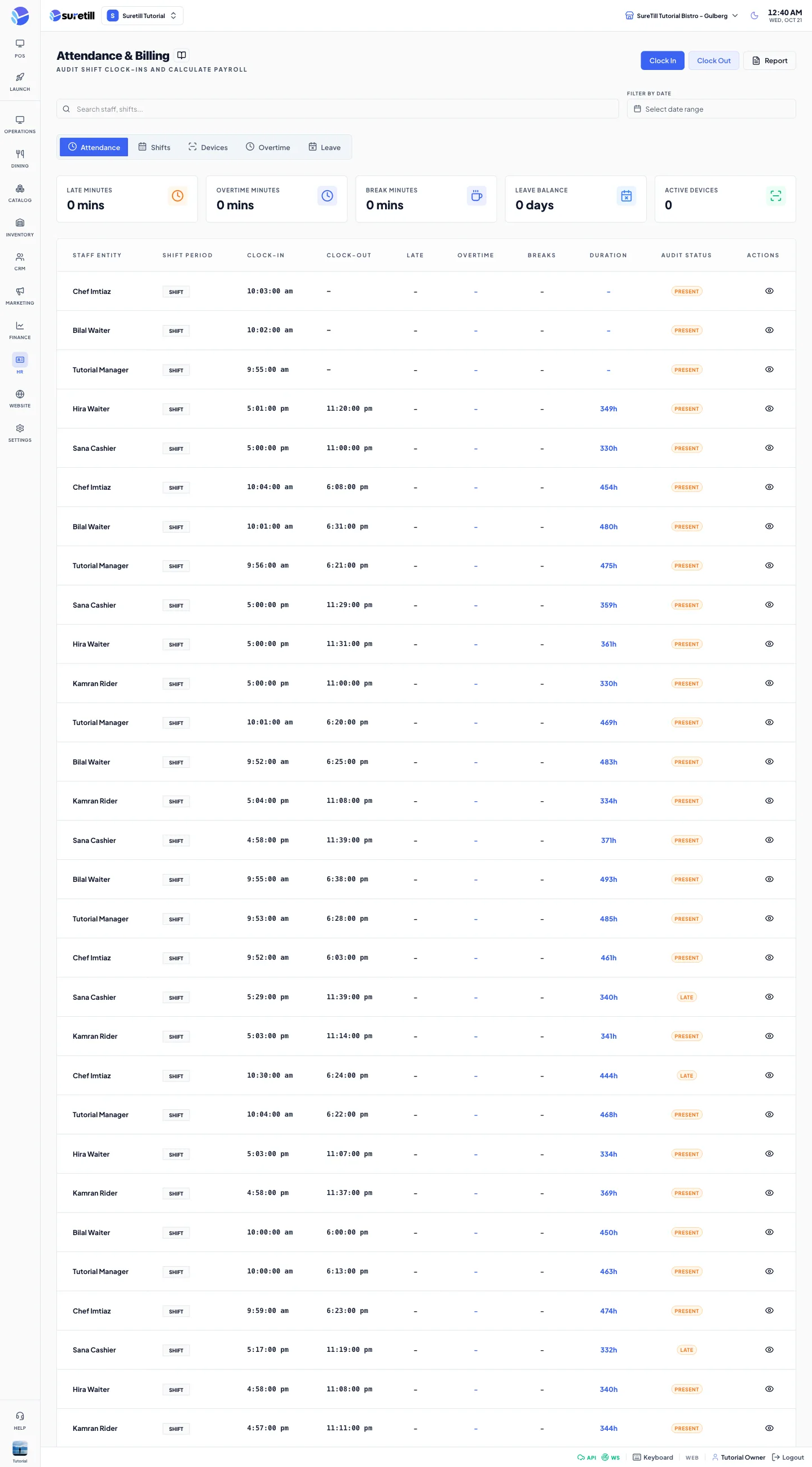
This page is the time clock of your restaurant. It lists who came in and when, lets you define shifts, shows overtime waiting for approval, lists leave requests and holds the connection to biometric attendance devices. The attendance records are what payroll reads when it works out hours and days worked.
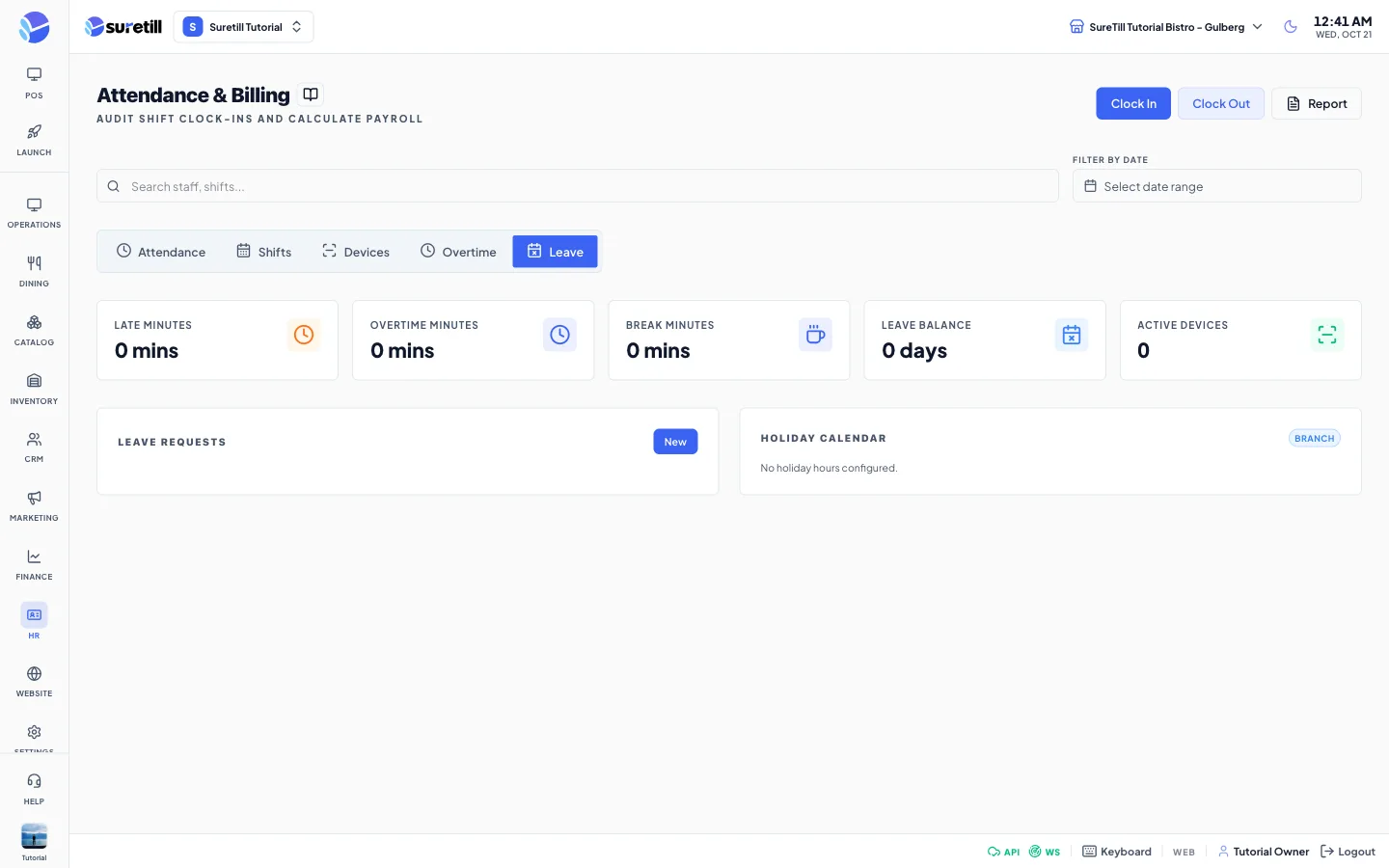
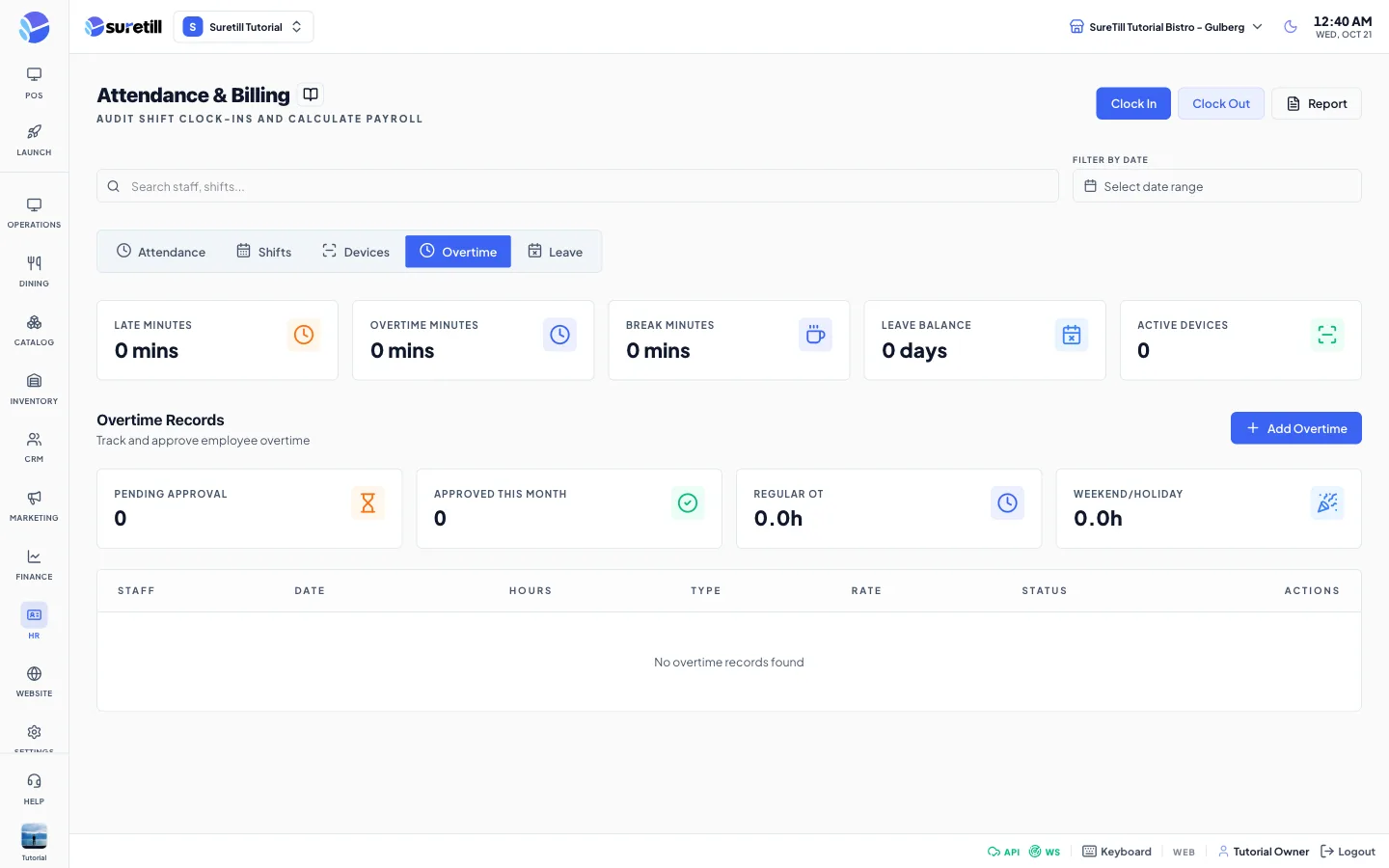
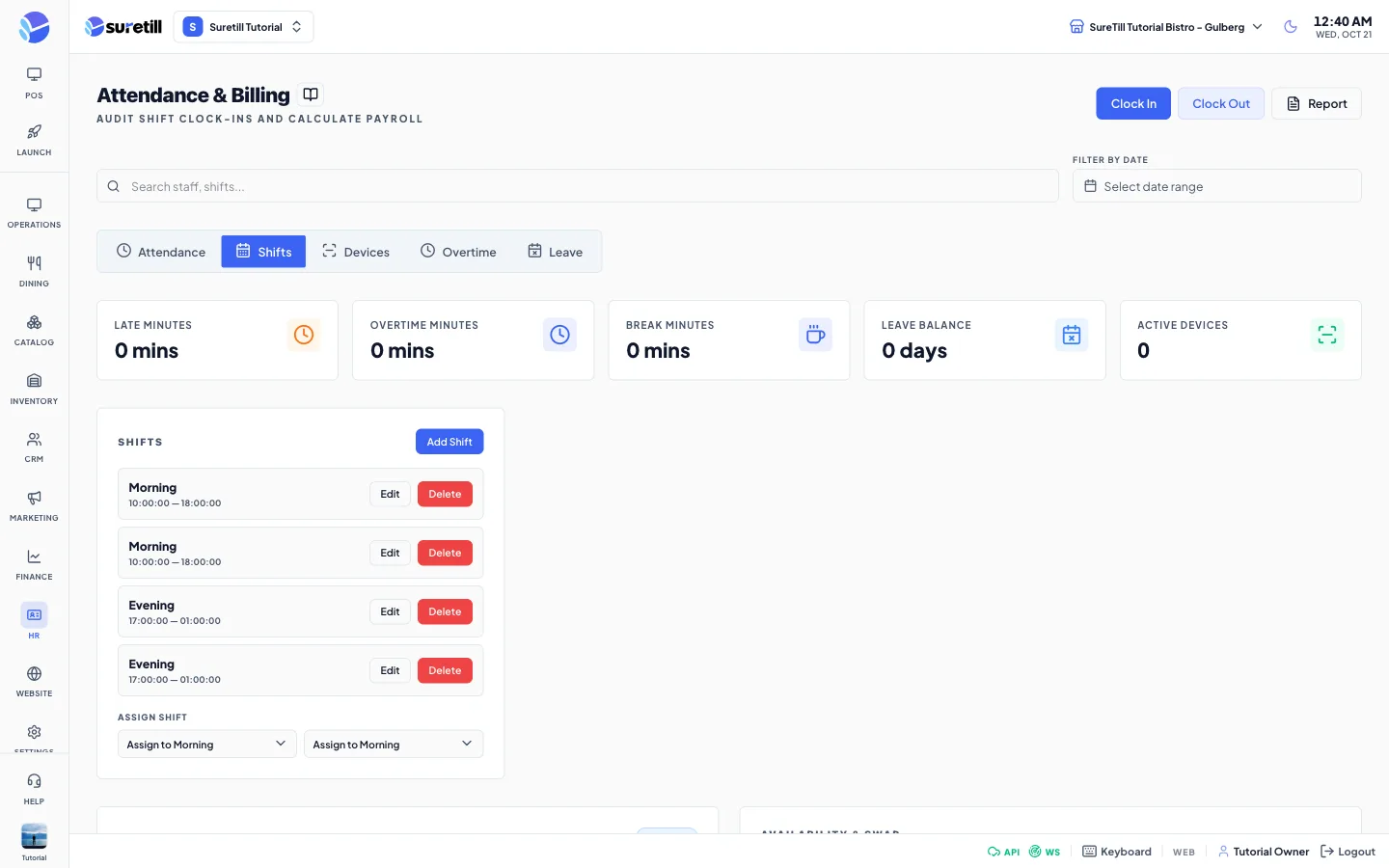
Leave: the window that opens.Overtime: the window that opens.Shifts: the window that opens.
Open the Devices tab. Each device is a card with its name, IP address and port, an Active or Inactive badge, the last sync time and the number of unprocessed logs.
Click Test to check that the server can reach the device. The page shows a message with the result.
Click Sync to import the punches of the last 7 days from the device. They are stored as device logs, and punches that were already imported are skipped.
Start and end your own working time at the selected branch.
Report
Opens a window with the days worked and the hours worked per employee for the branch and for the dates in the date filter.
Search staff, shifts
Filters the Attendance, Overtime and Leave lists by staff name (and shift name in Attendance).
Filter by Date
A date range box. It limits the Attendance list (and the Report) to those days.
Late Minutes
Sum of the late minutes of the loaded attendance rows (the last 100).
Overtime Minutes
Sum of the overtime minutes of the loaded rows.
Break Minutes
Sum of the break minutes of the loaded rows.
Leave Balance
Number of leave days in approved requests, with the number of days in all other requests as pending. It is a total of requests, not a remaining balance.
Active Devices
Number of attendance devices that are active, with the total number of devices.
The name of the shift linked to the record. Records made with Clock In have no shift, so the column shows Shift.
Clock-In and Clock-Out
Local times of the punches. A dash means no punch yet.
Late
Minutes after the shift start time. It is worked out in your browser only when the record is linked to a shift, so it is usually empty for manual clock-ins.
Overtime
Minutes after the shift end time, with the same condition.
Breaks
Break minutes saved on the record.
Duration
The saved length of the record, followed by the letter h. The length is saved in minutes (an 8-hour day is 480) and the page shows it in hours, for example 8.0h. Records imported from an attendance device are saved the same way.
Audit Status
The status saved on the record, for example present. Only the exact word Approved gets a green badge.
Name, IP and port (default 4370), Active or Inactive, Last Sync (Never until the first sync) and Unprocessed Logs. Buttons: Test and Sync.
Shift Configurations
Cards for shift rules saved on the server: grace period in minutes, overtime threshold in minutes, and the overtime, weekend and holiday rates. The card names come from the shift.
Overtime cards
Pending Approval, Approved This Month, Regular OT hours and Weekend/Holiday hours for the current month.
Overtime table
Staff, Date, Hours, Type (regular, weekend or holiday), Rate (a multiplier such as 1.5x), Status (pending, approved or rejected). Approve and Reject appear for pending records.
Leave Requests list
Staff, dates, leave type (annual, sick, unpaid or other) and a status badge, with View, Approve and Reject. The New button asks for the staff member, the dates, the type and a reason.
Holiday Calendar
The holiday opening hours of the selected branch: label, date and either Closed or the open and close time. They come from the branch settings.