

Employee Self-Service
Where: HR > Employee Self-Service
Who can use it: Menu: users.view or manage users. The page reads attendance, advances and leave from the HR area of the server, so the account also needs staff.view, or an owner, admin or super-admin role. The cashier, waiter, chef and driver roles carry staff.view_portal, but the menu does not check it. Not available on SureScreen plans.
Open this page in SureTill
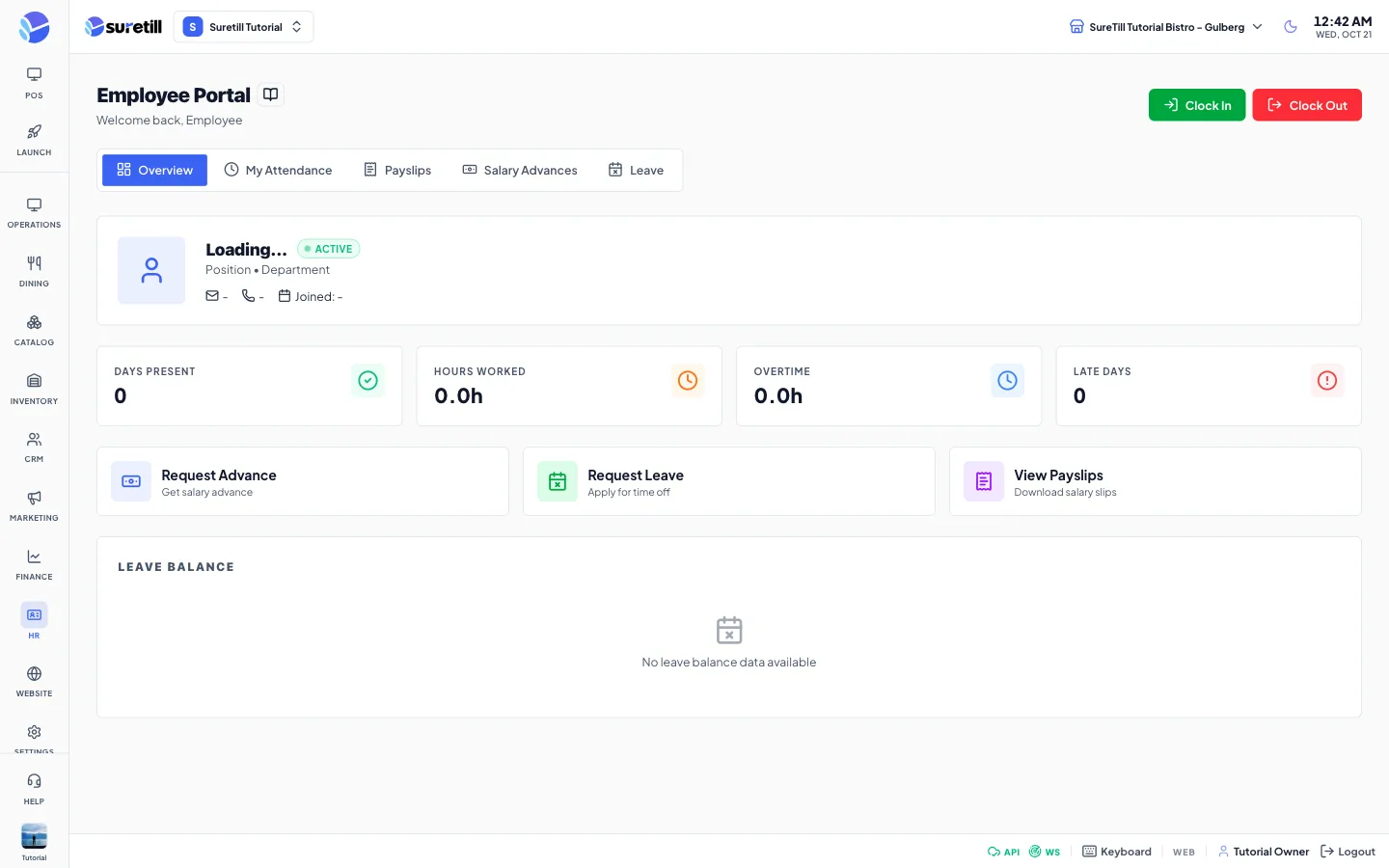
The portal always shows the data of the account that is signed in. It is not a screen for looking at other people. Anything an employee asks for here lands in the normal approval lists: advance requests appear on Salary Advances and leave requests appear on the Leave tab of Attendance.
Step by step
Section titled “Step by step”Clock in and out
Section titled “Clock in and out”- Open HR > Employee Self-Service.
- Click the green Clock In button when you start and the red Clock Out button when you finish. The page shows a message with the result.
Both buttons work on the branch that is selected at the top of the admin. The server only allows one open clock-in at a time. Clocking in and out needs staff.manage_attendance, which managers have by default.
Ask for a salary advance
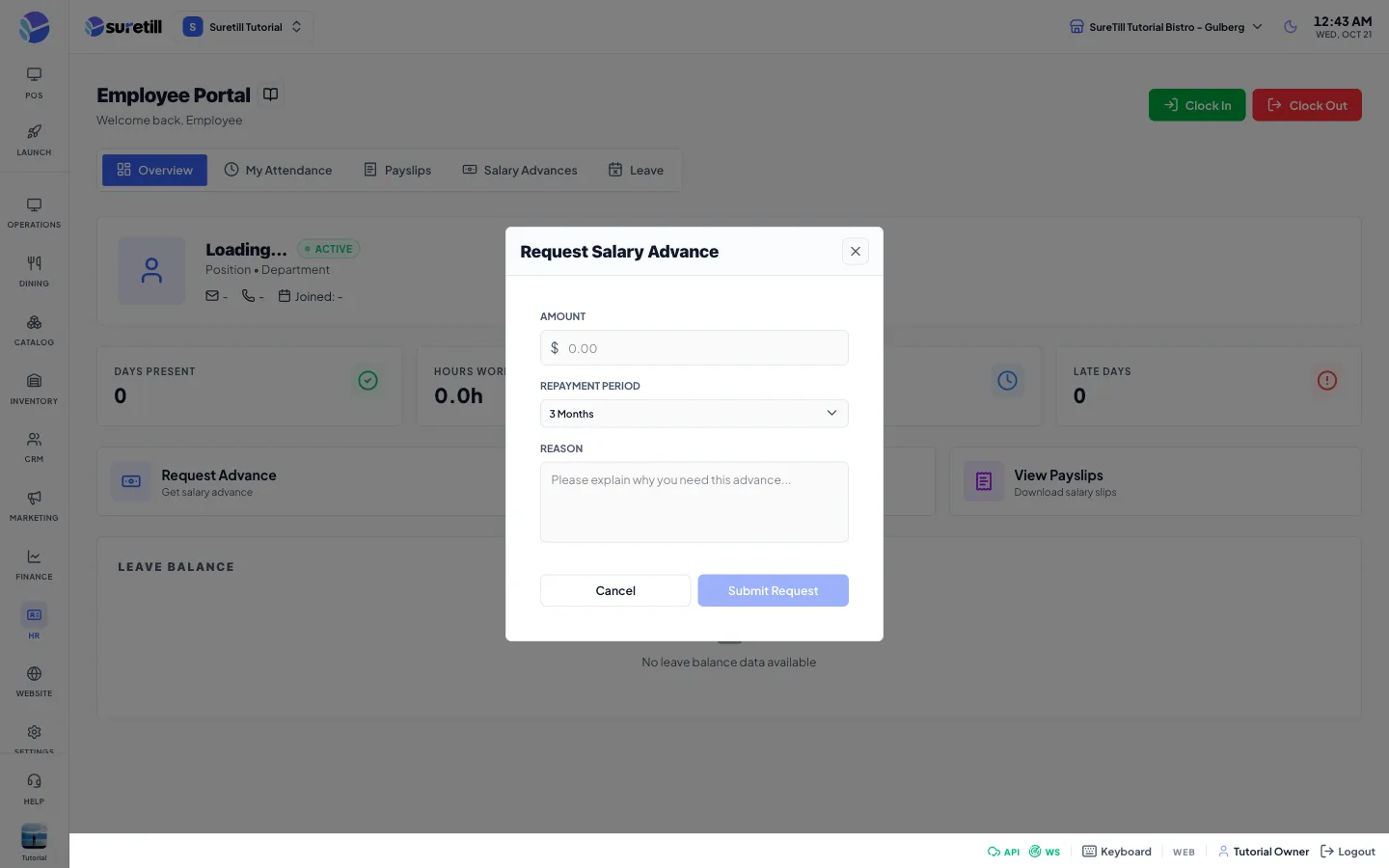
Section titled “Ask for a salary advance”- Click Request Advance (on the Overview tab or on the Salary Advances tab).
- Type the Amount, choose the Repayment Period (1, 2, 3 or 6 months) and explain the Reason. The Reason is required.
- Click Submit Request. The advance is created as Pending for the signed-in person.
Ask for leave
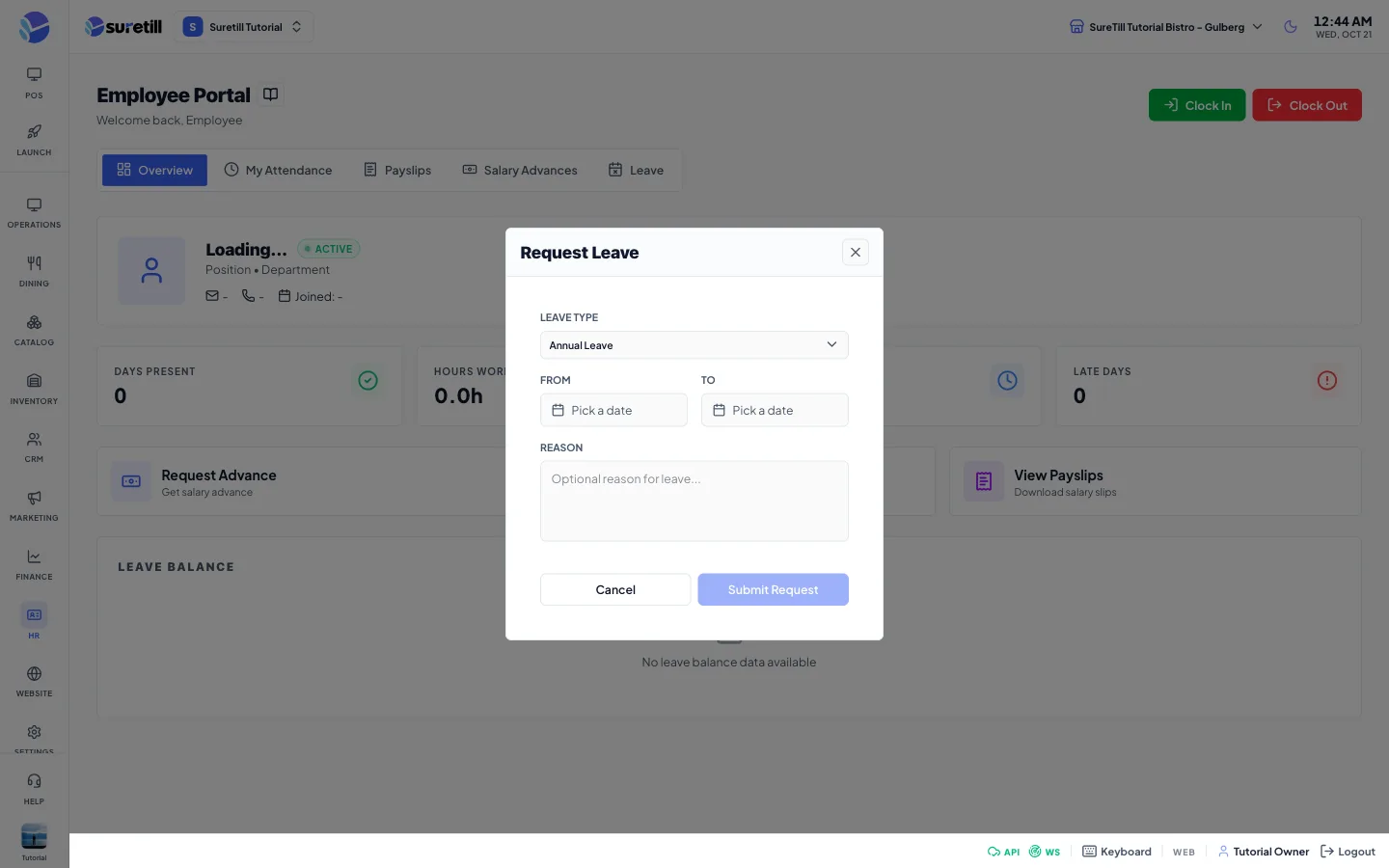
Section titled “Ask for leave”- Click Request Leave.
- Choose the Leave Type, then pick From and To dates. The Reason is optional.
- Click Submit Request. The request waits as pending until someone approves it on the Attendance page.
Print a payslip view
Section titled “Print a payslip view”- Open the Payslips tab and click View on a period.
- Click Print to print the window.
Every setting explained
Section titled “Every setting explained”| Setting | What it does |
|---|---|
| Welcome line | Welcome back and the name of the signed-in person. |
| Overview tab | A profile card (name, Active badge, position and department, email, phone, joined date), four numbers, three quick actions and the leave balance cards. |
| Days Present, Hours Worked, Overtime, Late Days | Worked out from the attendance records of the current calendar month (up to 100 records). Hours and overtime are shown in hours. |
| Quick actions | Request Advance, Request Leave and View Payslips (opens the Payslips tab). |
| Leave Balance | One card per leave type with the days remaining, the total and a bar. When the server has no balance data the card says No leave balance data available. |
| My Attendance tab | Four numbers and a table of this month: Date, Clock In, Clock Out, Hours, Late, Overtime and Status. The Late column shows Late on days the record is marked late. |
| Payslips tab | Period, Regular Hours, Overtime, Gross Pay, Deductions, Net Pay, Status and a View button. |
| Salary Advances tab | Available Limit (shows 5000 when the server sends none), Total Borrowed and Outstanding, then a table with Date, Amount, Reason, Remaining, Monthly Deduction and Status. |
| Leave tab | The leave balance cards and a Request Leave button. |
| Request Advance form | Amount, Repayment Period (1, 2, 3 or 6 months, default 3) and Reason. |
| Request Leave form | Leave Type (Annual, Sick, Unpaid or Other), From, To and Reason. The Submit button stays disabled until both dates are chosen. |