

Menus
Where: Catalog > Menus
Who can use it: Permission categories.view or manage categories. Also available on SureScreen-only plans.
Open this page in SureTill
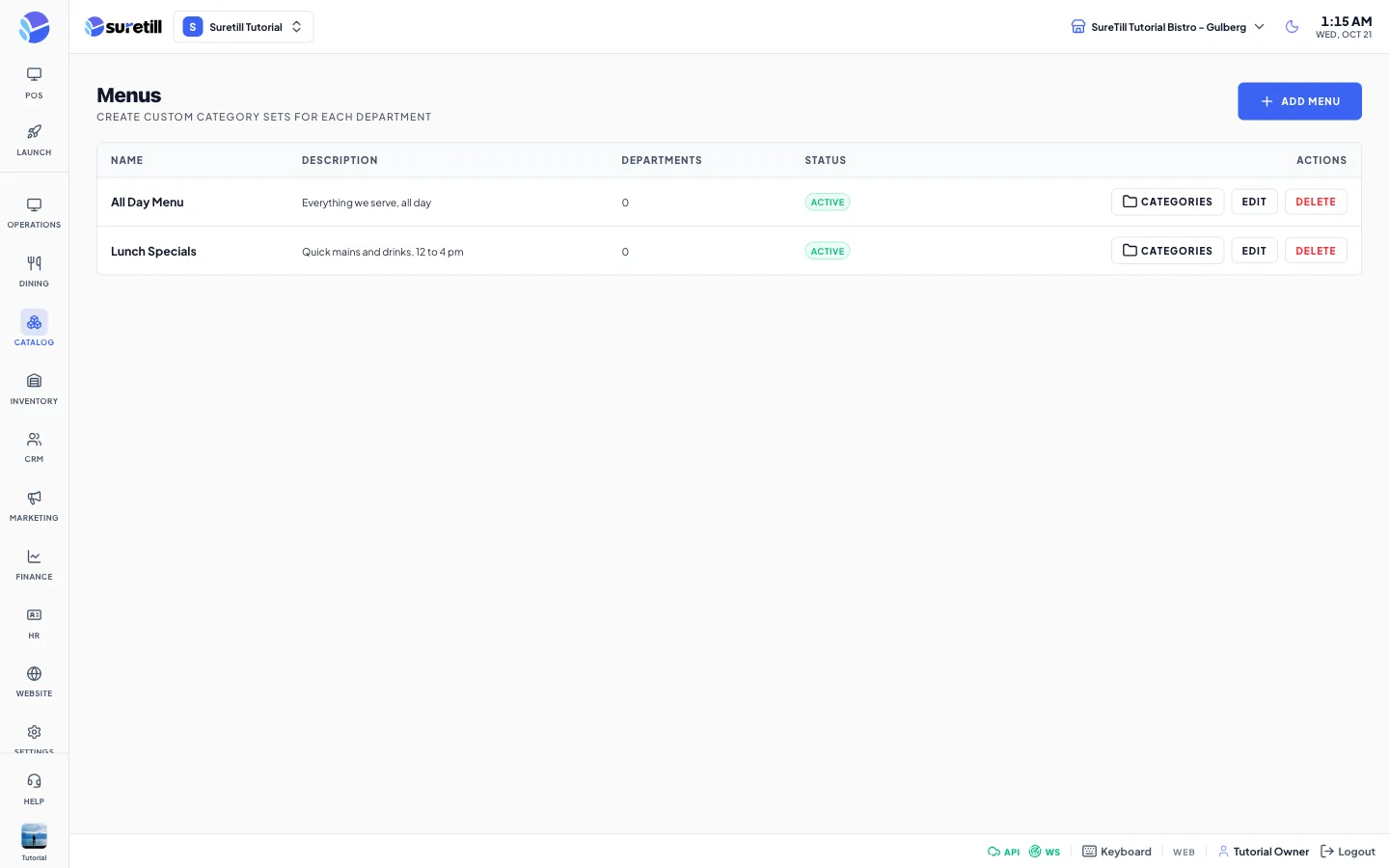
A menu does not hold products. It holds categories. The products come from each category. A department that uses a menu shows only the categories in that menu, in the order you set.
Step by step: create a menu
Section titled “Step by step: create a menu”- Select the branch in the header and open Catalog > Menus.
- Click Add Menu.
- Type the Name (required, up to 100 characters) and an optional Description.
- Leave Active on and click Create.
Step by step: choose the categories of a menu
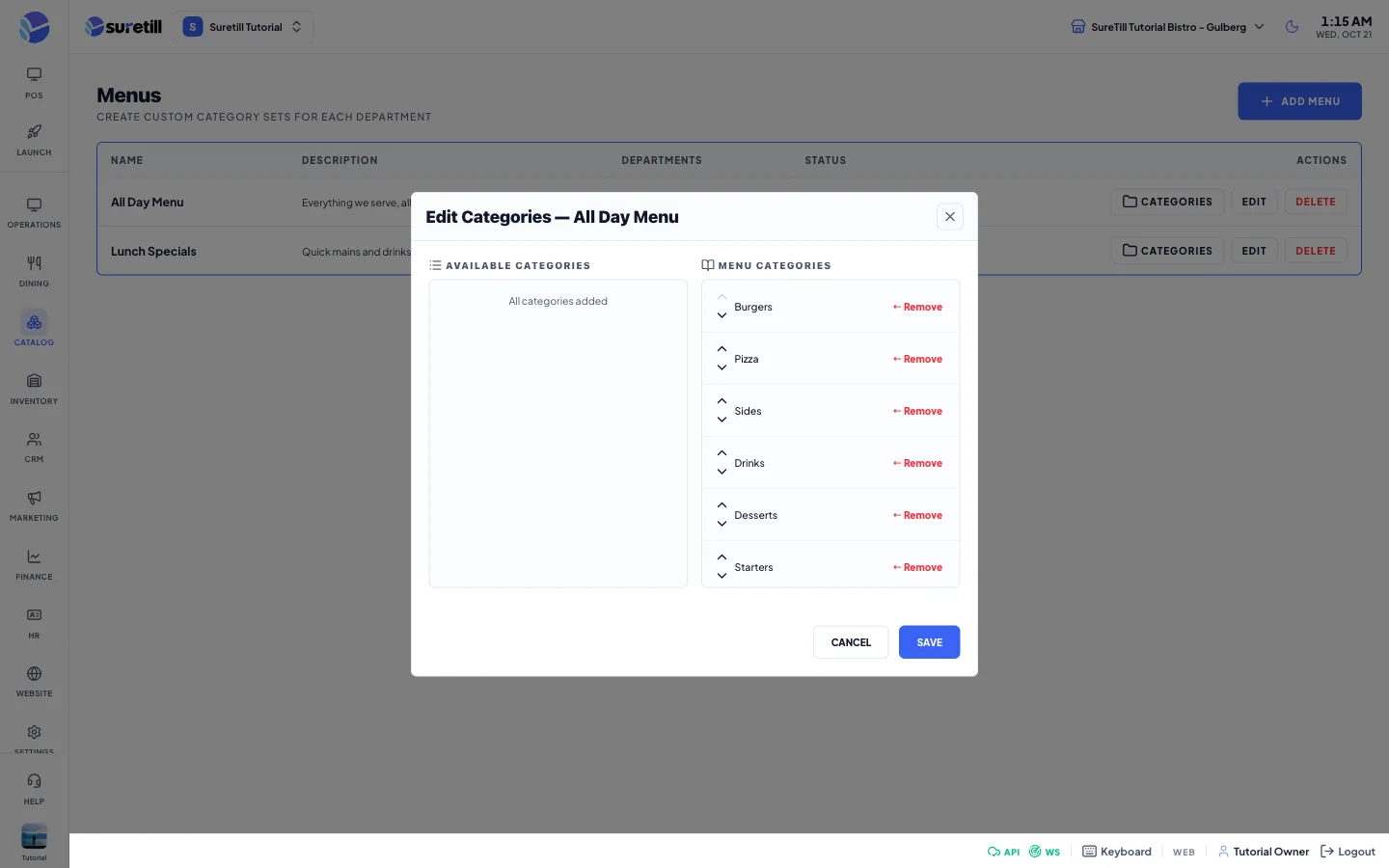
Section titled “Step by step: choose the categories of a menu”- Click Categories on the menu row.
- In Available Categories, click Add next to each category you want. It moves to Menu Categories.
- Use the small up and down arrows to put the categories in the order they should appear on the POS.
- Click Remove next to a category to take it out.
- Click Save. The list you see replaces the old list of the menu.
Step by step: use a menu in a department
Section titled “Step by step: use a menu in a department”- Open Catalog > Departments and click Edit on the department.
- Pick the menu in the Menu field and click Update.
- Open the POS and check the tab shows the categories you expect.
Step by step: edit or delete
Section titled “Step by step: edit or delete”- Click Edit to change the name, description or status.
- Click Delete and confirm to remove a menu.
Every setting explained
Section titled “Every setting explained”| Setting | What it does |
|---|---|
| Name | The menu name, shown in the Department form. Required. |
| Description | Optional note for your team. |
| Active | Shows Active or Inactive in the Status column. |
| Departments column | How many departments use this menu. |
| Categories button | Opens the two-column editor to choose and order the categories. |
| Available Categories | Categories of the branch that are not yet in the menu. |
| Menu Categories | The categories in the menu, in display order. A category can be in many menus. |
| Edit, Delete | Edit the details; delete the menu if no department uses it. |