

Departments (order types)
Where: Catalog > Departments
Who can use it: Permission categories.view or manage categories.
Open this page in SureTill
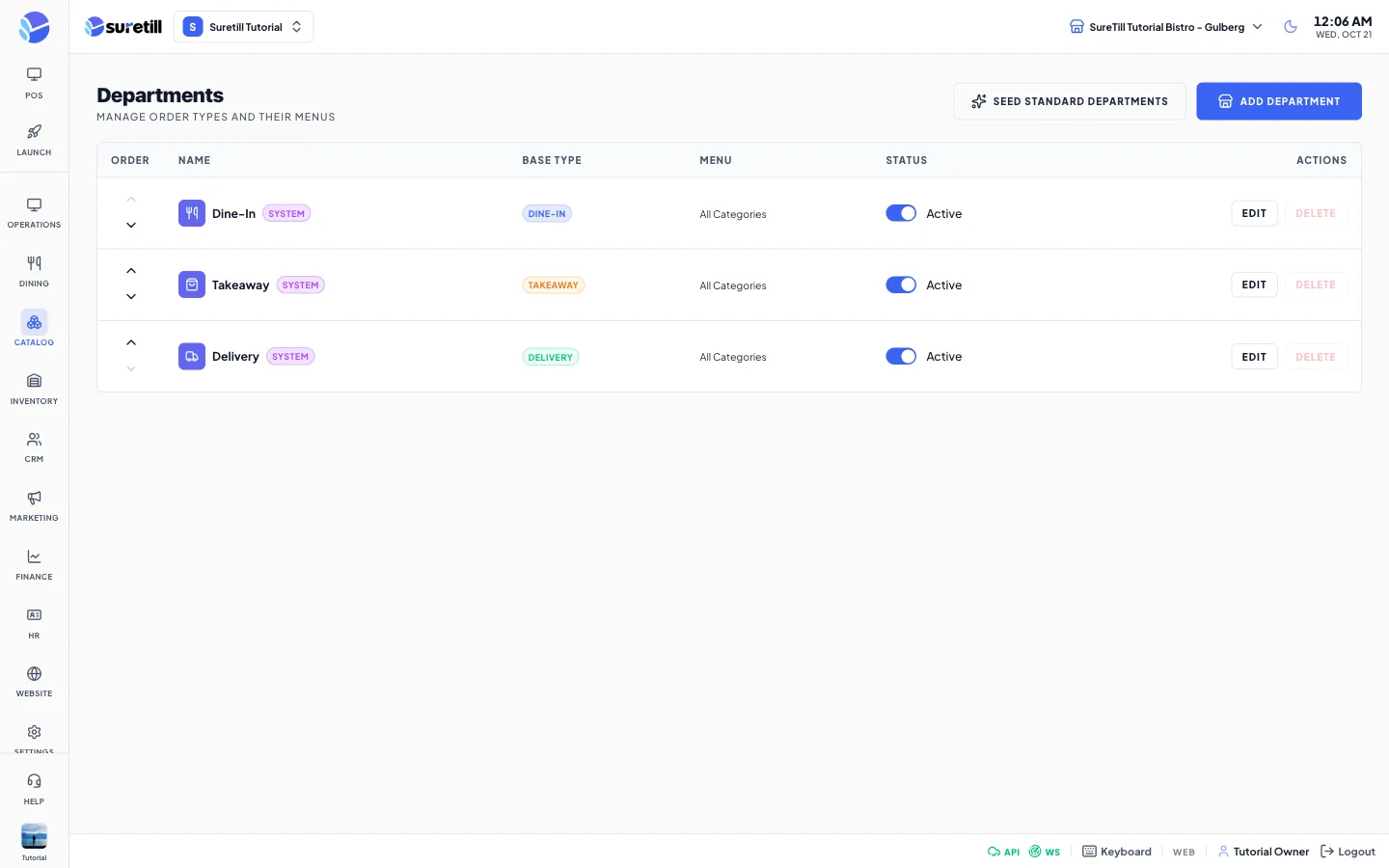
A department is one tab at the top of the POS. Every department has a base type (Dine-In, Takeaway or Delivery), which decides how the order behaves. A department can also use a menu, so a Lunch department shows different categories from a Dinner department.
Departments belong to a branch. The page shows the departments of the branch selected in the header.
Step by step: set up the standard departments
Section titled “Step by step: set up the standard departments”- Select the branch in the header and open Catalog > Departments.
- Click Seed Standard Departments. The page creates Dine-In, Takeaway and Delivery for this branch.
- If a branch has switched off dine-in, takeaway or delivery in its settings, that department is skipped.
The three standard departments are marked System. You cannot delete them or change their base type, but you can switch them off and rename them.
Step by step: add a custom department
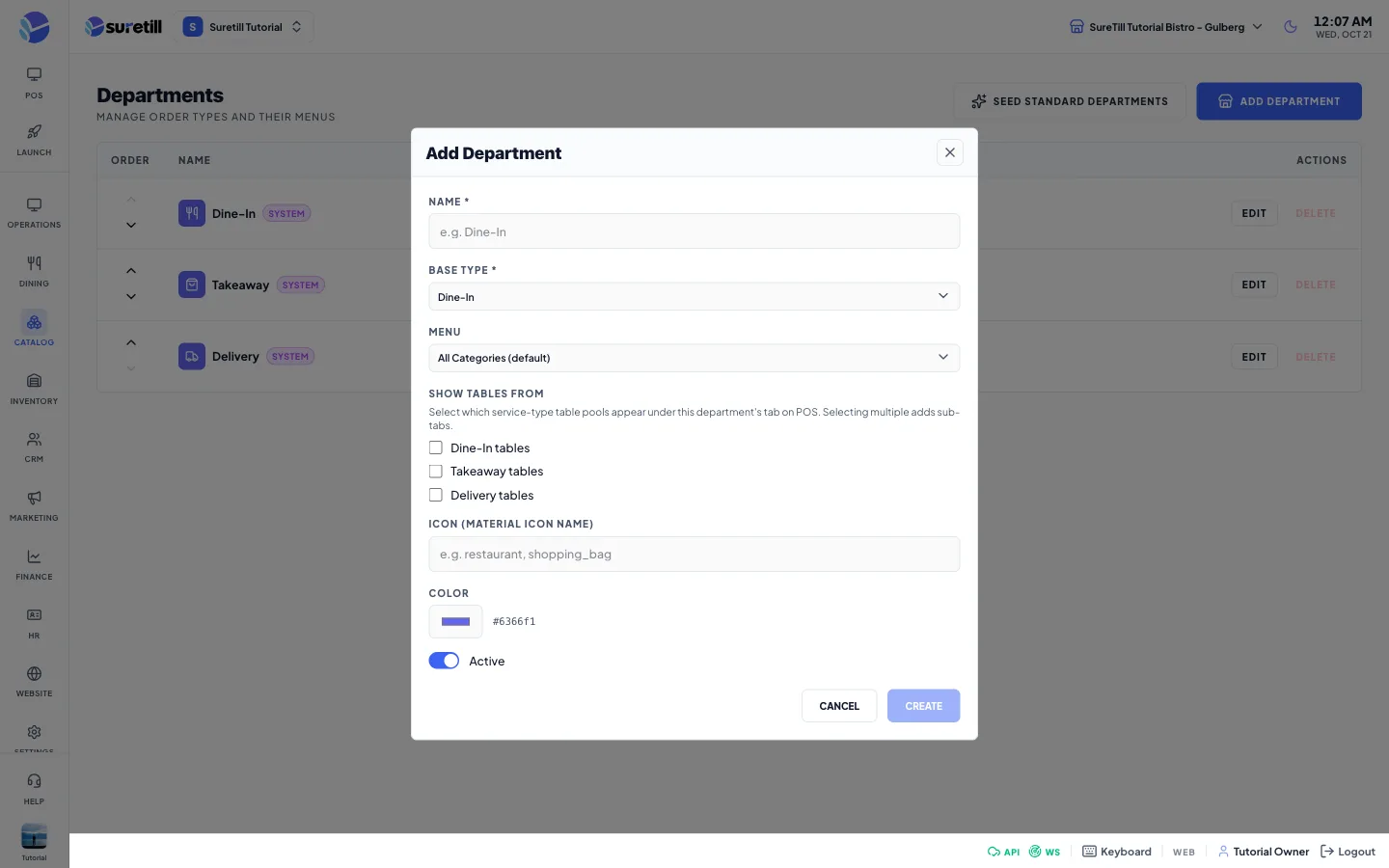
Section titled “Step by step: add a custom department”- Click Add Department.
- Type the Name (required, up to 100 characters).
- Choose the Base Type.
- Choose a Menu, or leave All Categories (default) to show every active category.
- Tick Show Tables From for each table pool this department should show on the POS.
- Optional: type an icon name and pick a colour.
- Leave Active on and click Create.
Step by step: change the order of the tabs
Section titled “Step by step: change the order of the tabs”- In the Order column, click the up arrow to move a department earlier.
- Click the down arrow to move it later. The new order is saved at once and is the order of the tabs on the POS.
Step by step: delete a department
Section titled “Step by step: delete a department”- Click Delete on the row and confirm the question.
- System departments cannot be deleted. Use the Active switch to switch them off instead.
Every setting explained
Section titled “Every setting explained”| Setting | What it does |
|---|---|
| Order arrows | Move the department up or down in the list and on the POS. |
| Name | The tab name on the POS. Required. |
| Base Type | Dine-In, Takeaway or Delivery. Locked for System departments. |
| Menu | The menu this department shows. All Categories (default) means every active category of the branch. If you pick a menu with no categories, the POS tab is empty. |
| Show Tables From | Which table pools appear in this department: Dine-In tables, Takeaway tables, Delivery tables. Pick more than one to get sub-tabs. Not shown for System departments. |
| Icon (Material icon name) | For example restaurant or shopping_bag. If empty, an icon for the base type is used. |
| Color | The colour of the icon tile. The default is purple-blue (#6366f1). |
| Active | Switch a department on or off. Off departments do not show on the POS. |
| System badge | Marks the three standard departments. |
| Edit, Delete | Open the form for this department; remove a custom department. |