

Categories and kitchen stations
Where: Catalog > Categories
Who can use it: Permission categories.view or manage categories. Also available on SureScreen-only plans.
Open this page in SureTill
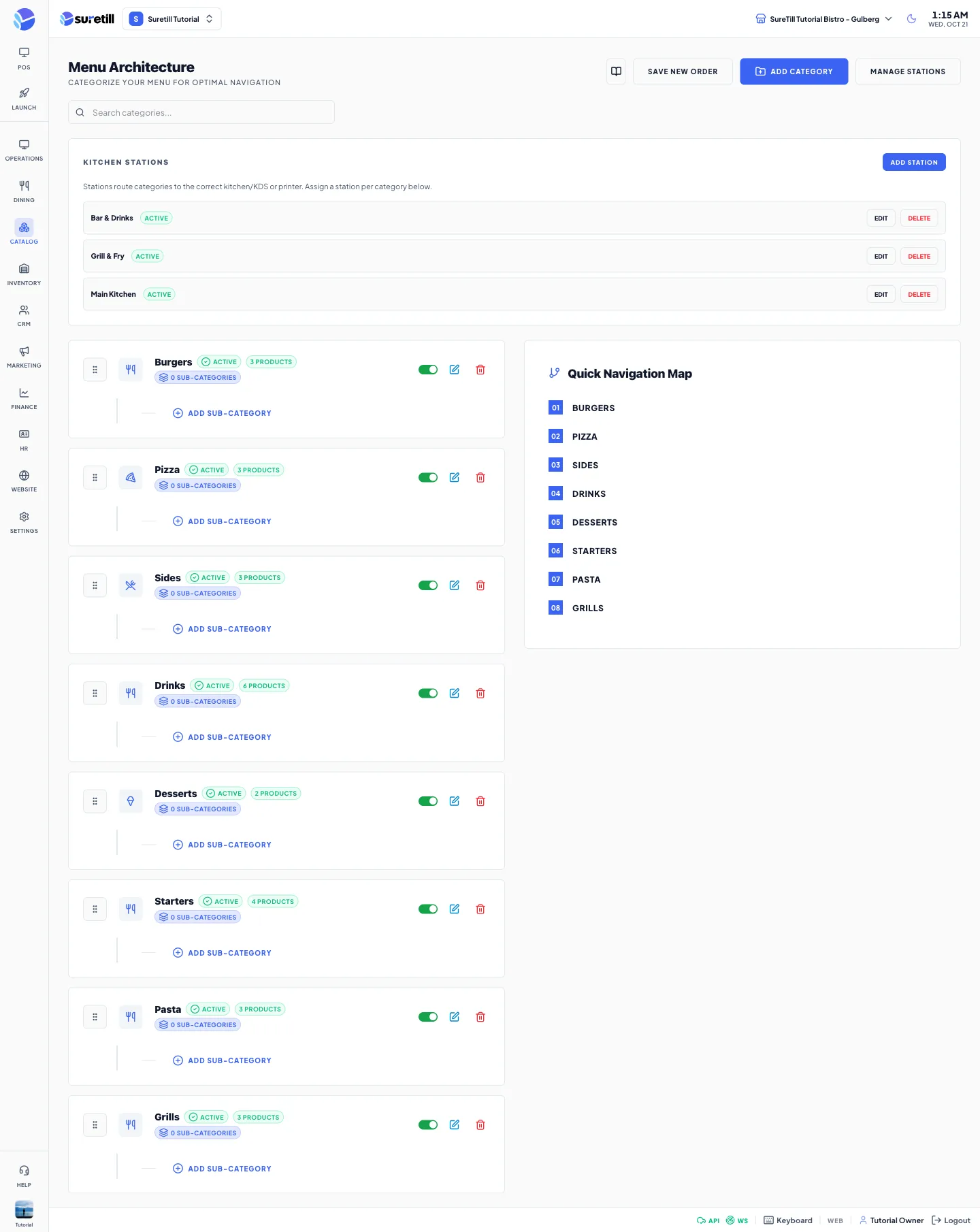
Categories are the tabs your cashiers tap on the POS. A category can have sub-categories, one level deep. Categories also decide where a kitchen ticket prints, so set this page up before you go live.
Categories belong to the branch selected in the header. If no branch is selected you will see a Branch Required message when you try to save.
Step by step: add a category
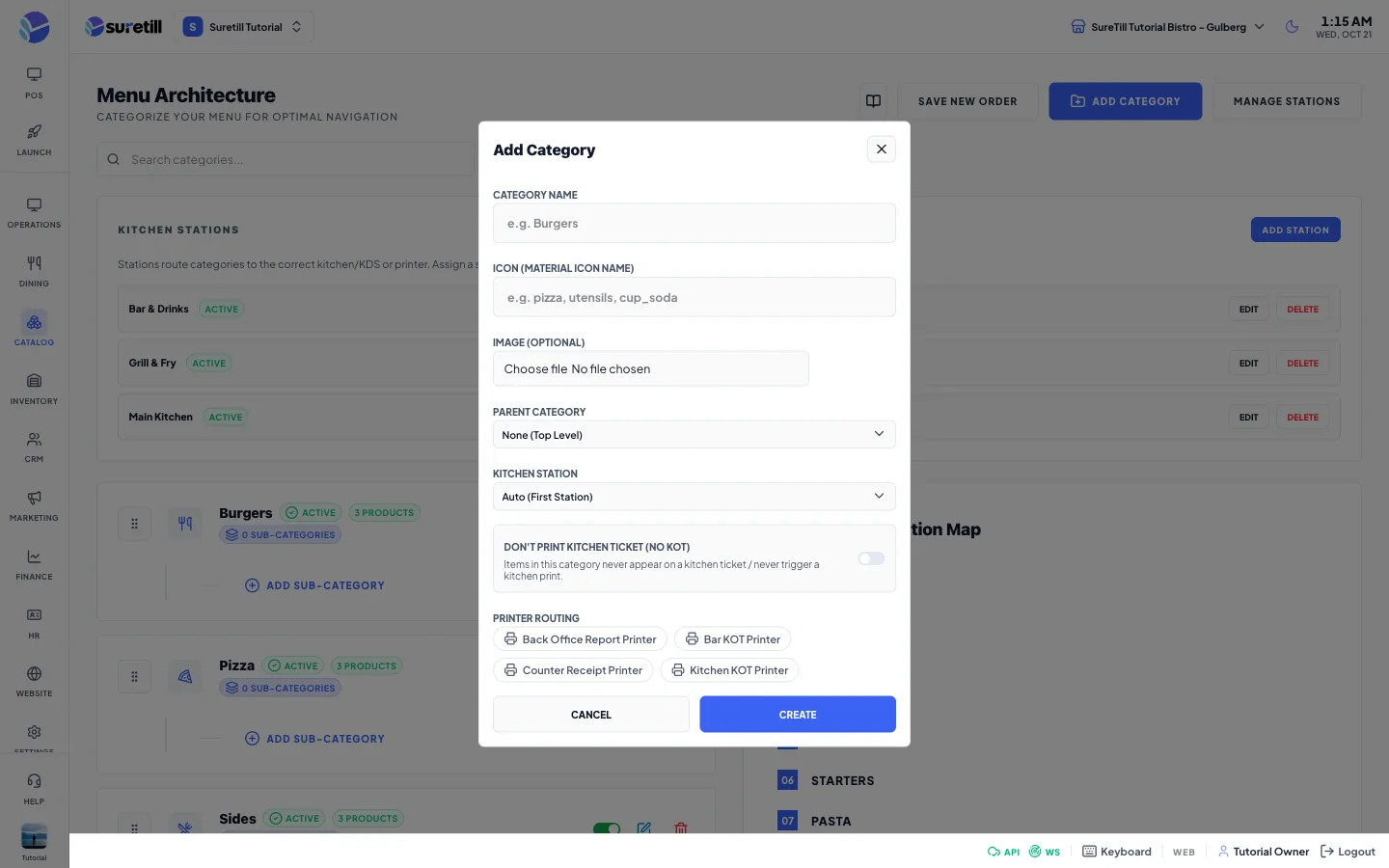
Section titled “Step by step: add a category”- Open Catalog > Categories and click Add Category.
- Type the Category Name.
- Choose a Parent Category if this is a sub-category. Leave None (Top Level) for a main category.
- Choose the Kitchen Station, or leave Auto (First Station).
- Switch on Don’t print kitchen ticket if items in this category are never cooked, for example bottled drinks.
- Tick the Printer Routing chips. The first printer you tick prints the kitchen ticket. A second printer, if you tick one, prints the labels.
- Click Create.
Step by step: edit, switch off or delete
Section titled “Step by step: edit, switch off or delete”- Click the pencil on a category card (or on a sub-category row) to edit it. You can change the name, icon, image, parent, station, no-ticket switch and printer. Click Update.
- Use the switch on the card to make a category Active or Inactive. An inactive category is not shown on the POS menu.
- Click the bin to delete. There is no confirmation question.
Step by step: kitchen stations
Section titled “Step by step: kitchen stations”A kitchen station is a place where food is prepared, for example Grill, Cold Kitchen or Bar. Stations are listed in the card at the top of the page.
- Click Add Station (or Manage Stations).
- Type the Station Name and click Save.
- Use Edit on a station to rename it and Delete to remove it. There is no confirmation question.
- Open a category, pick the station in Kitchen Station and click Update.
What a card shows
Section titled “What a card shows”- The icon, the name, an Active or Inactive badge, the number of products and the number of sub-categories.
- Under the card: each sub-category with Edit and Delete, and an Add Sub-category link.
- On wide screens a Quick Navigation Map on the right lists the numbered categories and their sub-categories.
- Search Categories filters by name, including sub-category names.
Every setting explained
Section titled “Every setting explained”| Setting | What it does |
|---|---|
| Category Name | The name on the POS tab and the menu. Required, up to 255 characters. |
| Icon (Material Icon name) | A Material icon name such as pizza, cup_soda or coffee. A preview appears as you type. If the name is not valid the default utensils icon is used. |
| Image (optional) | A picture for the category. JPEG, PNG or GIF, up to 2 MB. |
| Parent Category | None (Top Level) or one of the main categories. Only main categories can be parents. |
| Kitchen Station | The station that prepares this category. Auto (First Station) uses the first station of the branch. |
| Don’t print kitchen ticket (no KOT) | Items in this category never appear on a kitchen ticket and never trigger a kitchen print. |
| Printer Routing | The printers of the branch. The first printer you tick is saved as the kitchen ticket printer for this category in this branch, and the second one as the label printer. Saving does not change the KDS screen or the priority set for the category. |
| Active switch | Shows or hides the category on the POS. |
| Save New Order | Saves the current list order, so the POS tabs follow it. |
| Add Station, Edit, Delete | Create, rename and remove kitchen stations for the branch. |
| Station Name | The name shown in the station list and in the category form. |