

Loyalty Program
Where: CRM > Loyalty Program
Who can use it: Permission: customers.loyalty_program, customers.view or manage customers. Not available on SureScreen (menu board only) plans.
Open this page in SureTill
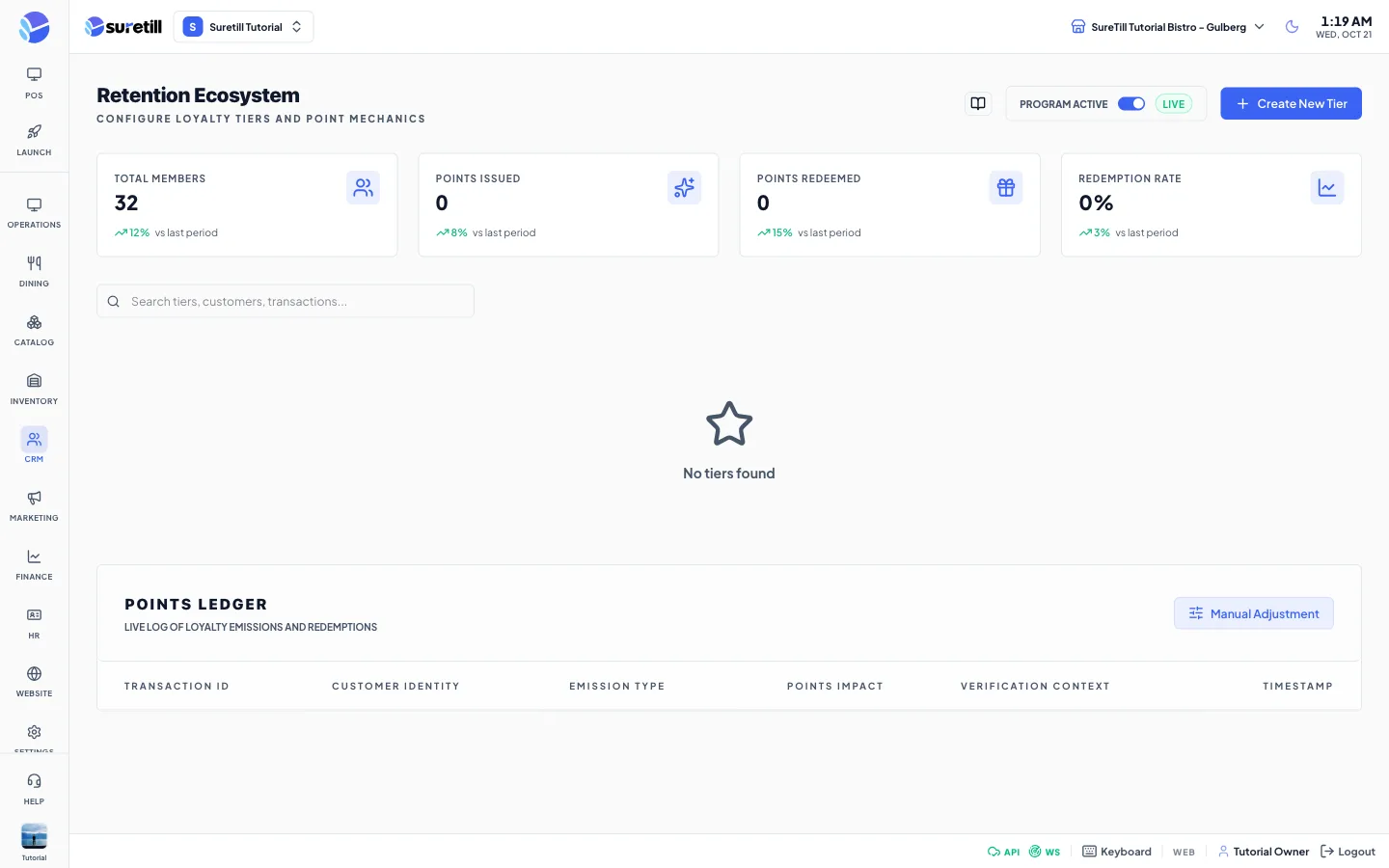
The loyalty program rewards repeat customers. A customer who is attached to an order earns points when the order is paid. The more points they hold, the higher the tier they reach. Each tier can multiply the points the customer earns from then on.
How points work
Section titled “How points work”- Points are earned when an order that has a customer attached is paid. The points are worked out on the order subtotal (before tax and service charge).
- The base rate is 1 point for each 1 unit of currency. The customer’s tier multiplier is applied on top, so a 2x tier earns double.
- Points are earned once per order, even if the bill is split into several payments.
- When the customer’s points reach the Points Floor of a tier, the customer moves to that tier. The highest tier they qualify for is used.
- A refund takes back a matching share of the points the order earned.
Step by step
Section titled “Step by step”Create a tier
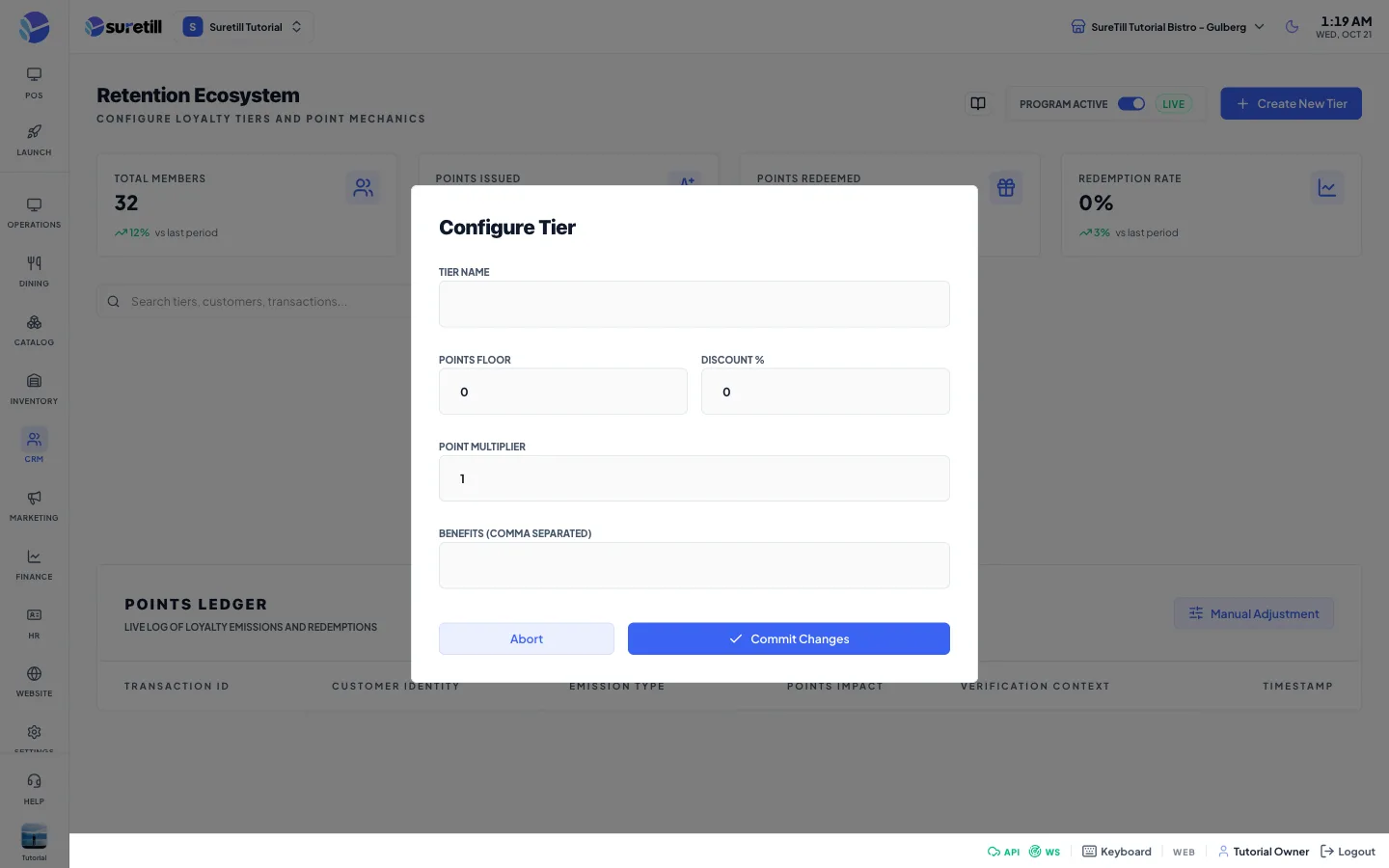
Section titled “Create a tier”- Open CRM > Loyalty Program and click Create New Tier.
- Type the Tier Name, for example Silver.
- Set the Points Floor: the points a customer needs to reach this tier. The first tier is usually 0.
- Set Discount % (0 to 100) and the Point Multiplier (1 or more).
- Type the Benefits as a comma separated list, for example Free dessert on birthday, Priority table.
- Click Commit Changes.
Edit a tier
Section titled “Edit a tier”- Find the tier card and click Edit Parameters.
- Change the fields and click Commit Changes.
Delete a tier
Section titled “Delete a tier”- Click Delete Tier at the bottom of the tier card.
- Confirm the question. The tier is removed.
Add points to a customer by hand
Section titled “Add points to a customer by hand”- In the Points Ledger card click Manual Adjustment.
- Type at least 2 letters of the customer name or phone and click the customer in the list.
- Type the points to add (a whole number, 1 or more) and a justification.
- Click Authorize. The points are added to the customer and a line is written in the ledger.
Every setting explained
Section titled “Every setting explained”| Setting | What it does |
|---|---|
| Create New Tier | Opens the empty tier form. |
| Total Members card | How many customers hold more than 0 points. |
| Points Issued card | Total points earned by all customers. Shown as 1.2K above 1000. |
| Points Redeemed card | Total points that customers have used. |
| Redemption Rate card | Points redeemed as a percentage of points issued. |
| Search box | Filters the tier cards by tier name or by a benefit. |
| Tier card | Shows the name, the multiplier (for example 2x Points), the points required, the discount percentage and the benefits. |
| Tier Name | The name shown to staff and customers. Up to 255 characters. |
| Points Floor | Points needed to reach the tier. Whole number, 0 or more. |
| Discount % | Discount percentage of the tier, 0 to 100. It is stored with the tier and shown on the card. The checkout does not apply it by itself. |
| Point Multiplier | Times the base points a customer of this tier earns. 1 or more. |
| Benefits | Free text list, separated by commas. Each item shows with a tick on the card. |
| Edit Parameters | Opens the tier form for that tier. |
| Delete Tier | Removes the tier after you confirm. |
| Points Ledger | The latest 25 movements of points across all customers: transaction ID (first 8 characters), customer, type (Earned, Redeemed or Adjusted), points and the note. |
| Manual Adjustment | Opens the Manual Credit form to add points to one customer. |