

Customers
Where: CRM > Customers
Who can use it: Permission: customers.view or manage customers. Editing needs customers.update, wallet and account actions need customers.manage_credits (the Owner and Admin roles have all of them). Not available on SureScreen (menu board only) plans. Staff who are not Owner or Super Admin only see the customers of their own branch.
Open this page in SureTill
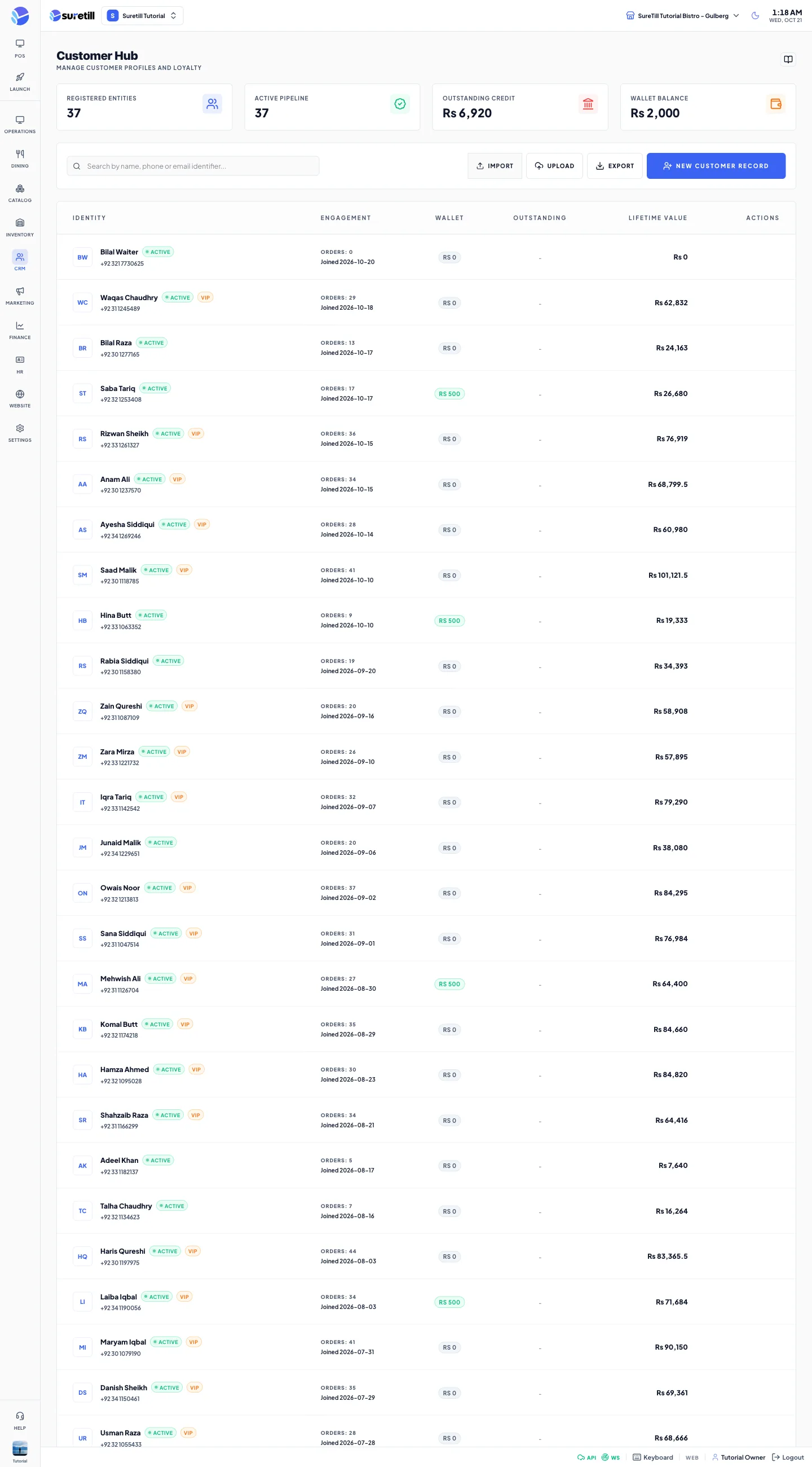
Customers are the people you sell to. A customer record keeps contact details, addresses, a wallet for money paid in advance, an account for sales you let them pay later, loyalty points and the list of their orders. Cashiers attach a customer to an order at the POS. This page is where you manage those records.
There are two kinds of money on a customer. The wallet is money the customer paid you before they buy (an advance). The account is money the customer owes you after buying on credit (outstanding dues). They are separate and are never mixed.
The customer list
Section titled “The customer list”The page shows up to 100 customers, newest first. Type in the search box to find a customer by name, phone or email. Click any row to open the customer.
| Item | What it shows |
|---|---|
| Registered Entities | How many customers are in the list. |
| Active Pipeline | How many of them have the status Active. |
| Outstanding Credit | The total dues owed to you by the customers in the list. |
| Wallet Balance | The total advance money held for the customers in the list. |
| Identity column | Name, phone and status badge. VIP appears when the customer has spent 50,000 or more in total. Dues appears when the customer owes money. |
| Engagement column | Number of orders and the date the customer joined. |
| Wallet column | The wallet balance. Green when above zero. |
| Outstanding column | The dues in red, or a dash when there are none. |
| Lifetime Value column | The total of the customer’s completed orders. |
| Eye button (on hover) | Opens the customer. |
| Payments button (on hover) | Only shown when the customer owes money. Opens the customer straight on the Account tab. |
Step by step
Section titled “Step by step”Add a customer
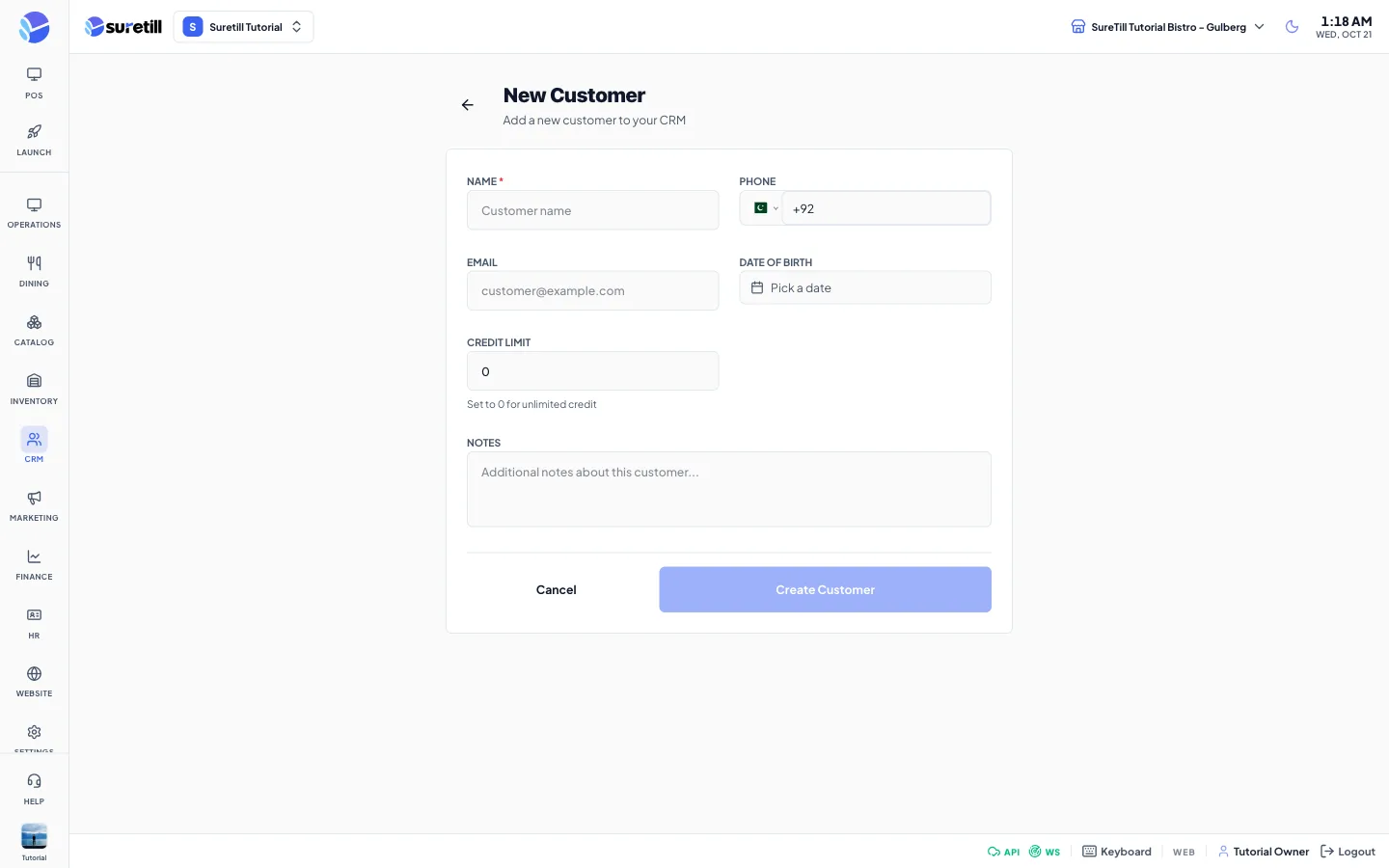
Section titled “Add a customer”- Open CRM > Customers and click New Customer Record.
- Type the Name. This is the only required field.
- Fill in Phone, Email, Date of Birth and Notes if you have them. The email must be a valid address that no other customer uses.
- Set the Credit Limit. Leave it at 0 for no limit. See “Credit limit” below.
- Click Create Customer. The new customer opens on their detail page.
Edit a customer
Section titled “Edit a customer”- Click the customer in the list.
- On the Profile tab click Edit.
- Change Name, Phone, Email, Date of Birth or Notes.
- Click Save. Click Cancel to throw the changes away.
Add or change an address
Section titled “Add or change an address”- Open the customer, Profile tab, and click Add in the Addresses block. To change an address, click the address instead.
- Pick the type: Home, Office or Other.
- Type the full address in Address Details.
- Tick Set as default address if delivery should use this one first.
- Click Add Address (or Update Address).
Add advance money to the wallet, or take it back
Section titled “Add advance money to the wallet, or take it back”- Open the customer and go to the Wallet tab.
- Click Add Credit to put money in. Type the Amount (more than 0) and an optional note, then click the Add button.
- Click Deduct to take money out. The amount cannot be more than the wallet balance. Add an optional note and confirm.
- The movement shows in the Transaction History with the balance after it.
Collect a payment against dues
Section titled “Collect a payment against dues”- Open the customer and go to the Account tab.
- Click Collect Payment. The button is disabled when the customer owes nothing.
- Type the Amount, or click 25%, 50%, 75% or Full to fill it in. The amount cannot be more than the dues.
- Choose the Payment Method (only your active methods are listed; Customer Account is not).
- Add an optional note, such as a receipt number, and click Collect.
What the app does when you collect: it writes a Payment Received line in the credit statement, lowers the dues, and pays the customer’s unpaid account orders oldest first. An order that is fully covered becomes paid. If the money runs out in the middle of an order, that order stays on account with a smaller balance. The customer then gets a payment confirmation message if messaging is set up. If the payment is not allowed (for example more than the dues) nothing is saved.
Send a reminder or a statement
Section titled “Send a reminder or a statement”- On the Account tab click Send Reminder, choose WhatsApp or SMS, check the preview and click Send. The customer needs a phone number and must owe money.
- Click Copy Message to copy the reminder text and send it yourself.
- In the Credit Statement card click Download PDF to save the statement.
- Click Email Statement, check the address (it is filled from the customer), add an optional subject and message, then click Send Statement. The button is disabled when the customer has no email.
- Click Print Statement to print it on the branch bill printer. If that printer is USB or local to one PC, the app tells you to print from the POS terminal connected to it.
Block a customer
Section titled “Block a customer”- Open the customer.
- Click Block in the header. The status changes to blocked.
- Click Unblock (same place) to allow the customer again.
Export the list
Section titled “Export the list”- Click Export on the list page.
- A file named customers-export-<date>.json is saved. It holds the customer records you are allowed to see.
Credit limit
Section titled “Credit limit”The Credit Limit is the most a customer may owe on account. When a cashier tries to put an order on account and the new total would go above the limit, the sale is refused. A limit of 0 means no limit. You can set the limit when you create the customer. The detail page shows the limit on the Account tab (Unlimited when it is 0).
Only the main record of a customer (the primary account) can hold dues. A secondary record cannot take account sales.
Privacy requests
Section titled “Privacy requests”At the bottom of the Profile tab, Owner, Admin and Manager users see a Privacy block. It answers a customer who asks what you hold about them, or asks to be forgotten.
- Download personal data saves everything held for the customer: profile, addresses, up to 1000 orders with items, loyalty history and saved call transcripts.
- Erase personal data removes the name, phone, email, addresses, notes and saved call transcripts of the customer, and sets the record to inactive. The name becomes Erased customer.
Every setting explained
Section titled “Every setting explained”| Setting | What it does |
|---|---|
| Search box | Finds customers by name, phone or email. |
| Export | Saves the customer list as a JSON file. |
| New Customer Record | Opens the New Customer form. |
| Name (form) | Required. Up to 255 characters. |
| Phone (form) | Up to 20 characters. |
| Email (form) | Optional. Must be a valid email and unique among customers. |
| Date of Birth (form) | Optional date. |
| Credit Limit (form) | Highest dues allowed. 0 means unlimited. Cannot be negative. |
| Notes (form) | Free text about the customer. |
| Status badge | active, blocked or inactive. Blocked and inactive show in red. |
| Block / Unblock | Switches the customer between blocked and active. |
| Protected - Has Order History | A badge shown when the customer has orders or money movements. It tells you the record is tied to your sales history. |
| Wallet Balance card | Advance money the customer holds with you. Green at zero or above, red below zero. |
| Outstanding Dues card | What the customer owes on account. |
| Total Spent card | Total of the customer’s completed orders. |
| Total Orders card | Number of orders. |
| Loyalty Points card | Points the customer has earned and not used. See the Loyalty Program article. |
| Profile tab | Name, phone, email, date of birth, notes, addresses and the privacy block. |
| Wallet tab | Balance, Add Credit, Deduct and the Transaction History (amount, note, order, balance after). |
| Account tab | Dues, credit limit, Collect Payment, Send Reminder, Copy Message, unpaid orders and the Credit Statement. |
| Credit Statement lines | Credit Sale (order put on account, adds dues), Payment Received (lowers dues), Adjustment and Write-off. Each line shows the date, the order, the payment method and the balance after. |
| Orders tab | Every order of the customer: number, date, type, status, payment status and total. Click an order to see its items. Account orders show the payment status ACCOUNT. |
Delete a customer
Section titled “Delete a customer”- Open the customer.
- Click Delete in the header and confirm. The button only appears when the customer has no orders, wallet movements or credit movements, and when your role may delete customers.
- You are taken back to the list.