

Gift Cards
Where: CRM > Gift Cards
Who can use it: Permission: customers.gift_cards, customers.view or manage customers. Not available on SureScreen (menu board only) plans.
Open this page in SureTill
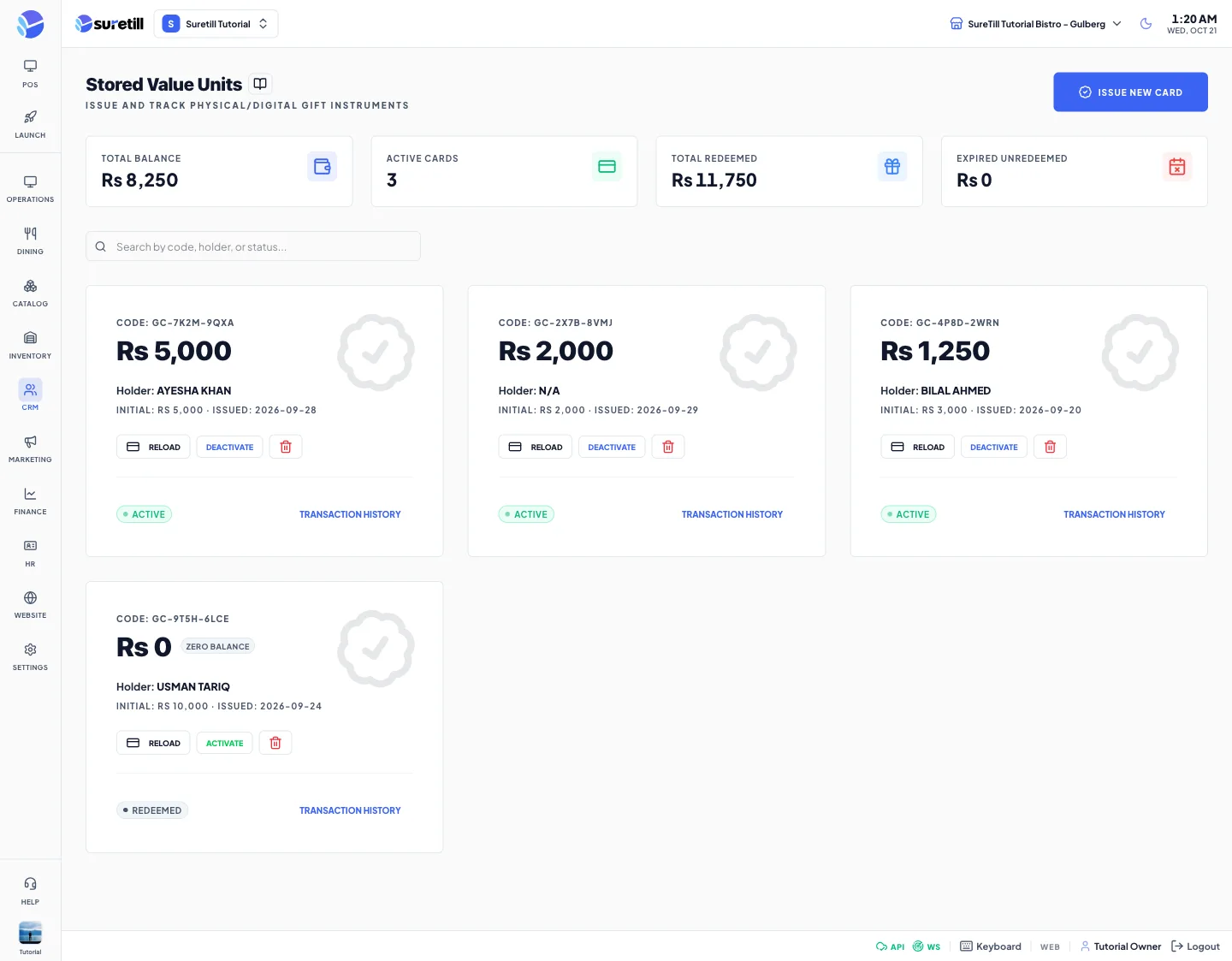
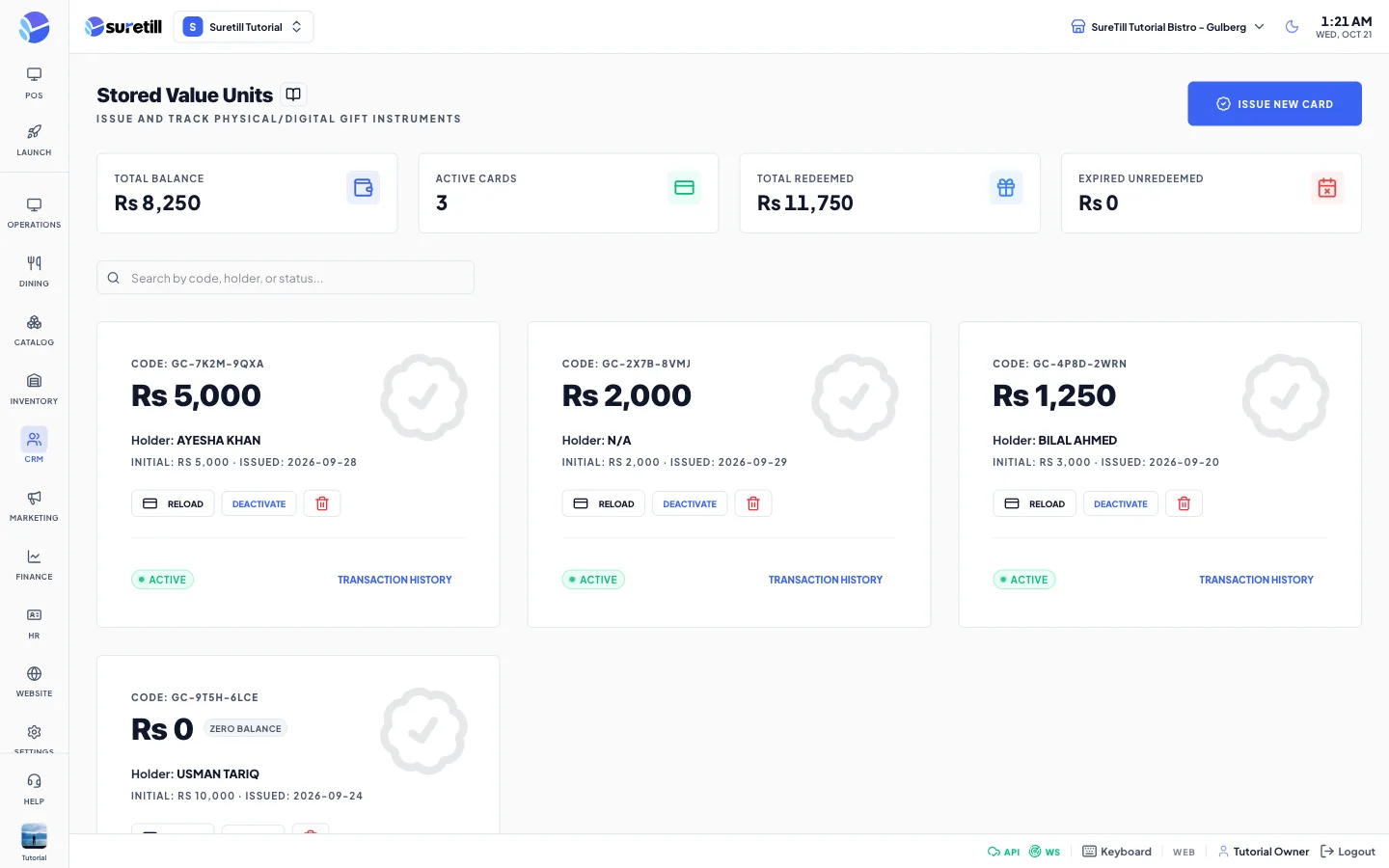
A gift card holds an amount of money that someone paid you in advance. This page lets you issue a card, load more money on it, switch it on or off and see its history. Every card gets a unique code made of letters and numbers in groups of four.
Step by step
Section titled “Step by step”Issue a card
Section titled “Issue a card”- Open CRM > Gift Cards and click Issue New Card.
- Type the Holder Name (required). This is the person the card is for.
- Type an Email if you want it on the record (optional).
- Type the Load Amount. It must be between 1 and 10000.
- Click Verify & Issue. The card is created active, with a code, and a purchase line is written in its history.
Reload a card
Section titled “Reload a card”- Click Reload on the card.
- Type the Reload Amount (1 to 10000). The current balance is shown above the field.
- Click Reload. The new money is added to the balance and a reload line is written in the history.
Switch a card off or on
Section titled “Switch a card off or on”- Click Deactivate on an active card to stop it being used. The status becomes inactive.
- Click Activate on an inactive card to switch it on again.
See the history of a card
Section titled “See the history of a card”- Click Transaction History at the bottom of the card.
- Read the table: type, amount, balance before, balance after, who did it and the date.
Delete a card
Section titled “Delete a card”- Click the red bin button on the card.
- Confirm the question Delete Gift Card.
Every setting explained
Section titled “Every setting explained”| Setting | What it does |
|---|---|
| Total Balance card | Total money still on all cards. |
| Active Cards card | How many cards have the status active. |
| Total Redeemed card | Money issued minus money still on the cards. |
| Expired Unredeemed card | Money left on cards whose status is expired. |
| Search box | Searches by code, holder name or email. |
| Code | The unique card code, made by the app. |
| Balance | The money left on the card. A Zero Balance badge shows at 0. |
| Holder | The name typed at issue time, or the linked customer name, or N/A. |
| Initial and Issued | The amount the card started with and the date it was issued. |
| Status badge | active (green), inactive (amber), expired (red), or a grey status such as depleted when the balance is used up. |
| Holder Name (issue form) | Required. Up to 255 characters. |
| Email (issue form) | Optional valid email. |
| Load Amount (issue form) | Required. 1 to 10000. |
| Reload Amount (reload form) | Required. 1 to 10000. Reloading a used-up card makes it active again. |
| Reload | Adds money to the card. |
| Activate / Deactivate | Turns the card on or off. |
| Bin button | Deletes an unused card. |
| Transaction History | Opens the list of movements: purchase, reload, redemption and so on. |