

Feedback
Where: CRM > Feedback
Who can use it: Permission: customers.feedback, customers.view or manage customers. Not available on SureScreen (menu board only) plans.
Open this page in SureTill
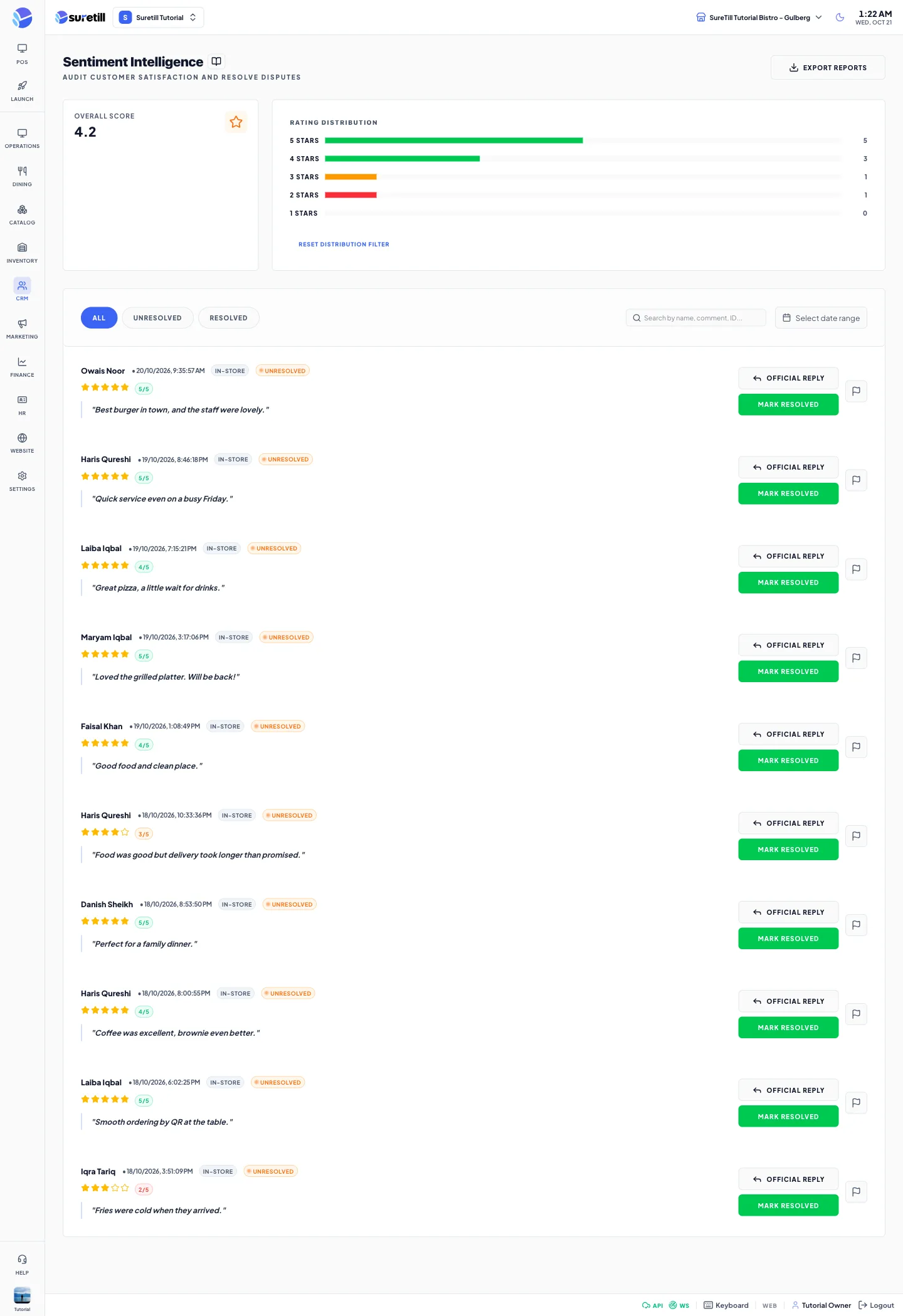
Feedback is where the ratings of your customers arrive. A guest who orders from the table with the QR code can leave a rating from 1 to 5 stars, a comment and separate scores for food, service and ambience. Each order can only be rated once.
Step by step
Section titled “Step by step”Find reviews
Section titled “Find reviews”- Open CRM > Feedback.
- Click All, Unresolved, Resolved or Flagged to filter by status.
- Click a row of the Rating Distribution (for example 1 Stars) to show only reviews with that rating. Click Reset Distribution Filter to clear it.
- Type in the search box to search by customer name, comment or ID.
- Use the date range to keep only reviews between two dates.
Export reviews
Section titled “Export reviews”- Set the filters you want.
- Click Export Reports.
- A file named feedback_export.csv is saved with the ID, customer, rating, comment, status and date of the reviews you can see.
Reply to a review
Section titled “Reply to a review”- Click Official Reply on the review.
- Read the original comment in the box at the top.
- Type your answer in the text area.
- Click Send Official Response. Click Discard to close without sending.
The reply is stored on the review together with the date and your user. If the server refuses the reply you see the reason in a message. The Post publicly on platform switch in the reply form is shown but is switched off and cannot be changed. Nothing is posted to Google or any other site.
Mark resolved, re-open or flag a review
Section titled “Mark resolved, re-open or flag a review”- Click Mark Resolved on an Unresolved review. Click Re-open Issue on a Resolved or Flagged review to put it back to Unresolved.
- Click the flag button to flag a review. Click it again to remove the flag.
Delete a review
Section titled “Delete a review”- Click the bin button under the flag button on the right of the review.
- Confirm the question Delete review. The review is deleted for good.
Every setting explained
Section titled “Every setting explained”| Setting | What it does |
|---|---|
| Overall Score card | The average of all ratings, and how many feedbacks it is based on. It shows a dash when there are no reviews yet. |
| Rating Distribution | A bar for each of 5 to 1 stars with the number of reviews. Green for 4 and 5, amber for 3, red for 1 and 2. Click a bar to filter. |
| All / Unresolved / Resolved / Flagged | Filter by status. |
| Search box | Matches customer name, comment text or review ID. |
| Date range | Start and end date. The end date is included for the whole day. |
| Customer | The customer name, or Guest when the review has no customer. |
| Channel badge | In-Store, Online or Google. Reviews left from a table QR order show In-Store. |
| Status badge | Unresolved (amber), Resolved (green) or Flagged (red). A new review waits as Unresolved until you resolve or flag it. |
| Stars and number | The rating from 1 to 5. |
| Comment | What the customer wrote. |
| Official Reply | Opens the reply form. |
| Mark Resolved / Re-open Issue | Saves the new status on the review. |
| Flag-icon button | Flags the review, or removes the flag. |
| Bin button | Deletes the review after you confirm. |
| Export Reports | Downloads the filtered list as a CSV file. |