

Sales History
Where: Finance > Sales History
Who can use it: Permission: reports.view or view reports.
Open this page in SureTill
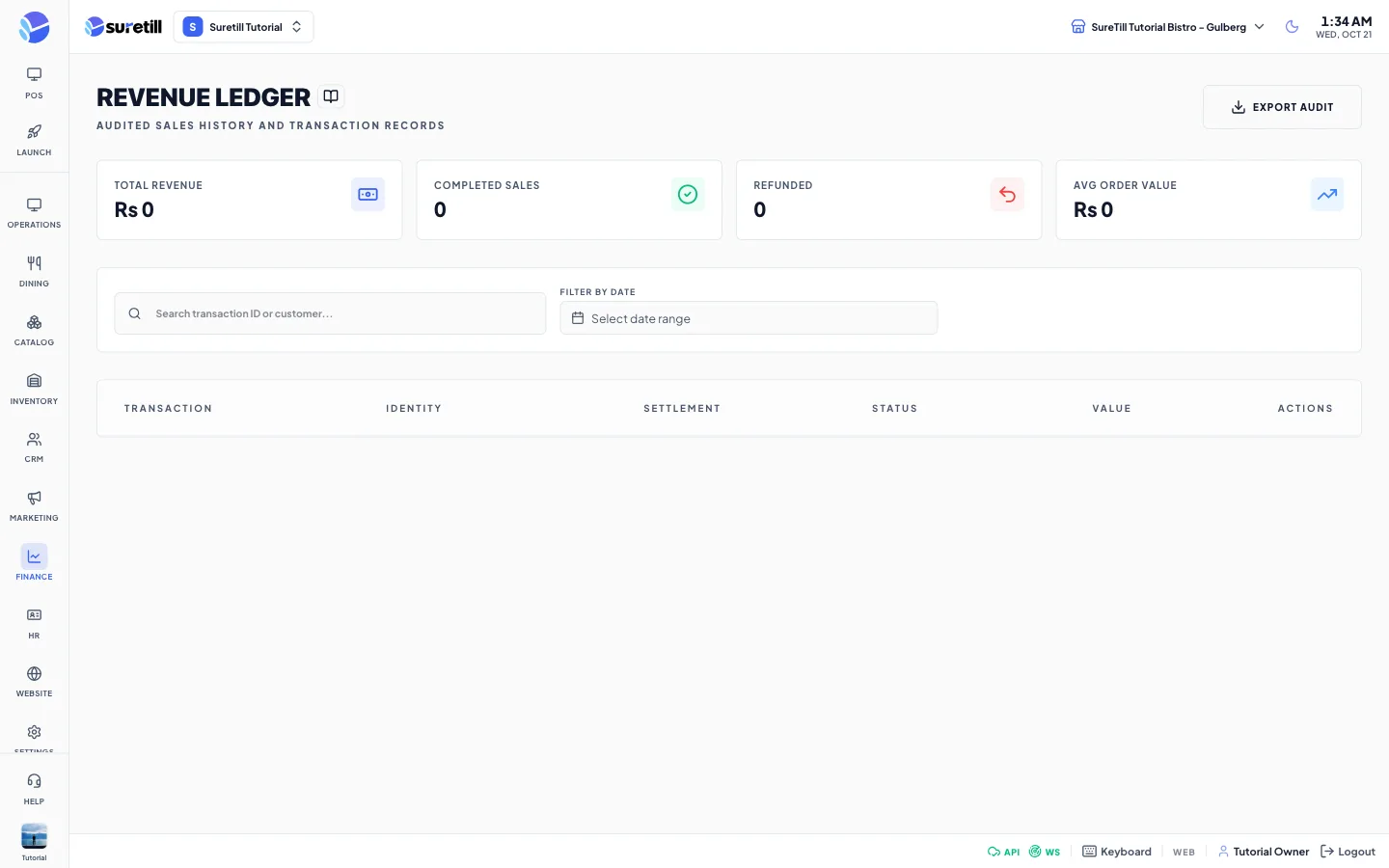
Sales History is meant to let you find one sale, see what was on it and reprint the receipt. The heading on screen is Revenue Ledger, with the line Audited sales history and transaction records.
Step by step
Section titled “Step by step”Find a sale
Section titled “Find a sale”- Open Finance > Sales History.
- Type part of an order number or a customer name in the search box (Search transaction ID or customer).
- Optionally pick a From and To date in Filter by Date. The list is reloaded for those days.
- Look at the four cards at the top. They are recalculated from the rows that match your search and dates.
Open the detail of a sale
Section titled “Open the detail of a sale”- Click anywhere on the row.
- The Audit Detail window opens with the order number, date, a badge for the service type, and a receipt layout with the branch name, the customer, each line (quantity x name and price), the subtotal, tax, discount and the grand total.
- The footer of the receipt says Paid via and the payment method.
Reprint a receipt
Section titled “Reprint a receipt”- Open the sale as above.
- Click Reprint. The request goes to the print service, the same way as the POS receipt print.
- If nothing prints, check the printer on the Printers page. This page shows no success or error message for a reprint.
Every setting explained
Section titled “Every setting explained”| Setting | What it does |
|---|---|
| Total Revenue | Sum of the totals of the rows currently shown. |
| Completed Sales | Number of shown rows with status Completed. |
| Refunded | Number of shown rows with status Refunded. |
| Avg Order Value | Total Revenue divided by the number of shown rows. |
| Search box | Matches the order number or the customer name. Not case sensitive. |
| Filter by Date | A From and To date, both days included. The list is loaded again for those days. |
| Transaction column | Order number and the date and time of the sale. |
| Identity column | The customer name. Shows Guest when the sale has no customer. |
| Settlement column | A badge with the payment method names used on the order (for example Cash + Card). Shows a dash if there are no payments. |
| Status column | Completed, or Refunded when the order status is refunded. |
| Value column | The order total. |
| Receipt icon | Appears when you hover a row. It is only a visual hint. Click the row to open the detail. |
| Export Audit | A button at the top right. Saves the rows now shown (after search and dates) as a CSV file called sales-ledger-DATE.csv with order, date, customer, payment, status, subtotal, tax, discount and total. |
| Reprint | In the detail window. Sends the receipt of this order to the printer service. |
| Refund reason | A text box next to Issue Refund. Required. It is saved on the refund. |
| Issue Refund | Shown in the detail window for Completed sales. After you type a reason and confirm, the server records a full refund of the amount actually paid, the same as the Refund button on the Orders page. It needs the refund right (owner, admin, or the pos.refund, orders.refund or payments.process_refund permission). The row turns to Refunded when the server accepts it, and you see a message if it refuses. |