

Notifications: activity stream and message templates
Where: Settings > Notifications
Who can use it: Sidebar permission: settings.manage_notifications, settings.view or manage settings. SMS and WhatsApp messages need a gateway set up in Integrations.
Open this page in SureTill
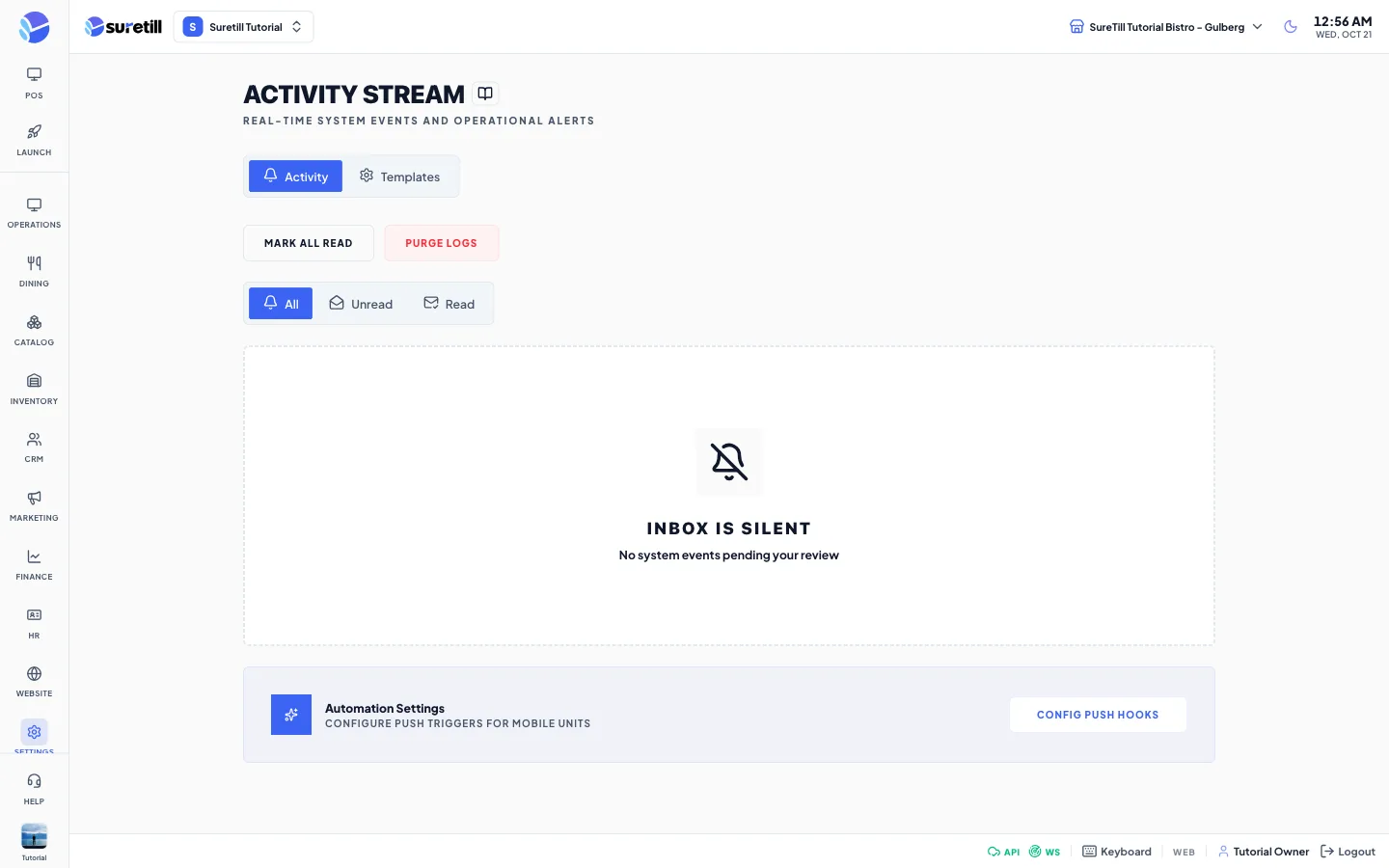
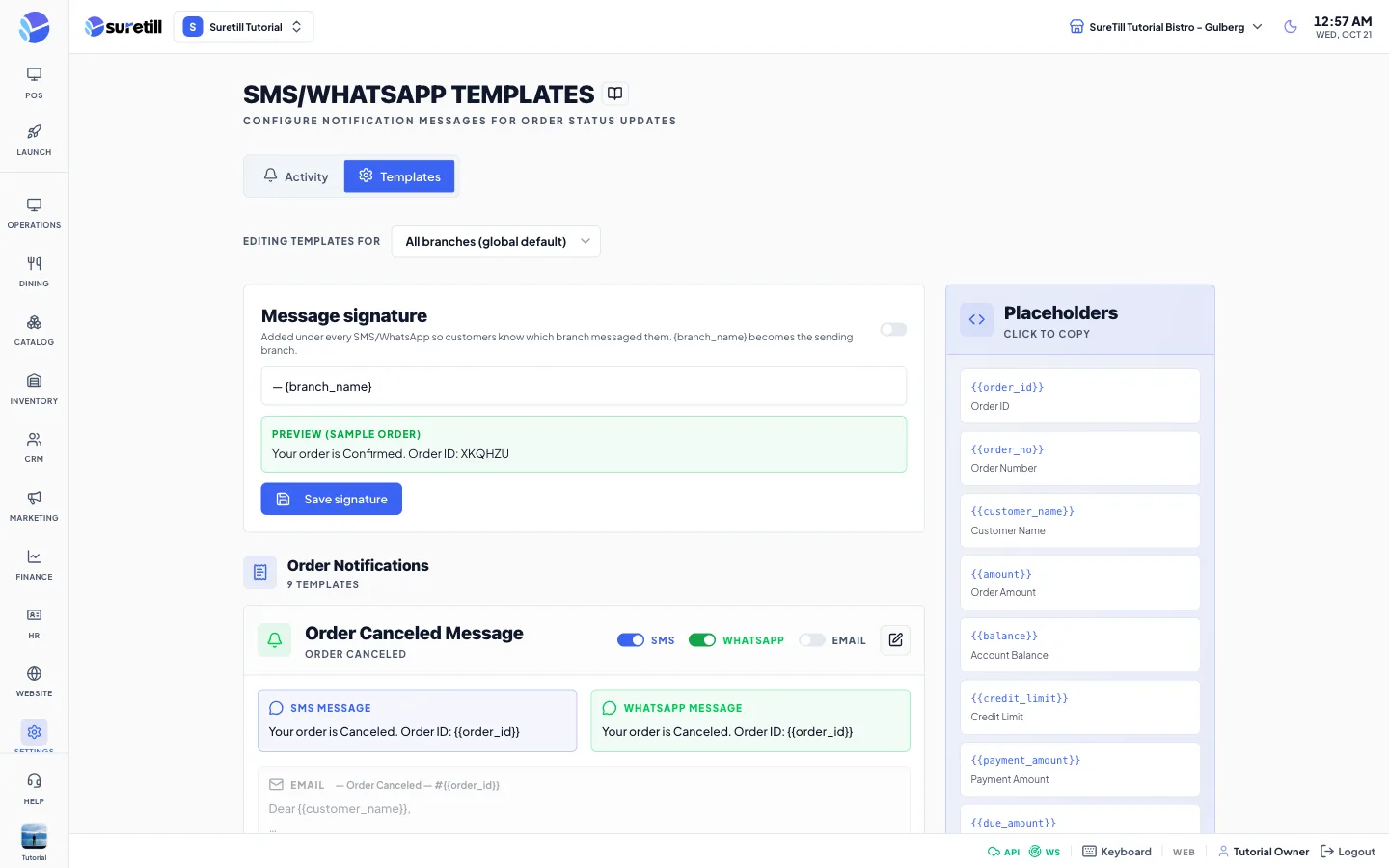
The page title changes with the tab: Activity Stream or SMS/WhatsApp Templates. Use the two pill tabs, Activity and Templates, to switch.
Activity tab
Section titled “Activity tab”This tab lists the in-app notifications of the user who is signed in. Each person sees only their own notifications.
Step by step: work through your notifications
Section titled “Step by step: work through your notifications”- Open Settings > Notifications. The Activity tab is shown.
- Use All, Unread or Read to filter. The Unread tab shows a dot when something is waiting.
- Click a card to mark it as read. A read card is dimmed.
- Click Mark all read to clear the whole Unread list at once.
- Click the bin icon on a card to delete that notification.
- Click Purge Logs and confirm to delete every notification in the list.
| Setting | What it does |
|---|---|
| Mark all read | Marks every unread notification of your account as read. |
| Purge Logs | Deletes the notifications you see (up to 100). Asks for a confirmation first. |
| All, Unread, Read | Filters the list. |
| Card icon and Type badge | Info, Success, Warning or Critical. Low stock and inventory alerts show Warning. System errors and failed payments show Critical. New order, order status and order ready show Info. |
| Read or Unread badge | Shows whether you opened it. |
| Time stamp | When the notification was created. |
| Category badge | System, Finance, Inventory or Staff. System is used when none is given. |
| Inbox is Silent | The message when there is nothing to show. |
Templates tab
Section titled “Templates tab”A template is the text of one automatic message. Each template can be sent by SMS, by WhatsApp and by email, and each channel has its own on or off switch and its own text.
Step by step: edit a template
Section titled “Step by step: edit a template”- Click the Templates tab.
- Leave Editing templates for on All branches (global default).
- Find the template in its group and click the pencil icon.
- In the window edit the SMS Message, the WhatsApp Message, and the Email Subject and Email Body. Tick Enabled for each channel you want.
- Click a placeholder under Available Placeholders - Click to copy, then paste it where you need it.
- Click Save Changes.
Step by step: switch a channel on or off
Section titled “Step by step: switch a channel on or off”- On the template card, use the SMS, WhatsApp or Email switch. The change saves at once.
Step by step: restore the default text
Section titled “Step by step: restore the default text”- Open the template with the pencil icon.
- Click Reset Default. The standard text for that template is put back.
Step by step: set a signature
Section titled “Step by step: set a signature”- With All branches selected, find the Message signature card at the top.
- Turn the switch on and edit the text. The default is the dash and {branch_name}, which becomes the name of the sending branch.
- Check the Preview (sample order) and click Save signature.
The signature is added under every SMS and WhatsApp message so customers know which branch wrote to them. It is off until you turn it on.
Step by step: change a template for one branch only
Section titled “Step by step: change a template for one branch only”- In Editing templates for, choose the branch.
- Optionally set the Branch signature: Use global setting, Always sign for this branch, or Never sign for this branch, and a branch text.
- Click the pencil icon on a template, change what you need and click Save for this branch.
- To go back to the global text, open it and click Reset to default.
Template groups
Section titled “Template groups”| Group | Templates |
|---|---|
| Order Notifications | order_pending, order_confirmed, order_preparing, order_prepared, order_out_for_delivery, order_delivered, order_canceled, order_rejected, order_returned. |
| Staff Notifications | delivery_boy_assigned, admin_new_order. |
| Customer Account | customer_account_reminder, customer_account_order_added, customer_account_payment, customer_credit_limit_warning. |
| Restaurant & Reservations | table_ready, reservation_confirmed, reservation_reminder. |
| Wallet & Verification | wallet_credit_added, wallet_debit, customer_otp. |
Placeholders
Section titled “Placeholders”| Placeholder | Meaning |
|---|---|
| {{order_id}} and {{order_no}} | The order ID and the order number. |
| {{customer_name}} | The customer name. |
| {{amount}} | The order amount. |
| {{balance}}, {{credit_limit}}, {{payment_amount}}, {{due_amount}} | Account balance, credit limit, payment amount and amount due. |
| {{date}} and {{time}} | Date and time. |
| {{table_name}}, {{guests}}, {{reservation_id}}, {{reservation_time}} | Table and reservation details. |
| {{code}} | The verification code (OTP). |
| {{delivery_boy}} and {{tracking_link}} | The delivery person and the tracking address. |
| {branch_name}, {branch_phone}, {branch_address} | The sending branch. They use single braces. |
Every setting explained
Section titled “Every setting explained”| Setting | What it does |
|---|---|
| Editing templates for | Chooses All branches (global default) or one branch. |
| SMS, WhatsApp and Email switches on a card | Turn a channel on or off for that template. Each click saves at once. |
| Pencil icon | Opens the editing window. |
| SMS Message and WhatsApp Message | Text for each channel, with its own Enabled box. |
| Email Subject and Email Body | Text for email, with an Enabled box. |
| Save Changes and Reset Default | Save the edits, or restore the standard text. |
| Message signature (global) | Switch, text field, preview and Save signature. |
| Branch signature | Choose inherit, always or never, and a branch text. Preview and Save branch signature. |
| Save for this branch and Reset to default | Save only the differences for the branch, or remove the override. Reset to default is disabled when the template has no override. |
| Configure Gateways | A card at the bottom of the global list with a button that opens Settings > Integrations, where the SMS and WhatsApp gateways are set up. |