

Branch Customers
Where: Settings > Branch Customers
Who can use it: Sidebar permission: branches.view or manage branches. A branch must be selected in the top bar.
Open this page in SureTill
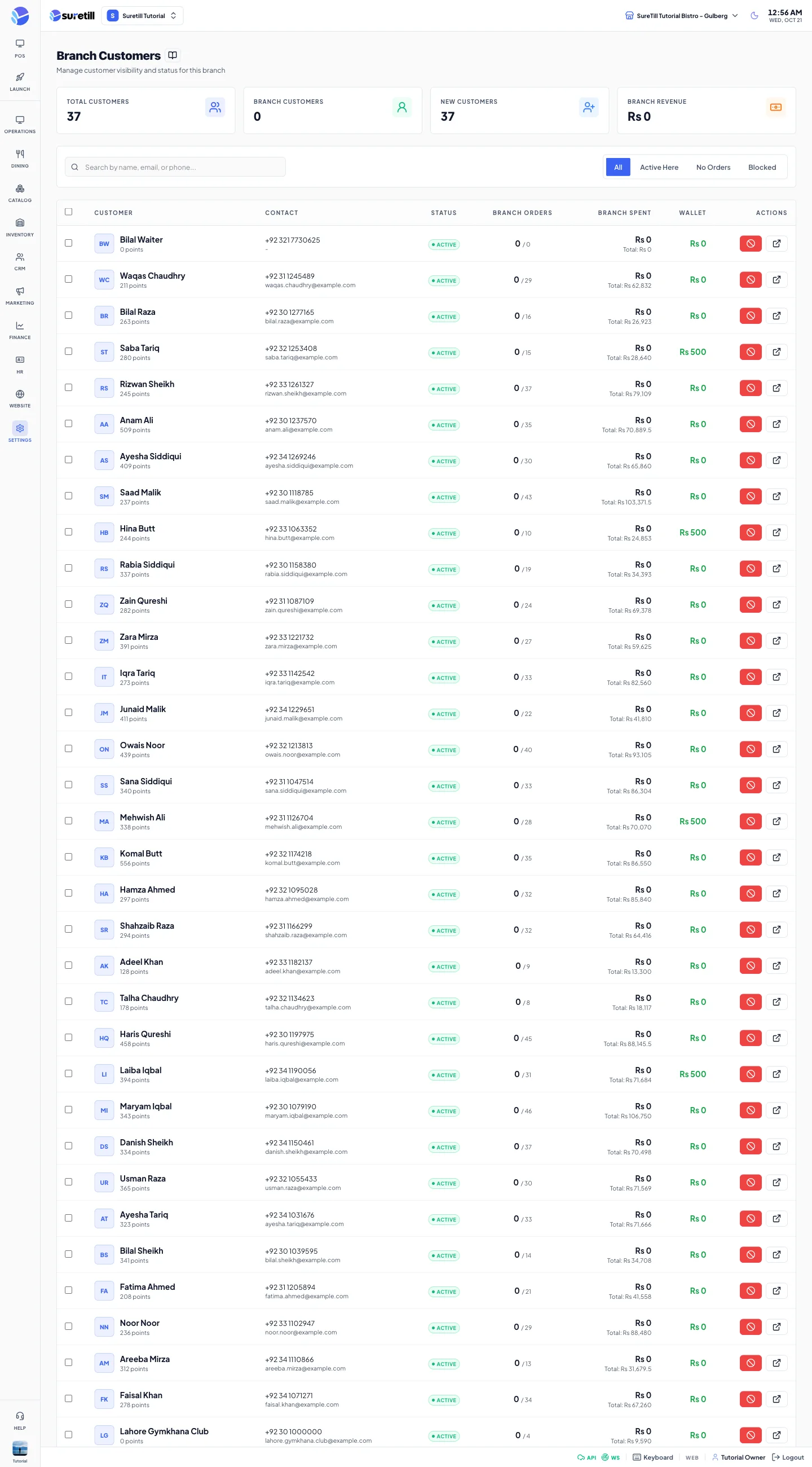
Branch Customers shows every customer with the visits and spend at the branch that is selected in the top bar. If no branch is selected the page asks you to select one first.
Step by step: find a customer
Section titled “Step by step: find a customer”- Select the branch in the top bar.
- Open Settings > Branch Customers.
- Type a name, an email or a phone number in the search box.
- Use the tabs All, Active Here, No Orders or Blocked to narrow the list.
Step by step: block or unblock customers
Section titled “Step by step: block or unblock customers”- To act on one customer, click the block icon (or the check icon for a blocked customer) in the Actions column.
- To act on several, tick the boxes in the first column, or tick the header box to select all rows shown.
- Click Block (n) or Unblock (n) above the table.
Every setting explained
Section titled “Every setting explained”| Setting | What it does |
|---|---|
| Total Customers | All customers in the system. |
| Branch Customers | Customers who have visit statistics at this branch. |
| New Customers | Total customers minus Branch Customers: customers with no record at this branch yet. |
| Branch Revenue | The sum of customer spending recorded at this branch. |
| Search | Matches name, email or phone. |
| All | Every customer. |
| Active Here | Customers with a record at this branch. |
| No Orders | Customers with no record at this branch. |
| Blocked | Customers whose status is blocked. |
| Customer column | Initials, the name and the loyalty points. |
| Contact column | Phone and email. |
| Status column | active or blocked, plus an Active Here badge when the customer has a record at this branch. |
| Branch Orders | Visits at this branch, then / and the total number of orders of the customer. |
| Branch Spent | Spend at this branch, and the total spent over all branches. |
| Wallet | The wallet balance of the customer. |
| Actions | Block or unblock, and open the customer detail page. |
| Select boxes | Tick one or more customers for the bulk buttons. |