

Automation rules
Where: Settings > Automation
Who can use it: Sidebar permission: settings.manage_automation, settings.update or manage settings.
Open this page in SureTill
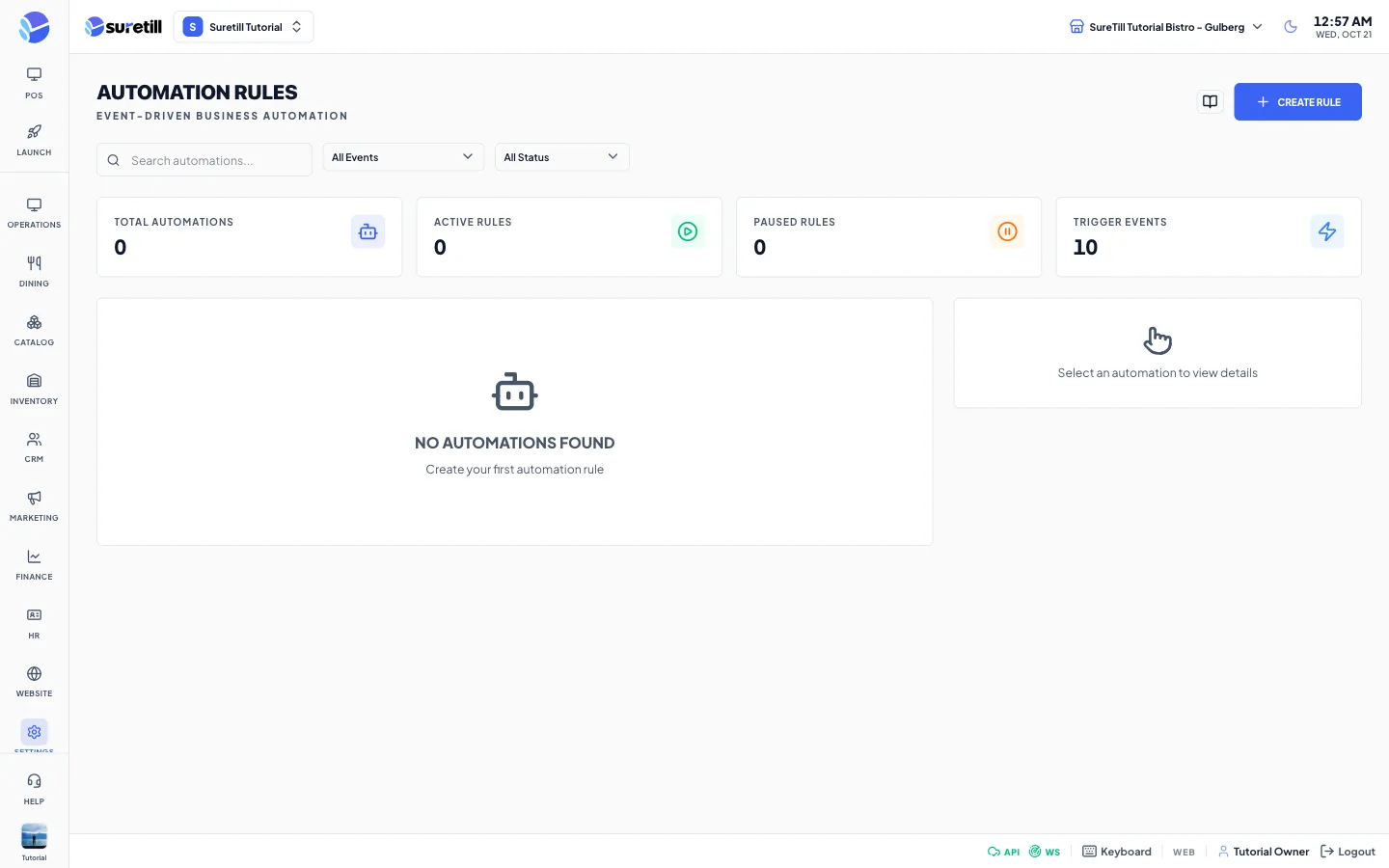
A rule has three parts: a trigger event, conditions (optional) and actions. When the event happens and every condition is true, the actions run one after another. Rules with a higher priority run first.
Step by step: create a rule
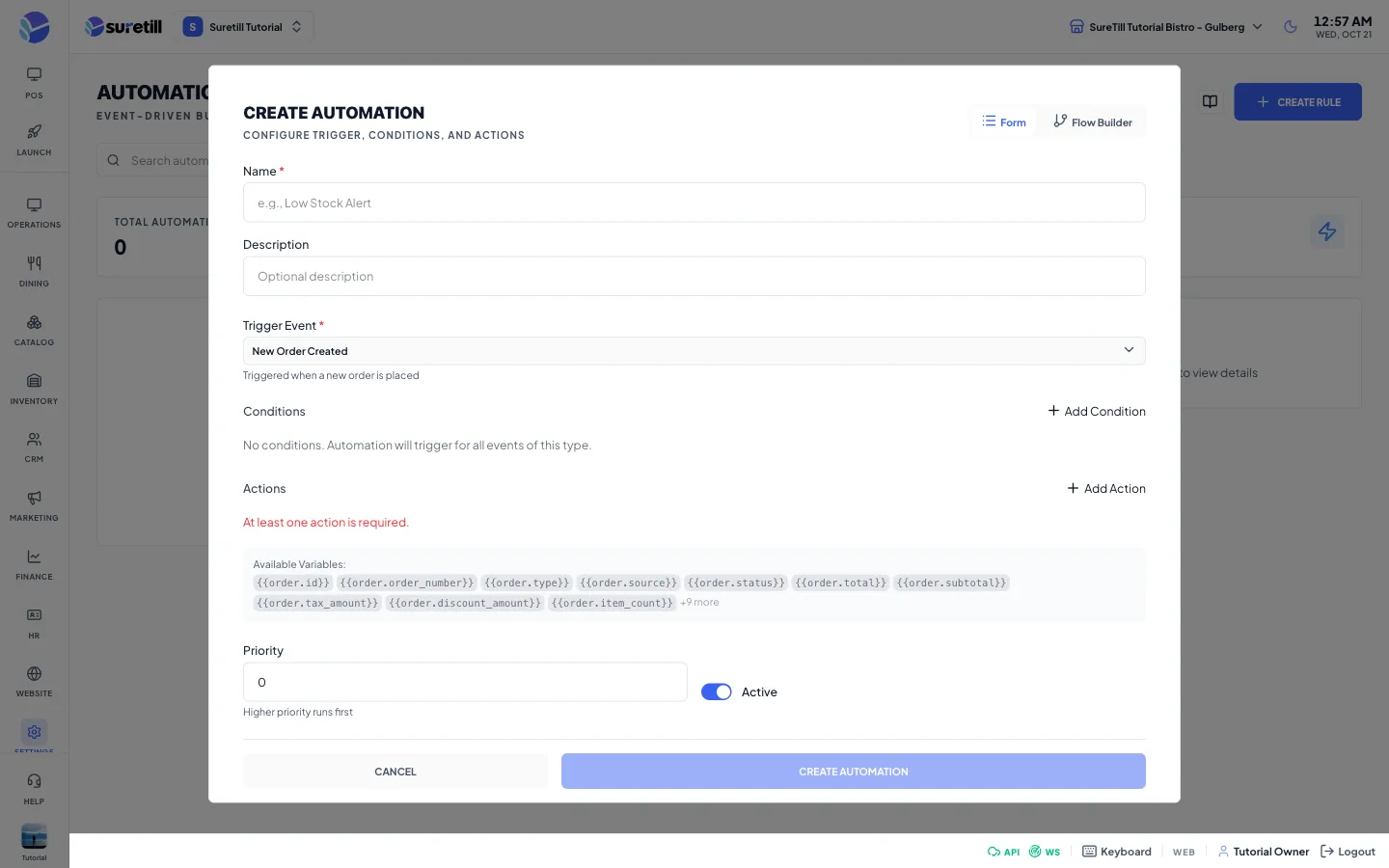
Section titled “Step by step: create a rule”- Open Settings > Automation and click Create Rule.
- Type a Name, for example Low Stock Alert. The Description is optional.
- Choose the Trigger Event. Its description appears under the list.
- Add conditions if you need them (see below).
- Add one or more actions and fill in their fields.
- Set the Priority and keep Active on.
- Click Create Automation. The button stays disabled until a name, a trigger and at least one action are set.
Step by step: test a rule safely
Section titled “Step by step: test a rule safely”- Click a rule in the list to select it.
- In the Details tab click Test. A window opens with a JSON test context already filled with sample values for the trigger fields.
- Edit the values if you like and click Run Test.
- Read the result. The test is a dry run: it shows whether the conditions pass and which actions would run, and it does not send anything.
Step by step: change, copy, pause or delete a rule
Section titled “Step by step: change, copy, pause or delete a rule”- Edit: click the pencil icon on the rule card.
- Pause or resume: use the switch on the rule card.
- Copy: select the rule and click Duplicate. The copy opens with (Copy) added to the name and Active off.
- Delete: select the rule, click the bin icon and confirm.
- See what happened: open the History tab of the selected rule.
Trigger events
Section titled “Trigger events”| Trigger event | When it fires and which fields you can use |
|---|---|
| New Order Created (order_created) | A new order is placed. Fields include order id, number, type, source, status, total, subtotal, tax, discount, item count, notes, customer name, email, phone, loyalty points, total orders, and branch. |
| Order Status Changed (order_status_changed) | An order status is updated. Fields include order fields, old_status, new_status and customer. |
| Payment Received (payment_completed) | A payment is processed. Fields include payment id, amount, method, status, order and customer. |
| Low Stock Alert (inventory_low_stock) | Stock falls below the minimum. Fields include item id, name, sku, current_stock, min_stock, reorder_level, product and branch. |
| Customer Sign Up (customer_created) | A customer registers. Fields include id, name, email, phone, referral code and referred by. |
| Delivery Assigned (delivery_assigned) | A delivery goes to a driver. Fields include delivery, order, driver name and phone, and customer address. |
| Delivery Status Changed (delivery_status_updated) | A delivery status changes. Fields include delivery, old_status, new_status, order, driver and customer. |
| New Reservation (reservation_created) | A reservation is made. Fields include date, time, party size, status, notes, customer and table. |
| Work Period Opened (work_period_opened) | A shift starts. Fields include opening cash, user and branch. |
| Work Period Closed (work_period_closed) | A shift ends. Fields include opening and closing cash, total sales, total orders, user and branch. |
Conditions
Section titled “Conditions”Each condition has a field (one of the trigger fields), an operator and a value. All conditions must pass. The value box is hidden for Is Empty and Is Not Empty. Changing the trigger event clears the conditions.
| Operator | Use |
|---|---|
| Equals and Not Equals | Exact match or not. |
| Greater Than, Less Than, Greater Than or Equals, Less Than or Equals | Number comparisons. |
| Contains, Not Contains, Starts With, Ends With | Text matches. |
| Is Empty, Is Not Empty | The field has no value, or has one. |
| In List, Not In List | The value is, or is not, one of a list. |
Actions
Section titled “Actions”Fields marked as supporting variables accept values from the trigger written in double braces, for example {{customer.name}} or {{order.total}}.
| Action | Fields |
|---|---|
| Send In-App Notification (send_notification) | Title and Message (variables allowed). Recipients: admins, managers, all_staff or customer. |
| Send Email (send_email) | To Email, Subject, Template (order_confirmation, order_status, low_stock_alert, welcome or custom) and Custom Body (optional). |
| Send SMS (send_sms) | Phone Number and Message, up to 160 characters. |
| Award Loyalty Points (add_loyalty_points) | Points to Award, and a Reason (optional). |
| Apply Discount (apply_discount) | Discount Type (percentage or fixed), Discount Value and a Reason (optional). |
| Create Draft Purchase Order (create_purchase_order) | Supplier ID (optional) and Quantity Multiplier (default 1). |
| Update Entity Field (update_entity) | Entity (order, customer or product), Field Name and New Value. |
| Call Webhook (webhook) | Webhook URL, HTTP Method (POST, PUT or PATCH), Custom Headers in JSON (optional) and Include Full Context (default on). |
| Log Activity (log_activity) | Log Description and a Log Level (info, warning or error; default info). |
Every setting explained
Section titled “Every setting explained”| Setting | What it does |
|---|---|
| Create Rule | Opens the editor. |
| Search box | Filters the rule list by name or description. |
| Event and status dropdowns | Shown above the list as All Events and All Status. The event filter shows only rules with that trigger; the status filter shows Active or Inactive rules. |
| Total Automations, Active Rules, Paused Rules, Trigger Events | Counters of the rules in the list and of the available trigger events. |
| Rule card | Name, Active or Inactive badge, description, the trigger, the number of actions and conditions, a switch and a pencil. |
| Details tab | Name, description, trigger, conditions, actions, created and updated times, and the Test, Duplicate and delete buttons. |
| History tab | One entry per run: status (success, partial or failed), time taken in milliseconds, date, any error and the actions that ran. |
| Form and Flow Builder | Two ways to edit a rule in the same window. Form shows lists. Flow Builder shows the trigger, conditions and actions as boxes on a canvas. Both edit the same rule. |
| Name | Required. |
| Description | Optional. |
| Trigger Event | Required. |
| Priority | A whole number. Higher priority runs first. Default: 0. |
| Active | Switch. Default: on. |
| Test Context (JSON) | The sample values used for a test run. |