

Payments
Where: Finance > Payments
Who can use it: Permission: payments.view or view reports. Changing gateways needs the owner, admin or super admin role, or the payments.manage_gateways permission.
Open this page in SureTill
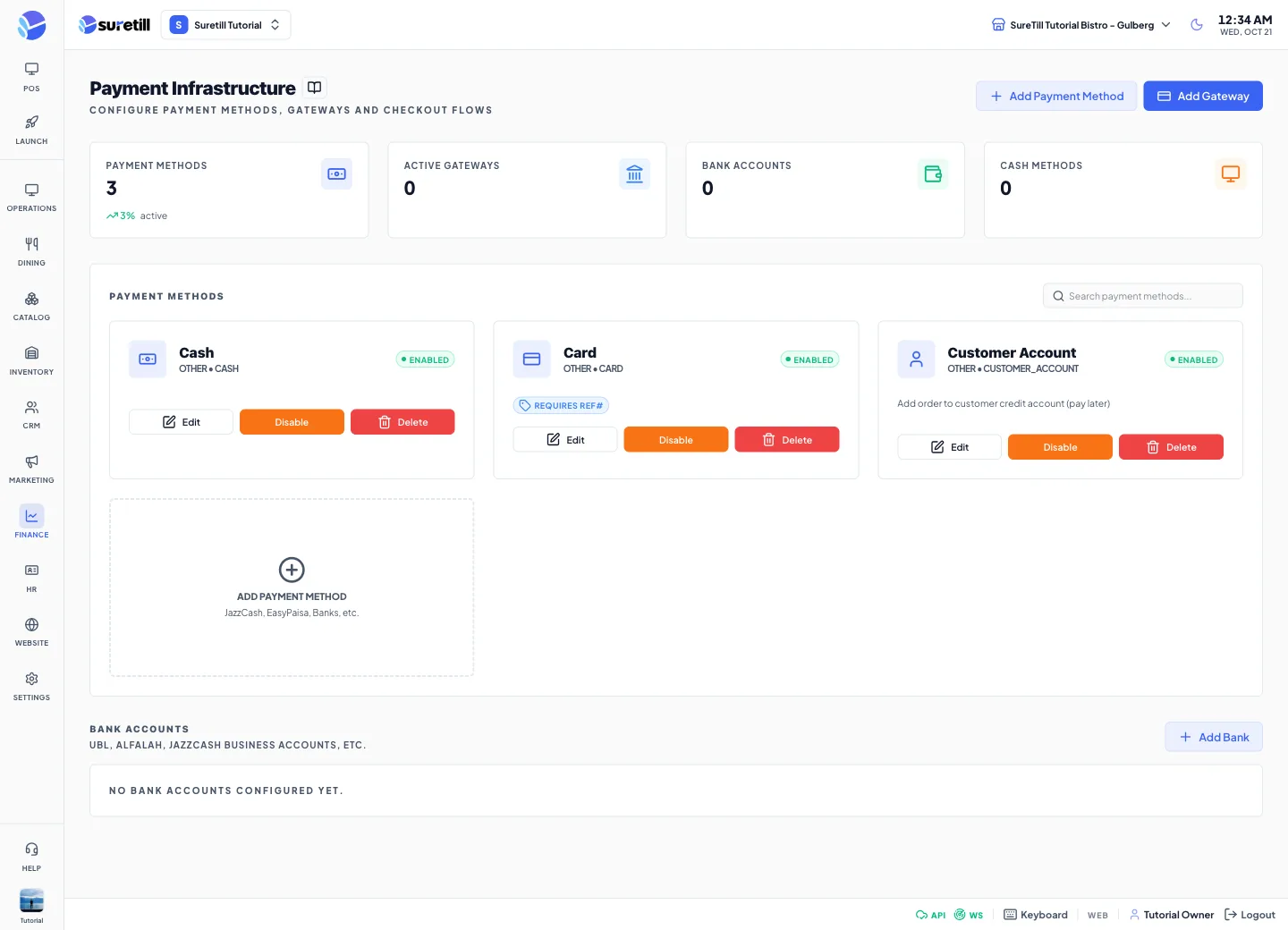
This page is where you decide what appears in the payment window of the POS, on receipts and in the payment reports. It does not list individual payments. To see money taken, run Payment Methods or Cash Transactions on the Reports page.
A new restaurant starts with two methods: Cash (the default) and Card (which asks for a reference number). Payment methods belong to a branch. The page lists the methods of the branch you have selected (up to 100), ordered by Sort Order.
Step by step
Section titled “Step by step”Add a payment method
Section titled “Add a payment method”- Click Add Payment Method (top right, or the dashed card).
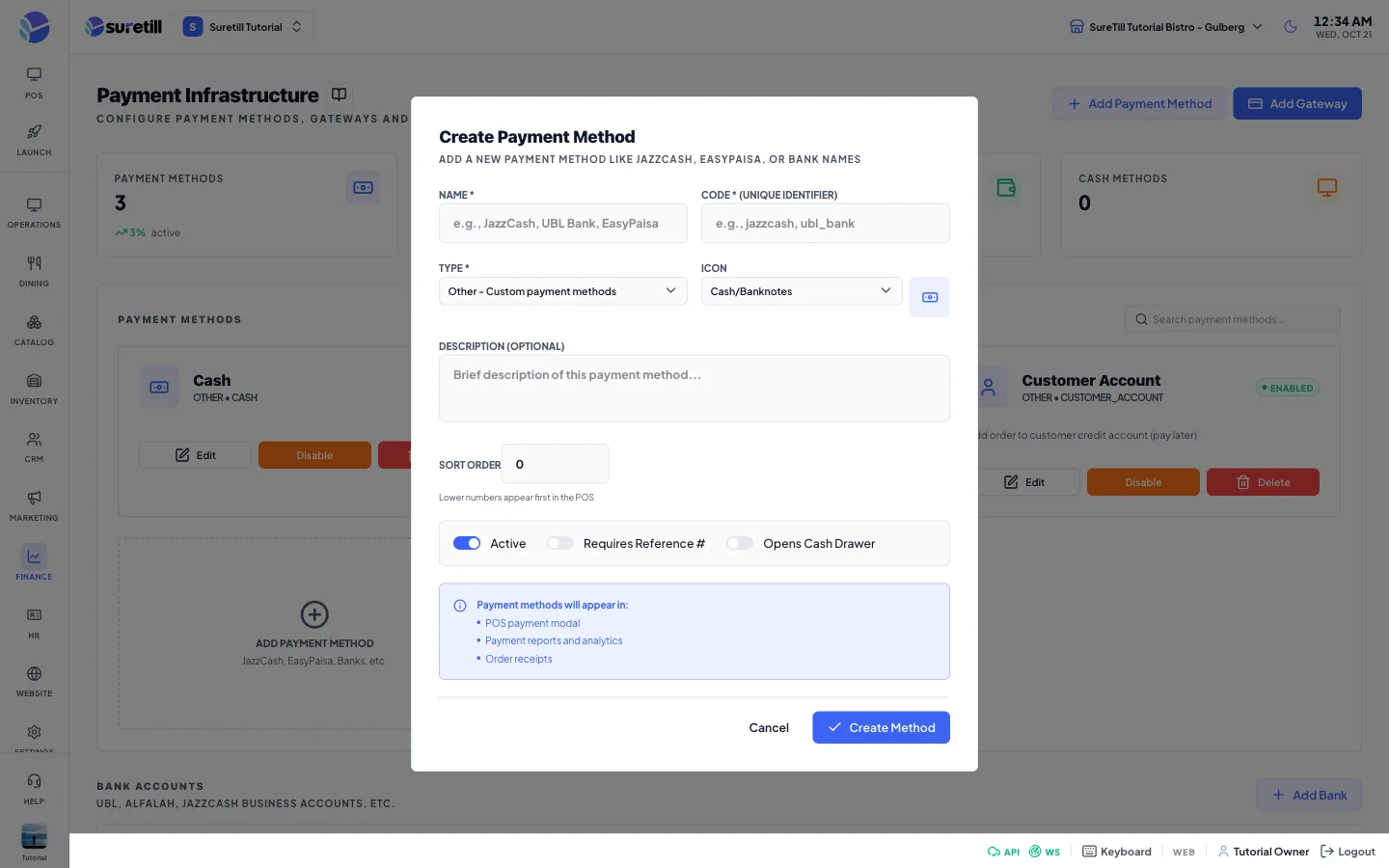
- Type the Name, for example JazzCash. The Code is filled for you (lowercase with underscores).
- Choose the Type and the Icon. Optionally link a Bank Account.
- Set the switches and the Sort Order.
- Click Create Method.
Edit, disable or delete a method
Section titled “Edit, disable or delete a method”- Click Edit on the card, change the fields and click Update Method.
- Click Disable to hide a method from payment screens without losing it. Click Enable to bring it back.
- Click Delete and confirm.
Add a bank account
Section titled “Add a bank account”- In the Bank Accounts section click Add Bank.
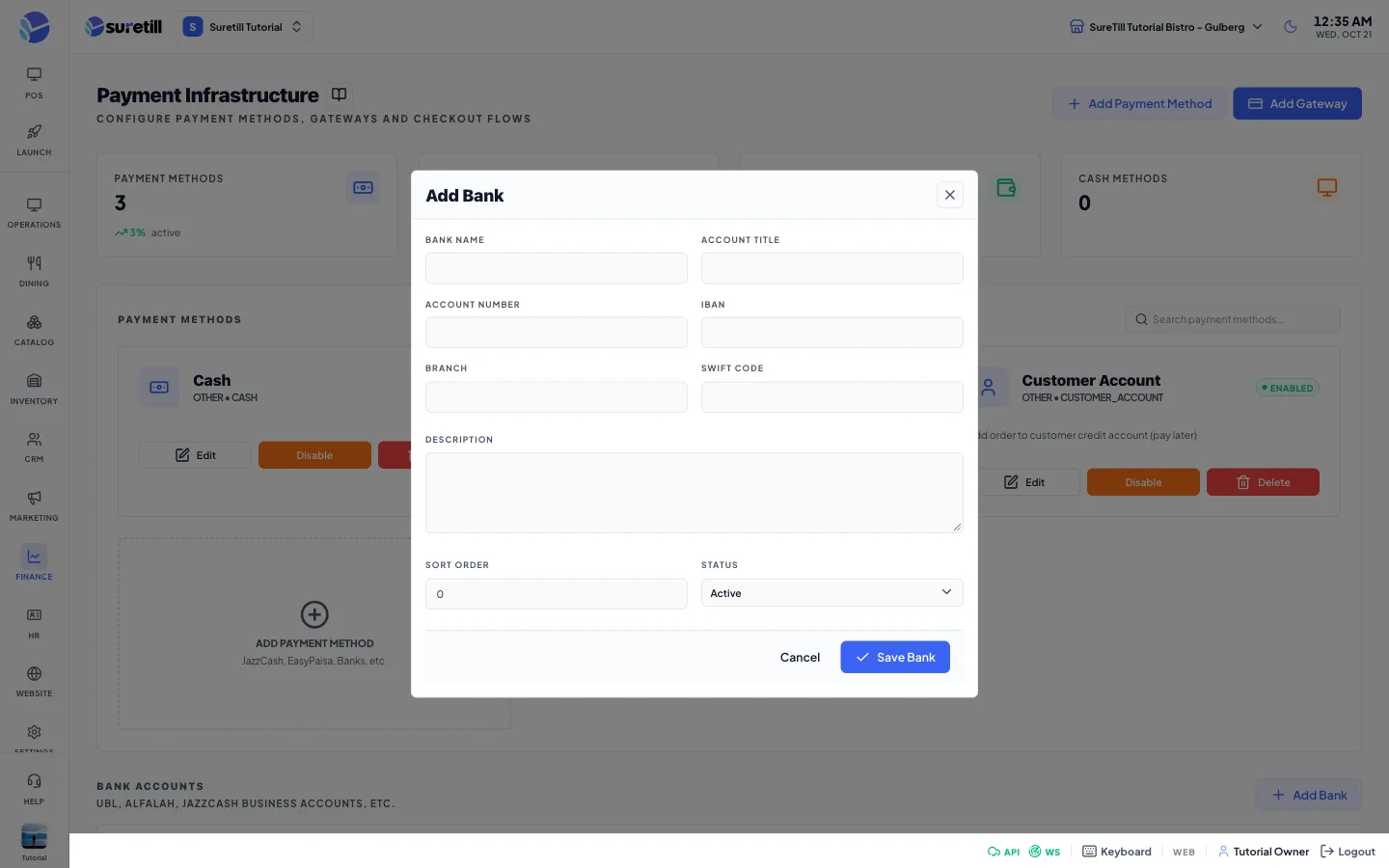
- Type the Bank Name (required) and the other details.
- Click Save Bank. Link it to a payment method of type Bank Transfer from the method form.
Every setting explained
Section titled “Every setting explained”Counters and list
Section titled “Counters and list”| Setting | What it does |
|---|---|
| Payment Methods | Number of methods, with the number of active ones. |
| Active Gateways | Number of gateways that are on, with the total. |
| Bank Accounts | Number of saved bank accounts. |
| Cash Methods | Number of active methods of type Cash. |
| Search payment methods | Matches name, code, type or description. |
| Method card | Icon, name, type and code, an Enabled or Disabled badge, the description, and badges Requires Ref# and Opens Drawer when those switches are on. |
| Edit, Enable / Disable, Delete | The three buttons of each card. |
Payment method form
Section titled “Payment method form”| Setting | What it does |
|---|---|
| Name (required) | Shown to staff. Up to 255 characters. |
| Code (required) | A unique identifier, up to 50 characters, lowercase with underscores. It must be unique, and it is locked after creation. |
| Type (required) | Cash, Card, Digital Wallet (JazzCash, EasyPaisa and similar), Bank Transfer or Other. The default is Other. |
| Linked Bank Account | Optional. A bank account from the Bank Accounts section. |
| Icon | Banknotes, Credit Card, Bank, QR or Mobile Wallet, Wallet, Online, Mobile Payment, Exchange or Money. A preview is shown. |
| Description | Optional text. |
| Sort Order | A number. Lower numbers come first in the POS. Default 0. |
| Active | On by default. Off hides the method from payment screens. |
| Requires Reference # | Marks a method that needs a reference number, for example a card slip. It is saved and shown as a badge. The POS payment window in this version does not read it yet. |
| Opens Cash Drawer | Marks a method that should open the drawer. It is saved and shown as a badge. The POS payment window in this version does not read it yet. |
Bank account form
Section titled “Bank account form”| Setting | What it does |
|---|---|
| Bank Name (required) | Up to 150 characters. |
| Account Title | The name on the account. |
| Account Number | Shown on the card. The IBAN is shown if there is no number. |
| IBAN | Optional. |
| Branch | The bank branch name, not your restaurant branch. |
| SWIFT Code | Optional. |
| Description | Optional, up to 500 characters. |
| Sort Order | A number for ordering. |
| Status | Active or Inactive. |
Payment gateways
Section titled “Payment gateways”The Payment Gateways section appears only when at least one gateway exists. Each card shows the name, the provider code and an Active or Inactive badge, with Configure (opens a window with the JSON configuration) and Enable or Disable. The Add Gateway button asks for Provider (chosen from the list of supported providers), Name, Config (JSON), Active and Test Mode. Saving a provider that already exists updates it.