

SureScreen TV App
Where: Marketing > Menu Boards > Screens
Who can use it: Needs the Menu Boards page (marketing.view or manage marketing). On SureScreen plans the number of TVs you can pair at once is limited by your plan. The app itself needs no login: the pairing code connects it to your restaurant.
Open this page in SureTill
SureScreen is the app that runs on a TV and shows your menu boards. It is a small app around the SureTill screen page. It opens the page, keeps the screen awake, starts by itself when the TV is switched on and shows the board you chose. The board content, the prices and the schedule come from your account, so you manage everything from the Menu Boards page.
Which TV can I use
Section titled “Which TV can I use”| TV | How it works |
|---|---|
| Android TV or Google TV | Install the SureScreen app (Android TV). The app is a full screen web view with its own menu and updates. |
| Samsung Tizen TV | The SureTill Screens app for Tizen (needs Tizen 5.0 or newer). It only opens the screen page of SureTill and keeps a device number, so the TV needs internet. |
| Any TV, stick or PC with a browser | Open the screen page in the browser: your address followed by /screen. Or skip pairing and use a display link from the Menu Boards page. |
Step by step: first pairing
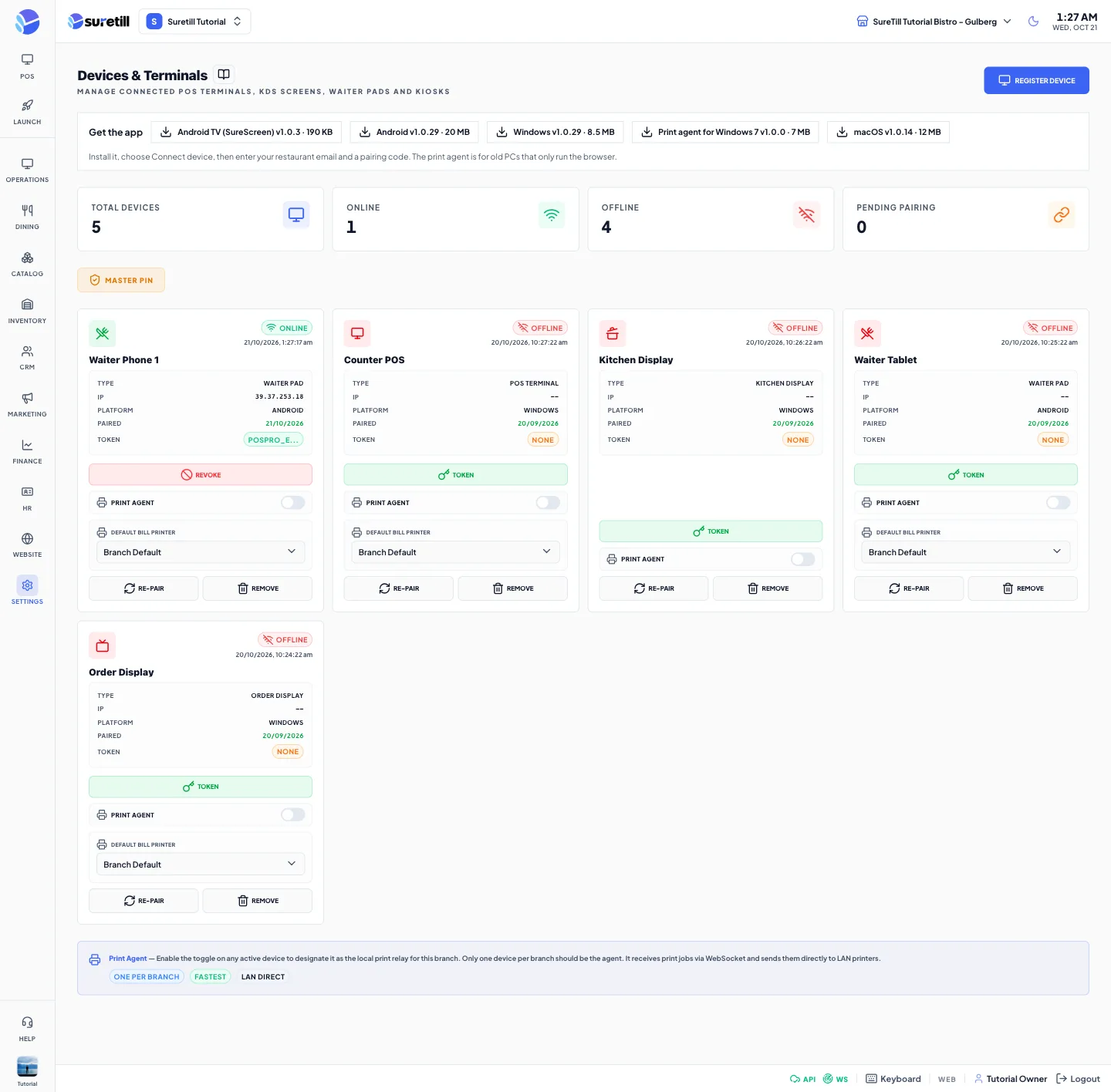
Section titled “Step by step: first pairing”- Get the app. On the Devices page of a cloud account, the strip Get the app lists the downloads that are published, including Android TV (SureScreen). Install the file on the TV.
- Open the app. The first time, Android may ask you to allow it to display over other apps. Accept to let the app start by itself after a restart. You can answer Later.
- The TV shows a big pairing code of 6 characters and the text Pair this screen from your dashboard.
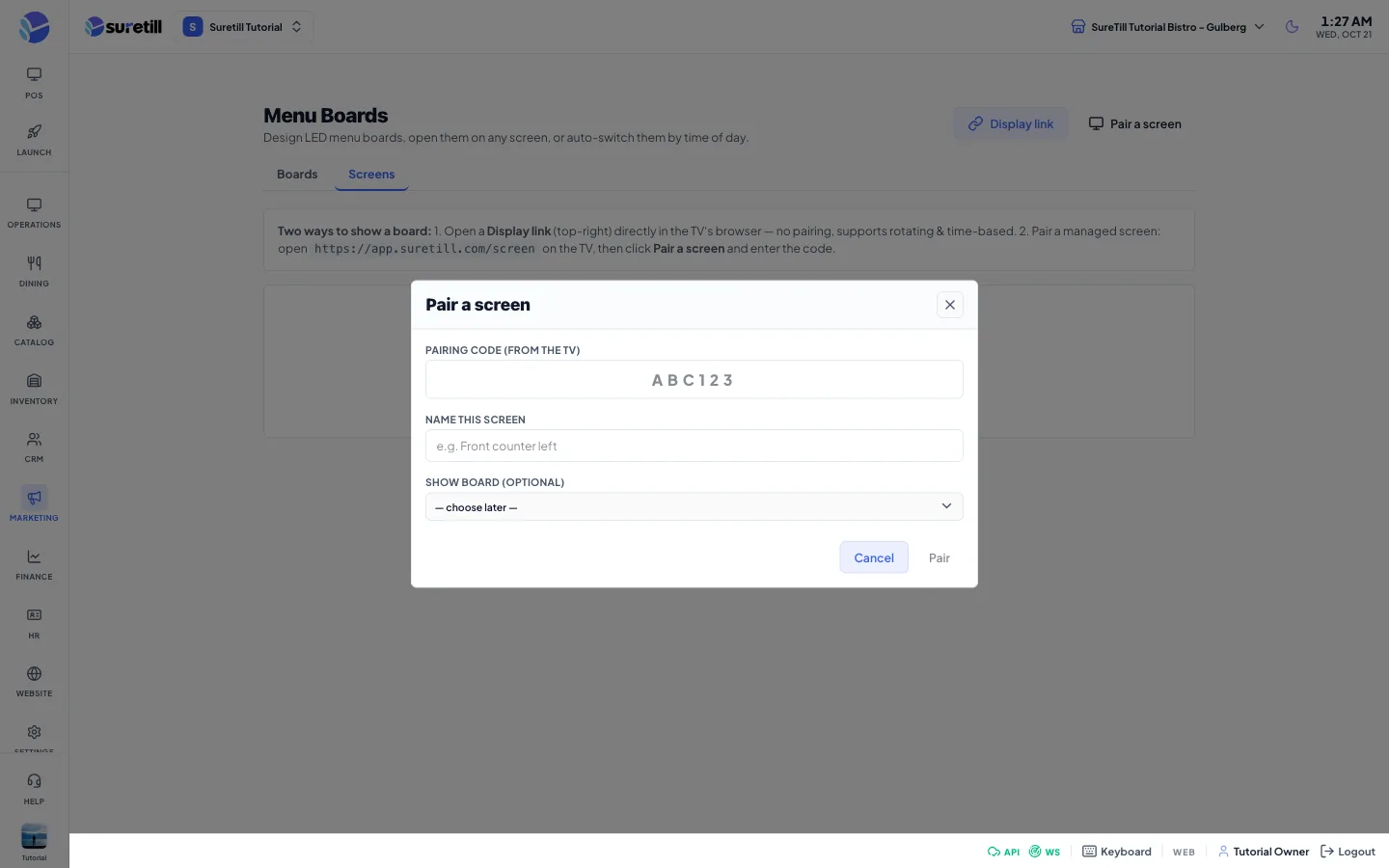
- On your computer open Marketing > Menu Boards, go to the Screens tab and click Pair a screen.
- Type the code, give the screen a name and choose a board, then click Pair.
- The TV changes from the code to the board within a few seconds. If you did not choose a board, it shows Connected and waits for you to choose one under Configure.
The app menu on Android TV
Section titled “The app menu on Android TV”A small three-dot icon sits in the bottom right corner. It is almost invisible until a newer version is waiting, then it turns blue. Press the Menu or Settings key on the remote, or hold Back, or click the dots. The Back key on its own does nothing, so nobody closes the screen by accident.
| Menu item | What it does |
|---|---|
| Check for update / Update to <version> | Checks for a newer version, or installs the one that was found. See Updates below. |
| Refresh | Reloads the screen page. |
| New pairing code | Makes the TV forget its identity and show a new code. Use it to move the TV to another restaurant. Afterwards remove the old screen from the Screens tab. |
| Close app | Stops the display after you confirm. The display stays off until the app is opened again. |
Updates
Section titled “Updates”- The app checks for a new version about 8 seconds after it starts and then every 6 hours. You can also choose Check for update in the menu.
- When a newer version exists, the menu shows Update to the new version number. Choose it. A message tells you if the app needs permission to install apps, and opens the Android settings for it.
- The app downloads the file with a progress count. It checks the file with a SHA-256 fingerprint. If the file is damaged it stops with a message.
- Android’s own installer then asks to install. After the update the app starts again by itself.
The app only accepts an update from the SureTill site, and Android only installs it when it is signed with the same key as the app already on the TV. A wrong or changed file cannot replace the app.
No internet
Section titled “No internet”- Android TV: the app shows Waiting for internet and tries again every 20 seconds. It also keeps a copy of the pictures, videos and screen page it has already used, so a screen that is already running can keep going when the network drops.
- Samsung Tizen: the app shows No internet connection and tries again every 10 seconds.
- Display links save the last board they loaded and keep showing it if the connection is lost.
Every setting explained
Section titled “Every setting explained”| Setting | What it does |
|---|---|
| Pairing code | Six characters shown on the TV. Type it under Menu Boards, Screens, Pair a screen. |
| Device number | A private id the TV makes for itself and keeps. It is what ties the TV to your restaurant after pairing. |
| Autostart permission | Asked once. Lets the app come back after the TV restarts or after an update. |
| Screen kept awake | The app does not let the TV sleep while it runs. |
| Update check | Every 6 hours, plus on demand in the menu. |
| Plan screen limit | On cloud plans a paired TV uses one place. A pending code does not use a place. Unpair a screen to free one. |