

Menu Boards
Where: Marketing > Menu Boards
Who can use it: Permission: marketing.view, manage marketing, settings.view or manage settings. This is the main page of the SureScreen (menu board only) plans. On those plans only products, menus, menu boards and screens are available, and the plan sets how many TVs you can pair at once.
Open this page in SureTill
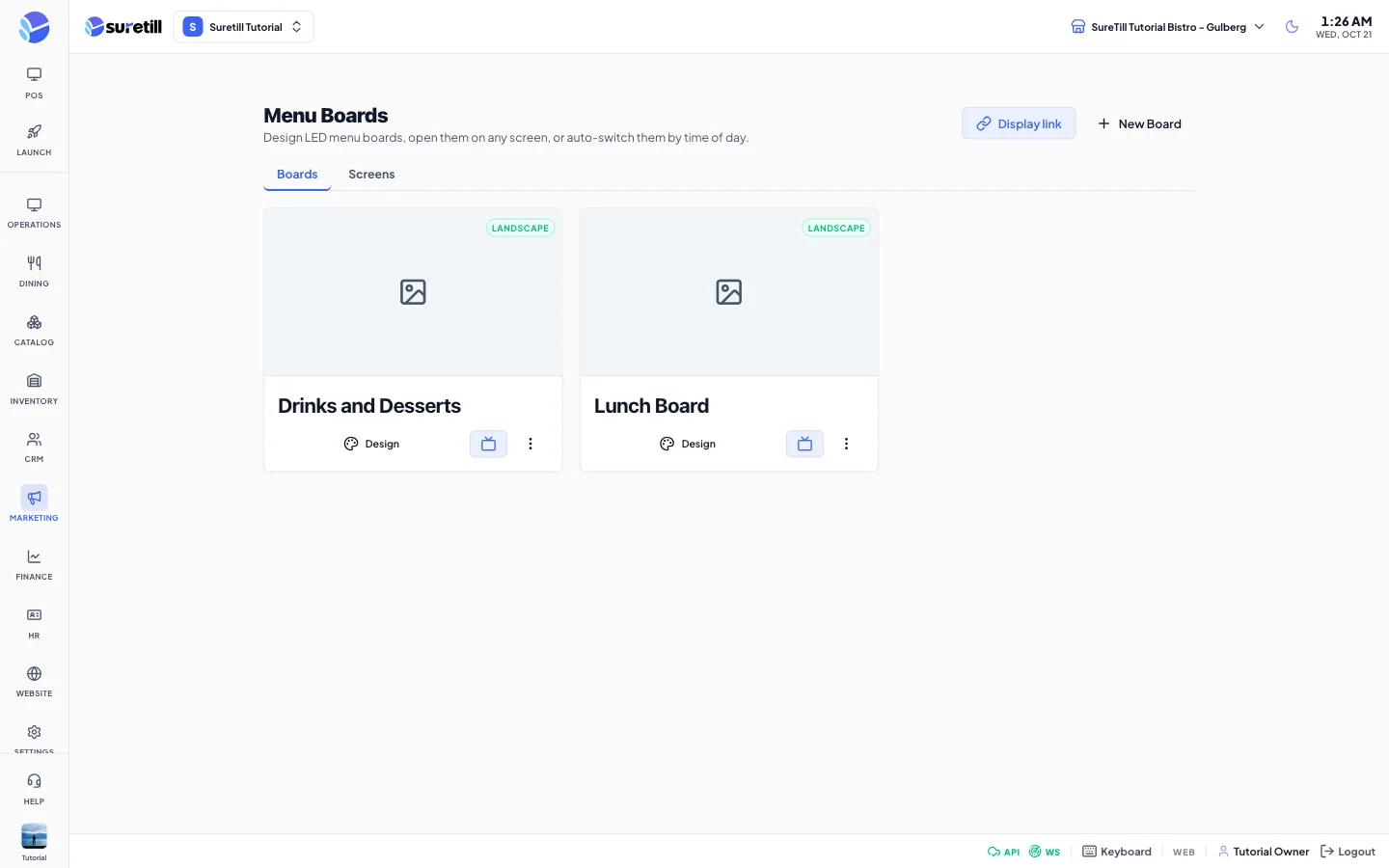
A menu board is a picture or video that fills a TV, with live tags placed on top of it. A Price tag shows the current price of one product. A Name tag shows its name. When you change a price on the Products page, every board and every TV shows the new price within about 20 seconds. You do not edit the board again.
The page has two tabs. Boards is where you design boards. Screens is where you pair TVs and choose what each TV shows.
Step by step: boards
Section titled “Step by step: boards”Create a board
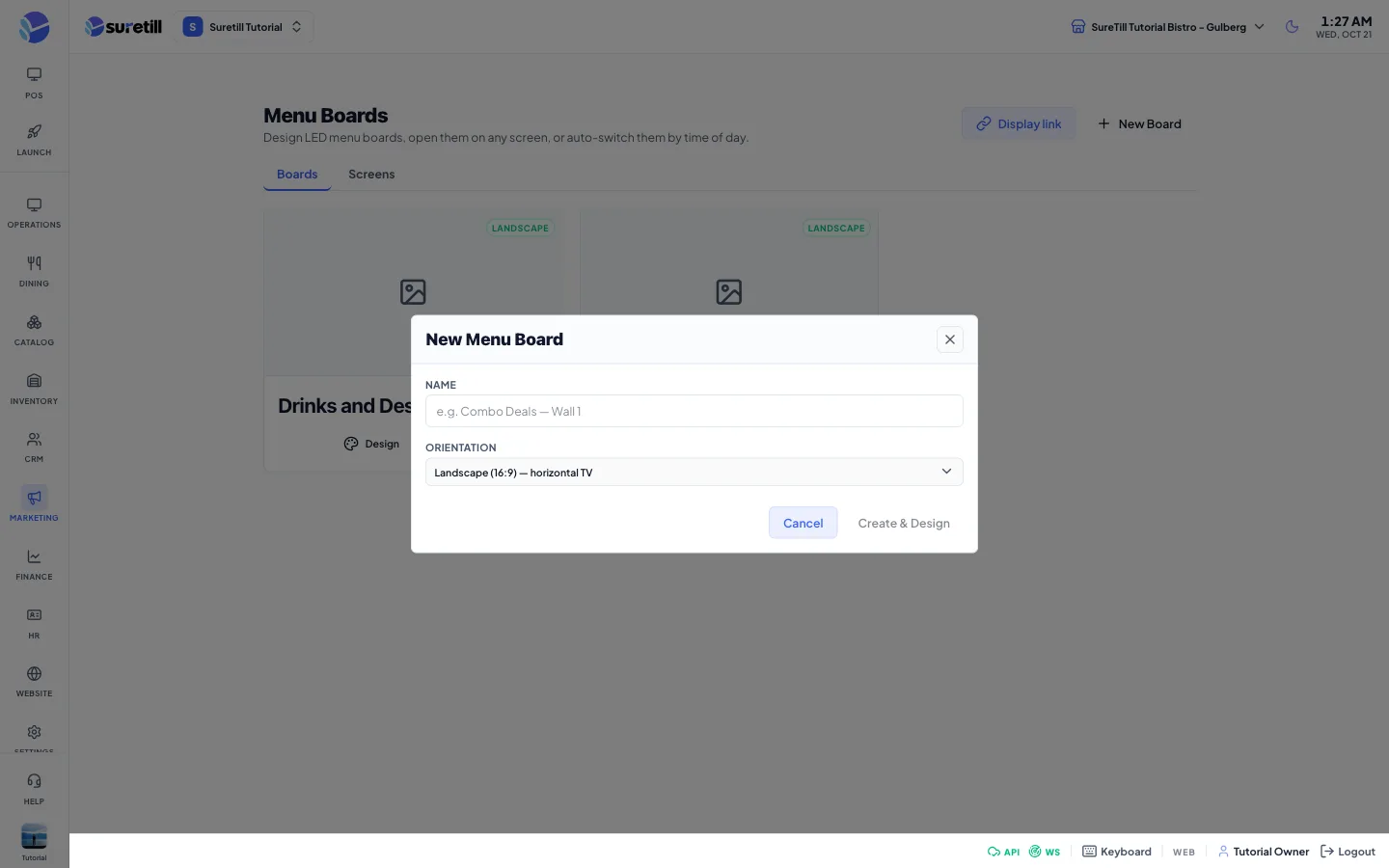
Section titled “Create a board”- Open Marketing > Menu Boards and click New Board.
- Type a Name, for example Combo Deals Wall 1.
- Pick the Orientation: Landscape (16:9) for a horizontal TV or Portrait (9:16) for a vertical TV.
- Click Create. The designer opens.
Design the board
Section titled “Design the board”- Click Background in the left bar and upload a poster (JPG, PNG or WebP) or a looping video (MP4 or WebM). The file can be up to 50 MB. It fills the board without being cropped.
- Click Menu items, search for a product and click it. Its name tag and price tag are dropped on the board.
- Drag each tag to its place on the poster. Use the corner handles to make it bigger or smaller and the round handle above it to turn it.
- Use the panel on the right to set the font, size, colour, background and more for the selected tag.
- Click Save in the top bar. Nothing is stored until you click Save.
- Click Preview to open the board in a new tab and check it.
Start from a template
Section titled “Start from a template”- In the Template library at the top of the Boards tab, click Use on a design. A copy is made and opens in the designer.
- To make your own template, open the three dots menu of a board and choose Save as template. The board moves to the Template library.
- Choose Share to library (or the people icon on a template) to share a template with all branches. Unshare takes it back.
Open, copy, duplicate or delete a board
Section titled “Open, copy, duplicate or delete a board”- Click the TV button on a card to open the board full screen in a new tab.
- Open the three dots menu for Copy display link, Duplicate, Save as template, Share to library and Delete board.
- Delete board asks you to confirm.
The designer
Section titled “The designer”The designer has a top bar, a left bar with six tools, a canvas in the middle and a properties panel on the right.
| Part | What it does |
|---|---|
| Back arrow and name | Go back to the list. Click the name to rename the board. |
| 16:9 / 9:16 | Switch the board between landscape and portrait. |
| Undo / Redo | Step back or forward through your last 60 changes. Ctrl or Cmd+Z undoes, Ctrl or Cmd+Shift+Z or Ctrl+Y redoes. |
| Zoom - + and Fit | Zoom the canvas from 25% to 300%. Fit returns to 100%. |
| Grid button | Snap to grid. When on, tags snap to half a percent steps. A blue guide line appears at the centre. |
| Preview | Opens the live display of this board in a new tab. |
| Save | Saves the name, the orientation and all the tags. |
| Add tool | Adds a Price, Item name, Free text, QR code, Calories, Kilojoules, Allergens or Dietary tag. Price, name and nutrition tags are tied to a product you choose. Free text and QR are free. |
| Elements tool | Food, drink and offer icons. Click one to drop it on the board as a sticker. |
| Stickers tool | A library of ready stickers such as NEW, SALE and HOT, plus your own. Upload adds your PNG, SVG, WebP or JPG for this branch. Share uploads it to the shared library for every branch (marked S). |
| Menu items tool | Search your active products. Click one to drop its name tag and price tag together. The list shows up to 300 matches. |
| Background tool | Upload the poster or video behind the tags. |
| Layers tool | All tags, front first. Click to select, lock or unlock, or delete. |
| Right panel: Menu item | Choose which product the tag shows. Use the search field above it to narrow the list. |
| Right panel: Currency prefix | For a Price tag, the symbol written before the price. The default is $, so change it to your own currency symbol. If the field is empty, $ is used. |
| Right panel: Text / QR link | The words of a Free text tag, or the web address a QR code opens. |
| Right panel: Font | A searchable list of fonts shown in their own style (display, sans, serif, script, mono and system). |
| Right panel: Size and Unit | Text size as a percent of the board height, or in pixels at 1080p. The plus and minus buttons nudge it. |
| Right panel: Weight and Align | Boldness from 400 to 900, and left, centre or right. |
| Right panel: Text colour and Background | Colour of the text, and an optional filled box behind it (add or clear). |
| Right panel: Rotation, Opacity, Letter spacing | Rotation from -180 to 180 degrees, opacity from 10% to 100%, and spacing between letters. |
| Right panel: Center horizontally / vertically | Puts the tag in the middle of the board on that axis. |
| Right panel: Text shadow | Adds a soft shadow behind the text or sticker. |
| Tag toolbar | Duplicate, Lock, Bring to front, Send to back, Delete. |
| Right-click on a tag | Duplicate, bring forward, send backward, lock, centre and delete. |
| Keyboard | Arrow keys move the selected tag by 0.5 (Shift: 2). Ctrl or Cmd+D duplicates. Backspace or Delete removes. Esc deselects. |
What each tag shows on the TV
Section titled “What each tag shows on the TV”| Tag | What the TV shows |
|---|---|
| Price | The product price with your prefix. It shows SOLD OUT when the product is switched off, when it tracks stock and none is left, or when it is switched off for the board’s branch. |
| Item name | The product name. |
| Calories | The calories stored on the product, for example 540 cal. |
| Kilojoules | The calories converted to kJ (calories x 4.184). |
| Allergens | Contains: followed by the allergens set on the product. Empty when there are none. |
| Dietary | Short codes from the product: VG vegan, V vegetarian, GF gluten free, HOT spicy. |
| Free text | The words you typed. |
| QR code | A QR code for the web address you typed. |
| Sticker | The picture you chose. |
Show a board on a TV
Section titled “Show a board on a TV”There are two ways. A display link works in any web browser and needs no pairing. A paired screen is managed from the Screens tab and works with the SureScreen TV app (see the SureScreen TV App article).
Display link
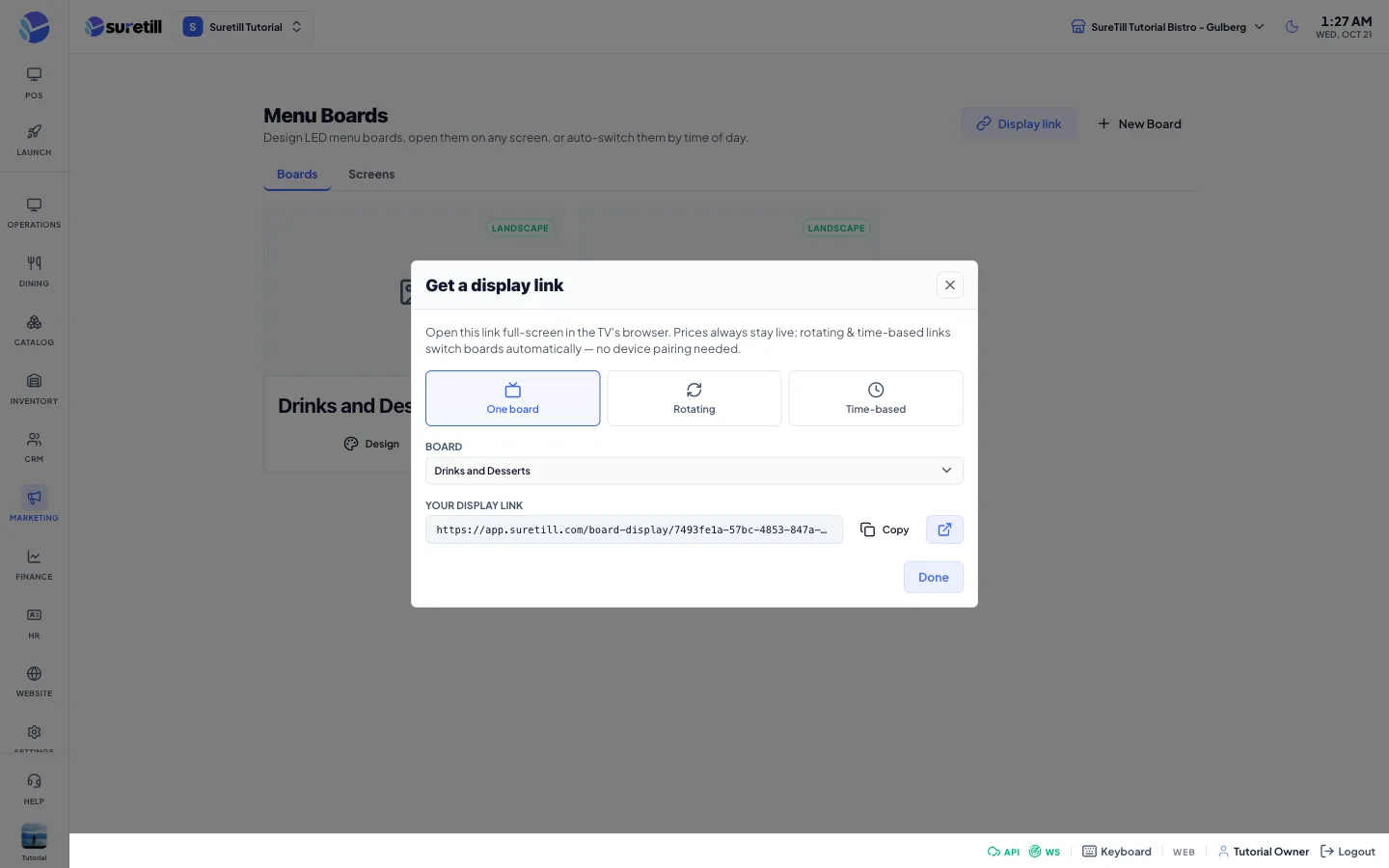
Section titled “Display link”- Click Display link at the top of the page.
- Pick One board, Rotating or Time-based.
- One board: choose the board.
- Rotating: tick the boards to rotate, in the order you tick them, and set Seconds each (at least 3).
- Time-based: pick a Timezone (or Device local time), then add one slot for each board with a start and end time, and choose the Default board used outside all slots.
- Click Copy and open the link in the TV browser. Use the full screen button that appears in the corner.
Screens tab
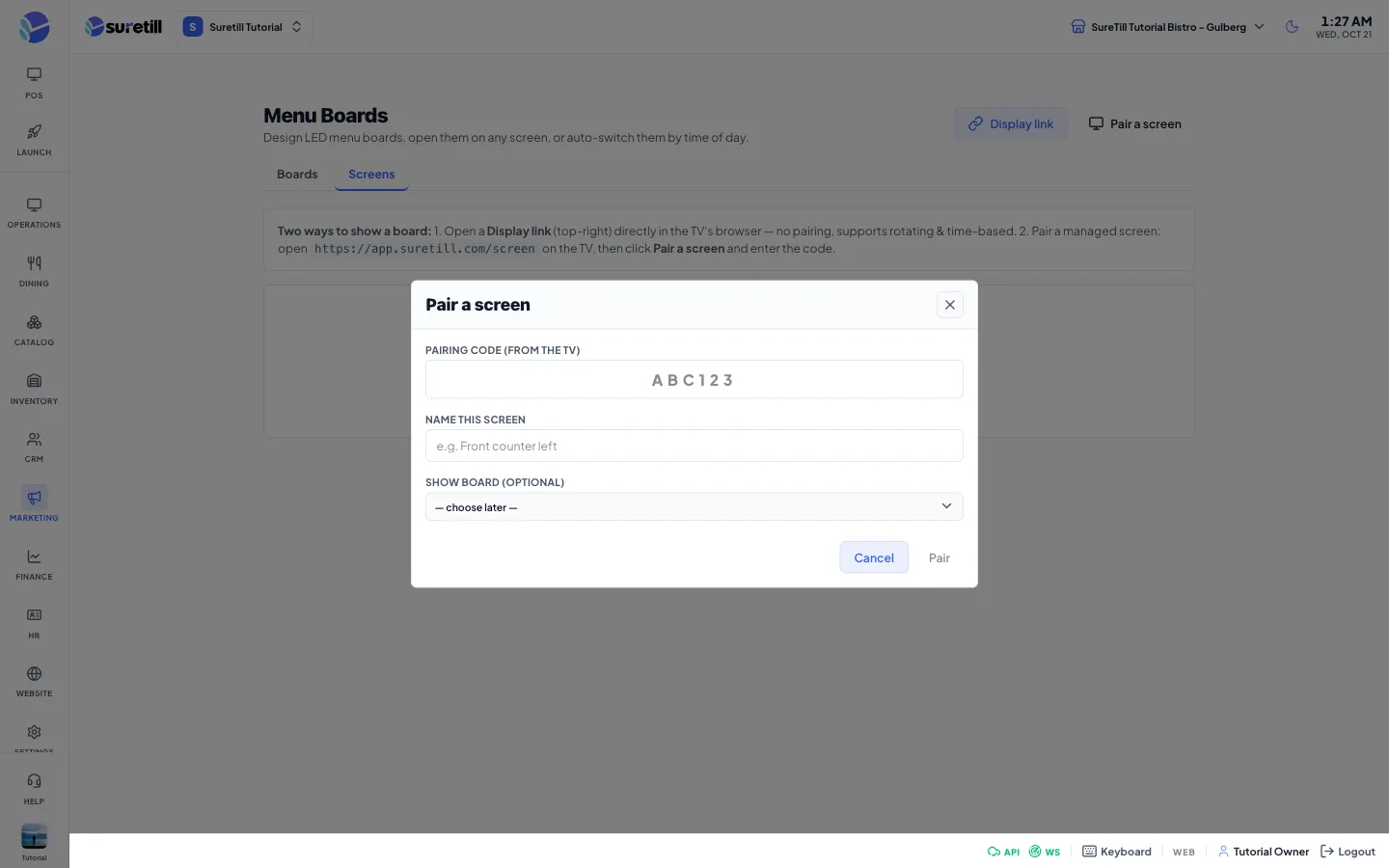
Section titled “Screens tab”- On the TV, open the SureScreen app (or the address shown in the grey card on this tab). The TV shows a pairing code.
- Open the Screens tab and click Pair a screen.
- Type the Pairing code from the TV. The Pair button needs at least 4 characters.
- Type a Name for the screen, for example Front counter left.
- Optionally choose the Show board. If you choose one, the screen shows that board right away.
- Click Pair. If it fails you see the reason the server gives, for example Invalid or expired code, or that your plan has no free screen place.
Configure a screen
Section titled “Configure a screen”- Click Configure on the screen card.
- Change the Name if needed.
- Pick the Mode: Single board, Playlist (rotate boards) or Schedule (time-based / dayparting).
- Single board: pick the Board.
- Playlist: tick the boards and set Seconds each (default 15, at least 3).
- Schedule: pick a Timezone, then add slots. Each slot has a board, a start time, an end time and the days of the week it applies to (Sun to Sat).
- Click Save.
For a schedule the TV uses the first slot that matches the day and time now, reading the list from the top. A slot that ends before it starts, such as 22:00 to 02:00, runs over midnight. When no slot matches, the board of the first slot is shown. If you leave the timezone empty, the screen uses the branch timezone, then the server timezone. A TV asks for fresh content about every 15 seconds.
Unpair a screen
Section titled “Unpair a screen”- Click the red button on the screen card and confirm Unpair screen.
- The screen is removed from the list and frees one place on your plan. To use that TV again, get a new pairing code from its menu.
Every setting explained
Section titled “Every setting explained”| Setting | What it does |
|---|---|
| Display link | Builds a link for one board, a rotation or a time-based plan. |
| New Board | Creates a board (name up to 120 characters, orientation). |
| Pair a screen | Shown on the Screens tab. Pairs a TV by its code. |
| Boards / screens tabs | Switch between the board list and the screen list. |
| Template library | Boards marked as templates, yours and the ones shared by other branches. Use makes a copy. The people button shares or unshares. |
| Board card | Poster picture, name, orientation badge and the buttons Design, open display and the menu. The badge is green when the board is published. |
| Menu: Copy display link | Copies the link of this board. |
| Menu: Duplicate | Makes a copy with the same layout and poster. The copy opens in the designer. |
| Menu: Save as template / Remove from templates | Moves the board into or out of the Template library. |
| Menu: Share to library / Unshare from library | Makes a template visible to all branches, or private again. |
| Menu: Delete board | Deletes the board after you confirm. |
| Screen card | Name, mode badge and what it shows: the board name, the number of boards rotating, or the number of time slots. |
| Pairing code | Up to 6 characters, capital letters and numbers. |
| Mode | Single board, Playlist or Schedule. |
| Seconds each | How long each board stays on a playlist or rotation. Minimum 3. |
| Timezone | The clock used for time-based plans. Empty uses the device clock for display links, and the branch clock for paired screens. |
| Slot days | The days of the week a schedule slot is active. |