

Security settings: two-factor authentication
Where: Settings > General Settings > Security
Who can use it: Sidebar permission: settings.view or manage settings. No plan or add-on is needed.
Open this page in SureTill
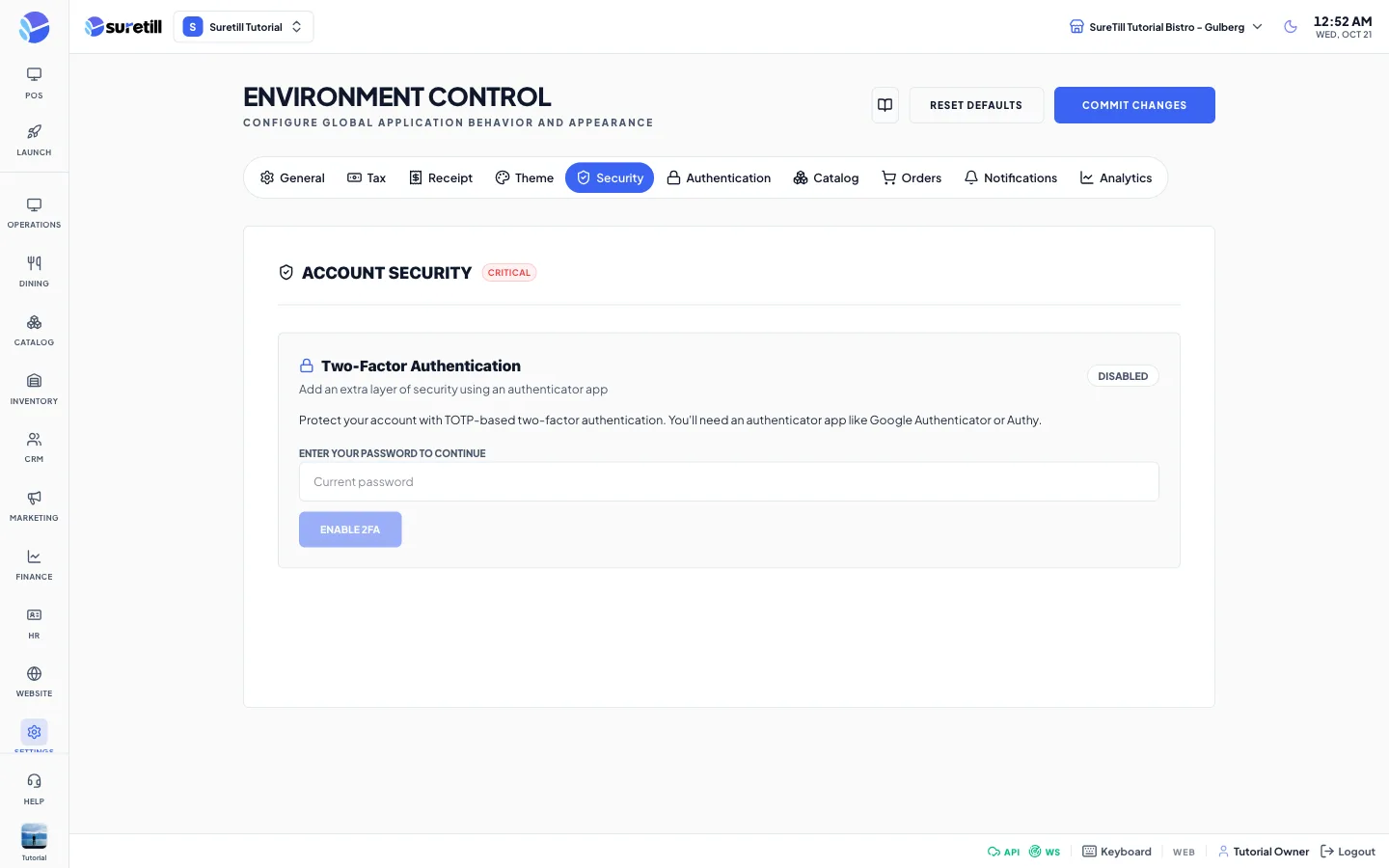
The Security tab is titled Account Security. It manages two-factor authentication (2FA) for the account you are signed in with. It uses a time-based code from an authenticator app such as Google Authenticator or Authy. A badge on the card shows Enabled or Disabled.
Step by step: turn on two-factor authentication
Section titled “Step by step: turn on two-factor authentication”- Open Settings > General Settings and click the Security tab.
- Type your current password in the field Enter your password to continue.
- Click Enable 2FA.
- Step 1: scan the QR code with your authenticator app. If you cannot scan, type the secret key shown under Manual Entry.
- Step 2: type the 6-digit code from the app and click Confirm & Enable. The button stays disabled until you type six digits.
- Recovery codes are shown. Click Copy All Codes, store them somewhere safe, then click I’ve Saved My Codes.
Step by step: get new recovery codes
Section titled “Step by step: get new recovery codes”- With 2FA on, find the Recovery Codes block and click Regenerate Codes.
- Type your password in the box that opens.
- Copy the new codes and store them safely.
Step by step: turn two-factor authentication off
Section titled “Step by step: turn two-factor authentication off”- Click Disable Two-Factor Auth.
- In Confirm Disabling 2FA, type your Password and the 6-digit Authenticator Code.
- Click Confirm Disable. The message 2FA Disabled confirms it.
Every setting explained
Section titled “Every setting explained”| Setting | What it does |
|---|---|
| Status badge | Enabled or Disabled for your account. |
| Enter your password to continue | Your current password. Needed to start enabling 2FA. |
| Enable 2FA | Starts the setup and shows the QR code. Disabled until you type a password. |
| QR code and Manual Entry | The QR code and the secret key to register the account in your authenticator app. |
| 6-digit code | The code from the app. Only digits are accepted and the field stops at six. |
| Cancel | Leaves the setup without turning 2FA on. |
| Confirm & Enable | Checks the code and turns 2FA on. |
| Recovery codes list | One-time codes you can use if you lose the authenticator app. Each code works once. |
| Copy All Codes | Copies the codes to the clipboard. |
| Regenerate Codes | Creates a new set after you type your password. |
| Disable Two-Factor Auth | Opens the disable form. It needs your password and a current code. |