

Kiosk Mode
Where: Dining > Kiosk Mode
Who can use it: Permission: settings.view or manage settings. Not available on SureScreen plans.
Open this page in SureTill
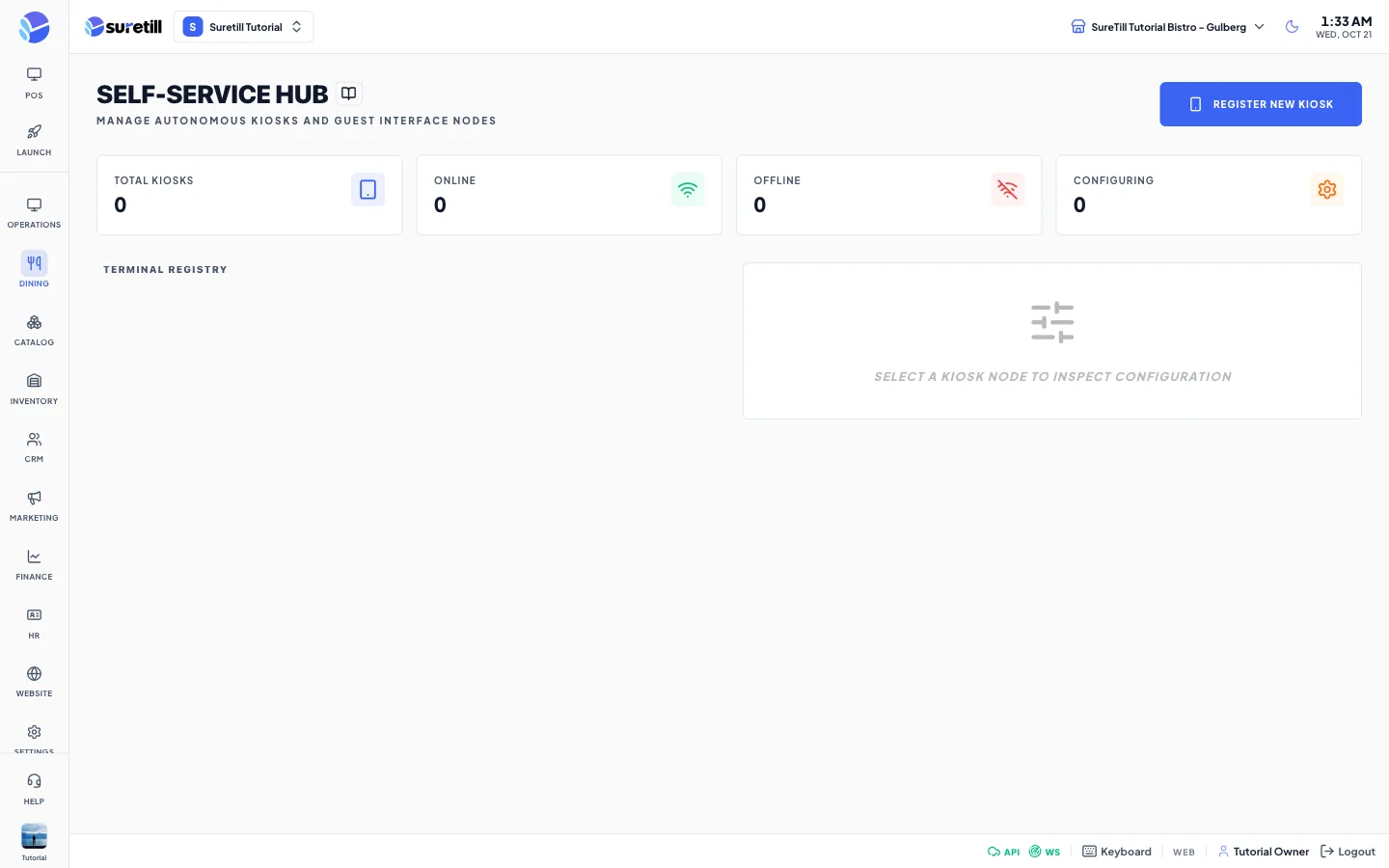
The page is called Self-Service Hub. It is meant to keep track of the self-order kiosks in a branch: a card for each kiosk, four counters and a detail panel.
Step by step
Section titled “Step by step”Register a kiosk
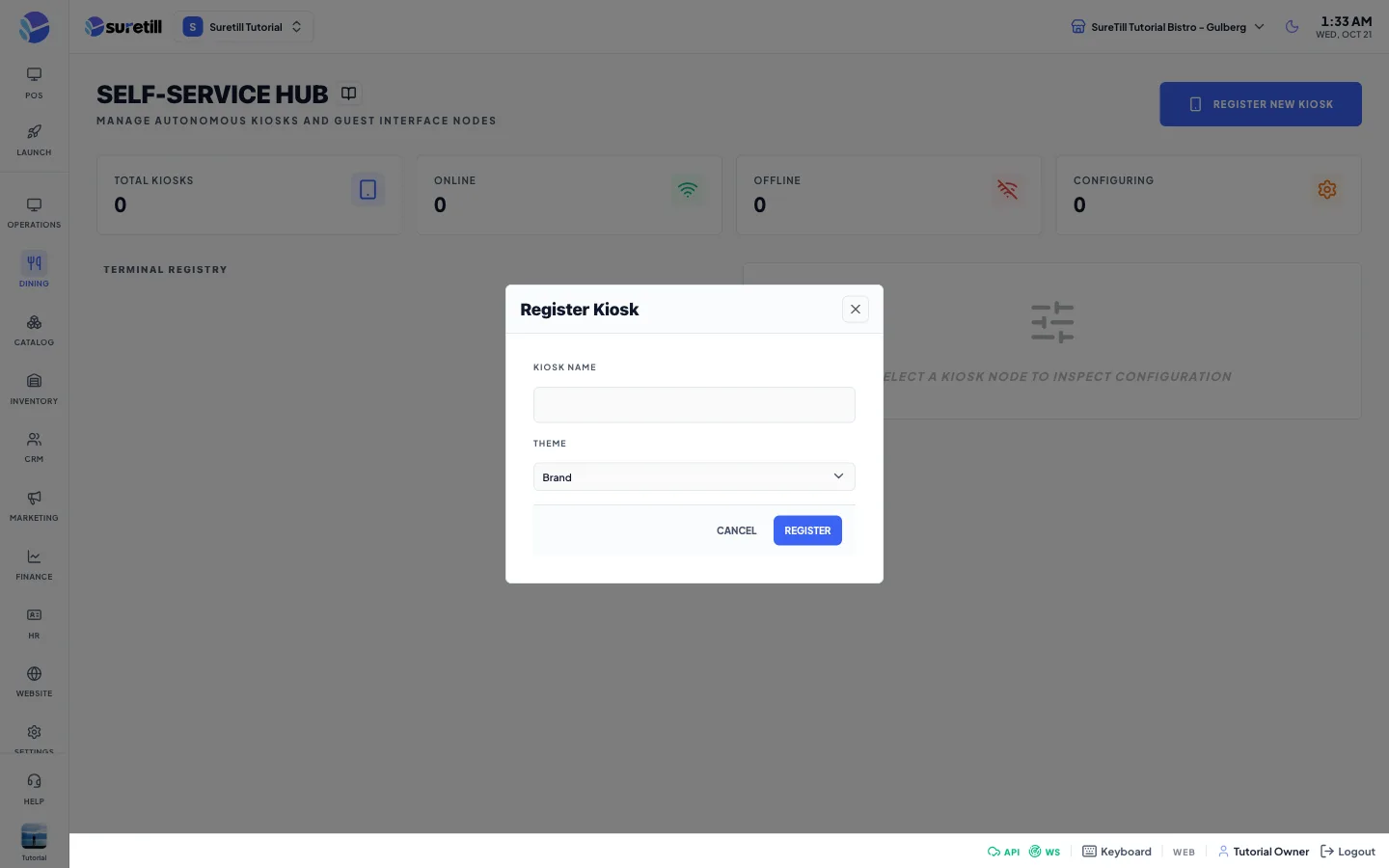
Section titled “Register a kiosk”- Click Register New Kiosk.
- Type the Kiosk Name.
- Choose a Theme: Light, Dark or Brand.
- Click Register.
Look at a kiosk
Section titled “Look at a kiosk”- Click a kiosk card in the Terminal Registry.
- The panel on the right shows the name, the app version (Core) and the theme.
Remove a kiosk
Section titled “Remove a kiosk”- Select the kiosk.
- Click Delete Kiosk and confirm Remove Kiosk.
Every setting explained
Section titled “Every setting explained”| Setting | What it does |
|---|---|
| Register New Kiosk | Opens the form to add a kiosk. |
| Total Kiosks | Counter: all kiosks of the branch. |
| Online | Counter: kiosks with the status Online. |
| Offline | Counter: kiosks with the status Offline. |
| Configuring | Counter: kiosks with the status Configuring. |
| Kiosk card | Name, status badge and the time of the last sync (Never when none). |
| Card switch | On/off switch on the card. It only changes what you see on this page and is not saved. |
| Interface Theme Profile | Shows Light, Dark or Brand for the selected kiosk. The three buttons are display only at the moment. |
| Menu Re-sync | Meant to push the menu to the kiosk. Not connected yet. |
| Device Reset | Meant to wipe the kiosk cache after a confirmation. Not connected yet. |
| Commit Device Protocol | Has no action yet. |
| Delete Kiosk | Removes the kiosk from the register. |
| Kiosk Name (form) | Required. Up to 255 characters. |
| Theme (form) | Light, Dark or Brand. Default Brand. |
The server side has kiosk endpoints for the menu, orders, coupons, payment and receipt printing. They are reserved for the kiosk app and are blocked for SureScreen plans.