

Entity Types
Where: Settings > Entity Types
Who can use it: Sidebar permission: settings.update or manage settings.
Open this page in SureTill
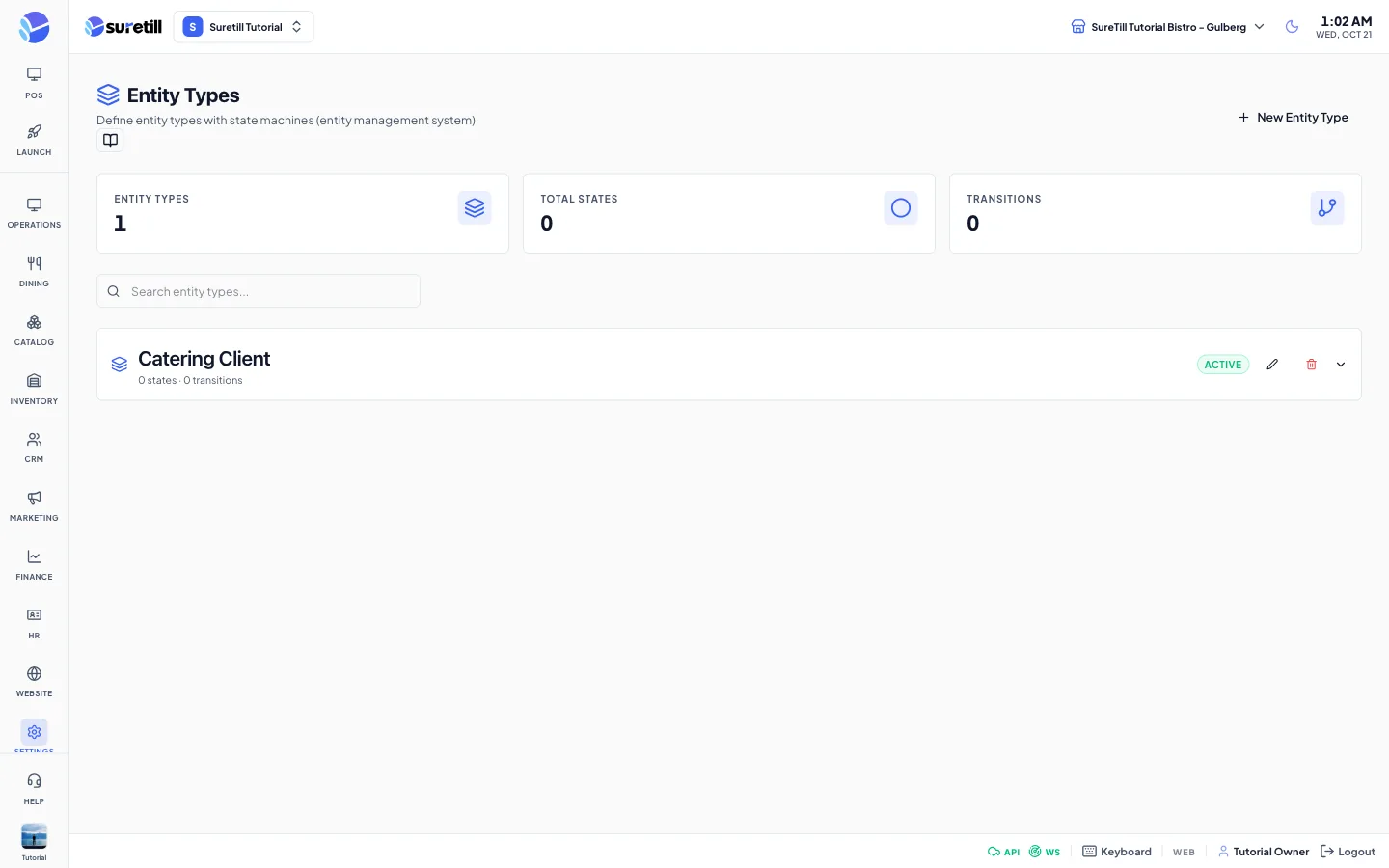
An entity type is a template for a kind of record, with a list of states it can be in. For example a Table type could have the states Available, Busy and Cleaning. Ticket Types can require entity types. The page shows three counters: Entity Types, Total States and Transitions.
Step by step: create an entity type with states
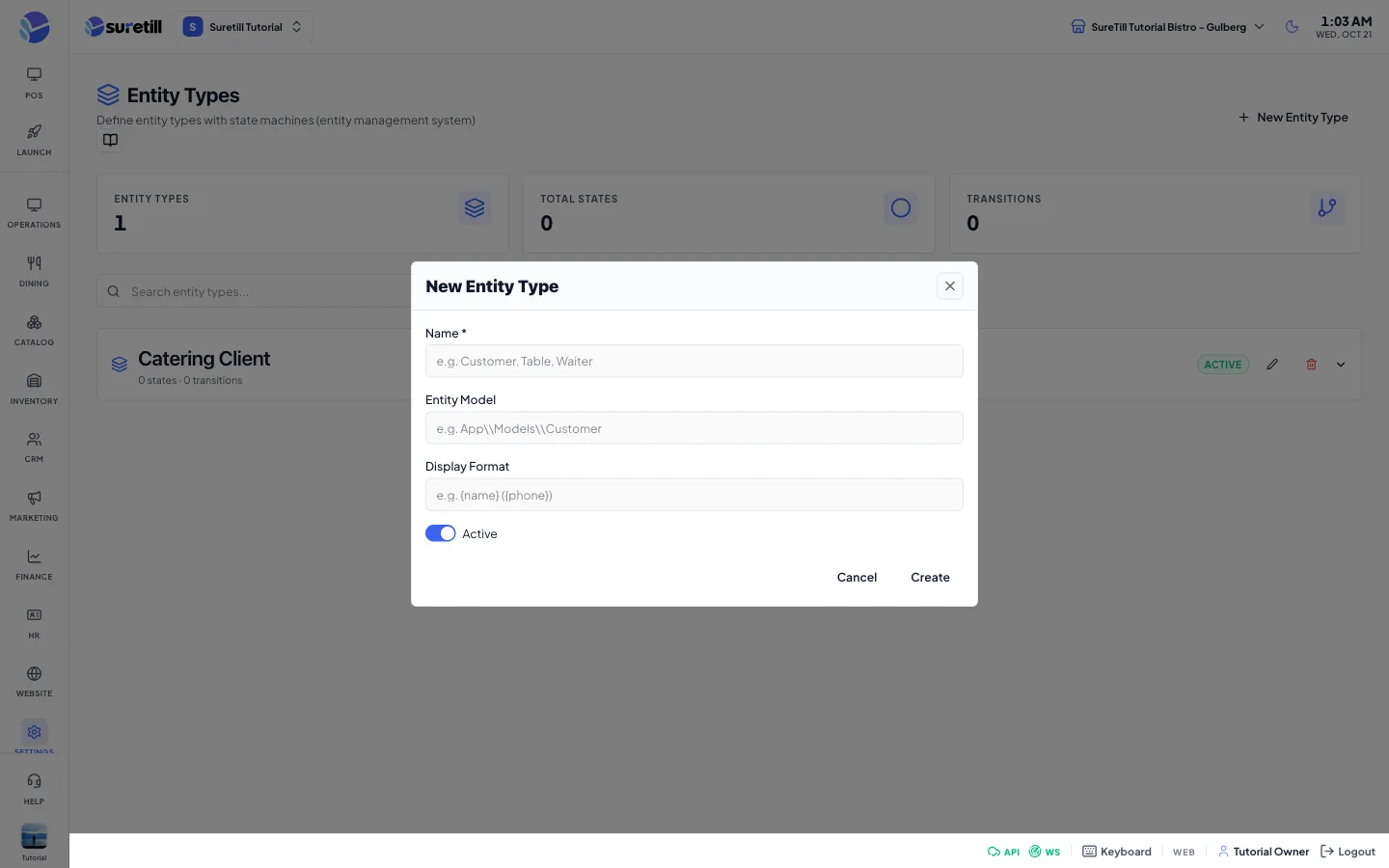
Section titled “Step by step: create an entity type with states”- Open Settings > Entity Types and click New Entity Type.
- Type the Name, for example Waiter or Table.
- Optionally type the Entity Model and the Display Format.
- Keep Active on and click Create.
- Click the new type to expand it, then click Add State.
- Type the state Name, choose the Color and click Create. Repeat for each state.
Step by step: change or delete
Section titled “Step by step: change or delete”- Edit a type: click the pencil icon on its row.
- Delete a type: click the bin icon and confirm. The type and all its states are deleted.
- Edit a state: expand the type and click the pencil icon on the state.
- Delete a state: click the bin icon on the state and confirm.
Every setting explained
Section titled “Every setting explained”| Setting | What it does |
|---|---|
| Search box | Filters the types by name. |
| Type row | Shows the name, the number of states and transitions, the model if one is set, and an Active or Inactive badge. Click it to expand. |
| Name (type) | Required. The system makes a unique short name from it for internal use. |
| Entity Model | Optional. The data model the type refers to, for example App\Models\Customer. |
| Display Format | Optional. Meant for a text pattern such as {name} ({phone}). The text is saved as a template and shown again when you edit the type. |
| Active (type) | Switch. Default: on. |
| States list | Each state shows a color dot, its name and a Default badge. |
| Name (state) | Required. |
| Color | A color picker. Default: #3b82f6. |
| Sort Order | A whole number. Default: 0. |
| Icon (Lucide name) | Optional icon name such as circle, check or x. |
| Default State | Switch. Marks the default state of the type. Turning it on for a state removes the mark from the other states of the same type. |
| Transitions | A read-only list of allowed moves from one state to another, with an Auto badge and the trigger event when they exist. This page does not create transitions. |